
Introduzione
This manual provides essential information for the proper use and maintenance of your Casio fx-CG100 ClassWiz Color Graphing Calculator. The fx-CG100 is an advanced graphing calculator designed for a wide range of mathematical and scientific applications, featuring a high-resolution color display and support for 3D graphing and MicroPython programming.

The Casio fx-CG100 ClassWiz calculator, shown with its protective slide cover.
Impostare
1. Installazione della batteria
The Casio fx-CG100 ClassWiz calculator requires four AAA batteries for operation. These batteries are typically included with the product.
- Assicurarsi che la calcolatrice sia spenta.
- Slide off the back cover of the calculator.
- Insert four AAA batteries, ensuring correct polarity (+/-) as indicated inside the battery compartment.
- Riposizionare il coperchio posteriore, assicurandosi che scatti saldamente in posizione.

View of the calculator's back with the battery compartment open, illustrating proper battery placement.
2. Accensione iniziale e impostazioni
Premere il tasto ON button to power on the calculator. Upon first use, you may be prompted to select a language and adjust display contrast. Follow the on-screen instructions.
3. Emulator Information
A free emulator for the fx-CG100 ClassWiz is available online. This can be a useful tool for learning and practice.
Access the Free Emulator at classpad.net

The Casio fx-CG100 ClassWiz emulator interface, demonstrating its graphical capabilities and menu structure.
Istruzioni per l'uso
1. Navigazione e interfaccia di base
The calculator features a tab-based menu layout and glyph-based key labeling for intuitive navigation. Use the directional keys and the OK button to select options. The MENU key provides access to various applications.
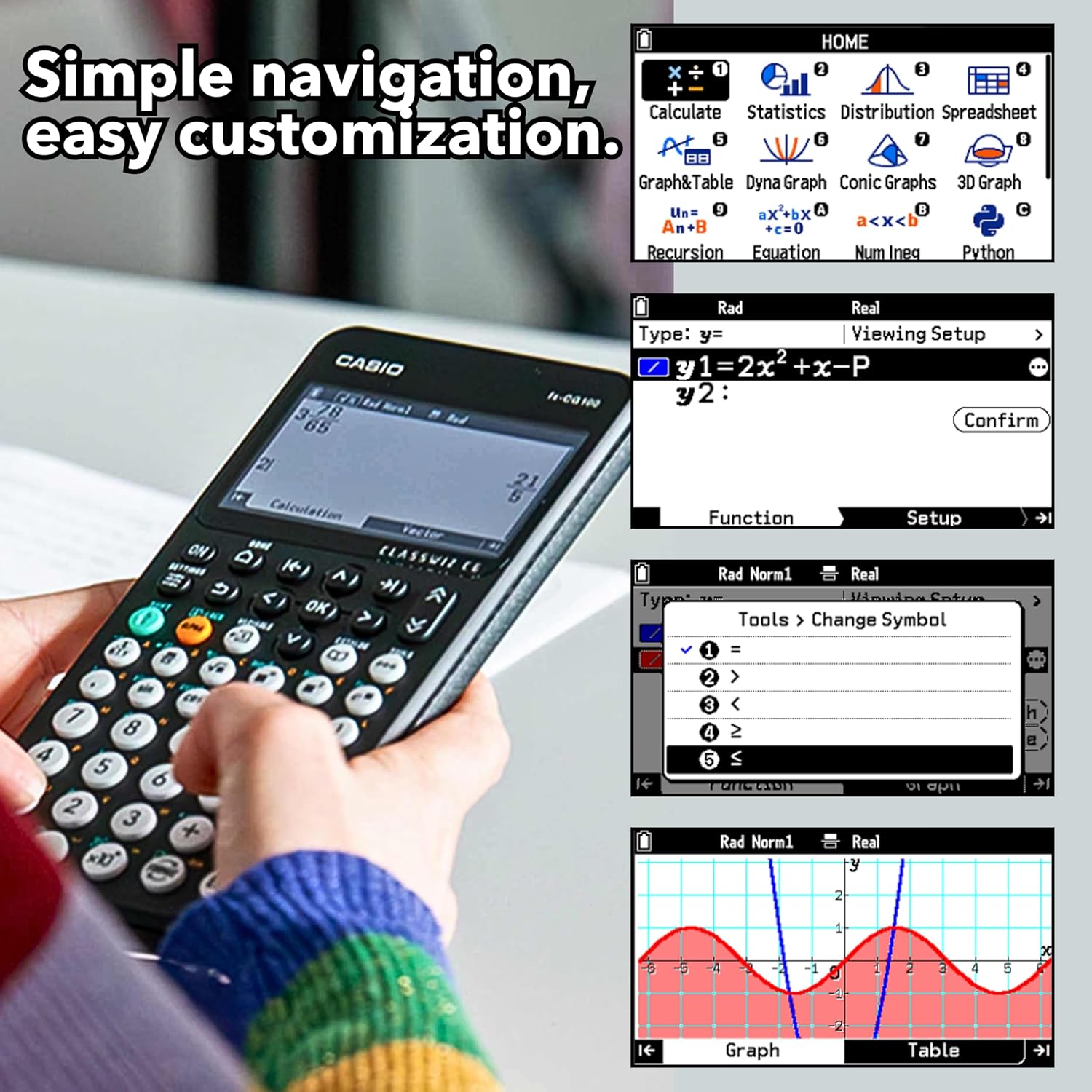
The calculator's home screen, displaying icons for different functions like Calculate, Statistics, Graph & Table, and 3D Graph.
2. Funzioni grafiche
The fx-CG100 supports 2D and 3D graphing. Its high-resolution color display allows for clear visualization of graphs, including spheres, cylinders, and planes.
- To graph a function, select the Grafico e tabella applicazione dal menu principale.
- Enter your desired function(s) and press EXE.
- Selezionare Grafico to display the plot.
- Utilizzare il SPOSTARE + F5 (G-SOLV) function to find roots, intersections, and other key points on your graph.
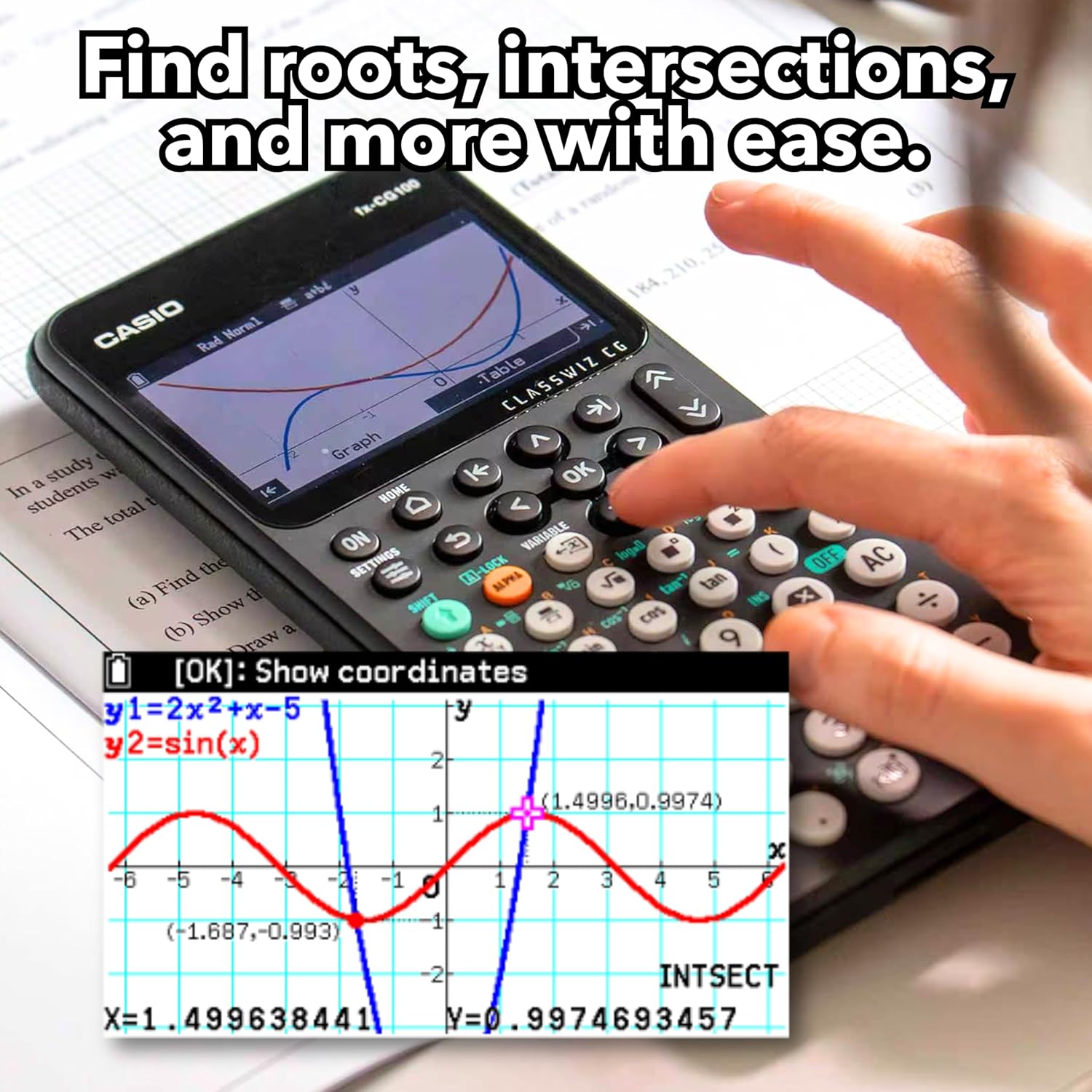
A graph showing two functions intersecting, with the coordinates of the intersection point displayed.
3. Advanced Math Functions
The calculator can perform complex number calculations, polar and rectilinear graphing, simultaneous equations, dynamic graphing, matrix/vector operations, geometry, and statistics.
4. MicroPython Integration
The fx-CG100 includes built-in MicroPython, allowing users to learn programming directly on the calculator. This feature supports algorithmic thinking and aligns with modern curriculum standards. Data and programs can be transferred via USB.
5. Exam Mode
The calculator features a built-in Exam Mode, accessible from the home screen. This mode restricts certain functions to comply with standardized testing regulations. It is approved for use on AP, SAT, PSAT, and ACT exams.
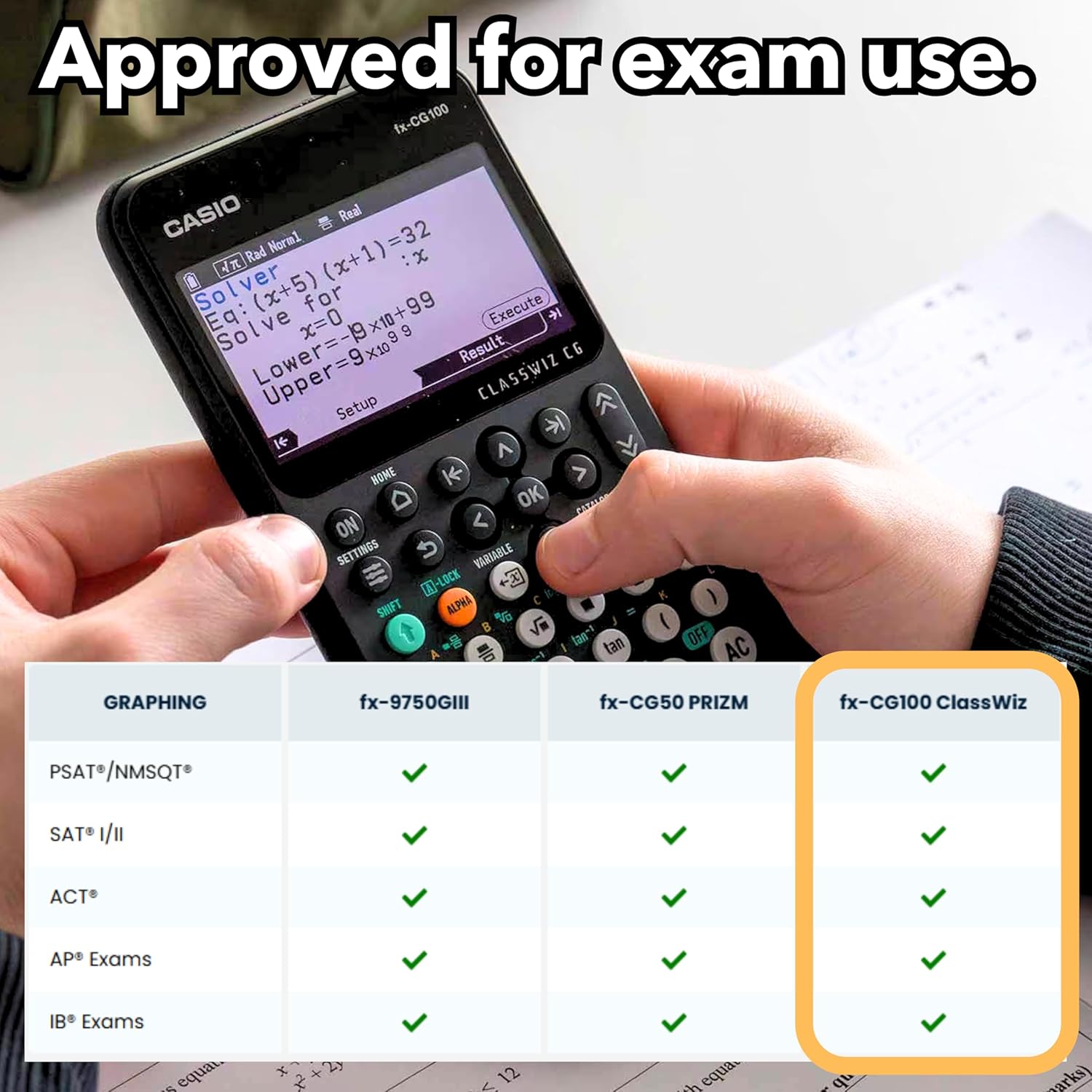
The calculator in use, with a chart indicating its approval for various exams including PSAT, SAT, ACT, AP, and IB.
Manutenzione
1. Pulizia
To clean the calculator, wipe the exterior surfaces with a soft, dry cloth. For stubborn dirt, slightly dampimmergi il panno con acqua. Evita di usare prodotti chimici aggressivi, detergenti abrasivi o solventi, poiché potrebbero danneggiare il display o il casing.
2. Sostituzione della batteria
When the display becomes dim or the calculator behaves erratically, it may be time to replace the batteries. Refer to the Impostare section for instructions on battery installation.
3. Conservazione
Store the calculator in a cool, dry place away from direct sunlight and extreme temperatures. Always use the protective slide cover when not in use to prevent damage to the screen and keys.
Risoluzione dei problemi
La calcolatrice non si accende
- Controllare che le batterie siano installate correttamente e con la polarità corretta.
- Sostituire le batterie con nuove batterie AAA.
- Assicurare il ON il pulsante è premuto con decisione.
Il display è scuro o poco chiaro
- Adjust the display contrast in the calculator's settings menu.
- Sostituire le batterie se sono scariche.
Calculator Freezes or Malfunctions
- Premere il tasto RESET button located on the back of the calculator (requires a thin, pointed object like a paperclip). Note that this will clear all memory.
- Remove and reinsert the batteries to perform a hard reset.
Specifiche
| Caratteristica | Dettaglio |
|---|---|
| Marca | Casio |
| Nome del modello | fxcg100 graphing calculator |
| Tipo di calcolatrice | Grafica |
| Colore | Nero |
| Fonte di alimentazione | Alimentato a batteria |
| Numero di batterie | Sono necessarie 4 batterie AAA (incluse) |
| Dimensioni dello schermo | 3.7 pollici |
| Tipo di visualizzazione | LCD |
| Materiale di recinzione | Plastica |
| Dimensioni dell'articolo (L x P) | 8.86"L x 3.62"W |
| Peso dell'articolo | 0.5 libbre |
| Codice UPC | 889232619033 |
| Numero parte produttore | FX-CG100 |
Garanzia
The Casio fx-CG100 ClassWiz Color Graphing Calculator comes with a Garanzia limitata di un anno. Please retain your proof of purchase for warranty claims. For detailed terms and conditions, refer to the warranty card included with your product or visit the official Casio websito.
Supporto
For further assistance, technical support, or to download additional resources such as software updates or detailed manuals, please visit the official Casio support websito:
Supporto ufficiale Casio Websito
You may also contact Casio customer service directly for personalized support.