
1. Introduzione
This manual provides instructions for the Tenveo PTZ NDI Camera with AI Auto Tracking. This camera is designed for professional videoconferencing and live streaming applications, offering high-quality video capture and advanced features for various environments.
Le caratteristiche principali includono:
- Full HD 1080P resolution at 60 frames per second (FPS)
- 20x optical zoom for detailed imaging
- AI-powered humanoid and face auto-tracking
- Multiple video output interfaces: USB3.0, HDMI, and LAN with Power over Ethernet (PoE) support
- NDI protocol support for low-latency IP-based production workflows

Immagine 1.1: Passoview of Tenveo PTZ NDI Camera features, including 20x zoom, AI tracking, NDI, PoE, USB3.0/HDMI/LAN, 1080P 60FPS, and 61-degree field of view.
2. Impostazione
2.1. Contenuto della confezione
Verificare che tutti gli articoli siano presenti nel pacco:
- Tenveo PTZ NDI Camera
- Telecomando IR
- Montaggio a parete
- Cavo USB3.0
- Adattatore di alimentazione 12V 2A
- Viti di montaggio
- Manuale dell'utente (questo documento)
2.2. Metodi di installazione
The PTZ camera supports various installation methods to suit different environments:
- Montaggio su scrivania: Posizionare la fotocamera su una superficie piana e stabile.
- Montaggio a parete: Use the provided wall mount and screws to secure the camera to a wall.
- Montaggio a soffitto: Attach the camera to the ceiling using appropriate mounting hardware (not always included, check specific model).
- Montaggio del treppiede: The camera can be mounted on a standard tripod for portable setups.

Image 2.1: Illustration of various installation methods: wall, ceiling, desktop, and tripod mounting.
2.3. Collegamento della fotocamera
La telecamera offre molteplici opzioni di connettività:
- Collegamento elettrico: Connect the 12V 2A power adapter to the camera's power input. Alternatively, if using a PoE-enabled network, connect an Ethernet cable from a PoE switch to the camera's LAN port.
- Connessione USB3.0: Connect the provided USB3.0 cable from the camera to your computer for direct video and control.
- Connessione HDMI: Connect an HDMI cable from the camera to a display or video mixer.
- LAN Connection (IP/NDI): Connect an Ethernet cable from the camera's LAN port to your network router or switch. This enables IP streaming, NDI streaming, and IP control.

Image 2.2: Diagram illustrating easy plug-and-play installation: connecting to a local network with PoE, accessing the camera's IP address, and live streaming via OBS, vMix, YouTube, or Facebook.

Image 2.3: Diagram showing the camera's multiple connection interfaces including power, USB3.0, HDMI, and LAN, and how they integrate into a streaming setup with a joystick controller and display devices.
3. Istruzioni per l'uso
3.1. Controllo PTZ (Panoramica, Inclinazione, Zoom)
The camera features pan, tilt, and zoom capabilities. Pan allows horizontal movement, tilt allows vertical movement, and zoom adjusts the focal length. The 20x optical zoom provides clear magnification without loss of quality.

Image 3.1: The camera's 20x optical zoom and pan (350°) and tilt (180°) capabilities, shown in a church setting.
3.2. Monitoraggio automatico dell'intelligenza artificiale
The camera incorporates advanced AI algorithms for humanoid and face auto-tracking, ensuring subjects remain centered and in focus during movement. This feature supports both Presenter mode and Auto Cropping.
- Modalità Presentatore: Tracks a single designated speaker.
- Auto Cropping: Automatically adjusts the frame to keep the subject optimally positioned.
- Uninterrupted Tracking: Maintains smooth tracking even if the target is temporarily obscured or moves quickly.
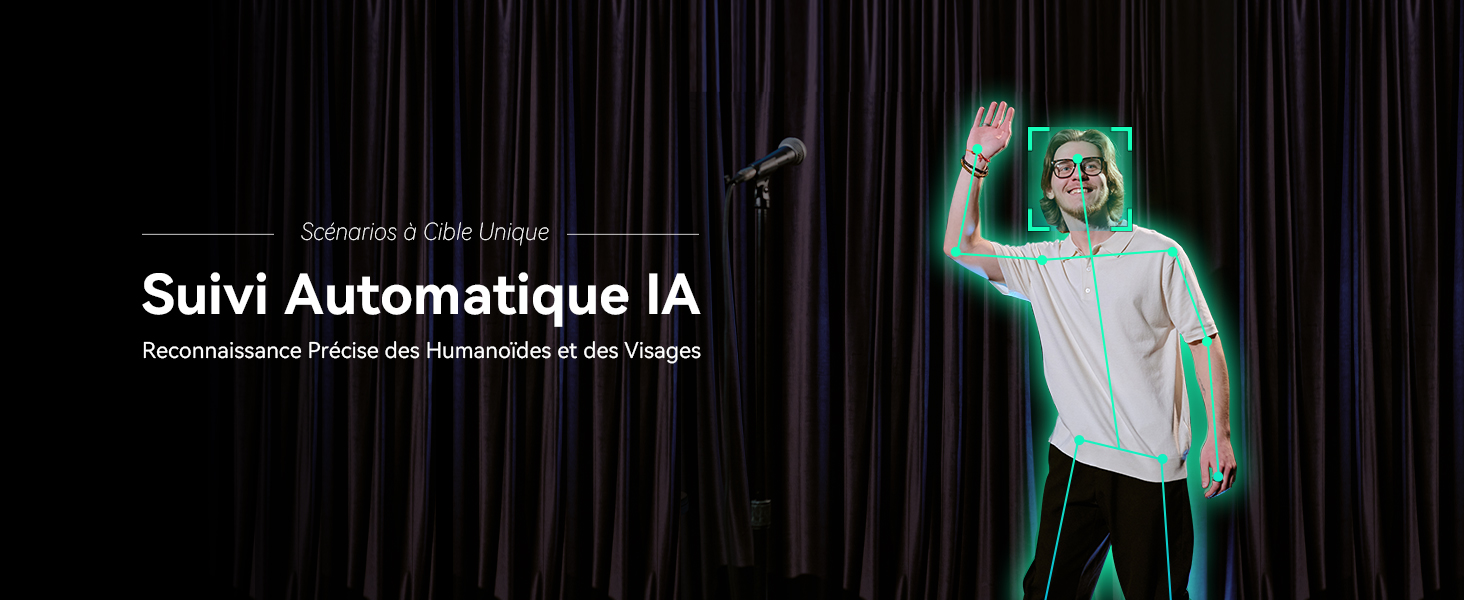
Image 3.2: Illustration of AI Auto Tracking with precise humanoid and face recognition.
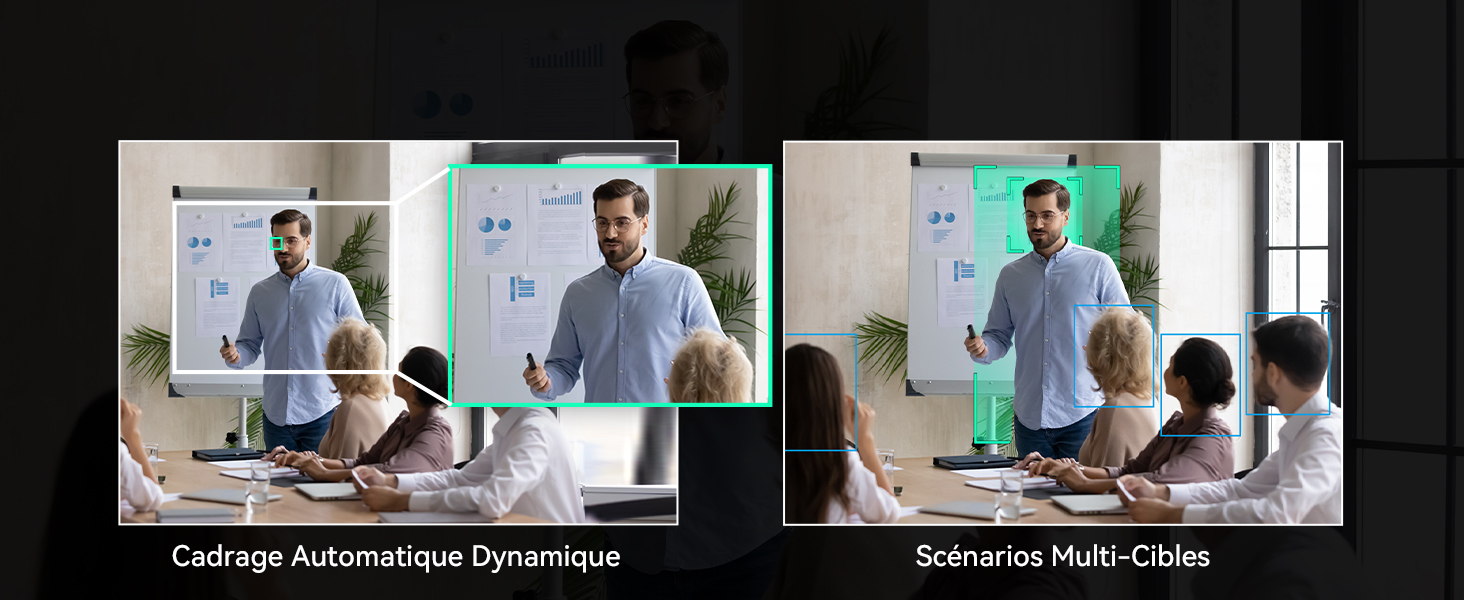
Image 3.3: Comparison of Dynamic Auto Framing for a single target and Multi-Target Scenarios, showing how the camera adapts its framing.
3.3. Metodi di controllo
The camera can be controlled via the included IR remote control or a web interfaccia.
3.3.1. Controllo remoto
Use the IR remote control to manage PTZ functions, AI tracking, and other camera settings.
- Inquadratura automatica: Press the dedicated button to activate/deactivate auto framing.
- Activate AI Tracking: Briefly press the AI button, then select the target (if multiple are present), and confirm.
- Deactivate AI Tracking: Briefly press the auto framing button to exit tracking, or press the AI button directly to disable AI (returns to normal mode).
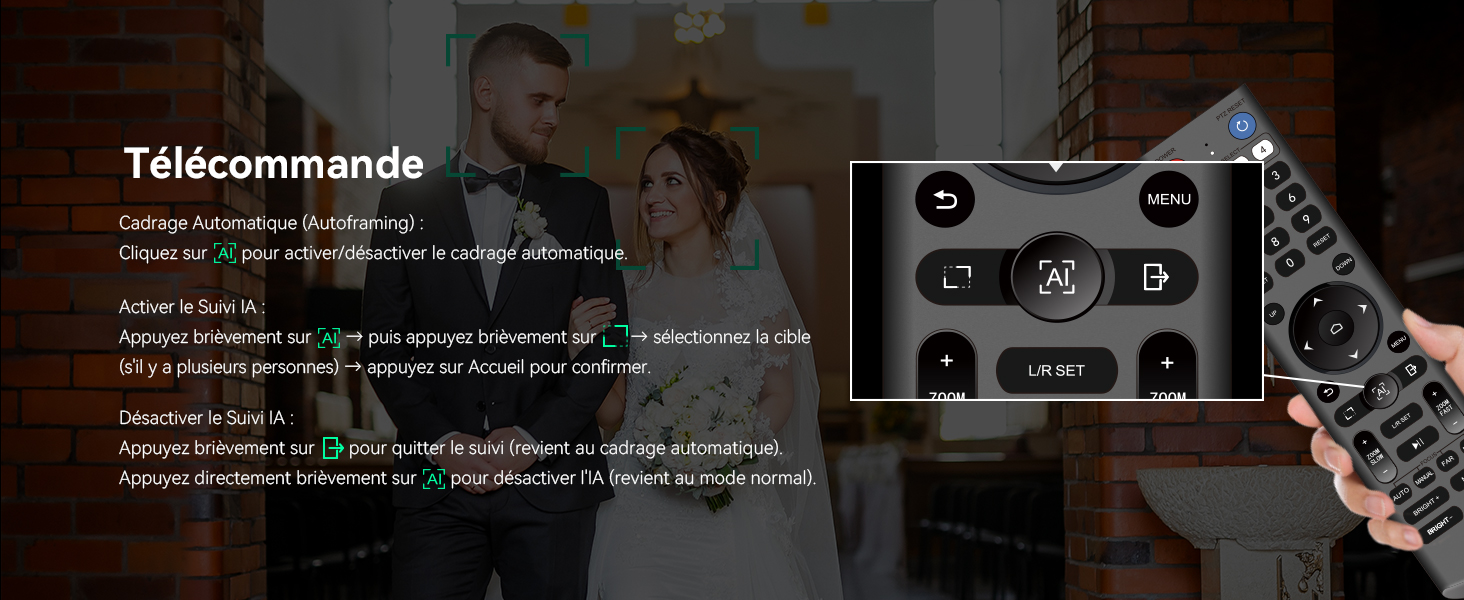
Image 3.4: The IR remote control, highlighting buttons for auto framing and AI tracking activation/deactivation.
3.3.2. Web Controllo dell'interfaccia
Accedi alla fotocamera web interfaccia inserendo il suo indirizzo IP in a web browser. The interface allows for comprehensive control over PTZ movements, tracking modes, image settings, and network configurations.

Immagine 3.5: Screenshot del web interface for controlling the camera, showing options for tracking, PTZ, and various settings.
3.4. Live Streaming and Connectivity
The camera supports various streaming protocols and integrates with popular platforms:
- NDI Protocol: Enables low-latency, high-quality video streaming and PTZ control over IP networks.
- RTMP, RTSP, SRT: Compatible with these protocols for direct broadcasting to platforms like YouTube, Facebook, OBS, vMix, and more.
- Multi-Camera Synchronization: Supports multi-camera setups for complex productions, compatible with video mixers and Tenveo PTZ controllers.

Image 3.6: System diagram showing the Tenveo NDI AI-Tracking PTZ Camera connected via HDMI to a Blackmagic ATEM, USB3.0 to a computer, and LAN for IP control and streaming (RTSP, RTMP, NDI) to various platforms like Zoom, Google Meet, Webex, and YouTube.
4. Manutenzione
To ensure optimal performance and longevity of your Tenveo PTZ NDI Camera, follow these maintenance guidelines:
- Pulizia: Gently wipe the camera lens with a soft, dry, lint-free cloth. For the camera body, use a slightly damp cloth and avoid harsh chemicals or abrasive materials.
- Ambiente: Utilizzare e conservare la fotocamera in un ambiente pulito e asciutto, lontano da temperature estreme, umidità e luce solare diretta.
- Gestione: Avoid dropping or subjecting the camera to strong impacts. When adjusting manually, do so gently.
- Energia: Always use the provided power adapter or a compatible PoE switch to prevent electrical damage.
5. Risoluzione Dei Problemi
If you encounter issues with your Tenveo PTZ NDI Camera, consider the following basic troubleshooting steps:
- Nessun potere: Ensure the power adapter is securely connected to both the camera and a working power outlet, or that the PoE switch is active and providing power through the Ethernet cable.
- Nessuna uscita video: Check all video cable connections (USB, HDMI, LAN). Verify that the correct input source is selected on your display or video mixer. Ensure drivers are installed for USB connections if required by your operating system.
- Nessun controllo PTZ: Confirm that the remote control batteries are functional and that there are no obstructions between the remote and the camera's IR receiver. For IP control, verify network connectivity and the camera's IP address.
- Problemi di tracciamento: Ensure the lighting conditions are adequate and that the subject is clearly visible to the camera. Avoid rapid, erratic movements that might exceed the tracking system's capabilities.
- Scarsa qualità dell'immagine: Check for dirt or smudges on the lens. Ensure the camera's resolution and frame rate settings are appropriate for your setup.
For more complex issues or persistent problems, please refer to the support section for assistance.
6. Specifiche
| Caratteristica | Specificazione |
|---|---|
| Marca | Tenveo |
| Numero di modello | EU-CA-VHD20H-AI-N |
| Nome del modello | TEVO-VHD20HAN |
| Colore | Nero opaco |
| Tecnologia del sensore fotografico | CMOS |
| Risoluzione di registrazione video | Formato: 1080p |
| Lunghezza focale massima | 99 millimetri |
| Lunghezza focale minima | 4.95 millimetri |
| Max Aperture | 1.8 anni |
| Min Aperture | 3.9 anni |
| Zoom ottico | 20x |
| Digital Zoom | 8x |
| Tecnologia di connettività | USB, HDMI, LAN |
| Dimensioni del sensore ottico | 1/2.8 pollici |
| Stabilizzazione dell'immagine | Ottico |
| Tipo di messa a fuoco | Messa a fuoco automatica, messa a fuoco manuale |
| Formato di acquisizione video | MP4 |
| Formato audio supportato | AAC, MP3 |
| Usi consigliati | Live streaming, religious services, video production, videoconferencing, education, live events |
| Dispositivi compatibili | Laptop, personal computer, tablet, smartphone |
7. Garanzia e supporto
7.1. Garanzia del prodotto
The Tenveo PTZ NDI Camera comes with a standard Garanzia di 3 anno covering parts and labor. This warranty ensures your product is free from defects in materials and workmanship under normal use.
Additionally, Tenveo offers a Garanzia di rimborso di 30 giorni for risk-free purchase.
7.2. Supporto tecnico
Tenveo provides supporto tecnico a vita for this product. If you have any questions, require assistance with installation, or encounter any issues, please contact our support team.
Our support team aims to respond within 12 hours and provide a satisfactory solution. Remote assistance for installation can be provided if necessary.
E-mail di contatto: vendite@tenveo.com