
1. Introduzione
This manual provides detailed instructions for the setup, operation, maintenance, and troubleshooting of your Tabwee T90 Android 16 Tablet. Please read this manual thoroughly before using your device to ensure proper functionality and to maximize your user experience.

Image: The Tabwee T90 tablet shown with its full suite of accessories, including a detachable keyboard, wireless mouse, stylus, protective case, charging adapter, and USB cable. This illustrates the complete package contents.
2. Contenuto della confezione
Verificare che tutti gli articoli siano presenti nel pacco:
- Tabwee T90 Tablet
- Tastiera Bluetooth
- Mouse senza fili
- Penna stilo
- Custodia protettiva
- Screen Protector Film
- Adattatore di alimentazione (tipo C)
- Cavo dati USB (tipo C)
- Manuale d'uso

Image: A visual representation of the Tabwee T90 tablet's dimensions and all components included in the retail package, such as the tablet, keyboard, mouse, stylus, and various cables and covers.
3. Configurazione iniziale
3.1 Ricarica del tablet
Before first use, fully charge the tablet using the provided Type-C power adapter and USB cable. The charging port is located on the side of the tablet.

Image: The Tabwee T90 tablet being charged via its Type-C port, highlighting its 8000mAh battery and estimated usage times for various activities like web navigazione, riproduzione video, giochi e musica.
3.2 Accensione/Spegnimento
- Per accendere: Tieni premuto il pulsante di accensione finché lo schermo non si accende.
- Per spegnere: Tenere premuto il pulsante di accensione, quindi selezionare "Spegni" dalle opzioni.
3.3 Configurazione iniziale
Seguire le istruzioni visualizzate sullo schermo per completare la configurazione iniziale, tra cui:
- Selezione della lingua
- Connessione di rete Wi-Fi
- Accesso all'account Google
- Impostazioni di data e ora
- Security settings (PIN, pattern, password, or face recognition)

Image: A collage of screenshots demonstrating key Android 16 features such as real-time notifications, robust security measures, access to the Google Play Store for app downloads, and options for regional language optimization.
3.4 Collegamento degli accessori
The Tabwee T90 comes with a Bluetooth keyboard and mouse. To connect them:
- Enable Bluetooth on your tablet via Settings > Connected devices > Bluetooth.
- Put the keyboard/mouse into pairing mode (refer to their individual manuals if needed).
- Seleziona l'accessorio da associare dall'elenco dei dispositivi disponibili sul tuo tablet.
The stylus pen does not require pairing.
4. Utilizzo del tablet
4.1 Interfaccia Android 16
The Tabwee T90 runs on Android 16, offering an intuitive and enhanced user experience with improved security and performance. Features include real-time notifications, efficient multitasking, and smart operational capabilities.
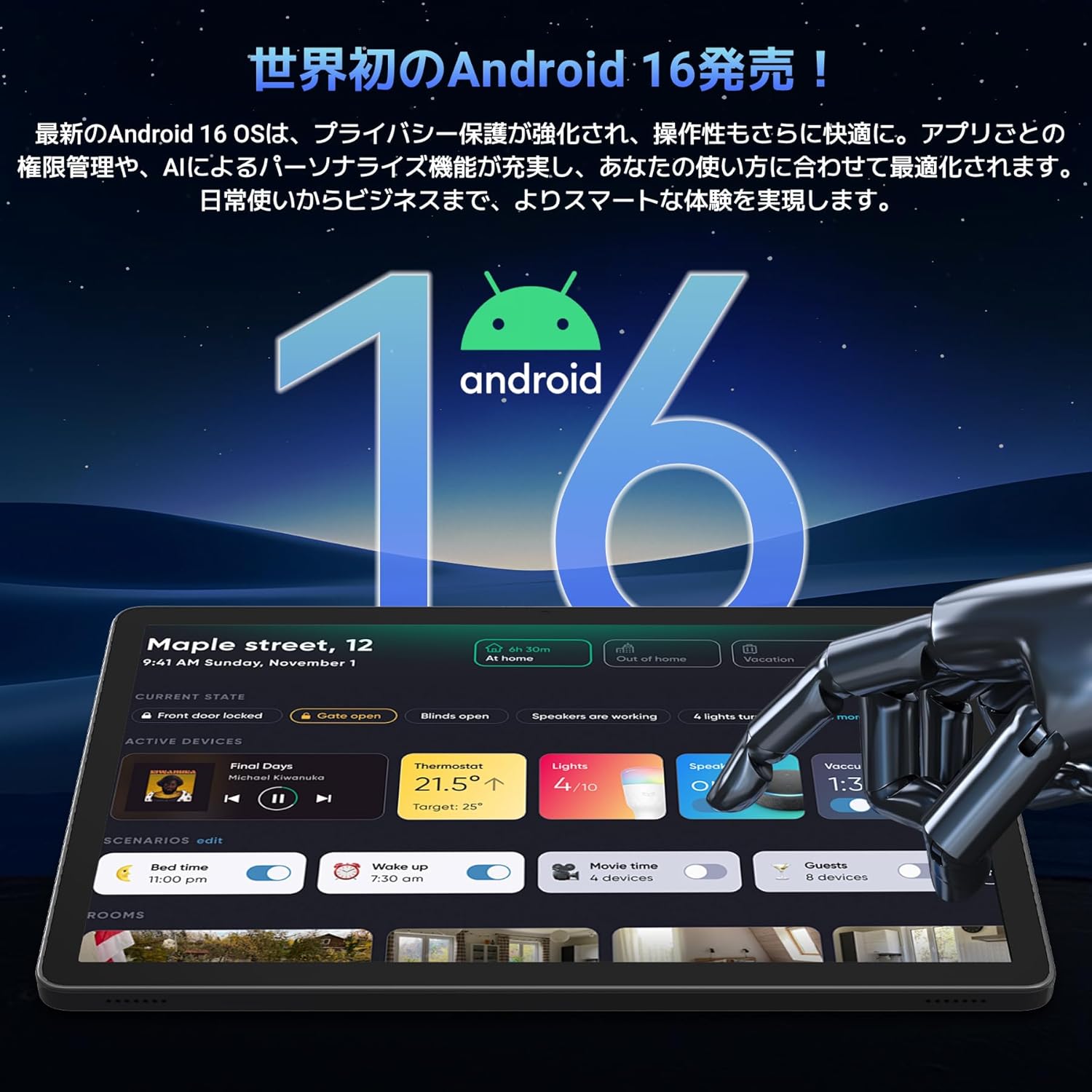
Image: A visual representation of the Android 16 operating system logo and its modern interface displayed on the Tabwee T90 tablet, emphasizing its new features and design.
4.2 Visualizzazione e riproduzione multimediale
The 11-inch FHD IPS display (1920x1200 resolution) provides clear and vibrant visuals. With Widevine L1 support, you can stream high-definition content (1080p and above) from services like Netflix and Amazon Prime Video.

Image: The Tabwee T90 tablet showcasing a high-definition video of a baseball game, demonstrating its 11-inch FHD display and compatibility with streaming platforms like Netflix, YouTube, HBO, and Prime Video via Widevine L1.
4.3 Fotocamera e imaging
The tablet features a 5MP front camera for video calls and selfies, and a 13MP rear camera for capturing photos. Android 16's AI image processing enhances photo quality, and HEVC video encoding ensures stable editing and improved video quality. Google Lens integration allows for smart recognition, scanning, translation, and search functions.
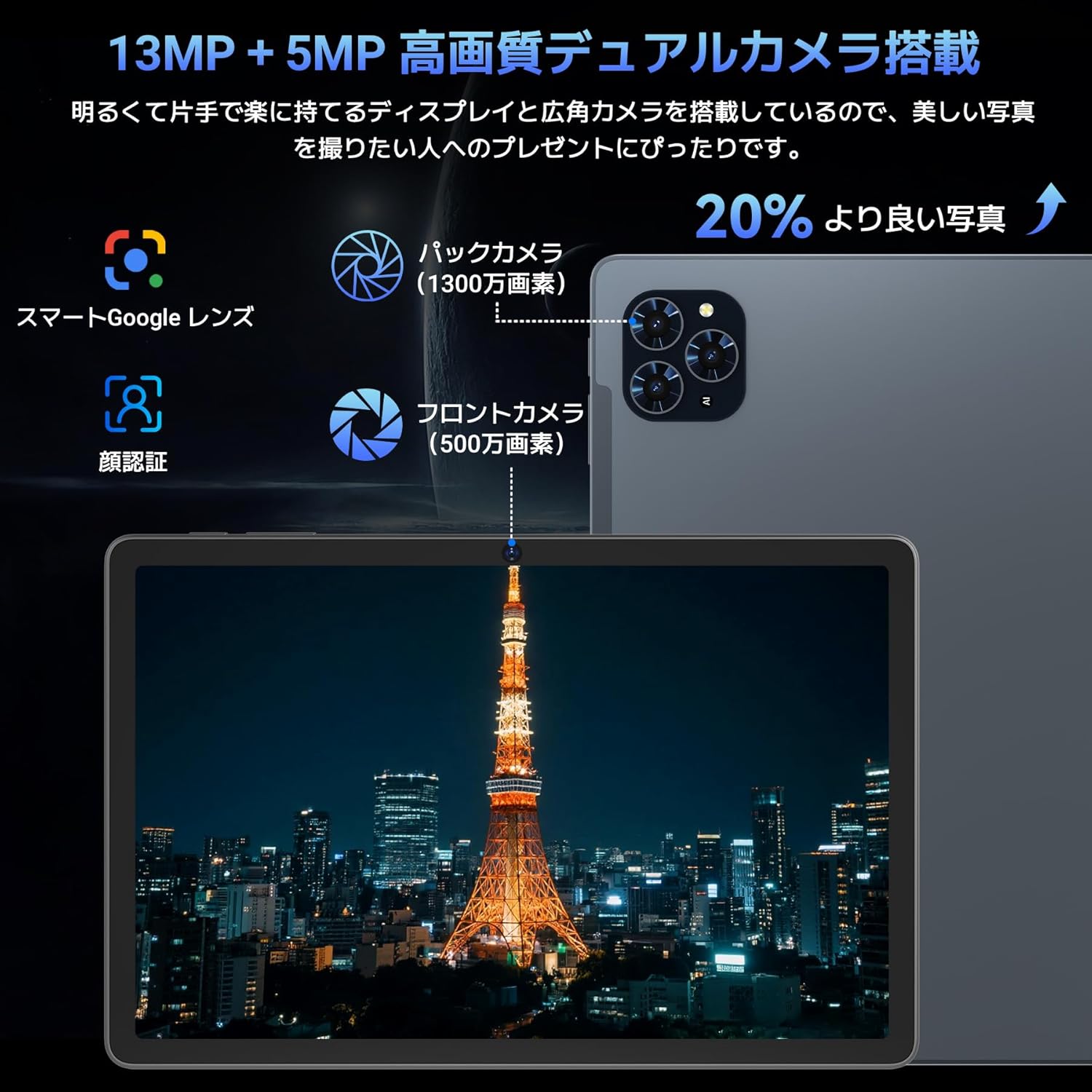
Immagine: Un dettaglio view of the Tabwee T90 tablet's camera system, indicating a 13MP rear camera and a 5MP front camera. An example photo of Tokyo Tower is displayed on the screen, illustrating image capture capabilities.
4.4 Riconoscimento facciale
Utilize the face recognition feature for quick and secure unlocking of your tablet. Set it up in Settings > Security & privacy > Face unlock.
4.5 Integrazione dell'intelligenza artificiale Gemini
The tablet integrates with Gemini AI, optimizing performance across various scenarios. This AI assists with content recommendations, image processing, and semantic understanding, enhancing daily operations.

Image: A conceptual image depicting Gemini AI as a robotic figure interacting with multiple tablet screens, symbolizing its ability to support various tasks like email composition, schedule management, and information retrieval, enhancing user productivity.
4.6 Custom Keyboard Shortcuts
After connecting a Bluetooth keyboard, you can set custom shortcut keys to launch frequently used applications with a single press. Navigate to Settings > System > Keyboard > Keyboard shortcuts to configure.
5. Manutenzione
5.1 Pulizia
- Utilizzare un panno morbido e privo di lanugine per pulire lo schermo e il corpo del tablet.
- Evitare l'uso di prodotti chimici aggressivi o materiali abrasivi.
- Per macchie ostinate, leggermente dampPulire il panno con acqua o con un detergente per schermi specifico per dispositivi elettronici.
5.2 Cura della batteria
- Evitare di esporre il tablet a temperature estreme.
- Non lasciare che la batteria si scarichi completamente frequentemente.
- Utilizzare solo il caricabatterie fornito o un caricabatterie compatibile certificato.
5.3 Aggiornamenti software
Controlla regolarmente la disponibilità di aggiornamenti di sistema e installali per garantire prestazioni e sicurezza ottimali. Vai su Impostazioni > Sistema > Aggiornamento di sistema.
6. Risoluzione Dei Problemi
6.1 Il tablet non si accende
- Assicurarsi che il tablet sia sufficientemente carico. Collegarlo al caricabatterie per almeno 30 minuti.
- Per eseguire un riavvio forzato, tenere premuto il pulsante di accensione per 10-15 secondi.
6.2 Problemi di connessione Wi-Fi
- Riavvia il router Wi-Fi e il tablet.
- Dimentica la rete nelle impostazioni del tablet e riconnettiti.
- Assicurati di trovarti nel raggio d'azione del segnale Wi-Fi.
6.3 Accessori non collegati
- Assicurarsi che il Bluetooth sia abilitato sul tablet.
- Check that the accessory is in pairing mode and has sufficient battery.
- Prova a riavviare sia il tablet che l'accessorio.
6.4 Prestazioni lente
- Chiudere le applicazioni in background non necessarie.
- Cancella la cache delle app utilizzate di frequente (Impostazioni > App > [Nome app] > Archiviazione e cache > Cancella cache).
- Assicurarsi che vi sia spazio di archiviazione sufficiente.
- Riavviare periodicamente il tablet.
7. Specifiche
| Caratteristica | Dettaglio |
|---|---|
| Marca | TABWEE |
| Nome del modello | T90 |
| Sistema operativo | Androide 16 |
| processore | Unisoc T615 Octa-core (2x Cortex-A75 @ 2.0GHz, 6x Cortex-A55 @ 1.8GHz) |
| Scheda grafica | Mali-G57 |
| Memoria RAM | 8 GB (espandibili a 24 GB con RAM virtuale) |
| Memoria interna | 128 GB |
| Archiviazione espandibile | Fino a 2 TB tramite scheda microSD (non inclusa) |
| Dimensioni dello schermo | 11 pollici |
| Tipo di visualizzazione | Schermo IPS Full HD |
| Risoluzione | 1920 x 1200 pixel |
| Fotocamera frontale | 5MP |
| Telecamera posteriore | 13MP |
| Capacità della batteria | 8000mAh |
| Porta di ricarica | Tipo C |
| Connettività | Wi-Fi (2.4G/5G, 802.11ac), Bluetooth 5.0 |
| Peso | 1.37 kg (circa 3.02 libbre) |
| Dimensioni | 29.1 x 20 x 5.7 cm (confezione) |
| Certificazioni | PSE, GITEKI, GMS |

Image: A detailed diagram illustrating the Unisoc T615 Octa-core CPU, highlighting its architecture with Cortex-A75 and Cortex-A55 cores, Mali-G52 MP1 GPU, and 12nm low power consumption, indicating its high performance.

Image: The Tabwee T90 tablet's screen showing multiple applications, emphasizing its 128GB internal storage and support for up to 2TB external storage, with examples of how many photos, songs, and videos can be stored.
8. Garanzia e supporto
The Tabwee T90 Tablet comes with a Garanzia di 2 annoQuesta garanzia copre i difetti di fabbricazione e assicura la qualità del prodotto.
8.1 Contattare l'assistenza
If you encounter any issues or have questions, please contact customer support through your Amazon account:
- Go to your Amazon account > Order History > Select the relevant order.
- Click on the seller's name (TABWEE Official Store).
- Use the "Ask a question" option to send an email.
Support is available from 9:00 AM to 6:00 PM (excluding holidays). Inquiries will be responded to as quickly as possible.

Image: An illustration representing customer support, featuring a person wearing a headset and working on a laptop, symbolizing assistance for product inquiries and warranty claims.