
1. Introduzione
Thank you for choosing the wegear GK1 Mechanical Gaming Keyboard. This full-size, 104-key wired keyboard is designed for precision, durability, and an immersive user experience. Featuring professional Blue switches, vibrant RGB backlighting, and advanced anti-ghosting technology, it is suitable for both intense gaming sessions and efficient productivity tasks.
This manual provides detailed instructions for setting up, operating, maintaining, and troubleshooting your new keyboard. Please read it thoroughly to ensure optimal performance and longevity of your device.
2. Contenuto della confezione
- wegear GK1 Mechanical Gaming Keyboard
- Manuale d'uso
3. Impostazione
3.1 Collegamento della tastiera
The wegear GK1 is a wired keyboard designed for plug-and-play functionality. No additional drivers are typically required for basic operation on most operating systems.
- Locate an available USB-A port on your computer (Laptop, PC, Tablet).
- Collegare il connettore USB-A del cavo della tastiera alla porta USB-A del computer.
- The keyboard's RGB backlighting should illuminate, indicating a successful connection. Your computer will automatically detect and install the necessary drivers.
3.2 Regolazione dell'inclinazione della tastiera
For enhanced ergonomic comfort, the keyboard features adjustable tilt stands on its underside.
- Gently flip the keyboard over.
- Locate the two foldable kickstands at the top corners of the keyboard.
- Flip out the kickstands to achieve a 7° ergonomic tilt, or keep them folded for a flat typing experience.
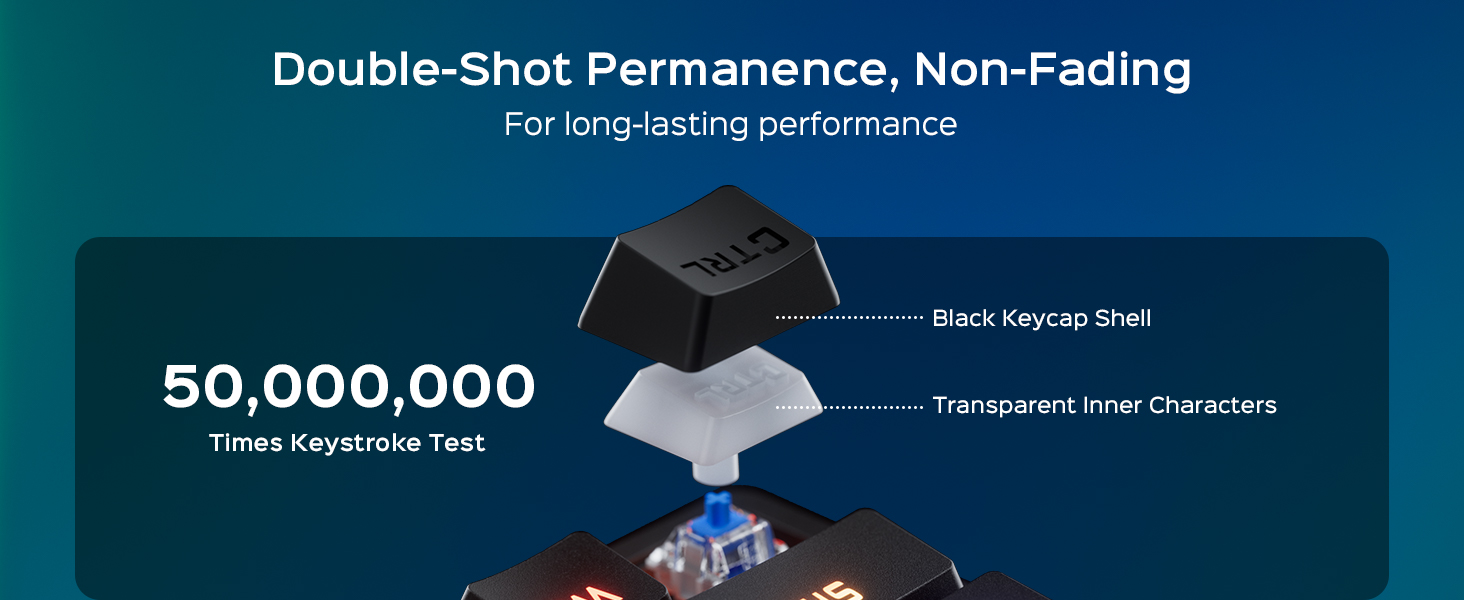
Image: The wegear GK1 keyboard demonstrating its ergonomic 7-degree adjustable tilt for comfortable typing.

Image: A user's hands positioned comfortably on the wegear GK1 keyboard, highlighting the ergonomic design for reduced wrist strain.
4. Istruzioni per l'uso
4.1 Mechanical Blue Switches
The wegear GK1 keyboard features professional Blue mechanical switches, known for their tactile bump and crisp audible click. This provides satisfying feedback for both typing and gaming, enhancing precision and responsiveness.
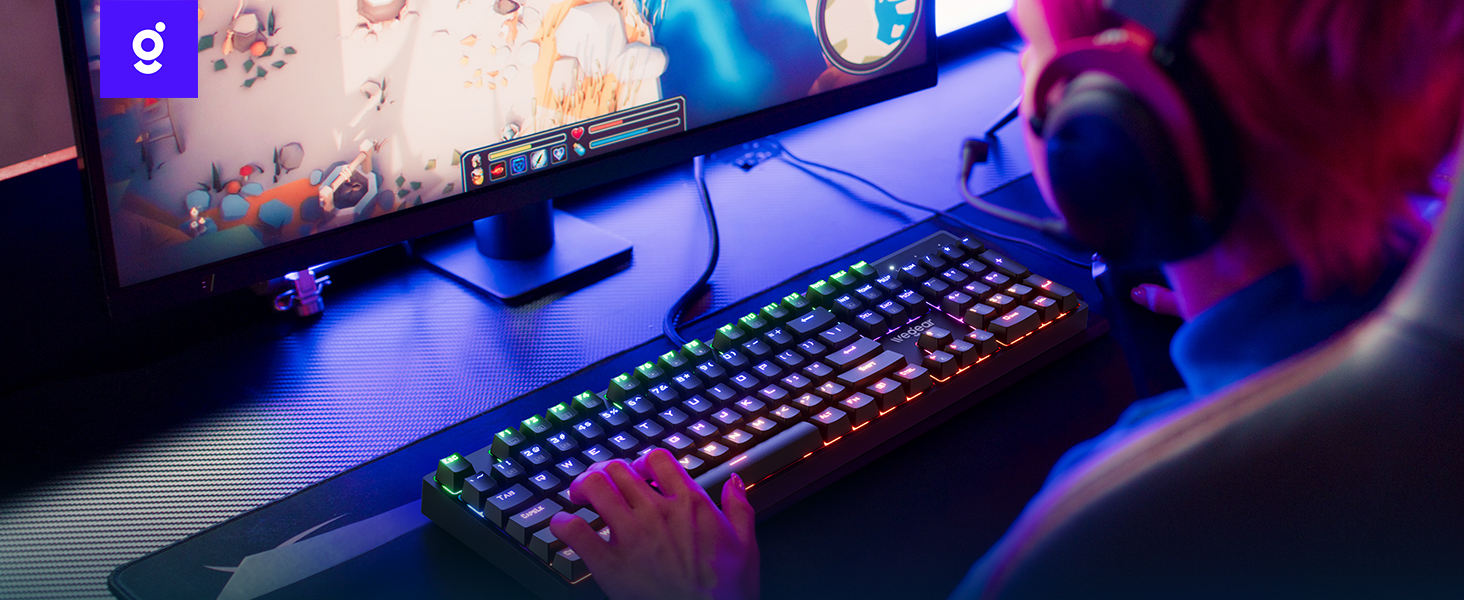
Image: A detailed diagram illustrating the internal mechanism of a clicky blue mechanical switch, emphasizing its tactile bump and crisp acoustic feedback.
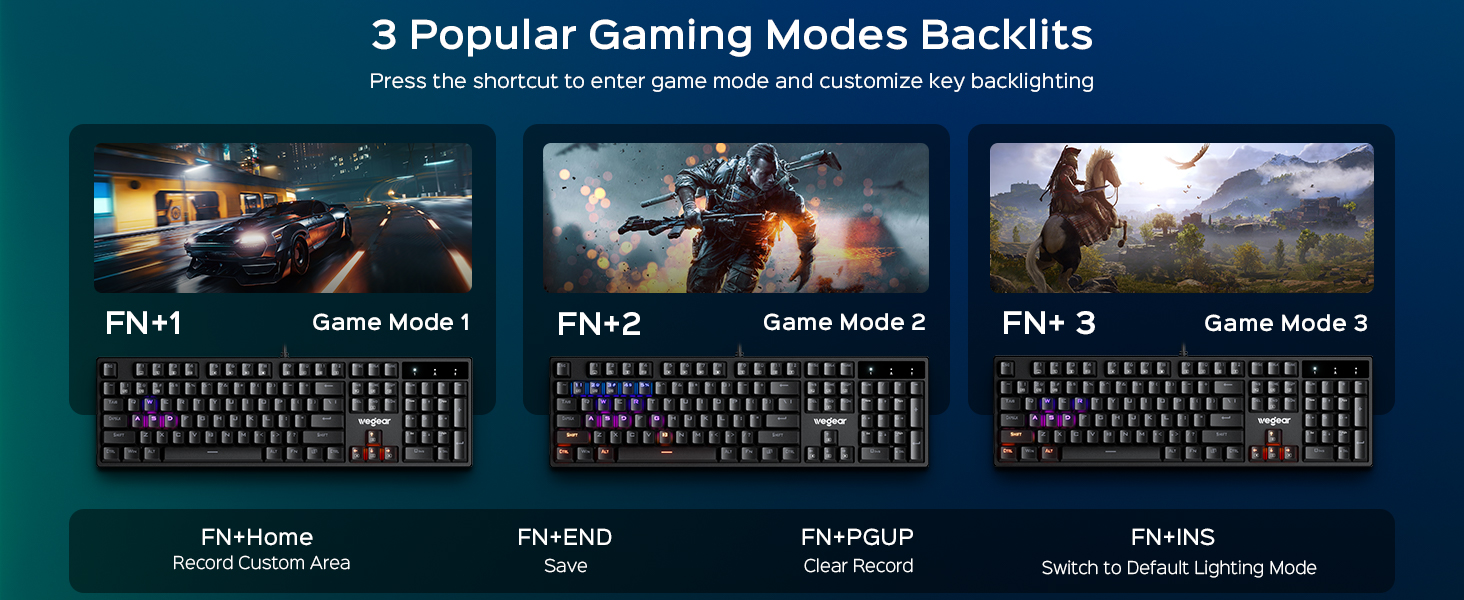
Image: A close-up of a finger pressing a blue mechanical switch on the wegear GK1 keyboard, illustrating the tactile and auditory feedback.
4.2 Retroilluminazione RGB
The keyboard features dynamic RGB backlighting with 11 distinct modes, adjustable brightness, and speed settings to customize your visual experience.
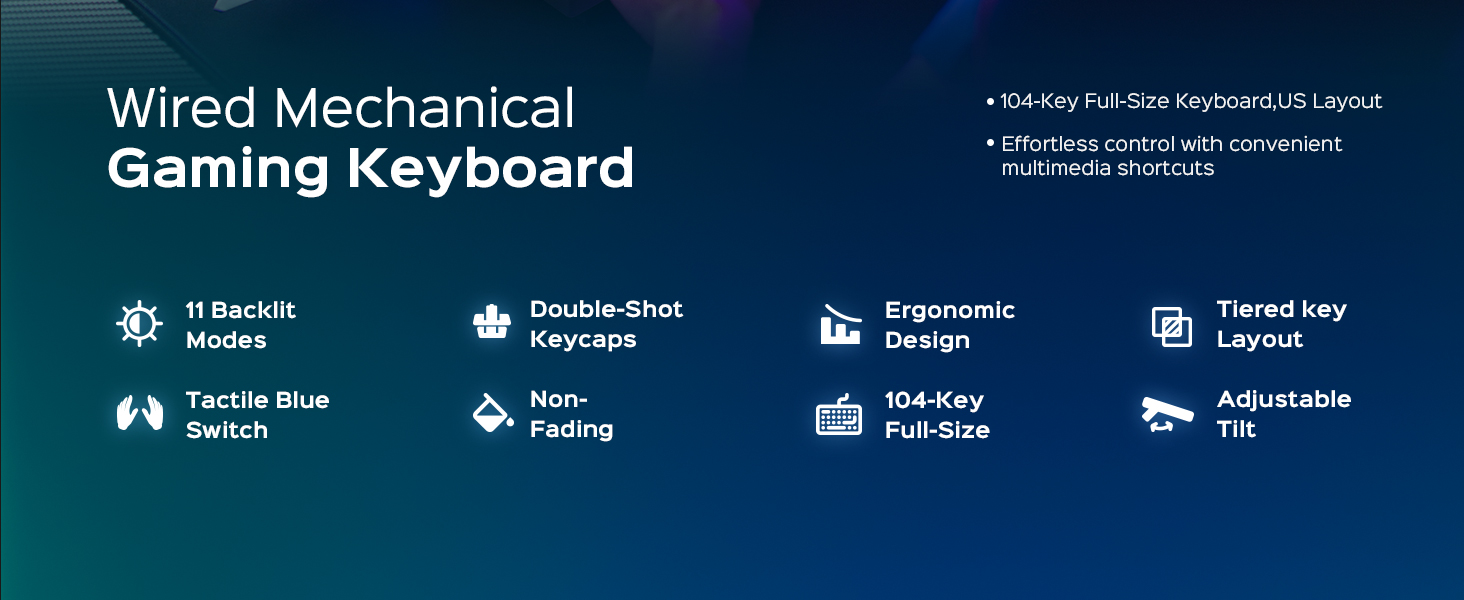
Image: The wegear GK1 keyboard displaying its dynamic RGB lightscape with various backlight modes, brightness levels, and adjustable speeds.
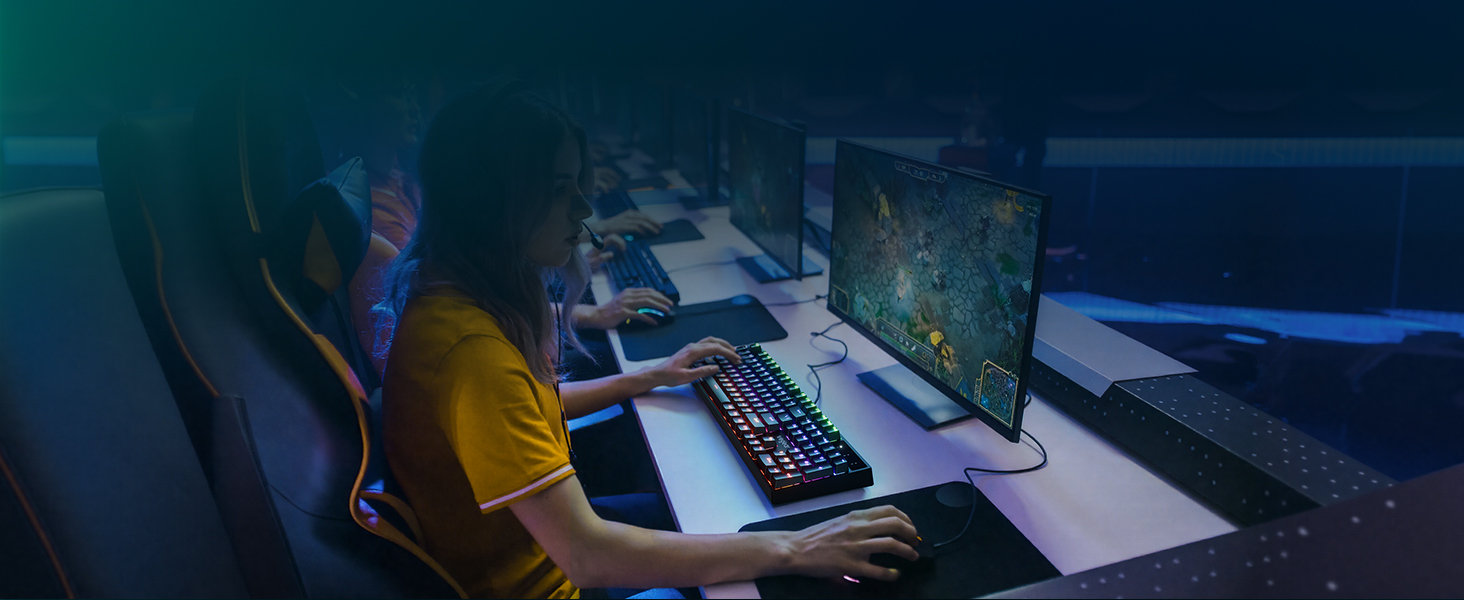
Image: The wegear GK1 keyboard highlighting its RGB lighting controls, including switching backlight modes, adjusting brightness, and setting light speed using FN key combinations.
Lighting Control Functions:
- Fn + INS: Switch between 11 dynamic backlight modes.
- Fn + Freccia su/giù: Regola la luminosità della retroilluminazione (5 livelli).
- Fn + Freccia sinistra/destra: Regola la velocità della retroilluminazione.
Modalità di gioco:
The keyboard supports 3 popular gaming modes with customizable key backlighting.
- Fn+1: Modalità di gioco 1
- Fn+2: Modalità di gioco 2
- Fn+3: Modalità di gioco 3
- Fn + Casa: Record Custom Area
- Fn + FINE: Save Custom Area
- Fn + PGUP: Clear Recorded Area
- Fn + INS: Switch to Default Lighting Mode

Image: The wegear GK1 keyboard illustrating its three dedicated gaming modes (Fn+1, Fn+2, Fn+3) and controls for recording, saving, and clearing custom backlight areas.
4.3 scorciatoie multimediali
Access common multimedia functions quickly using the Fn key in combination with the F-keys.
- Fn+F1: Computer
- Fn+F2: Cerca
- Fn+F3: Calcolatrice
- Fn+F4: CD
- Fn+F5: Traccia precedente
- Fn+F6: Traccia successiva
- Fn+F7: Riproduci/Pausa
- Fn+F8: Fermata CD
- Fn+F9: Muto
- Fn+F10: Abbassa il volume
- Fn+F11: Alza il volume
- Fn+F12: Blocco tastiera
4.4 Anti-Ghosting e Win Lock
The keyboard features 100% anti-ghosting on all 104 keys, ensuring every keystroke is registered accurately, even during rapid, simultaneous presses. The Win Lock function prevents accidental interruptions during gameplay or work.
- 100% anti-ghosting: All 104 keys respond instantly, preventing missed inputs.
- Fn + Win: Activates/Deactivates the Win Lock function, disabling the Windows key to avoid accidental presses.
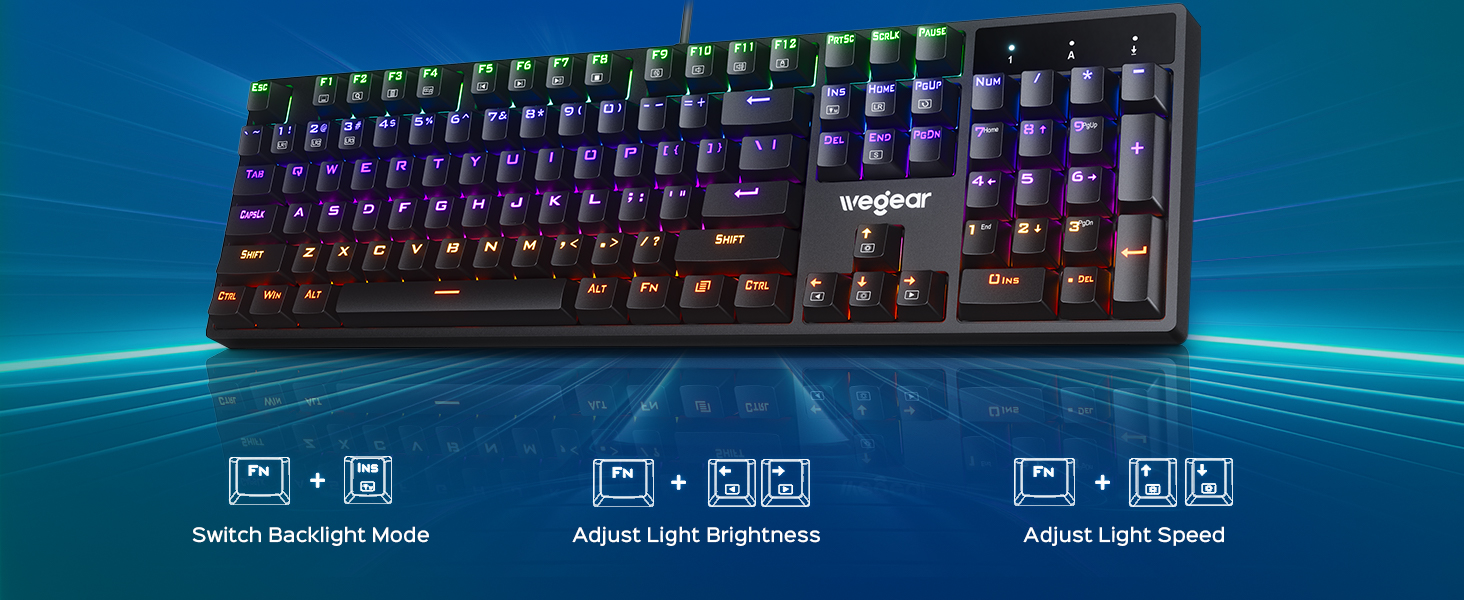
Image: A user actively gaming with the wegear GK1 keyboard, illustrating the benefit of 100% anti-ghosting for flawless multi-key input without missed commands.
5. Manutenzione
5.1 Pulizia della tastiera
Per mantenere prestazioni e aspetto ottimali, si consiglia una pulizia regolare.
- Scollegare la tastiera dal computer prima di pulirla.
- Utilizzare un panno morbido e privo di lanugine leggermente dampPulire i tasti e la superficie della tastiera con acqua o una soluzione detergente delicata. Evitare l'eccessiva umidità.
- For deeper cleaning, you may use a keycap puller (not included) to remove individual keycaps and clean underneath with compressed air or a small brush.
- Prima di ricollegare la tastiera, assicurarsi che tutti i componenti siano completamente asciutti.
5.2 Keycap Durability
The wegear GK1 features double-shot ABS keycaps, designed for long-lasting performance. The legends are wear-resistant and have high light transmission, ensuring they remain vibrant and do not fade over time.
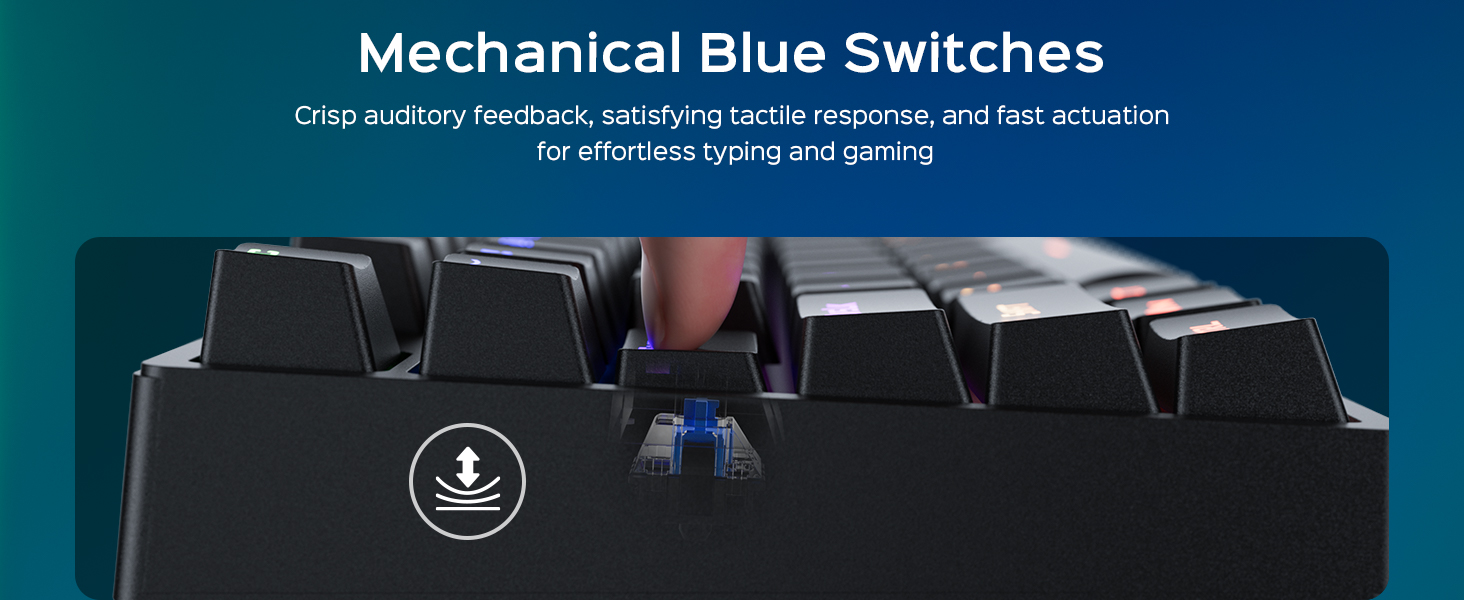
Image: A diagram illustrating the double-shot molding process of the keycaps, highlighting their fade-resistant and scratch-proof properties for long-lasting performance.
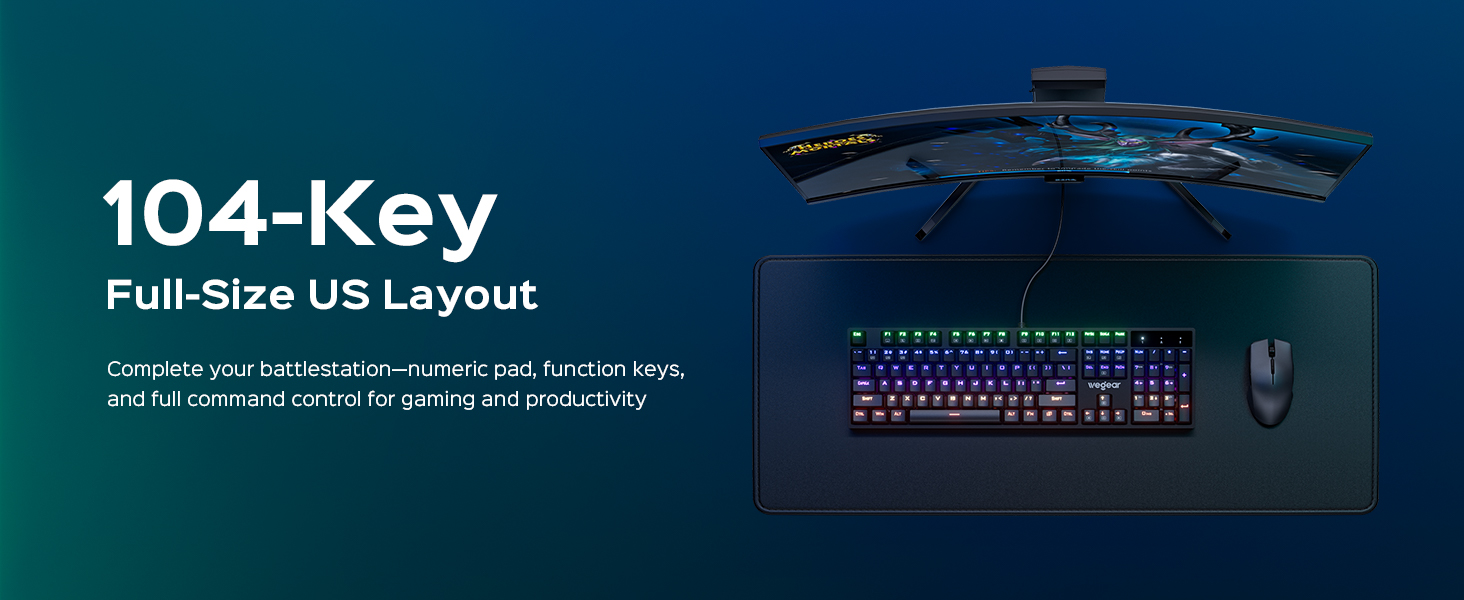
Immagine: un primo piano view of a double-shot keycap, showing the black keycap shell and transparent inner characters, which ensures the legends do not fade.
6. Risoluzione Dei Problemi
| Problema | Possibile causa | Soluzione |
|---|---|---|
| La tastiera non risponde | Connessione USB allentata; Porta USB difettosa; Problema con il driver | Assicurati che il cavo USB sia collegato correttamente. Prova una porta USB diversa. Riavvia il computer. |
| La retroilluminazione non funziona | Backlight turned off or brightness set to minimum; Software conflict | Premere Fn + Freccia su per aumentare la luminosità. Premere Fn+INS to cycle through modes. Ensure no conflicting software is running. |
| Tasti digitati due volte o non registrati | Dust/debris under keycap; Switch malfunction | Clean under the keycap using compressed air. If issue persists, contact customer support. |
| I tasti multimediali non funzionano | Incorrect key combination; Software conflict | Ensure you are pressing the correct Fn + F-key combination. Check for any conflicting media player software. |
7. Specifiche
- Marca: wegear
- Nome modello: GK1-MK
- Numero modello: GK1-black
- Tecnologia di connettività: USB-A (cablato)
- Descrizione della tastiera: Gioco d'azzardo
- Numero di chiavi: 104
- Tipo di interruttore: Interruttori meccanici Clicky Blue
- Layout della tastiera: QWERTY (layout USA)
- Caratteristiche speciali: Backlit, Ergonomic, 100% Anti-Ghosting, Win Lock, Multimedia Shortcuts
- Supporto colore retroilluminazione tastiera: RGB (11 modes, 5 brightness levels, adjustable speed)
- Materiale del copritastiera: ABS a doppio scatto
- Dimensioni del prodotto: 17.3 cm L x 5.03 cm P x 1.42 cm A
- Dispositivi compatibili: Laptop, PC, Tablet (Windows OS)
- Materiale: Plastica
8. Garanzia e supporto
8.1 Informazioni sulla garanzia
The wegear GK1 Mechanical Gaming Keyboard comes with a Garanzia limitata di 1 anni from the date of purchase. This warranty covers manufacturing defects and workmanship under normal use. It does not cover damage caused by misuse, accident, modification, or unauthorized repair.
8.2 Assistenza clienti
For technical assistance, warranty claims, or any questions regarding your wegear GK1 keyboard, please contact our customer support team. Refer to the contact information provided on the product packaging or our official websito.
Video: An official product video from Lenovo Product Marketplace, Inc. (wegear's seller) highlighting the features and benefits of the wegear Mechanical Keyboard. This video provides a visual overview of the keyboard's design, lighting, and functionality.