
1. Introduzione
The MageGee GK960 is a versatile wireless gaming keyboard designed for optimal performance and user comfort. Featuring triple-mode connectivity (Wired USB-C, 2.4GHz Wireless, and Bluetooth), vibrant RGB backlighting, a multi-functional rotary knob, and a 98% layout with a number pad, this keyboard is suitable for various computing environments and tasks. Its ergonomic design and anti-ghosting capabilities enhance the typing and gaming experience.

Image 1.1: MageGee GK960 Wireless Gaming Keyboard highlighting key features such as Tri-Mode Connection, Side-Printed Keycaps, Knob Control, RGB Backlit, Win/Mac Support, and 19-Key Anti-Ghosting.
2. Contenuto della confezione
Si prega di verificare che tutti gli articoli elencati di seguito siano inclusi nel pacchetto:
- 1 x MageGee GK960 Wireless Gaming Keyboard
- 1 x Manuale utente
- Cavo di ricarica 1 x USB-C
- 1 x 2.4G Ricevitore USB
- 1 x User Guide (Quick Start)
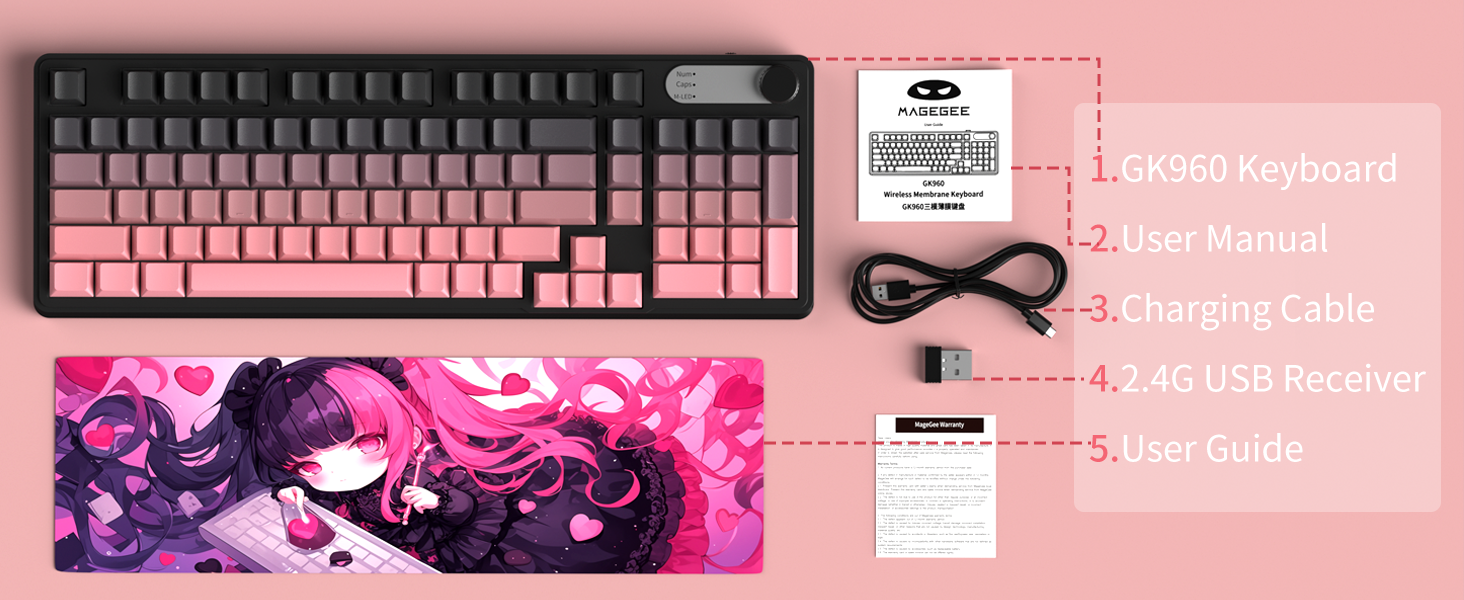
Image 2.1: Visual representation of the MageGee GK960 keyboard and its included accessories: user manual, charging cable, 2.4G USB receiver, and user guide.
3. Setup: Connectivity Modes
The GK960 keyboard offers three connectivity options: Wired USB-C, 2.4GHz Wireless, and Bluetooth. You can connect up to 5 devices simultaneously (1 wired, 1 via 2.4G, and up to 3 via Bluetooth).

Image 3.1: Diagram illustrating the three connection modes: Wired Type-C, 2.4GHz Wireless, and Bluetooth (BT FN+1/2/3).
3.1. Connessione USB-C cablata
- Individuare la porta USB-C sulla tastiera.
- Collegare il cavo USB-C in dotazione alla tastiera e l'altra estremità a una porta USB disponibile sul computer.
- La tastiera verrà riconosciuta automaticamente e sarà pronta all'uso.
3.2. Connessione wireless a 2.4 GHz
- Individuare il ricevitore USB 2.4G (dongle) nella confezione.
- Collegare il ricevitore USB 2.4G a una porta USB disponibile sul computer.
- Ensure the keyboard's mode switch (located on the back or side) is set to 2.4G mode.
- La tastiera dovrebbe connettersi automaticamente.
3.3. Connessione Bluetooth
La tastiera supporta la connessione fino a tre dispositivi Bluetooth.
- Assicurarsi che l'interruttore della modalità della tastiera sia impostato sulla modalità Bluetooth.
- Per associare un dispositivo, tenere premuto NV + 1, NV + 2, O NV + 3 for 3-5 seconds until the corresponding indicator light flashes rapidly. This indicates pairing mode.
- Sul tuo dispositivo (computer, tablet, smartphone), apri le impostazioni Bluetooth e cerca nuovi dispositivi.
- Select "MageGee GK960" from the list of available devices to complete the pairing process. The indicator light will stop flashing once connected.
- Per passare da un dispositivo Bluetooth associato all'altro, premere semplicemente NV + 1, NV + 2, O NV + 3 (pressione breve).
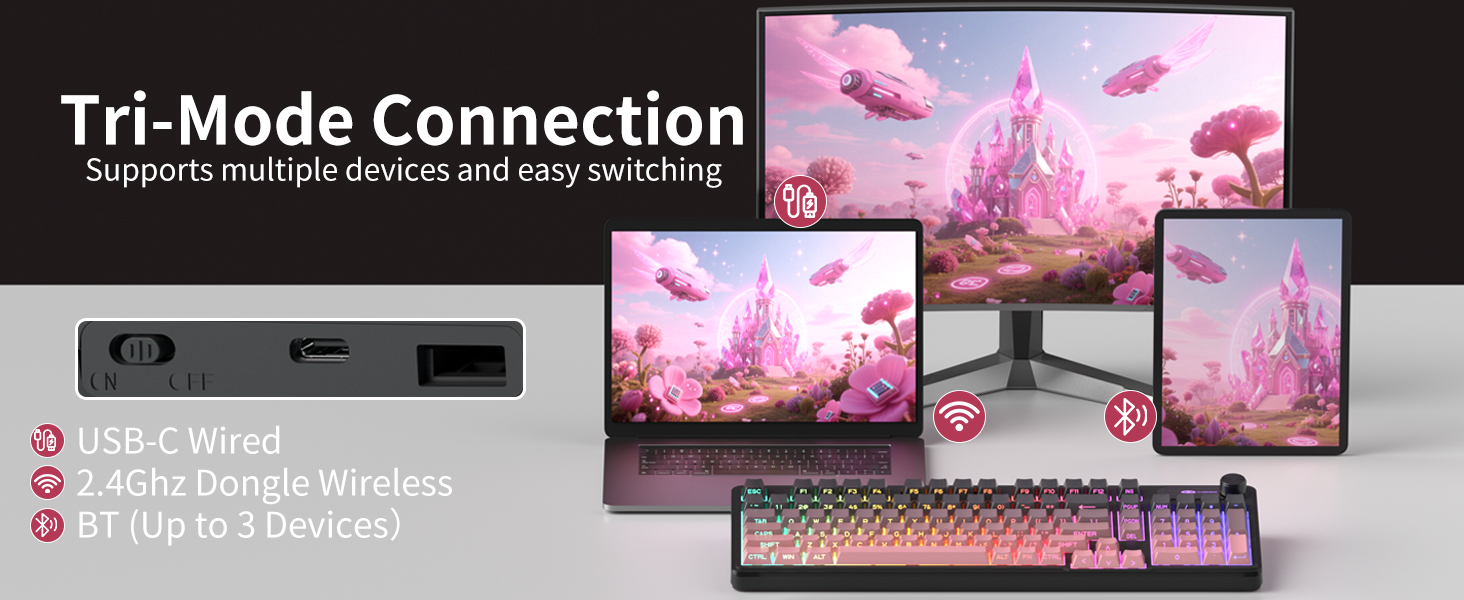
Image 3.2: The keyboard's connectivity switch, allowing selection between USB-C Wired, 2.4GHz Dongle Wireless, and Bluetooth modes.
4. Istruzioni per l'uso
4.1. Dual-Mode Rotary Knob
The multi-functional knob provides quick control over volume and lighting settings.
- Modalità di commutazione: Pressione prolungata FN + Knob for 5 seconds to switch between Volume Mode and Light Mode.
- Modalità volume:
- Twist the knob clockwise to increase volume.
- Twist the knob counter-clockwise to decrease volume.
- Premere la manopola per disattivare/riattivare l'audio.
- Modalità luce:
- Twist the knob clockwise to increase backlight brightness.
- Twist the knob counter-clockwise to decrease backlight brightness.
- Press down on the knob to cycle through different lighting effects.
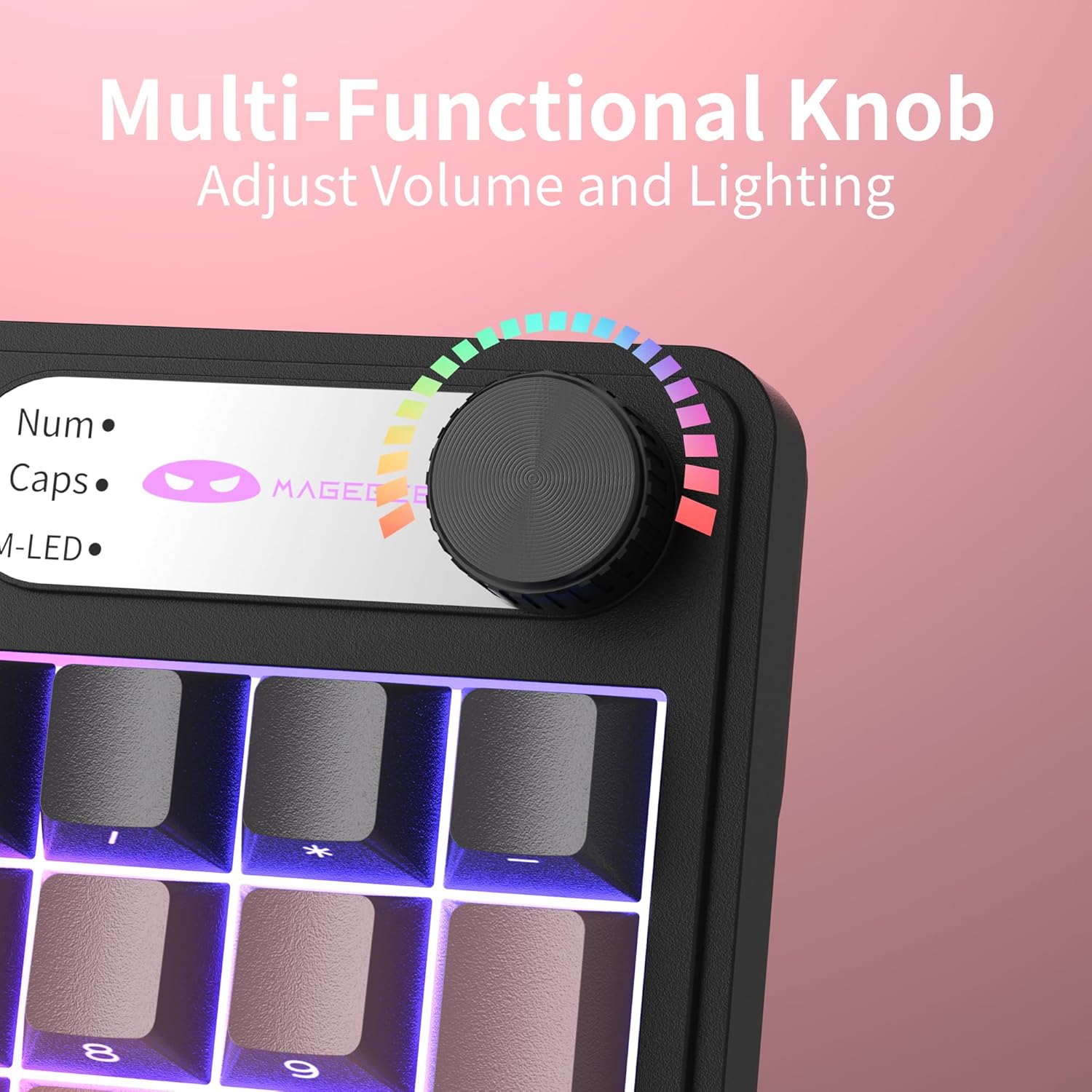
Immagine 4.1: Primo piano view of the multi-functional rotary knob, indicating its use for adjusting volume and lighting.
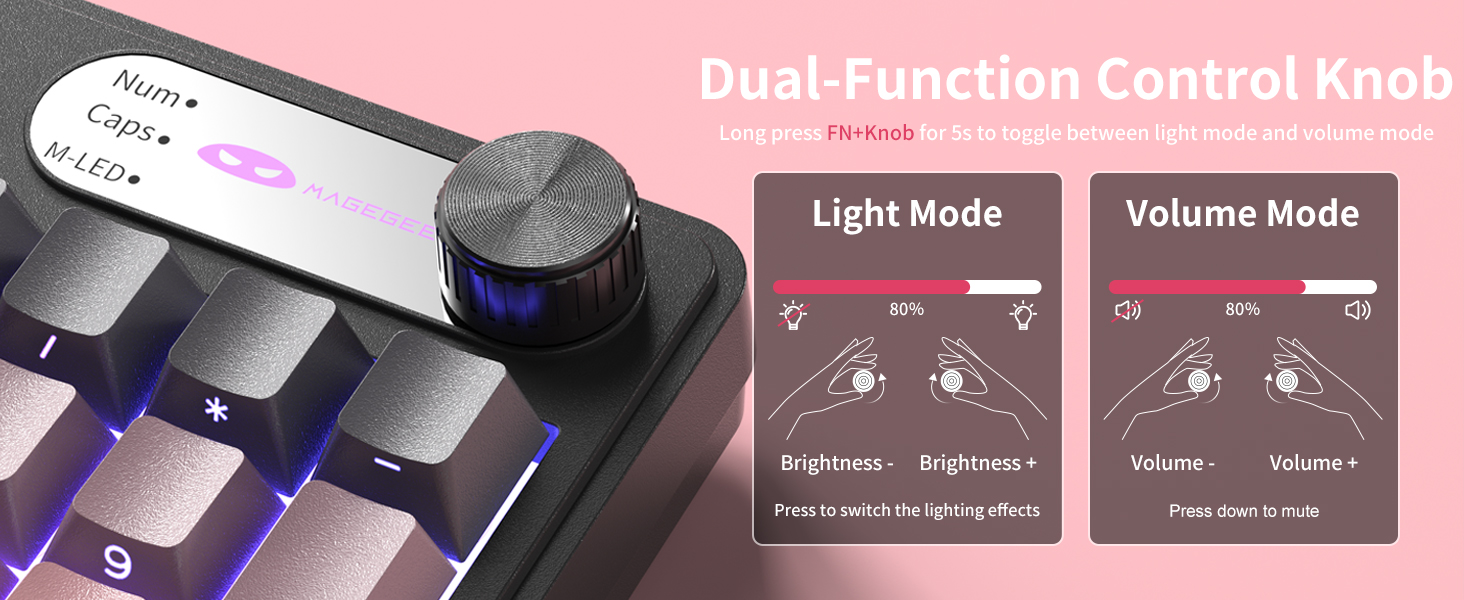
Image 4.2: Detailed illustration of the knob's functions in Light Mode (brightness adjustment, effect cycling) and Volume Mode (volume adjustment, mute).
4.2. Controllo della retroilluminazione RGB
The GK960 features vibrant RGB backlighting with adjustable settings.
- FN + Ins: Passa da una modalità di luce all'altra.
- FN + Backspace: Accende/spegne la retroilluminazione.
- FN + - / = +: Regola la velocità della luce.
- FN + PgUp / PgDn: Regola la luminosità della luce.
- FN+P: Toggle the logo color.
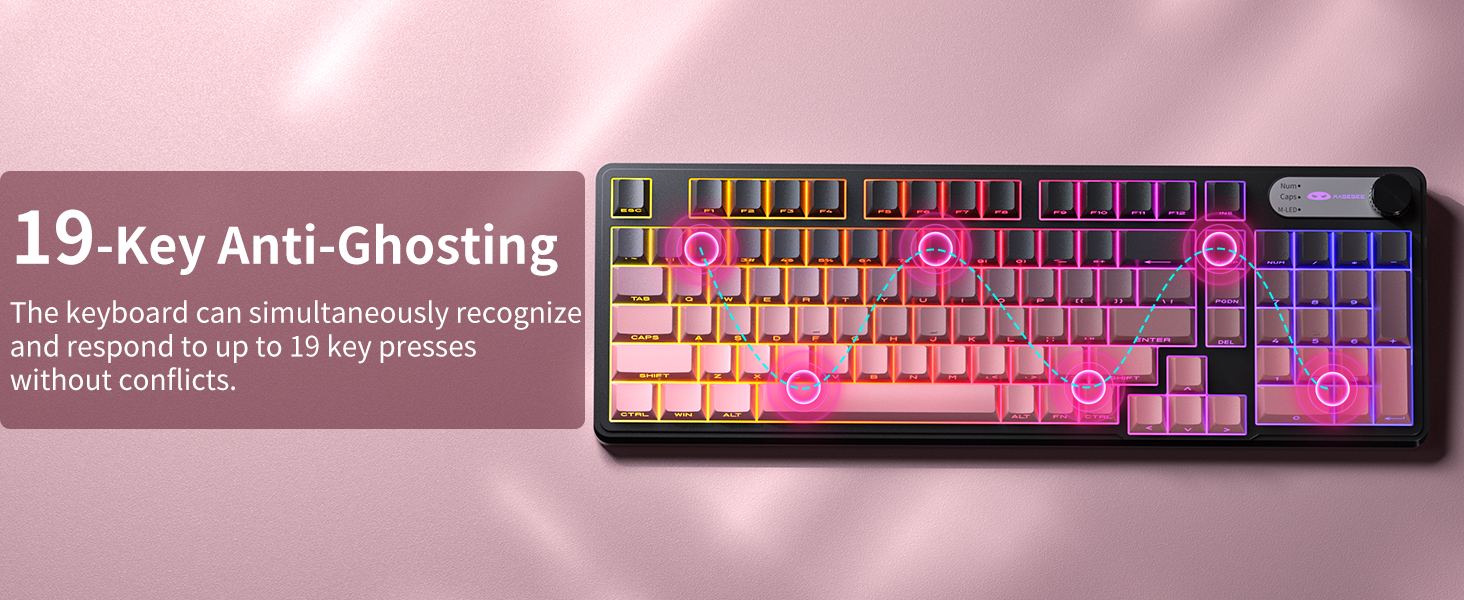
Immagine 4.3: Passoview of function key combinations for controlling the vibrant RGB LED backlight, including switching modes, adjusting speed and brightness, and toggling logo color.
4.3. System Switching (Windows/Mac)
The GK960 keyboard supports both Windows and Mac operating systems. You can switch between them using a simple key combination.
- Per passare alla modalità Windows: premere FN+W.
- Per passare alla modalità Mac: premere FN+M.
4.4. 19-Key Anti-Ghosting
The GK960 features 19-key anti-ghosting, ensuring that every keystroke is registered accurately, even during rapid, simultaneous key presses. This is particularly beneficial for gaming and fast typing, preventing missed inputs.
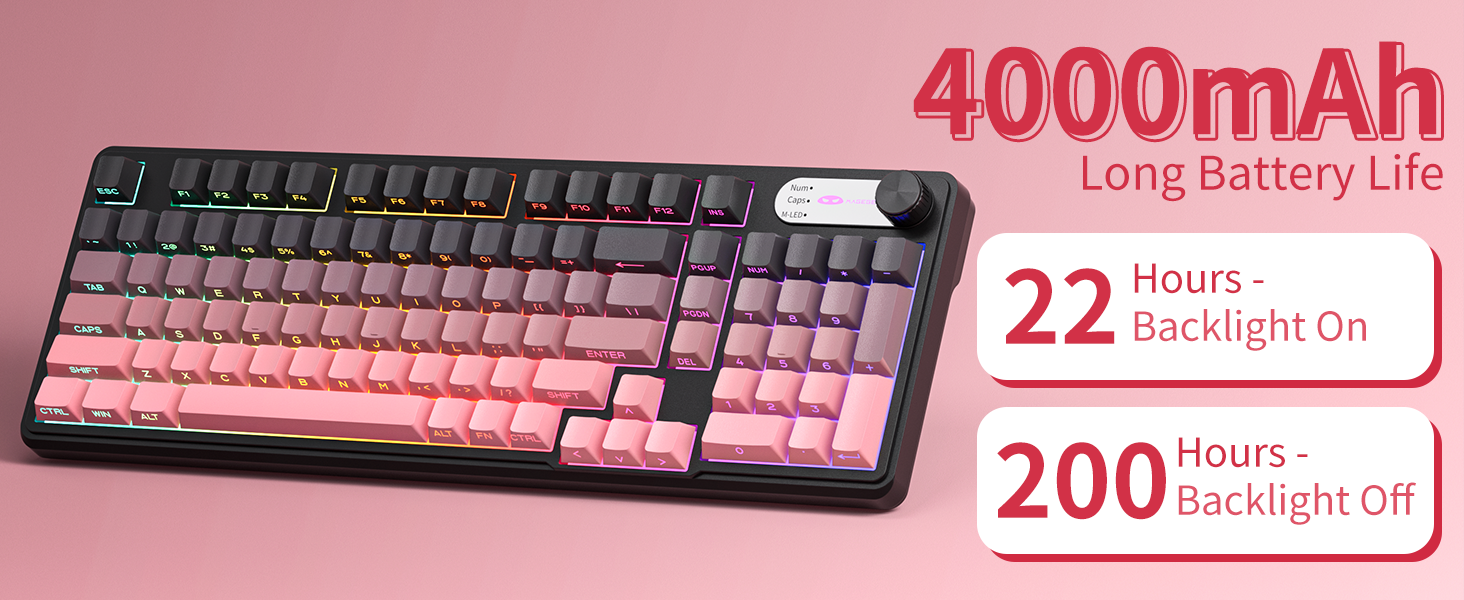
Image 4.4: Diagram illustrating the 19-key anti-ghosting feature, showing multiple simultaneous key presses being recognized.
4.5. Side-Printed Keycaps
The keycaps are crafted with double-shot injection molding, providing durability and clear legends that resist fading from prolonged use. The side-printed legends allow the backlight to shine through, enhancing visibility and aesthetics.

Immagine 4.5: Primo piano view of the side-printed keycaps, demonstrating how the backlight illuminates the legends.
5. Batteria e ricarica
The GK960 keyboard is equipped with a high-capacity 4000mAh battery, providing extended usage times.
- Durata della batteria: Approximately 22 hours with backlight on, and up to 200 hours with backlight off.
- Ricarica: Connect the provided USB-C cable to the keyboard and a power source (e.g., computer USB port, USB wall adapter). The keyboard can be used in wired mode while charging.
- Indicatore di batteria scarica: An indicator light will signal when the battery is low, prompting you to recharge.
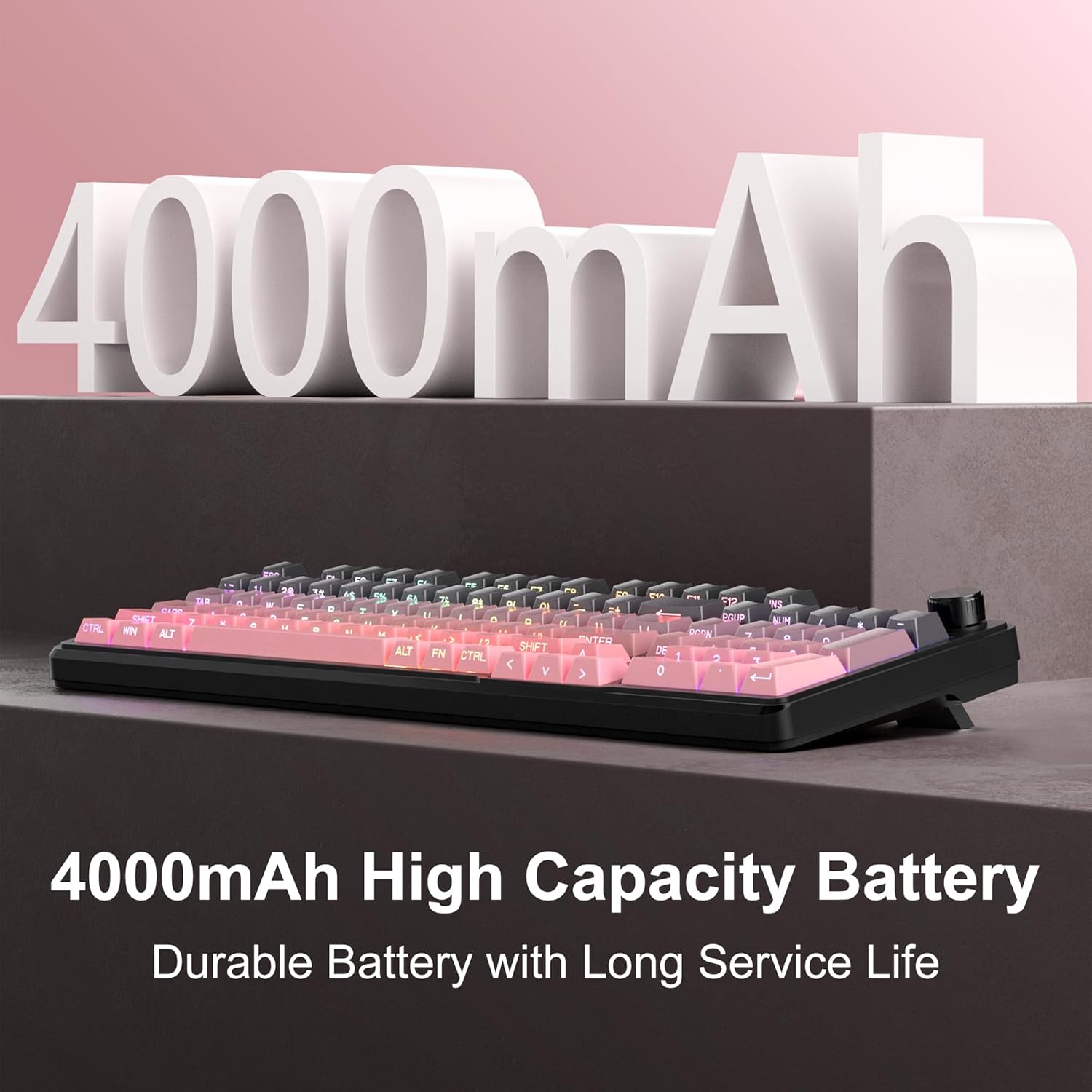
Image 5.1: Visual representation emphasizing the 4000mAh high-capacity battery for durable and long service life.
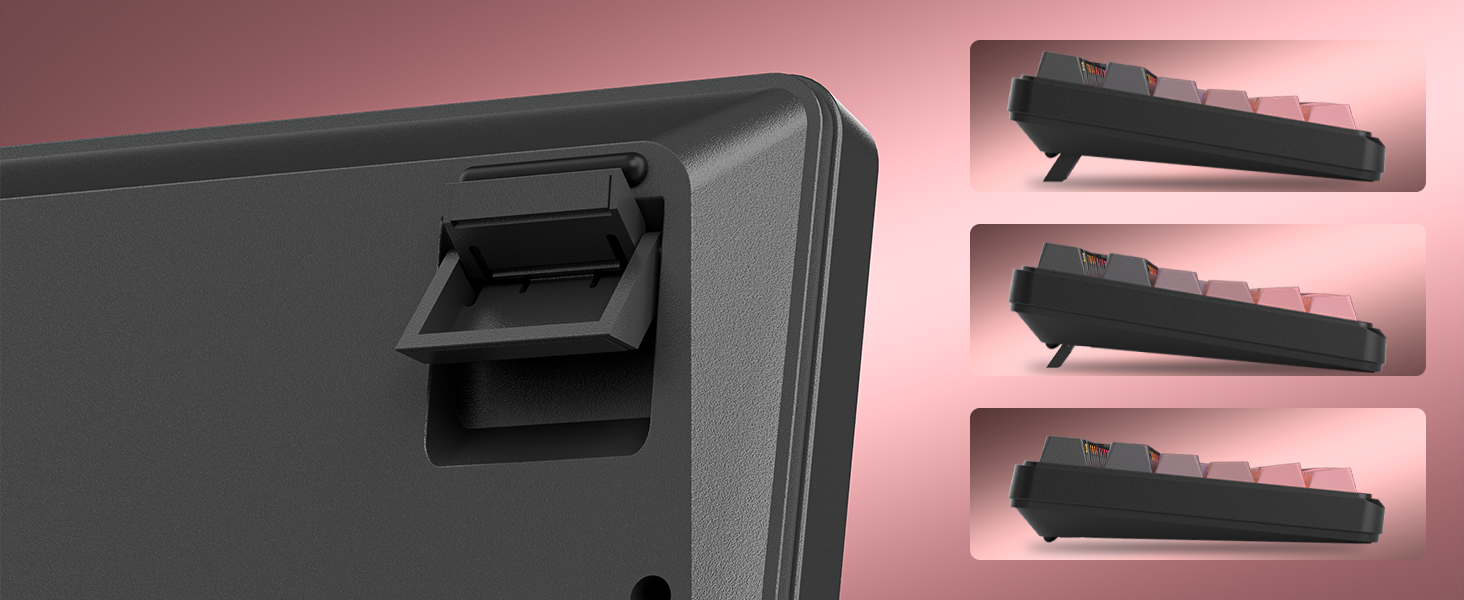
Image 5.2: Battery life estimates for the 4000mAh battery: 22 hours with backlight on and 200 hours with backlight off.
6. Manutenzione
Proper maintenance ensures the longevity and optimal performance of your MageGee GK960 keyboard.
- Pulizia: Use a soft, dry cloth to wipe the surface of the keyboard. For deeper cleaning, you may use a can of compressed air to remove dust and debris from between the keycaps. Avoid using harsh chemicals or abrasive materials.
- Rimozione dei tasti: If necessary, keycaps can be carefully removed using a keycap puller (not included) for thorough cleaning. Exercise caution to avoid damaging the switches.
- Magazzinaggio: Conservare la tastiera in un luogo fresco e asciutto, lontano dalla luce solare diretta e da temperature estreme.
- Esposizione al liquido: Avoid spilling liquids on the keyboard. If a spill occurs, immediately disconnect the keyboard, turn it upside down to drain, and allow it to dry completely before reconnecting.
7. Risoluzione Dei Problemi
If you encounter issues with your GK960 keyboard, refer to the following common troubleshooting steps:
- La tastiera non risponde:
- Assicurarsi che la tastiera sia carica.
- Check the connectivity mode switch (Wired, 2.4G, BT) and ensure it matches your connection method.
- Per 2.4G, assicurarsi che il ricevitore USB sia collegato saldamente.
- For Bluetooth, ensure the keyboard is paired correctly and selected on your device. Try re-pairing if necessary.
- Prova a connetterti tramite cavo USB-C per escludere problemi di connettività wireless.
- Tasti non registrati o ghosting:
- Assicurarsi che la tastiera sia pulita e priva di detriti sotto i tasti.
- The GK960 features 19-key anti-ghosting, but excessive simultaneous presses beyond this limit may still lead to issues.
- Test the keyboard on another device to determine if the issue is with the keyboard or the computer.
- Retroilluminazione RGB non funzionante o non corretta:
- Assicurarsi che la retroilluminazione sia accesa utilizzando FN + Backspace.
- Regola la luminosità utilizzando FN + PgUp / PgDn.
- Scorrere le modalità utilizzando FN+Ins.
- Check if the knob is in Light Mode and adjust brightness/effects.
- Connessione Bluetooth instabile:
- Assicurati che la tastiera si trovi nel raggio d'azione del tuo dispositivo.
- Ridurre al minimo le interferenze provenienti da altri dispositivi wireless.
- Rimuovi e riassocia la tastiera nelle impostazioni Bluetooth del tuo dispositivo.
8. Specifiche tecniche
| Caratteristica | Specificazione |
|---|---|
| Nome del modello | GK960 |
| Marca | MageGee |
| Tecnologia di connettività | BT/2.4G/USB-C (Tri-Mode) |
| Disposizione della tastiera | 98% Layout (with Number Pad) |
| Tipo di copritastiera | Side-Printed, Double-Shot Injection Molding |
| Anti-ghosting | 19 Chiavi |
| Retroilluminazione | Colore RGB |
| Capacità della batteria | 4000mAh |
| Dispositivi compatibili | Computer portatile, PC, smartphone, tablet |
| Supporto del sistema operativo | Finestre, Mac |
| Caratteristiche speciali | Backlit, Hotkeys and Media Keys, Rechargeable, Volume Roller, Ergonomic Design |
| Peso dell'articolo | 1.88 libbre |
| Dimensioni del pacco | 17.68 x 7.09 x 2.01 pollici |

Image 8.1: Diagram showing the dimensions of the MageGee GK960 keyboard.
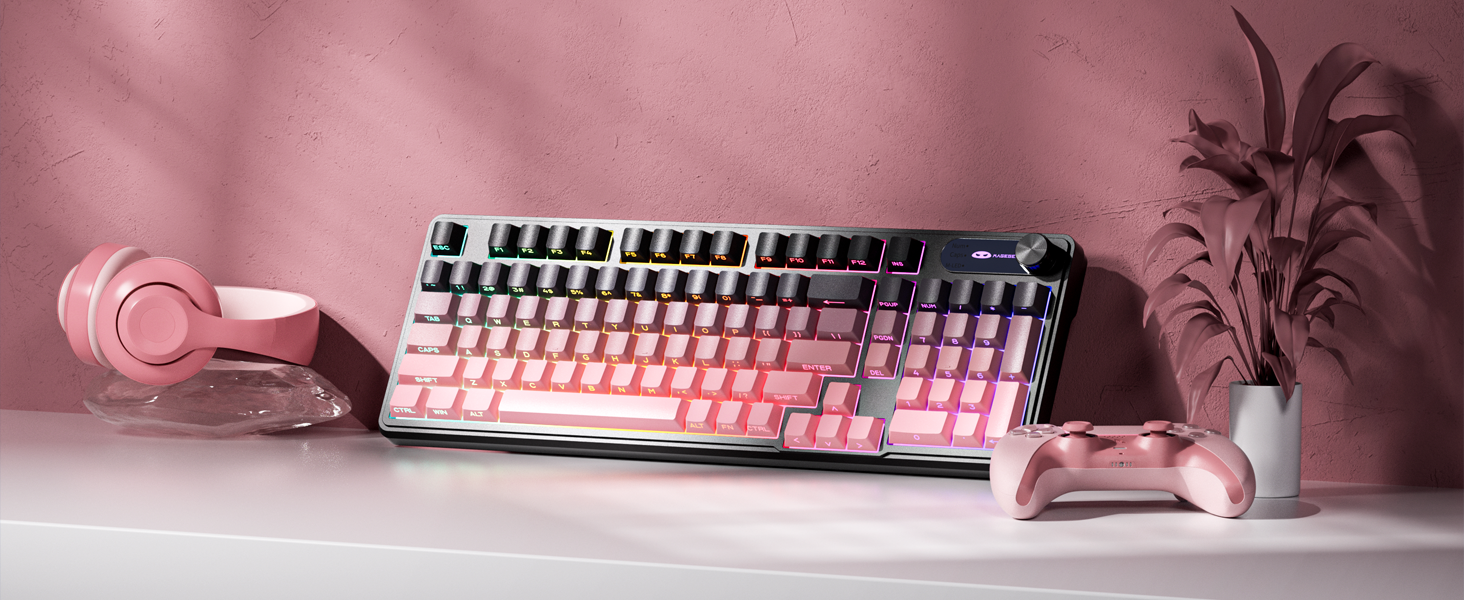
Immagine 8.2: Primo piano view of the adjustable stands on the underside of the keyboard, illustrating the different ergonomic angles.
9. Garanzia e supporto
Specific warranty details and direct support contact information are not provided in this manual. For warranty claims, technical support, or further inquiries, please refer to the official MageGee website or contact the retailer from whom you purchased the product. Please retain your proof of purchase for warranty purposes.