
Introduzione
This manual provides essential information and instructions for the Blackview Tab 20 WiFi tablet. Please read this manual carefully before using your device to ensure proper operation and to maximize its features. Keep this manual for future reference.
Cosa c'è nella scatola
Verificare che tutti gli articoli siano presenti nel pacco:
- Neroview Tavoletta Wi-Fi Tab 20
- Custodia protettiva in TPU
- Manuale d'uso
- Adattatore di alimentazione
- Cavo USB
Note: The user manual included in the box may not be in English. This digital manual provides English instructions.
Prodotto finitoview
Familiarize yourself with the key components and features of your Blackview Tablet Tab 20 WiFi.
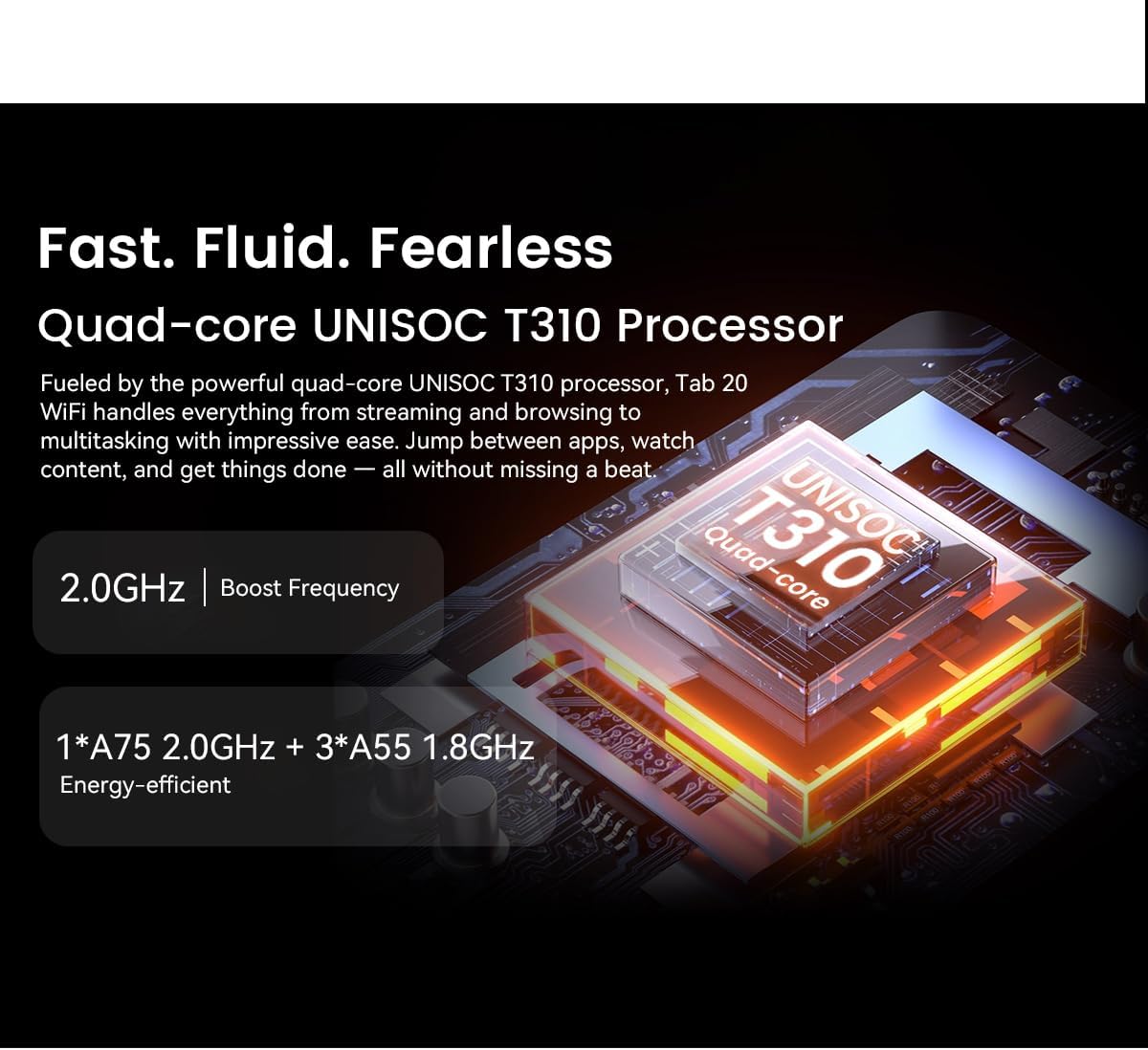
Figura 1: Davanti view del Neroview Tab 20 WiFi tablet, showing the display and front camera.

Figura 2: Indietro view del Neroview Tab 20 WiFi tablet, highlighting the rear camera module.

Figura 3: Lato view del Neroview Tab 20 WiFi tablet, illustrating the USB Type-C charging port.

Figura 4: Lato view del Neroview Tab 20 WiFi tablet, showing the dual speaker grilles.
Caratteristiche principali:
- Gemini AI 2.0: Integrated AI assistant for intelligent control and real-time interaction.
- Schermo HD+ da 10.1 pollici: Expansive screen with 800 x 1200 pixel resolution for clear visuals.
- Dual Box Speakers: Enhanced audio experience with Smart-K powered dual speakers.
- Telecamere: Fotocamera posteriore da 8 MP e fotocamera anteriore da 5 MP per foto e videochiamate.
- Memoria e archiviazione: Up to 12GB RAM (4GB physical + 8GB expansion) and 64GB internal storage, expandable up to 2TB via microSD.
- Batteria da 6000 mAh: High-capacity battery designed for extended usage.
- Modalità di protezione degli occhi: Three dedicated modes (Reading, Night Light, Dark) to reduce eye strain.
- UNISOC T310 Processor: Quad-core processor for smooth multitasking and performance.
Impostare
- Caricare il tablet:
Before first use, fully charge the tablet using the provided power adapter and USB cable. Connect the USB cable to the tablet's Type-C port and the adapter to a power outlet. The charging indicator will show the charging status.
- Accensione/spegnimento:
Per accendere, tenere premuto il pulsante di accensione finché non si accende il neroview logo appears. To power off, press and hold the power button, then select "Power off" from the options.
- Configurazione iniziale:
Follow the on-screen prompts to complete the initial setup. This includes selecting your language, connecting to a Wi-Fi network, setting up your Google account, and configuring facial unlock.
- Inserire la scheda MicroSD (facoltativo):
If you wish to expand storage, locate the SIM/microSD card tray on the side of the tablet. Use the provided ejector tool to open the tray. Insert a microSD card (up to 2TB) into the designated slot, ensuring correct orientation, then close the tray securely.
Istruzioni per l'uso
Navigazione di base:
- Gesti tattili: Tocca per selezionare, scorri per scorrere, pizzica per ingrandire.
- Schermata iniziale: Accedi ad app, widget e notifiche.
- Pannello notifiche: Scorri verso il basso dalla parte superiore dello schermo a view notifiche e impostazioni rapide.
Connessione al Wi-Fi:
- Vai a Impostazioni > Rete e Internet > Wifi.
- Attiva il Wi-Fi.
- Seleziona la rete desiderata dall'elenco e inserisci la password, se richiesta.
Using Gemini AI:
Il Neroview Tab 20 WiFi integrates Gemini AI 2.0 for intelligent assistance. You can activate it via voice commands or specific gestures (refer to on-screen tutorials during initial setup or in the AI settings). Gemini AI can assist with tasks, provide information, and control smart features.

Figura 5: Visual representation of Gemini AI 2.0's integration with various applications and smart controls.
Funzionamento della telecamera:
Apri l'app Fotocamera per catturare foto e video.
- Fotocamera posteriore (8 MP): Suitable for general photography and document scanning.
- Fotocamera frontale (5 MP): Ideale per videochiamate e selfie.
Tocca il pulsante di scatto per scattare una foto. Passa dalla modalità foto a quella video, a seconda delle tue esigenze.

Figura 6: Avvicinamento view of the tablet's rear and front cameras.
Modalità di protezione degli occhi:
To reduce eye strain, activate one of the three eye protection modes:
- Modalità di lettura: Adjusts screen color temperature for a paper-like reading experience.
- Modalità luce notturna: Filters blue light to reduce eye fatigue during evening use.
- Modalità scura: Inverts colors to a dark theme, reducing brightness in low-light environments.
These modes can typically be found in Impostazioni > Display or via the quick settings panel.

Figura 7: Visual guide to the tablet's eye protection modes.
Manutenzione
- Pulizia: Utilizzare un panno morbido e privo di lanugine per pulire lo schermo e il corpo del tablet. Evitare l'uso di prodotti chimici aggressivi o materiali abrasivi.
- Aggiornamenti software: Controlla regolarmente e installa gli aggiornamenti di sistema per garantire prestazioni e sicurezza ottimali. Vai a Impostazioni > Sistema > Aggiornamento del sistema.
- Cura della batteria: Per prolungare la durata della batteria, evitare temperature estreme. Non lasciare che la batteria si scarichi completamente frequentemente.
- Gestione della memoria: Cancellare periodicamente ciò che non è necessario filee disinstallare le app non utilizzate per liberare spazio di archiviazione e mantenere le prestazioni.
Risoluzione dei problemi
| Problema | Possibile causa | Soluzione |
|---|---|---|
| Il tablet non si accende. | Batteria scarica; crash del software. | Caricare il tablet per almeno 30 minuti. Tenere premuto il pulsante di accensione per 10-15 secondi per forzare il riavvio. |
| Impossibile connettersi al Wi-Fi. | Password errata; problema con il router; Wi-Fi disattivato. | Ensure correct password. Restart your Wi-Fi router. Check if Wi-Fi is enabled in settings. |
| Le app sono lente o si bloccano. | Troppe app in esecuzione; spazio di archiviazione insufficiente; software obsoleto. | Close background apps. Clear cache/data for problematic apps. Free up storage. Update system software. |
| La batteria si scarica rapidamente. | Alta luminosità dello schermo; app in background; utilizzo eccessivo. | Reduce screen brightness. Close unused apps. Limit background data usage. Check battery usage in settings. |
| Lo sblocco facciale non funziona. | Scarsa illuminazione; volto non riconosciuto; sensore ostruito. | Ensure adequate lighting. Clean the front camera. Re-register your face in settings. |
Specifiche
| Caratteristica | Dettaglio |
|---|---|
| Marca | Neroview |
| Nome del modello | TAB 20 WIFI |
| Sistema operativo | Androide 15 |
| Processore | UNISOC T310 (Quad-core) |
| Memoria RAM | Up to 12GB (4GB physical + 8GB expansion) |
| Memoria interna | 64 GB |
| Archiviazione espandibile | microSD slot, up to 2TB |
| Dimensioni dello schermo | 10.1 pollici |
| Risoluzione dello schermo | 800 x 1200 pixel |
| Telecamera posteriore | 8 Megapixel |
| Fotocamera frontale | 5 Megapixel |
| Capacità della batteria | 6000 mAh |
| Connettività | Wi-Fi, Bluetooth, USB di tipo C |
| Caratteristiche speciali | Gemini AI Assistant, Facial Unlock, Google Lens |
| Dimensioni (L x P x Spessore) | 24.2L x 16W x 0.9Thickness cm |
| GTIN/UPC | 810154306572 |
Garanzia e supporto
Informazioni sulla garanzia:
Il Neroview Tab 20 WiFi tablet comes with a Garanzia limitata. Please refer to the warranty card included in your product packaging for specific terms and conditions, including coverage duration and claim procedures. Keep your proof of purchase for warranty claims.
Assistenza clienti:
Per assistenza tecnica, risoluzione dei problemi oltre a quelli indicati in questo manuale o richieste di garanzia, contattare Blackview assistenza clienti. In genere puoi trovare le informazioni di contatto sul sito ufficiale Blackview website or through the retailer where you purchased the tablet.
Always provide your product model (TAB 20 WIFI) and serial number when contacting support for faster service.