
1. Introduzione
Thank you for choosing the PRIXTON Prado XL 15.6-inch Digital Photo Frame. This manual provides essential information for setting up, operating, and maintaining your device. Please read it carefully before use to ensure optimal performance and longevity of your digital photo frame.
The PRIXTON Prado XL features a vibrant 15.6-inch Full HD IPS touchscreen display, offering clear and vivid image reproduction. With built-in Wi-Fi, 32GB of internal memory, and support for both photos and videos, it allows you to easily share and display your cherished memories. The frame also includes integrated speakers and multiple input options, including USB Type-C, USB-A, and an SD card slot, providing versatile ways to manage your content.
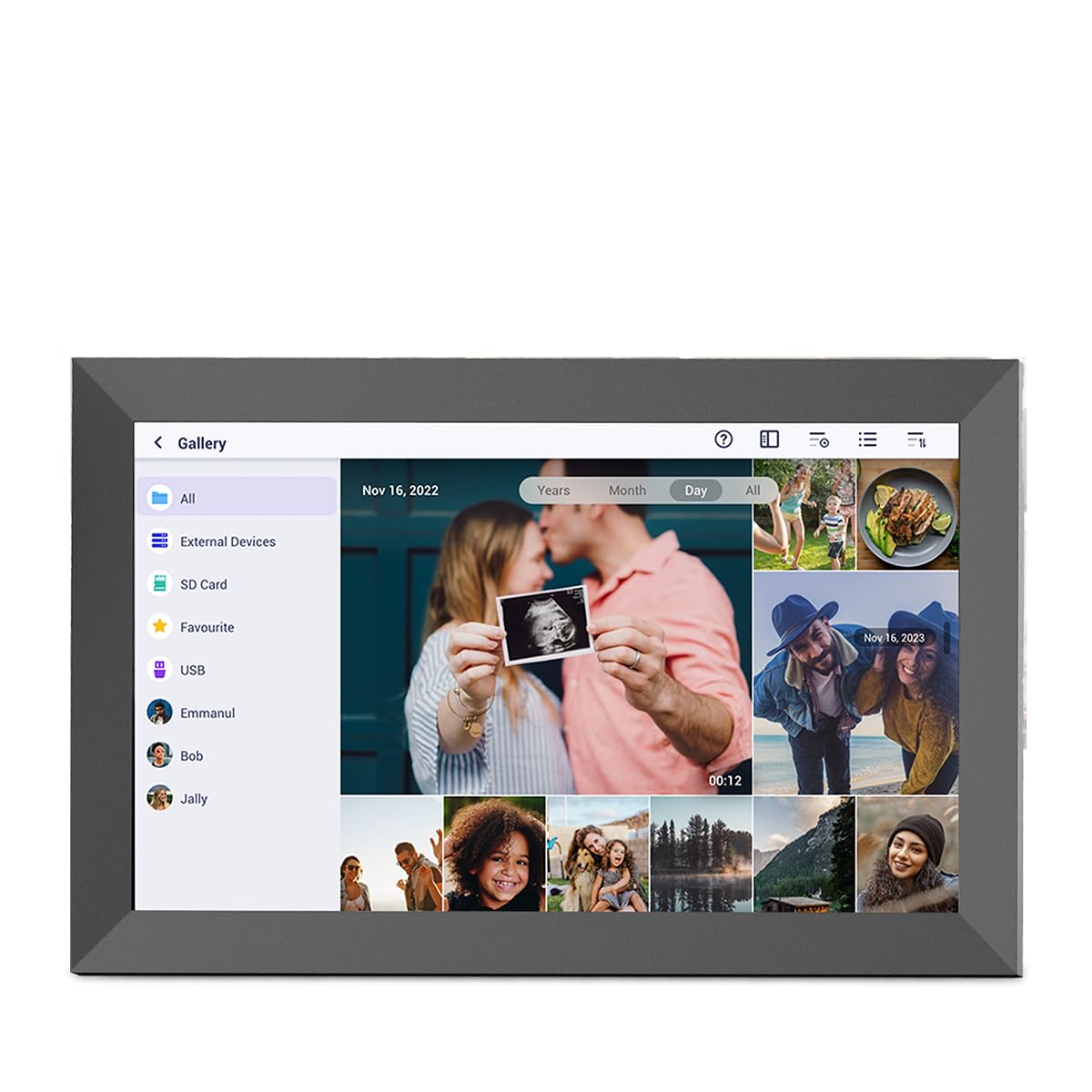
Image: The PRIXTON Prado XL digital photo frame showcasing a family picture.
2. Contenuto della confezione
Si prega di selezionare la casella per i seguenti elementi:
- PRIXTON Prado XL 15.6-inch Digital Photo Frame
- Adattatore di alimentazione
- Manuale dell'utente (questo documento)
3. Prodotto finitoview
Familiarize yourself with the various ports and controls on your digital photo frame.

Image: Back panel of the frame, highlighting the power button, USB-A, USB-C, SD card slot, and headphone jack.
Componenti chiave:
- Pulsante di accensione: Located on the back, used to turn the frame on/off or put it into sleep mode.
- Porta USB-A: For connecting USB flash drives to transfer photos and videos.
- Porta USB di tipo C: For connecting compatible devices or for data transfer.
- Slot per scheda SD: For inserting SD cards to display or transfer media.
- Jack per cuffie: Per collegare dispositivi audio esterni.
- Ingresso alimentazione CC: Per collegare l'adattatore di alimentazione.
- Fori per montaggio a parete: Per montare la cornice su una parete.
4. Impostazione
4.1 Accensione
- Connect the power adapter to the DC Power Input port on the back of the frame.
- Collegare l'adattatore di corrente a una presa a muro.
- The frame will automatically power on. If not, press and hold the Power Button for a few seconds.
4.2 Configurazione iniziale
Upon first startup, you will be guided through the initial setup process:
- Seleziona la lingua: Scegli la lingua preferita dall'elenco.
- Connettiti al Wi-Fi: Select your Wi-Fi network and enter the password. A stable internet connection is required for app functionality and software updates.
- Imposta data e ora: Configure the correct date, time, and time zone.
4.3 Connecting with the Uhale App
The Uhale app allows you to easily send photos and videos directly to your frame from your smartphone.
- Scarica l'App: Cercare "Uhale" in your smartphone's app store (iOS or Android) and install it.
- Creare un account: Open the Uhale app and follow the instructions to create a new user account.
- Pair the Frame: On your digital photo frame, navigate to the "Settings" menu and find the "Bind Device" or "Add Device" option. This will display a unique code or QR code.
- Enter Code/Scan QR: In the Uhale app, select "Add Device" and either manually enter the code displayed on your frame or use your phone's camera to scan the QR code.
- Once paired, you can start sending photos and videos to your frame.

Image: A smartphone screen showing the Uhale app interface next to the digital photo frame.
5. Funzionamento del telaio
5.1 Navigazione touchscreen
The Prado XL features a responsive touchscreen for easy navigation:
- Rubinetto: Seleziona un elemento o apri un menu.
- Scorri: Navigate through photos, menus, or lists.
- Pizzica per ingrandire: Zoom in or out on photos (if supported by software).
5.2 Aggiunta di foto e video
There are several ways to add media to your frame:
5.2.1 Via Uhale App
- Open the Uhale app on your paired smartphone.
- Seleziona le foto o i video che desideri inviare.
- Tap the "Send" or "Share" button to transfer them to your frame.
- The media will appear on your frame shortly, provided it is connected to Wi-Fi.
5.2.2 Via USB Drive or SD Card
- Insert a USB flash drive into the USB-A port or an SD card into the SD card slot.
- The frame will detect the external storage. Navigate to the "Gallery" or "Files" section.
- Select the desired photos or videos and choose to copy them to the frame's internal memory.

Image: User interacting with the Uhale app to send content to the digital photo frame.
5.3 Managing Content and Slideshows
- Galleria: Access all your stored photos and videos. You can view them individually or start a slideshow.
- Eliminare: Select unwanted media and choose the delete option.
- Impostazioni presentazione: Customize slideshow duration, transition effects, and playback order in the settings menu.

Image: The digital photo frame displaying a lively birthday party scene.
6. Menu Impostazioni
Access the settings menu by tapping the gear icon on the home screen. Here you can configure various aspects of your frame:
- Display: Adjust brightness, screen sleep time, and display mode.
- Wifi: Gestisci le tue connessioni di rete.
- Data e ora: Manually set or synchronize date and time.
- Magazzinaggio: View internal storage usage and manage external storage devices.
- Di: View device information, including software version and model number.
7. Manutenzione
7.1 Pulizia dello schermo
Per pulire il touchscreen, strofinarlo delicatamente con un panno morbido e privo di lanugine. Per le macchie ostinate, strofinare leggermenteampPulisci il panno con acqua o una soluzione detergente adatta allo schermo. Evita di utilizzare prodotti chimici aggressivi o materiali abrasivi.
7.2 Aggiornamenti software
Ensure your frame is connected to Wi-Fi to receive automatic software updates. Updates provide new features, performance improvements, and bug fixes. You can manually check for updates in the "Settings" > "About" menu.
8. Risoluzione Dei Problemi
| Problema | Possibile soluzione |
|---|---|
| La cornice non si accende. | Assicurati che l'adattatore di alimentazione sia collegato saldamente sia al telaio che a una presa di corrente funzionante. Prova una presa diversa. |
| Impossibile connettersi al Wi-Fi. | Check if your Wi-Fi router is on and working. Re-enter the Wi-Fi password carefully. Move the frame closer to the router. |
| Foto/video non visualizzati. | Verify that the media has been successfully uploaded via the app or copied from USB/SD. Check file formats for compatibility. Ensure the frame is connected to Wi-Fi if using the app. |
| Il touchscreen non risponde. | Restart the frame by holding the power button. Ensure the screen is clean and free of debris. |
| Frame is slow or freezes. | Restart the frame. Clear some internal storage if it is nearly full. |
9. Specifiche
| Caratteristica | Dettaglio |
|---|---|
| Numero di modello | 10006183 |
| Dimensioni dello schermo | 15.6 pollici |
| Tipo di visualizzazione | Schermo tattile IPS |
| Risoluzione | 1920 x 1080 FullHD |
| Memoria interna | Flash da 32 GB |
| Memoria RAM | 1 GB |
| Connettività | Wifi |
| Porti | USB Type-C, USB-A, SD Card Slot, Headphone Jack |
| Audio | Altoparlanti integrati |
| Dimensioni (L x P x A) | Dimensioni: 14 x 21 x 2.51 cm |
10. Garanzia e supporto
PRIXTON products are designed and manufactured to the highest quality standards. For information regarding warranty coverage, please refer to the warranty card included with your product or visit the official PRIXTON websito.
If you encounter any issues or have questions not covered in this manual, please contact PRIXTON customer support for assistance. You can find contact details on the PRIXTON websito o tramite la tua piattaforma di acquisto.
Supporto online: Visit the PRIXTON Store on Amazon