
1. Introduzione
This manual provides essential information for the proper setup, operation, and maintenance of your Veout 15.6-inch Portable Monitor. Please read these instructions thoroughly before using the product to ensure optimal performance and longevity.
2. Contenuto della confezione
Verifica che tutti gli articoli elencati di seguito siano presenti nella confezione del prodotto:
- 1 monitor portatile
- 1 cavo da USB-A a USB-C
- 1 cavo da USB-C a USB-C
- 1 cavo da mini HDMI a HDMI
- 1 x Manuale utente

Figura 2.1: Accessori inclusi con il monitor portatile.
3. Prodotto finitoview
The Veout portable monitor features a 15.6-inch IPS display with a slim profile and integrated kickstand for versatile use.
3.1 Caratteristiche fisiche

Figura 3.1: Fronte view of the Veout 15.6-inch Portable Monitor.

Figura 3.2: Posteriore view highlighting connectivity ports.

Figura 3.3: Prospettiva lateralefile demonstrating the monitor's thin design.
3.2. Porte e controlli
- Porte USB-C con funzionalità complete: For video, audio, data, and power delivery with a single cable.
- Porta mini HDMI: For video and audio input. Requires external power via USB-C when used.
- Jack audio da 3.5 mm: Per collegare cuffie o altoparlanti esterni.
- Control Wheel/Buttons: Used for adjusting volume, brightness, and navigating the On-Screen Display (OSD) menu.
3.3. Cavalletto integrato
The monitor features a foldable kickstand for stable positioning at various viewangoli di inclinazione.
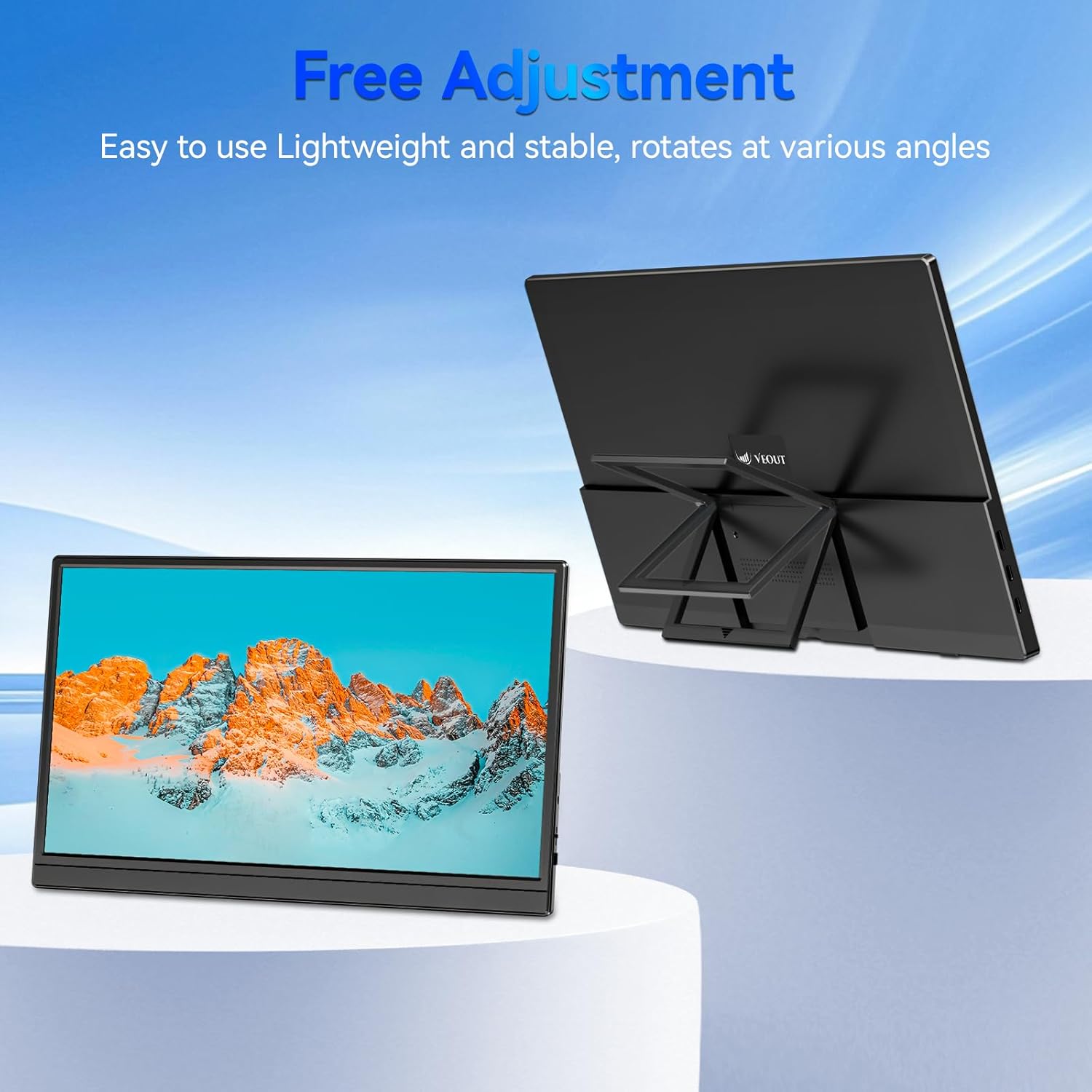
Figure 3.4: Monitor with kickstand for adjustable viewing.
4. Impostazione
The Veout portable monitor supports plug-and-play functionality, requiring no driver installation for most devices.
4.1. Connessione a un dispositivo
- Connessione USB-C (cavo singolo):
- Connect one end of the USB-C to USB-C cable to a full-function USB-C port on your laptop, smartphone, or other compatible device.
- Connect the other end of the USB-C to USB-C cable to one of the full-function USB-C ports on the portable monitor.
- This connection provides video, audio, and power to the monitor.
- HDMI Connection (Requires Additional Power):
- Connect one end of the Mini-HDMI to HDMI cable to the Mini-HDMI port on the monitor.
- Connect the other end of the Mini-HDMI to HDMI cable to the HDMI port on your device.
- For power, connect the USB-A to USB-C cable or a USB-C to USB-C cable from your device's USB port or a power adapter (not included) to one of the monitor's USB-C ports.
4.2. Positioning the Monitor
Deploy the integrated kickstand to position the monitor on a flat surface. Adjust the angle for optimal viewing. The monitor can be used in both landscape and portrait orientations.

Figure 4.1: Monitor used in portrait mode for document viewing.
5. Istruzioni per l'uso
5.1. Modalità di visualizzazione
When connected to a computer, you can configure the display mode through your operating system's display settings:
- Copy Mode (Mirror Display): Duplicates your primary screen's content onto the portable monitor. Useful for presentations or sharing content.
- Modalità estesa: Extends your desktop across both screens, providing additional workspace for multitasking.
- Modalità solo secondo schermo: Displays content only on the portable monitor, with the primary device's screen turned off.
5.2. Regolazione delle impostazioni
The monitor features an intuitive control mechanism for quick adjustments:
- Regolazione della luminosità: Scroll the control wheel up or down to instantly adjust screen brightness.
- Regolazione del volume: Scroll the control wheel up or down to instantly adjust speaker volume.
- Menu OSD: Press the control wheel or designated button to access the On-Screen Display menu for advanced settings like color, contrast, and input source selection.
5.3. Tecnologia per la cura degli occhi
The monitor incorporates advanced eye-care technology designed to reduce blue light emission and screen flicker, promoting comfortable viewdurante l'uso prolungato.
6. Manutenzione
Per mantenere le prestazioni e l'aspetto del monitor inalterati, seguire queste linee guida:
- Pulizia dello schermo: Pulire delicatamente lo schermo con un panno morbido e privo di lanugine. Per i segni ostinati, strofinare leggermenteampImmergere il panno in acqua o in una soluzione detergente per schermi. Evitare prodotti chimici aggressivi o materiali abrasivi.
- Pulizia del Casing: Utilizzare un panno morbido e asciutto per pulire il monitor.asing.
- Magazzinaggio: When not in use, store the monitor in a cool, dry place, preferably in its original packaging or a protective sleeve.
- Evitare i liquidi: Do not expose the monitor to excessive moisture or spill liquids directly onto it.
7. Risoluzione Dei Problemi
Se riscontri problemi con il monitor, fai riferimento ai seguenti problemi comuni e alle relative soluzioni:
| Problema | Possibile causa | Soluzione |
|---|---|---|
| Nessun display/messaggio "Nessun segnale" | Collegamento del cavo errato, alimentazione insufficiente, sorgente di ingresso errata. | Ensure cables are securely connected. If using HDMI, ensure a separate power source is connected to the monitor's USB-C port. Check your device's display settings to ensure the monitor is detected and enabled. Select the correct input source via the OSD menu. |
| Schermo tremolante | Loose cable connection, incompatible resolution/refresh rate, power fluctuations. | Reconnect cables. Adjust display resolution or refresh rate on your connected device. Ensure stable power supply. |
| Nessun suono dagli altoparlanti del monitor | Monitor volume too low, incorrect audio output selected on device. | Increase monitor volume using the control wheel. On your connected device, ensure the portable monitor is selected as the audio output device. |
| Il monitor non si accende | No power supply, faulty cable. | Ensure the monitor is receiving power via a USB-C connection from a compatible device or power adapter. Try a different USB-C cable. |
8. Specifiche
| Caratteristica | Dettaglio |
|---|---|
| Numero di modello del prodotto | Veout-15.6 |
| Dimensioni dello schermo | 15.6 pollici |
| Risoluzione | 1920 x 1080 pixel (FHD 1080p) |
| Proporzioni | 16:9 |
| Tipo di pannello | Informazione pubblica |
| Superficie dello schermo | Opaco |
| Dimensioni del prodotto | 1.97 x 13.78 x 11.02 pollici |
| Peso dell'articolo | 3.08 libbre |
| Ingresso volumetage | 5V |
| Corrente nominale | 3A |
| Potenza di uscita | 5.5W |
| Produttore | Guangdong Zhanwei electronic Technology Co., LTD |

Figure 8.1: Product information and certification details.
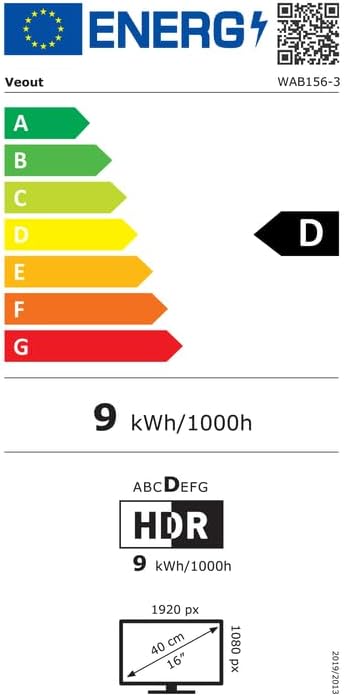
Figure 8.2: EU Energy Label for model WAB156-3. For more details, visit eprel.ec.europa.eu/qr/2209122.
9. Garanzia e supporto
Your Veout Portable Monitor is backed by a 12-month warranty from the date of purchase. We are committed to providing customer service and support.
- Periodo di garanzia: 12 mesi
- Politica di ritorno: Garanzia di rimborso di 30 giorni
- Assistenza clienti: Disponibile 24 ore su 24

Figura 9.1: Informazioni su garanzia e supporto.
For technical assistance or warranty claims, please contact Veout customer support at support@veout.com.