
Introduzione
Grazie per l'acquistoasing the Matbip Multi-Platform Wireless Gaming Controller. This controller is designed to enhance your gaming experience across various platforms, including Nintendo Switch, Android, iOS, and PC. It features advanced functions such as TURBO burst, macro programming, customizable RGB lighting, and HD vibration, providing precise control and immersive feedback. Please read this manual carefully before use to ensure proper operation and to fully utilize all features.
Prodotto finitoview
Familiarize yourself with the various components and buttons of your Matbip controller.
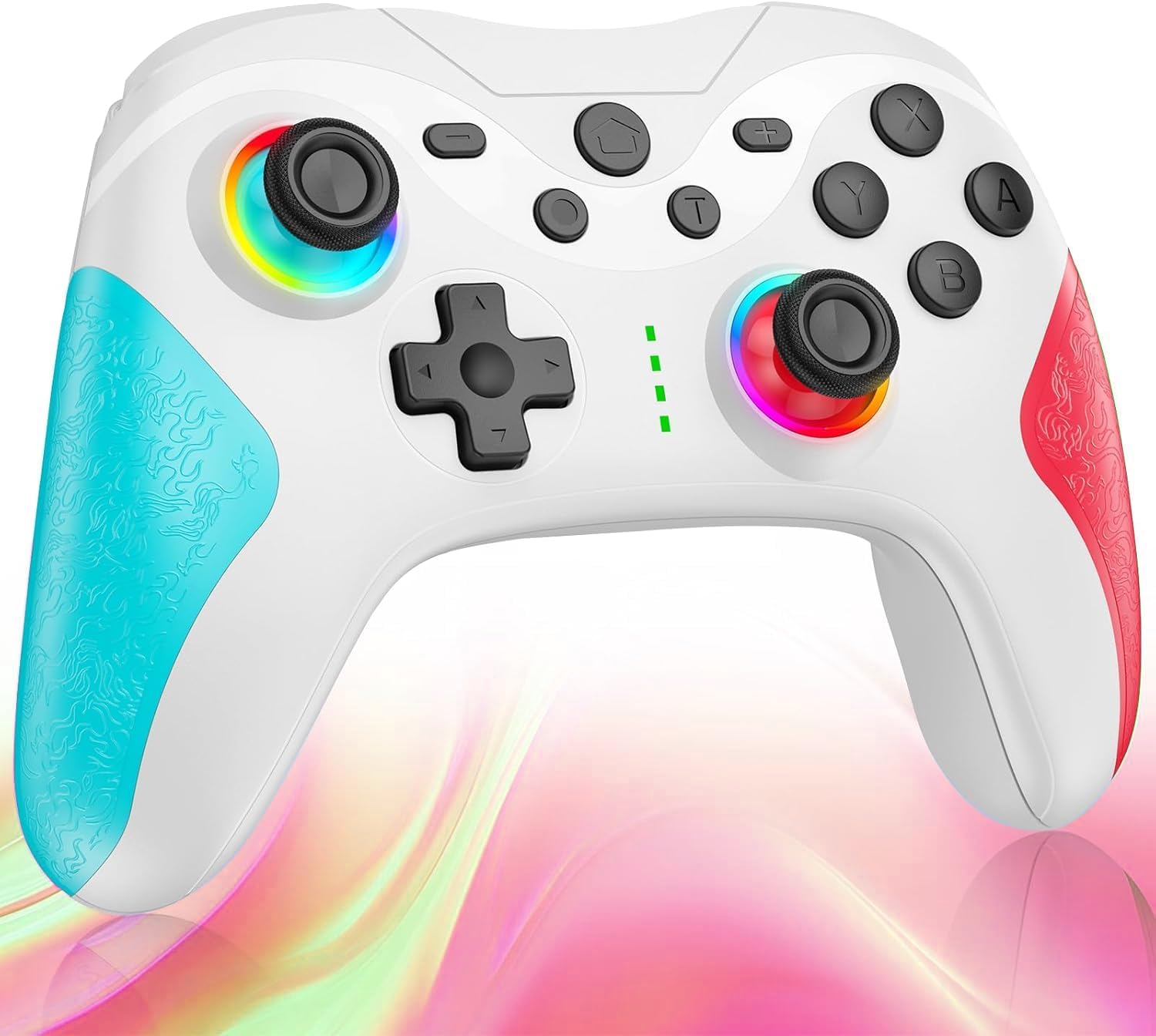
Immagine: Davanti view of the Matbip Multi-Platform Wireless Gaming Controller. It features a white body with blue textured grips on the left and red textured grips on the right. The joysticks are illuminated with a rainbow RGB light. Standard buttons (A, B, X, Y), a D-pad, and central function buttons (Home, Plus, Minus, T) are visible.
Componenti chiave:
- Joystick sinistro/destro: For directional control, with customizable RGB lighting.
- Tasto direzionale: Per un input direzionale preciso.
- Pulsanti di azione (A/B/X/Y): Pulsanti di input standard per il gioco.
- Shoulder Buttons (L/R/ZL/ZR): Top-mounted trigger and bumper buttons.
- Pulsanti Indietro: Additional programmable buttons on the rear for strategic gameplay.
- Pulsante Home: Ritorna alla schermata iniziale del sistema.
- Pulsanti Più (+) / Meno (-): System-specific function buttons.
- T Button (TURBO): Activates and manages the TURBO burst function.
- Porta di ricarica: Porta USB-C per la ricarica.
- Luci di segnalazione: Visualizza lo stato della connessione e il livello della batteria.
Impostare
1. Ricarica del controller
Before first use, fully charge the controller. Connect the provided USB-C cable to the controller's charging port and the other end to a USB power source (e.g., console, PC, or USB wall adapter). The indicator lights will show charging status and turn off when fully charged.
2. Associazione con i dispositivi
The controller supports Bluetooth wireless connection across multiple platforms.
Per Nintendo Switch:
- On the Switch HOME Menu, select Controllori > Cambia impugnatura/ordine.
- Premere e tenere premuto il tasto Pulsante Home on the Matbip controller for 3-5 seconds until the indicator lights flash rapidly.
- Una volta effettuata l'associazione, la spia luminosa sul controller rimarrà accesa fissa.
Per dispositivi Android/iOS:
- Abilita il Bluetooth sul tuo dispositivo Android o iOS.
- Premere e tenere premuto il tasto Pulsante Home on the Matbip controller for 3-5 seconds until the indicator lights flash rapidly.
- On your device's Bluetooth settings, select the controller (e.g., "Matbip Controller") from the list of available devices to pair.
Per PC (Windows):
- Ensure your PC has Bluetooth enabled. Go to Impostazioni > Dispositivi > Bluetooth e altri dispositivi.
- Clic Aggiungi Bluetooth o altro dispositivo > Bluetooth.
- Premere e tenere premuto il tasto Pulsante Home on the Matbip controller for 3-5 seconds until the indicator lights flash rapidly.
- Select the controller from the list of devices to pair.
Istruzioni per l'uso
TURBO Burst Function:
The TURBO function allows for rapid, automatic button presses, ideal for combat games.
- Per attivare TURBO: Premere e tenere premuto il tasto Pulsante T, then press the desired action button (e.g., A, B, X, Y, L, R, ZL, ZR). The button will now continuously activate when held down.
- Per regolare la velocità TURBO: Mentre si tiene premuto il Pulsante T, sposta il right joystick up or down to cycle through 3 different burst speeds.
- Per disattivare TURBO: Premere e tenere premuto il tasto Pulsante T, quindi premere nuovamente lo stesso pulsante di azione.
Funzione macro:
Program a sequence of button presses to a single back button for complex actions.
- Specific instructions for macro programming will be detailed in the full manual. Generally, this involves entering a programming mode, pressing the sequence, and assigning it to a back button.
Illuminazione RGB personalizzabile:
The joysticks feature 9-color RGB lighting to enhance your gaming atmosphere.
- To change RGB color/mode: Press a specific button combination (e.g., T + Left Joystick click) to cycle through different colors and lighting effects.
HD Vibration Adjustment:
Adjust the intensity of the HD vibration feedback to your preference (4 levels).
- To adjust vibration: Press a specific button combination (e.g., T + D-Pad Up/Down) to cycle through the 4 vibration levels.
Sensore giroscopico:
The high-precision gyro sensor enables intuitive motion control in supported games.
- The gyro sensor is automatically active when connected to a compatible device (e.g., Nintendo Switch) and used in games that support motion controls.
Sleep Wake-up Function:
The controller supports waking up your Nintendo Switch console from sleep mode.
- When the Switch is in sleep mode, simply press the Pulsante Home on the controller to wake it up and reconnect.
Manutenzione
Una corretta manutenzione garantisce la longevità e le prestazioni ottimali del controller.
- Pulizia: Utilizzare un panno morbido e asciutto per pulire il controller. Per lo sporco ostinato, leggermente dampLavare il panno con acqua. Non utilizzare prodotti chimici aggressivi o detergenti abrasivi.
- Magazzinaggio: Conservare il controller in un luogo fresco e asciutto, lontano dalla luce solare diretta, da temperature estreme e dall'umidità.
- Cura della batteria: Avoid fully discharging the battery frequently. If storing for a long period, charge the controller to about 50% every few months.
- Evitare gocce: Proteggere il controller da cadute e urti che potrebbero danneggiare i componenti interni.
Risoluzione dei problemi
Se riscontri problemi con il tuo controller, fai riferimento alle seguenti soluzioni comuni:
| Problema | Possibile soluzione |
|---|---|
| Il controller non si accende. | Assicurati che il controller sia carico. Collegalo a una fonte di alimentazione tramite il cavo USB-C. |
| Il controller non si associa. | Ensure Bluetooth is enabled on your device. Make sure the controller is in pairing mode (flashing lights). Try restarting both the controller and the device. |
| Ritardo di input o disconnessione. | Ensure there are no strong wireless interferences nearby. Move closer to the device. Re-pair the controller. |
| I pulsanti o i joystick non rispondono. | Try resetting the controller (refer to the full manual for reset instructions, usually a small pinhole button). Ensure no debris is obstructing the buttons. |
| La vibrazione non funziona. | Check if vibration is enabled in the game or system settings. Adjust the vibration intensity on the controller. |
Specifiche
| Caratteristica | Dettaglio |
|---|---|
| Dimensioni del prodotto | Dimensioni: 10 x 15 x 6.5 cm |
| Peso | 300 grammi |
| Connettività | Bluetooth senza fili |
| Compatibilità | Nintendo Switch, Android, iOS, PC (Windows) |
| Caratteristiche speciali | TURBO Burst, Macro Function, 9-Color RGB Lighting, 4-Level HD Vibration, Gyro Sensor, Back Buttons, Sleep Wake-up |
| ASIN | B0FHWRK7CQ |
| Data di rilascio | 16 luglio 2025 |
Garanzia e supporto
Matbip is committed to providing high-quality products and customer satisfaction. This product comes with a standard manufacturer's warranty. For detailed warranty information, please refer to the documentation included with your purchase or contact Matbip customer support.
If you require further assistance, have questions, or encounter issues not covered in this manual, please contact our customer support team. A Japanese instruction manual is included with the product to ensure ease of use for first-time users.
Informazioni sui contatti: Please refer to the packaging or the official Matbip websito per i dettagli di contatto più aggiornati dell'assistenza clienti.