
Introduzione
Thank you for choosing the MYPIN Wireless CarPlay Adapter. This device converts your car's existing wired CarPlay or Android Auto system into a wireless connection, offering enhanced convenience and entertainment features. This manual provides detailed instructions for setup, operation, and maintenance to ensure optimal performance.
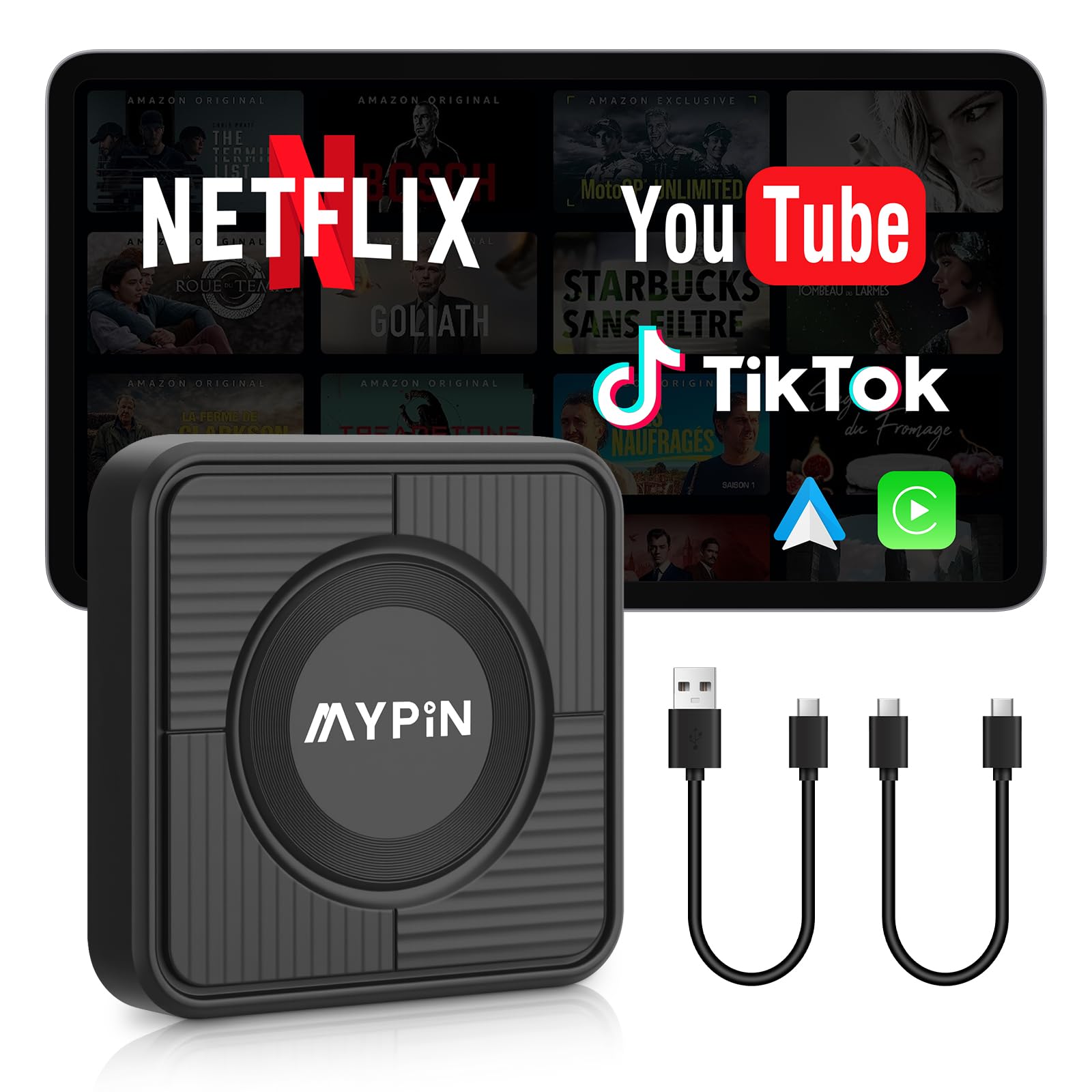
Image: The MYPIN Wireless CarPlay Adapter, a compact black device, shown alongside its USB-A to USB-C and USB-C to USB-C cables. This image illustrates the product and its essential accessories.
1. Istruzioni per l'installazione
Follow these steps to connect your MYPIN Wireless CarPlay Adapter to your vehicle.
1.1 Connessione iniziale
- Ensure your vehicle supports wired CarPlay or Android Auto. This adapter is designed to convert an existing wired system to wireless.
- Locate the USB port in your car that supports wired CarPlay or Android Auto.
- Connect the MYPIN adapter to this USB port using one of the provided USB cables (USB-A to USB-C or USB-C to USB-C, depending on your car's port).
- Once connected, the adapter will power on, and an interface should appear on your car's display.

Image: A visual representation of the "Plug & Play" setup, showing the MYPIN adapter connected to a car's USB port, and the subsequent Bluetooth pairing process on a smartphone, leading to the CarPlay/Android Auto interface on the car's screen.
1.2 Associazione con lo smartphone
- On your car's display, select the CarPlay or Android Auto option.
- Sul tuo smartphone, attiva Bluetooth e Wi-Fi.
- Cercare the MYPIN adapter's Bluetooth signal on your phone and pair with it. The device name will typically appear as "MYPIN" or a similar identifier.
- Confirm the pairing on both your phone and the car's display if prompted.
- Once paired, your phone will automatically connect to the adapter, and the wireless CarPlay or Android Auto interface will launch on your car's screen.
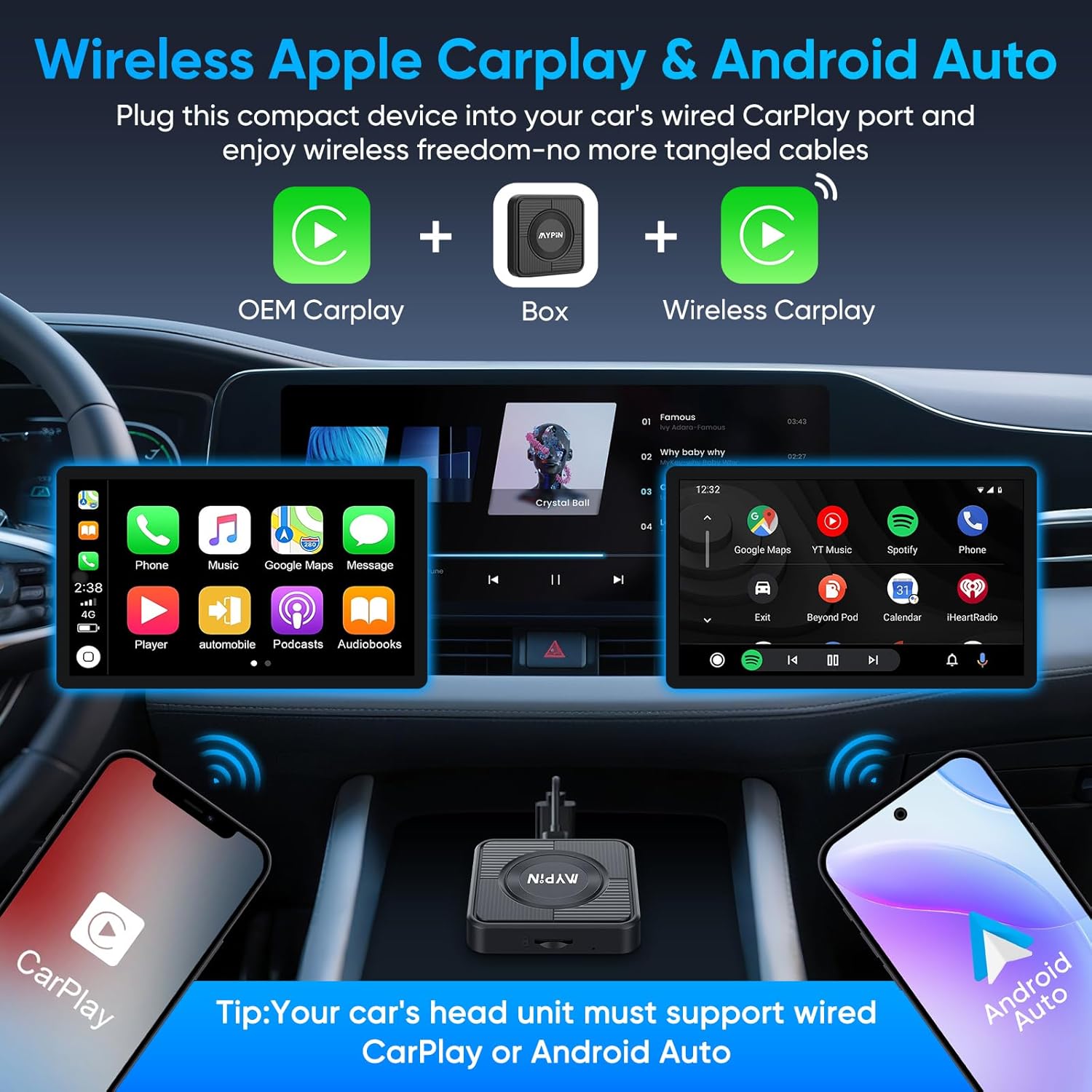
Image: This diagram illustrates the conversion from OEM wired CarPlay to wireless CarPlay using the MYPIN adapter. It shows a car's dashboard with both CarPlay and Android Auto interfaces displayed, and two smartphones (iPhone and Android) wirelessly connected to the adapter.
2. Istruzioni per l'uso
Understand the various functions and control methods of your MYPIN adapter.
CarPlay wireless 2.1 e Android Auto
- After successful pairing, your smartphone will automatically connect to the adapter when you start your car.
- You can seamlessly switch between CarPlay and Android Auto if you use different devices or have multiple phones.
- All standard CarPlay and Android Auto features, such as navigation, music playback, calls, and messaging, will be available wirelessly.
2.2 Integrated Video Applications
The adapter includes built-in video applications like Netflix, YouTube, and TikTok, transforming your car's display into an entertainment hub. To use these features, you must connect the adapter to your phone's mobile hotspot.
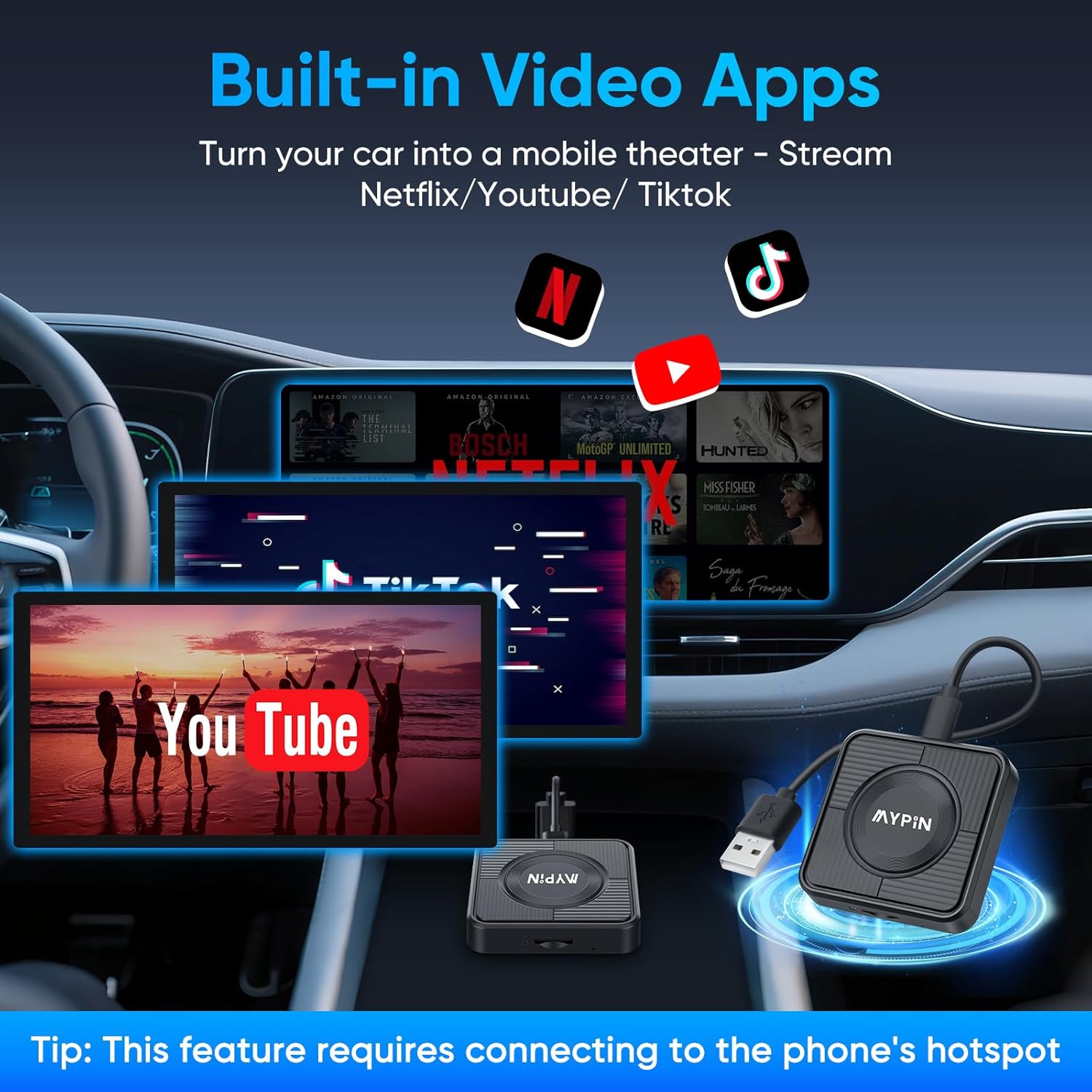
Image: The car's dashboard screen displaying various streaming applications like Netflix, YouTube, and TikTok, demonstrating the adapter's capability to turn the car into a mobile entertainment center. A note indicates that this feature requires a phone's hotspot connection.
2.3 Opzioni di controllo
The MYPIN adapter supports multiple control methods, maintaining your car's original functionalities:
- Controllo touch screen: Interact directly with the car's display if it is a touchscreen.
- Controllo del volante: Use your vehicle's steering wheel buttons for audio, calls, and navigation.
- Controllo della manopola OEM: Utilize the original equipment manufacturer (OEM) control knob for menu navigation.
- Assistente vocale: Access your phone's voice assistant (Siri for iOS, Google Assistant for Android) for hands-free operation.

Image: This image displays a car's interior, highlighting the four control options for the adapter: Touch Screen Control, Steering Wheel Control, OEM Knob Control, and Voice Assistant, ensuring seamless interaction with the system.
Supporto per schede TF da 2.4
The adapter supports a TF (microSD) card up to 256GB (card not included) for local storage and playback of music and video files. This allows for direct playback without requiring a mobile phone hotspot connection.

Image: The MYPIN adapter is shown with a TF card inserted, illustrating its capability to store and play music and video files directly from the card, supporting up to 256GB.
3. Manutenzione
- Pulizia: Utilizzare un panno morbido e asciutto per pulire l'adattatore. Evitare detergenti liquidi o materiali abrasivi.
- Magazzinaggio: When not in use for extended periods, disconnect the adapter from the car's USB port and store it in a cool, dry place.
- Aggiornamenti software: The adapter supports online software updates. Regularly check for and install updates to ensure optimal performance and access to the latest features. Follow the on-screen prompts for updates.
- Dissipazione del calore: The device features cooling holes for efficient heat dissipation. Ensure these holes are not obstructed during operation.

Image: The underside of the MYPIN adapter is shown, highlighting the numerous cooling holes designed for effective heat dissipation, especially in high-temperature environments.
4. Risoluzione Dei Problemi
In caso di problemi, fare riferimento alle seguenti soluzioni comuni:
4.1 Problemi di connessione
- Adattatore non connesso:
- Ensure your car's USB port supports wired CarPlay or Android Auto.
- Prova un cavo USB o una porta USB diversi nella tua auto.
- Riavvia il sistema di infotainment della tua auto e il tuo smartphone.
- Forget the Bluetooth connection on your phone and re-pair.
- Connessione intermittente:
- Assicurarsi che non vi siano altri dispositivi Bluetooth o Wi-Fi che interferiscono con la connessione.
- Keep your smartphone close to the adapter.
- Check for and install any available software updates for the adapter.
4.2 Video App Playback Issues (Netflix, YouTube, TikTok)
- No Video Playback or Buffering:
- Ensure the adapter is connected to your smartphone's mobile hotspot with a stable internet connection.
- Verify that your phone's Wi-Fi is enabled and correctly configured for hotspot sharing.
- Disable your phone's Wi-Fi temporarily if it's causing conflicts with CarPlay/Android Auto, then re-enable for video apps.
- Check your mobile data plan for sufficient data and speed.
- Switching between CarPlay/Android Auto and Video Apps:
- To use video apps like YouTube or Netflix, you typically need to switch the adapter's mode or ensure your phone's hotspot is active and connected to the adapter.
- Disabling your phone's Wi-Fi will terminate the CarPlay connection. For video apps, you need to connect to your phone's hotspot.
- Refer to the on-screen instructions for switching modes or connecting to the hotspot.

Image: A six-step visual guide demonstrating how to manage Wi-Fi settings on a smartphone and the car's display to switch between CarPlay/Android Auto and video applications like YouTube or Netflix. This includes disabling phone Wi-Fi, accessing adapter settings, and connecting to a personal hotspot.
4.3 Problemi generali di prestazioni
- Ritardo o risposta lenta:
- Assicurati che il sistema operativo del tuo smartphone sia aggiornato.
- Close unnecessary applications on your smartphone.
- Check for adapter software updates.
- Problemi audio:
- Verify car audio settings and volume levels.
- Assicurarsi che la connessione Bluetooth sia stabile.
5. Specifiche
| Caratteristica | Dettaglio |
|---|---|
| Marca | IL MIO PIN |
| Numero di modello | MJ-CE0412 |
| Colore | Nero |
| Tecnologia di connettività | USB, Wi-Fi, Bluetooth |
| Tipo di connettore | USB di tipo C, USB di tipo A |
| Caratteristiche speciali | Wireless Android Auto, Wireless Apple CarPlay, Video Playback (Netflix, YouTube, TikTok) |
| Dispositivi compatibili | iOS Smartphones, Android Smartphones |
| Tipo di controllore | Touchscreen, Steering Wheel, OEM Knob, Voice |
| Memoria RAM | 2 GB |
| ROM | 16 GB |
| Supporto per schede TF | Up to 256 GB (card not included) |
| Modalità di uscita audio | Stereo |
| Configurazione del canale audio surround | 2.0 |
| Codifica video | H.264, H.265/HEVC |
6. Compatibilità
The MYPIN Wireless CarPlay Adapter is compatible with approximately 98% of vehicles that have a factory-installed wired CarPlay or Android Auto system. It is essential to verify that your car's head unit supports wired CarPlay or Android Auto before purchase.
Nota: This adapter is generally not compatible with B-M-W or Tesla vehicles.

Image: A graphic illustrating wide compatibility with various car models that have built-in wired CarPlay or Android Auto. A disclaimer at the bottom notes incompatibility with B-M-W and Tesla vehicles.
7. Informazioni sulla garanzia
Specific warranty details for the MYPIN Wireless CarPlay Adapter are not provided in the product information. Please refer to your purchase documentation or contact the retailer for warranty terms and conditions.
8. Assistenza clienti
For further assistance, technical support, or inquiries regarding your MYPIN Wireless CarPlay Adapter, please contact the seller or manufacturer through the platform where the product was purchased. Ensure you have your model number (MJ-CE0412) and purchase details ready when contacting support.