
1. Introduzione
The EWEADN F61 is a compact 60% wired gaming keyboard designed for efficiency and performance. It features vibrant RGB backlighting, durable PBT keycaps, and an ergonomic design for comfortable extended use. This manual provides detailed instructions for setting up, operating, and maintaining your keyboard.
2. Contenuto della confezione
- EWEADN F61 60% Wired RGB Gaming Keyboard
- Cavo USB-C staccabile
- Manuale d'uso
3. Impostazione
To begin using your EWEADN F61 keyboard, follow these simple steps:
- Collegare il cavo USB-C: Plug the detachable USB-C cable into the Type-C port on the keyboard and the other end into an available USB port on your computer (PC, laptop, gaming console, smartphone, or tablet). The keyboard is plug-and-play, requiring no additional drivers.
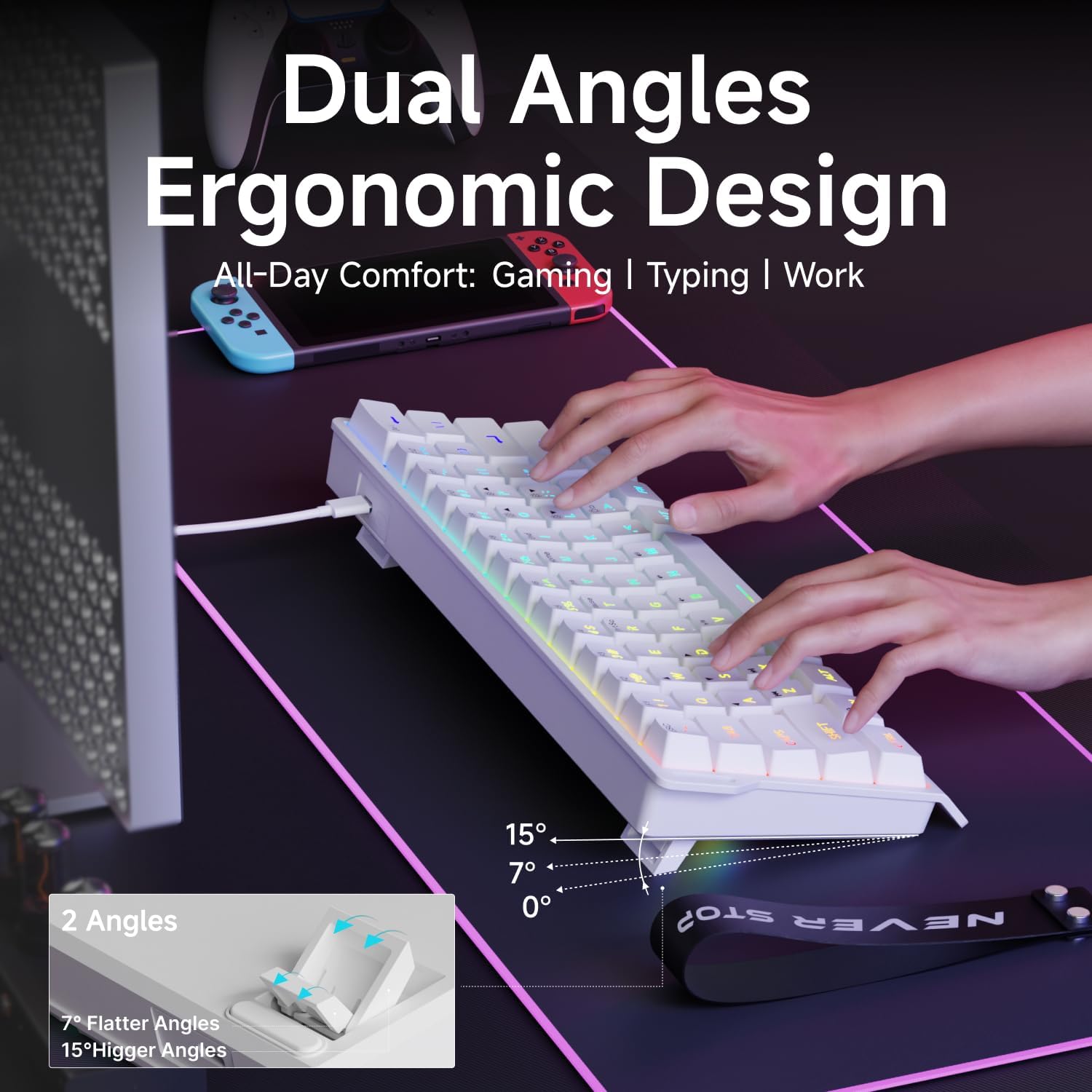
- Adjust Ergonomic Kickstands: The keyboard features dual-layer feet support with two adjustable angles (7° and 15°) for enhanced typing comfort. Flip out the kickstands on the underside of the keyboard to your preferred height.
- Compatibilità del sistema: The keyboard is compatible with both Windows and Mac operating systems. To switch between modes, hold down the 'FN' key and press 'A' for Windows or 'S' for Mac.
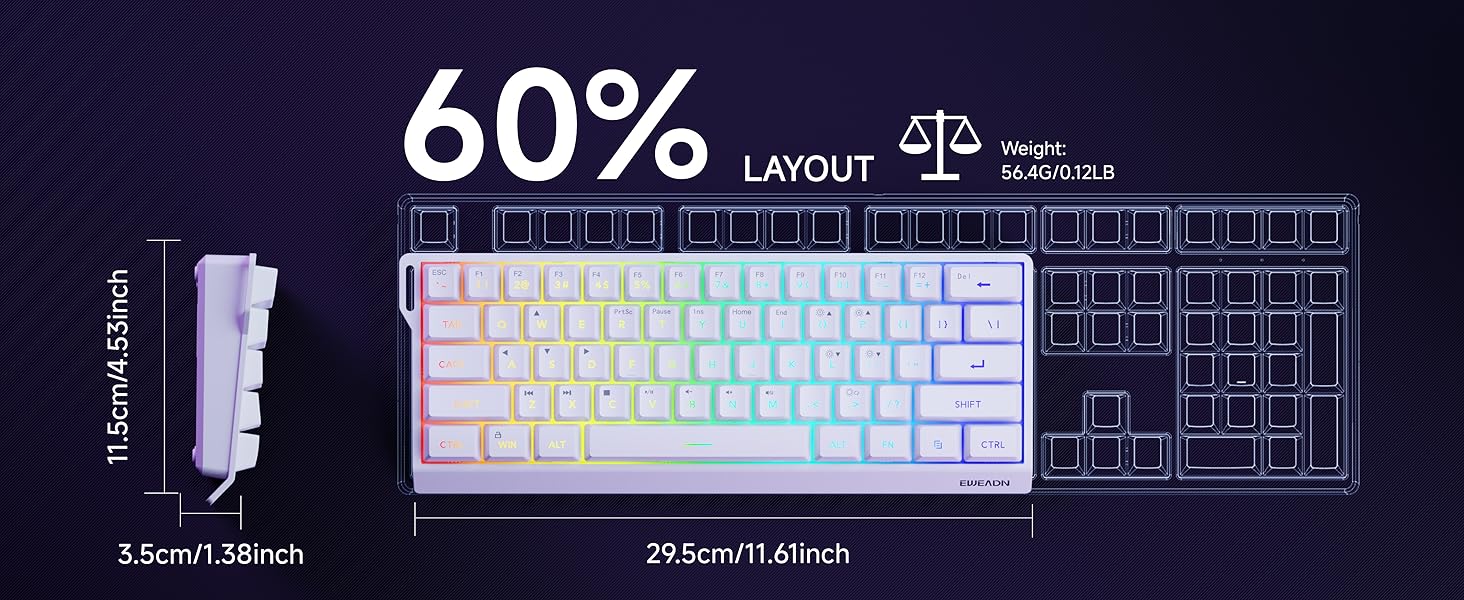
Video: Demonstrates the compact 60% design of the EWEADN F61 keyboard, highlighting its portability and suitability for gaming and travel. Shows the keyboard being connected and used.
4. Istruzioni per l'uso
4.1 Controllo dell'illuminazione RGB
The EWEADN F61 features 16.8 million RGB backlight colors with 6 effects and 5 brightness levels. Use the following key combinations to customize your lighting:
- Cambia gli effetti di retroilluminazione: Presa FN + INS to cycle through the 6 available lighting effects.
- Regola luminosità: Presa FN + P (to increase brightness) or FN + ;: (to decrease brightness). There are 5 brightness levels.
- Regola la velocità dell'illuminazione: Presa FN + O (to increase speed) or FN + L (to decrease speed).
- Accensione/spegnimento delle luci: Presa FN + Indietro per accendere o spegnere la retroilluminazione.
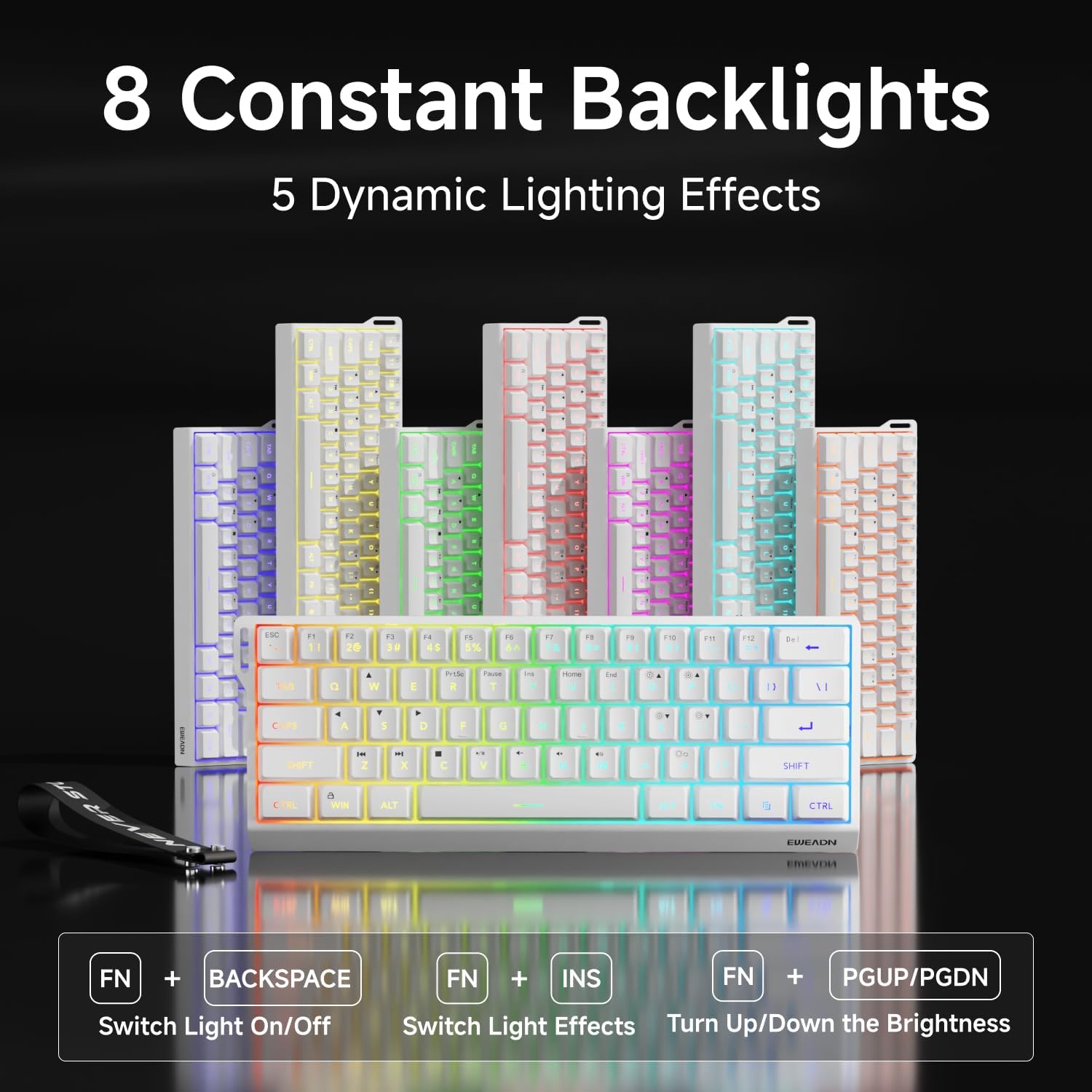

Video: Un video verticale mostraasing the EWEADN F61 60% Wired RGB Backlit Gaming Keyboard, demonstrating its compact size and various RGB lighting effects.
4.2 Funzioni chiave e layout
The F61 features a 60% compact layout, which means some keys are accessed via the 'FN' (Function) key. This design saves desk space while retaining essential functionality.
- Lockable Win Key: Prevent accidental interruptions during gaming by locking the Windows key. Press FN + Vincita to toggle the Win key lock.
- Tasti PBT: The keyboard is equipped with dual-layer injection PBT keycaps, ensuring durability and clear, translucent characters that resist fading.
- Silent Membrane Switches: Experience quieter keystrokes for a more comfortable and less disruptive typing or gaming session.


5. Manutenzione
To ensure the longevity and optimal performance of your EWEADN F61 keyboard, follow these maintenance guidelines:
- Pulizia regolare: Use a soft, dry cloth to wipe down the keycaps and keyboard surface. For deeper cleaning, you can use a can of compressed air to remove dust and debris from between the keys.
- Evitare fuoriuscite di liquidi: While durable, direct exposure to liquids can damage the internal components. In case of a spill, immediately disconnect the keyboard and allow it to dry completely before reconnecting.
- Cura del cavo: Handle the detachable USB-C cable with care. Avoid sharp bends or excessive pulling to prevent damage to the cable or port.
6. Risoluzione Dei Problemi
If you encounter any issues with your EWEADN F61 keyboard, refer to the following troubleshooting tips:
- La tastiera non risponde:
- Assicurati che il cavo USB-C sia collegato saldamente sia alla tastiera che al computer.
- Prova a collegare la tastiera a una porta USB diversa del computer.
- Riavvia il computer.
- Luci RGB non funzionanti/errate:
- Check if the backlight is turned off (FN + Backspace).
- Cycle through lighting effects (FN + INS) to see if they respond.
- Adjust brightness levels (FN + P / ;:).
- Keys Not Functioning as Expected (e.g., Esc, Delete):
- Remember that due to the 60% layout, many functions are accessed via the 'FN' key in combination with other keys. Refer to the keycap legends or the user manual for specific combinations.
- Ensure the correct system compatibility mode is selected (FN + A for Windows, FN + S for Mac).
7. Specifiche
| Caratteristica | Dettaglio |
|---|---|
| Produttore | EWEAD |
| Numero di modello | F61 |
| Disposizione | 60% Compatto |
| Connettività | Cablato (USB-C) |
| Materiale del copritastiera | PBT (Dual-Layer Injection) |
| Tipo di interruttore | Membrane (Silent) |
| Retroilluminazione | RGB (6 effects, 5 brightness levels) |
| Ergonomia | Dual-Angle Adjustable Feet (7°, 15°) |
| Dispositivi compatibili | Console di gioco, laptop, PC, smartphone, tablet |
| Sistemi operativi | Finestre, Mac |
| Dimensioni | 11.61 x 4.53 x 1.93 pollici (29.5 x 11.5 x 4.9 cm) |
| Peso dell'articolo | 1.32 libbre (0.6 kg) |
8. Garanzia e supporto
For any product inquiries, technical assistance, or warranty claims, please contact EWEADN customer support:
- Supporto via e-mail: eweadnkeyboard@outlook.com
Quando contatti l'assistenza, tieni a portata di mano il numero di modello del tuo prodotto (F61) e i dettagli dell'acquisto.
