
Introduzione
This manual provides detailed instructions for the setup, operation, and maintenance of your MoKo Keyboard Case for iPad. Please read this guide thoroughly to ensure proper use and to maximize the functionality of your device.
Compatibilità
This keyboard case is designed for specific iPad models:
- iPad 11a generazione da 11 pollici 2025 (modelli: A3354, A3355, A3356)
- iPad 10a generazione da 10.9 pollici 2022 (modelli: A2696, A2757, A2777)
It is not compatible with other iPad models.

Figure 1: Compatible iPad models for the MoKo Keyboard Case.
Contenuto della confezione
Il pacchetto include i seguenti articoli:
- 1 x MoKo Keyboard Case for iPad 11th/10th Generation
- Tastiera wireless 1 x
- 1 cavo di ricarica USB
- 1 x Manuale d'uso
Impostare
1. Installazione dell'iPad
Carefully place your iPad into the protective case. Ensure all edges are securely fitted within the case for optimal protection.
2. Ricarica della tastiera
Before initial use, fully charge the wireless keyboard. Connect the provided USB charging cable to the keyboard's Type-C port and to a suitable USB power source. The charging indicator light will show the charging status.

Figure 2: Keyboard charging via Type-C port.

Figure 3: Visual guide for connecting the charging cable to the keyboard.
3. Connecting the Wireless Keyboard via Bluetooth
- Accendere la tastiera utilizzando l'interruttore ON/OFF.
- Press the "Connect" button for 3 seconds; the blue indicator light will flash.
- Sul tuo iPad, vai a Impostazioni > Bluetooth e attiva il Bluetooth.
- Cercare "Bluetooth Keyboard" (or similar name) in the list of available devices and tap to connect.
- Una volta effettuata la connessione, la spia luminosa smetterà di lampeggiare.

Figure 4: Steps for Bluetooth pairing with the iPad.

Figure 5: Magnetic attachment of the keyboard to the case and Bluetooth connectivity range.
Istruzioni per l'uso
Tastiera wireless rimovibile
The keyboard features a strong magnetic attachment, allowing it to be easily repositioned or removed from the case. This provides flexibility for various usage scenarios. The keyboard has a standard QWERTY layout and includes convenient shortcuts to enhance productivity.

Figure 6: Detachable magnetic keyboard and adjustable viewangoli di inclinazione.
Regolabile Viewing angoli
The case offers multiple adjustable viewing angles (e.g., 110°, 115°, 120°) to provide comfortable viewing and typing experiences. Adjust the angle to suit your needs for reading, gaming, working, or watching videos.
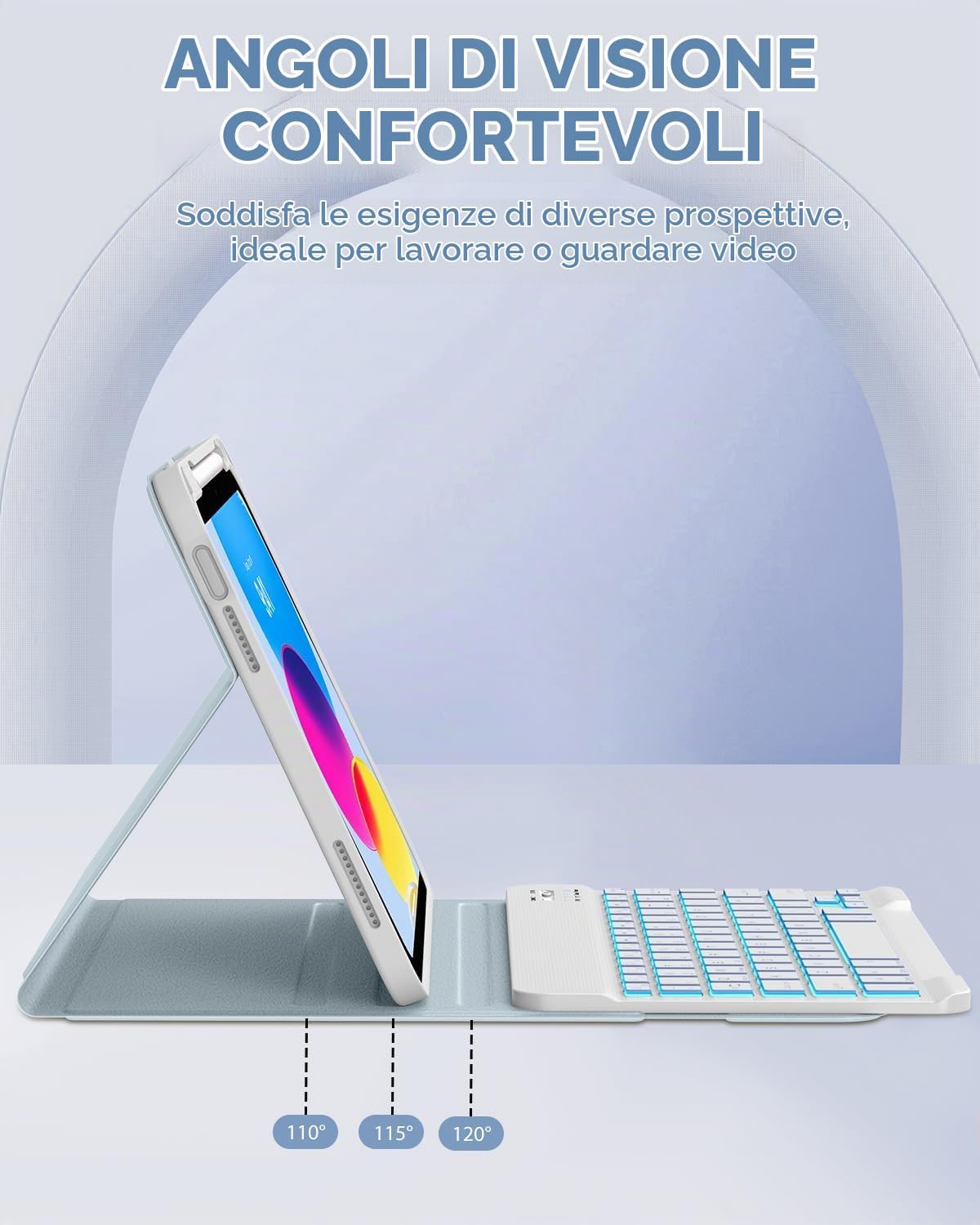
Figure 7: Multiple adjustable viewangoli di seduta per un comfort ottimale.
Portapenne integrato
The built-in pencil holder allows for convenient storage and transport of your stylus. The side opening supports automatic pairing and charging of the Apple Pencil.

Figure 8: Convenient integrated pencil holder design.
System Compatibility and Shortcut Keys
The keyboard is compatible with iOS, Windows, and Android operating systems. Use the following key combinations to switch between systems:
- Premere Fn + E to switch to iOS system.
- Premere Fn + W to switch to Windows system.
- Premere Fn + Q to switch to Android system.
A full row of shortcut keys is available for quick execution of common operations.

Figure 9: Keyboard shortcut keys and system switching instructions.
7-Color Backlit Keyboard
The keyboard features 7-color backlighting with 3 levels of brightness adjustment. Press Tasto F +  to activate or deactivate the backlight and cycle through brightness levels.
Figure 10: Backlit keyboard with color and brightness options.
Manutenzione
Istruzioni per la pulizia
The case material is splash-resistant and easy to clean. For spills or dirt, gently wipe the surface with a damp stoffa. Evitare l'uso di prodotti chimici aggressivi o materiali abrasivi.

Figure 11: Case features splash resistance and easy cleaning.
Cura della batteria
The keyboard features a long-lasting rechargeable battery. To conserve battery life, the automatic sleep/wake function will activate when the keyboard is detached from the iPad. Ensure regular charging to maintain optimal performance.
Risoluzione dei problemi
- La tastiera non si connette: Ensure the keyboard is charged and turned on. Verify Bluetooth is enabled on your iPad and the keyboard is in pairing mode. Try forgetting the device on your iPad and re-pairing.
- Keyboard lag or unresponsiveness: Ensure the keyboard is fully charged. Check for any interference from other Bluetooth devices. Restart both the iPad and the keyboard.
- I tasti non funzionano correttamente: Confirm the correct operating system mode (iOS, Windows, Android) is selected using the Fn key combinations.
If you encounter persistent issues, please refer to the support section or contact MoKo customer service.
Specifiche
| Marca | Moko |
| Dispositivi compatibili | iPad 11th Generation 11-inch 2025 (A16, Models: A3354, A3355, A3356), iPad 10th Generation 10.9-inch 2022 (Models: A2696, A2757, A2777) |
| Tecnologia di connettività | Bluetooth |
| Descrizione della tastiera | Flexible, Detachable |
| Caratteristiche speciali | Detachable Bluetooth Keyboard, Integrated Pencil Holder, Adjustable Viewing angoli |
| Colore | Cielo Blu (Sky Blue) |
| Materiale | Plastica |
| Dimensioni del prodotto | 27.8 x 19.3 x 2 cm |
| Fonte di alimentazione | Alimentato a batteria |
| Disposizione della tastiera | Tastiera QWERTY |
| Numero di chiavi | 78 |
| Livello di resistenza all'acqua | Not Water Resistant (Splash-resistant case) |
| Sistemi operativi compatibili | Android, Windows, iOS |
| Model Number (iPad) | A2696/A2757/A2777 |
| Codice UPC | 840401459423 |
Garanzia e supporto
Specific warranty information is not provided in this manual. For warranty details, product support, or any inquiries, please contact MoKo customer service through their official websito o rivenditore presso cui è stato acquistato il prodotto.
You can visit the MoKo store at: Negozio MoKo su Amazon
Video ufficiali dei prodotti
Nei dati forniti non sono stati trovati video ufficiali del prodotto del venditore.