
1. Introduzione
The Rongta F81S Tattoo Stencil Printer is a portable, wireless thermal printer designed for creating high-definition tattoo stencils. It offers compatibility with Android, iOS, Windows, and macOS devices, providing a versatile solution for tattoo artists and beginners. This manual provides detailed instructions for setup, operation, and maintenance to ensure optimal performance.
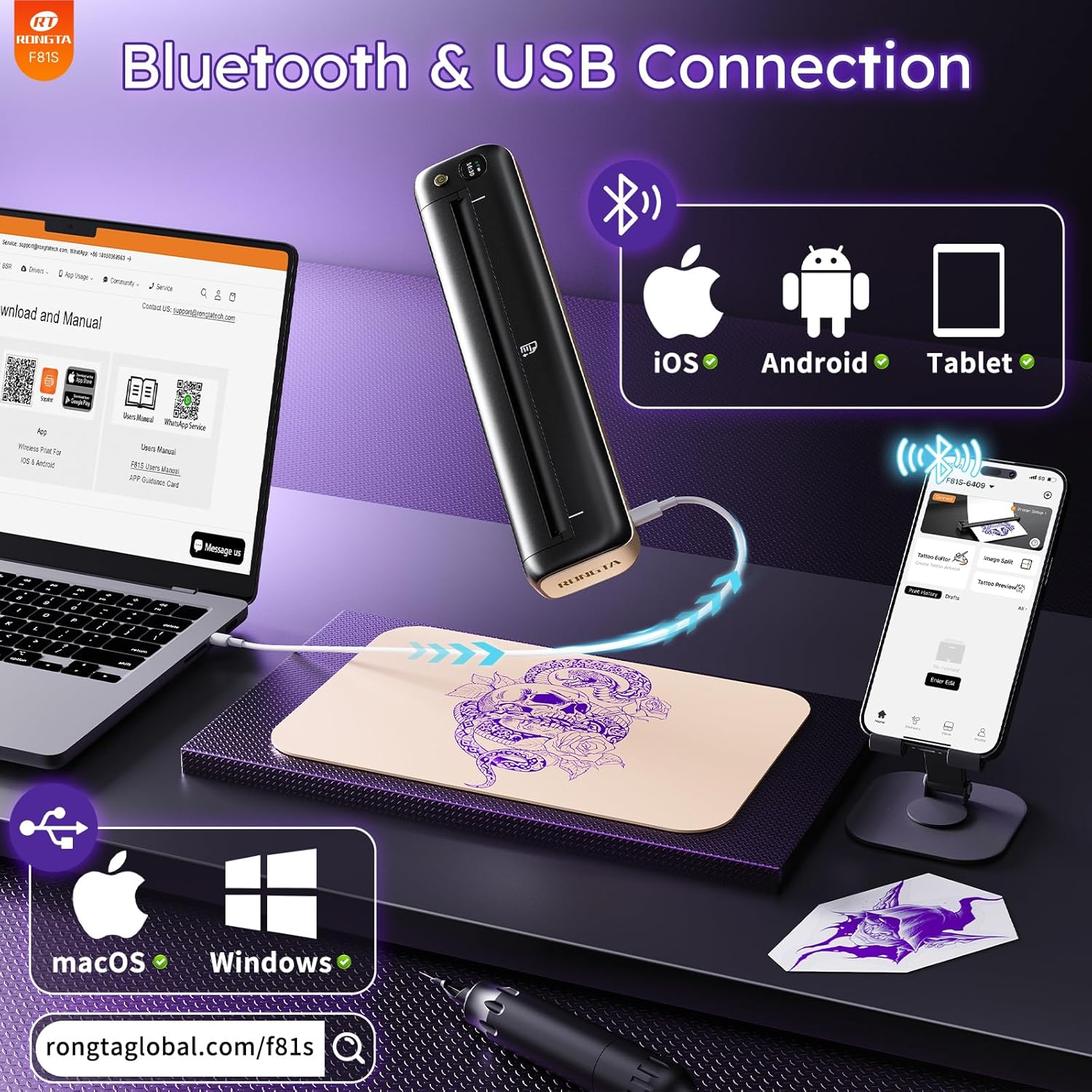
Image: The Rongta F81S Tattoo Stencil Printer, a compact and portable device.
2. Informazioni sulla sicurezza
- Use only the original USB cable for charging.
- Assicurarsi che la stampante sia posizionata su una superficie stabile e piana durante il funzionamento.
- Non esporre la stampante a temperature estreme, alla luce solare diretta o all'umidità.
- Tenere fuori dalla portata dei bambini.
- Only use tattoo transfer paper with this device; thermal paper is not supported.
- If the print head overheats, the app will pause printing. Allow the device to cool down for at least ten minutes before resuming.
3. Contenuto della confezione
Verifica che tutti gli articoli siano presenti nel tuo pacco:
- Rongta F81S Tattoo Stencil Printer
- Cavo di ricarica USB di tipo C.
- 5pcs Tattoo Transfer Papers
- Manuale d'uso
- Borsa portaoggetti

Image: Contents of the Rongta F81S Tattoo Stencil Printer package, including the printer, transfer paper, and cables.
4. Prodotto finitoview
Familiarize yourself with the main components of your Rongta F81S printer:
- Pulsante di accensione: Accende/spegne la stampante.
- Pannello LCD: Displays status indicators (e.g., battery, Bluetooth connection).
- Slot di inserimento carta: Where tattoo transfer paper is inserted.
- Uscita carta: Where printed stencils exit.
- Flip Cover: Protects the print head and paper path.
- Porta di ricarica di tipo C: Per collegare il cavo di ricarica USB.
- Ripristina foro: Per ripristinare le impostazioni di fabbrica, se necessario.
- Testina di stampa: The thermal component responsible for printing.
Video: Un oltreview of the F81S tattoo printer's components and app download process.
5. Impostazione
5.1. Caricamento della stampante
- Collegare il cavo USB Type-C in dotazione alla porta di ricarica della stampante.
- Collegare l'altra estremità del cavo a un adattatore di alimentazione USB adatto (non incluso) o alla porta USB di un computer.
- The LCD panel will indicate charging status. Ensure the printer is fully charged before first use.
Video: Demonstrates how to charge the F81S tattoo printer using the Type-C charging port.
5.2. Loading Tattoo Transfer Paper
- Separate the tattoo transfer paper: remove the protective sheet and tear off the yellow backing sheet, leaving the white tracing sheet and blue carbon sheet.
- Insert the transfer paper into the paper input slot with the white paper facing up. The printer will automatically feed the paper into position.

Image: Step-by-step guide on how to prepare and load tattoo transfer paper into the printer.
5.3. App Download and Bluetooth Connection (iOS/Android)
- Download the "SoPrint" app from the Google Play Store (for Android) or the Apple App Store (for iOS).
- Assicurati che il Bluetooth sia abilitato sul tuo dispositivo mobile.
- Open the SoPrint app and follow the on-screen instructions to connect to your F81S printer via Bluetooth. The printer's name will typically appear as "F81S-XXXX".

Image: Instructions for downloading the SoPrint app and connecting the printer via Bluetooth to a mobile device.
5.4. USB Connection and Driver Installation (Windows/macOS)
For PC (Windows) and Mac (macOS) devices, a wired USB connection is required. Bluetooth is not supported for PC connections.
- Connect the F81S printer to your computer using the provided USB cable.
- Download and install the appropriate drivers for your operating system (Windows or macOS) from the official Rongta websito: sbagliatotaglobal.com/f81s.
- Seguire le istruzioni visualizzate sullo schermo per completare l'installazione del driver.

Image: Steps for connecting the F81S printer to a PC or laptop via USB and installing necessary drivers.
Video: Demonstrates the USB connection process for macOS devices.
Video: Demonstrates the USB connection process for Windows devices.
6. Utilizzo della stampante
6.1. Printing with the SoPrint App
- Open the SoPrint app and ensure your printer is connected via Bluetooth.
- Select "Tattoo Editor" or "Image Split" to import or create your tattoo design.
- Use the app's editing functions to zoom, rotate, adjust size, orientation, and layout of your design. The "Tattoo Preview" function allows you to see the actual effect before printing.
- Once satisfied with the design, tap the print icon. Adjust print density and number of copies if necessary.
- Tap "Print Immediately" to start printing your stencil.

Image: A user operating the Rongta F81S printer to create a tattoo stencil.
Video: A comprehensive guide on how to use the F81S Tattoo Printer with the mobile app.
6.2. Transferring Stencil to Skin
- Clean the skin area thoroughly with a wipe or alcohol.
- Apply a small, even amount of tattoo transfer gel to the cleaned skin area.
- Carefully place the printed tattoo stencil (white tracing sheet) onto the prepared skin.
- Press gently for 5-10 seconds, then slowly peel off the white tracing paper. The stencil should now be transferred to the skin.

Image: Visual steps for preparing the skin and transferring the tattoo stencil.
7. Manutenzione
- Pulire regolarmente l'esterno della stampante con un panno morbido e asciutto.
- Keep the paper input and output slots free from dust and debris.
- Avoid touching the print head directly to prevent damage.
- Conservare la stampante in un luogo fresco e asciutto quando non viene utilizzata.
8. Risoluzione Dei Problemi
- La stampante non si connette: Ensure Bluetooth is on (for mobile) or USB drivers are installed (for PC/Mac). Restart the printer and your device.
- Scarsa qualità di stampa: Ensure you are using Rongta tattoo paper. Clean the print head if necessary. For best results, print monochrome and simple tattoo designs.
- Inceppamento carta: Gently pull out any jammed paper from the input or output slots. Ensure paper is loaded correctly.
- Printer overheating: If the app indicates overheating, pause printing and allow the printer to cool down for at least 10 minutes.
9. Specifiche
| Caratteristica | Dettaglio |
|---|---|
| Nome del modello | F81S |
| Marca | Rongta |
| Tecnologia di stampa | Termico |
| Tecnologia di connettività | Bluetooth, USB |
| Risoluzione massima di stampa in bianco e nero | 203 dpi |
| Dimensione massima del supporto | 216mm |
| Capacità massima del foglio di input | 210 sheets (on a full charge) |
| Dimensioni del prodotto | 10.43"P x 1.06"L x 2.17"A (circa 10.55 x 1.18 x 2.28 pollici) |
| Peso dell'articolo | 15.9 once (circa 450 grammi) |
| Batterie | Internal rechargeable battery (1 AAA batteries required listed in specs is likely an error) |
| Caratteristica speciale | Portatile |
| Colore | Nero |
10. Garanzia e supporto
For warranty information, technical support, or service inquiries, please contact Rongta customer support. Refer to the contact details provided on the official Rongta websito o nella confezione del prodotto.
Supporto ufficiale Websito: sbagliatotagwww.lobal.com
E-mail: support@rongtatech.com
WhatsApp: +86 18150388963