
Surge SG60094
Surge Wireless Pro Controller User Manual
Modello: SG60094
Introduzione
This manual provides instructions for the Surge Wireless Pro Controller, Model SG60094. It covers setup, operation, maintenance, troubleshooting, and specifications. Please read this manual thoroughly before using the controller.
The Surge Wireless Pro Controller is designed for multi-platform compatibility, featuring Hall Effect thumb sticks and triggers for precision control.
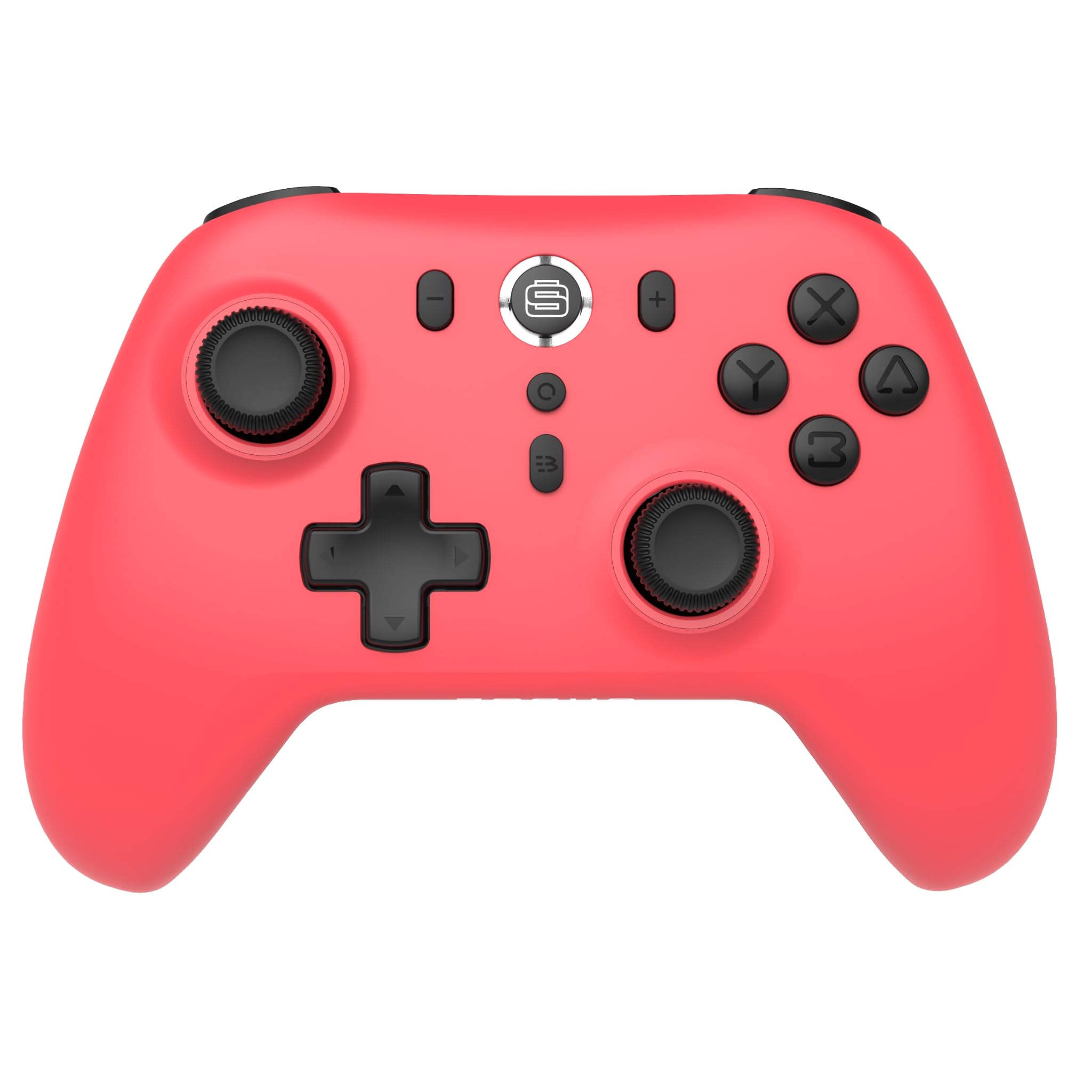
Immagine: Frontale view of the Surge Wireless Pro Controller in Neon Red.
Caratteristiche principali
- Compatibilità multipiattaforma: Supports Nintendo Switch/Switch 2 (Note: No C Button/Audio Port on Switch 2), Windows PC, Steam Deck, Android, and iOS devices.
- Hall Effect Thumb Sticks & Triggers: Engineered for precise control and to prevent stick drift.
- Turbo Functionality: Offers 3 adjustable turbo levels for rapid-fire actions.
- Risposte di vibrazione: Features 4 customizable vibration levels for enhanced haptic feedback.
- Controlli di movimento: Compatible with games that utilize motion sensing.
- Console Wake Up: Ability to wake the Nintendo Switch console from sleep mode (Nintendo Switch only).
- Batteria ricaricabile: Built-in 600mAh Li-polymer battery provides up to 10 hours of gameplay per charge.
- Ricarica USB-C: Includes a 1-meter USB-C charging cable.
Istruzioni di installazione
1. Ricarica iniziale
Before first use, fully charge the controller. Connect the included USB-C cable to the controller's charging port and the other end to a USB power source (e.g., console, PC, USB wall adapter). The charging indicator will show status.

Image: The controller connected to a USB-C charging cable.
2. Abbinamento con Nintendo Switch
- Sulla tua console Nintendo Switch, vai al menu HOME.
- Selezionare Controllori, Poi Cambia impugnatura/ordine.
- Premere e tenere premuto il tasto Pulsante di associazione on the top of the Surge Wireless Pro Controller until the player indicator lights begin to flash.
- Once paired, the player indicator light(s) will remain solid.
- To wake the console from sleep mode, press the Home button on the controller.
3. Pairing with PC, Android, or iOS
The pairing process may vary slightly depending on your device's operating system. Generally, you will need to enable Bluetooth on your device and search for new devices.
- Ensure Bluetooth is enabled on your PC, Android, or iOS device.
- On the Surge Wireless Pro Controller, press and hold the Pulsante di associazione until the indicator lights flash.
- On your device, select "Surge Pro Controller" from the list of available Bluetooth devices.
- Seguire le istruzioni visualizzate sullo schermo per completare l'associazione.
Video: Un oltreview of the 8Bitdo Ultimate 2 Wireless Controller, demonstrating general wireless controller setup principles.
Istruzioni per l'uso
Disposizione dei pulsanti

Image: Diagram showing the button layout of the Surge Wireless Pro Controller.
- Stick analogici sinistro/destro: For movement and camera control. Features Hall Effect technology for enhanced durability and precision.
- Tasto direzionale: Per input direzionali.
- Pulsanti A/B/X/Y: Pulsanti di azione standard.
- Pulsanti L/R: Bottoni sulle spalle.
- Trigger ZL/ZR: Analog triggers with Hall Effect sensors.
- Pulsante Home: Returns to the console's home menu.
- Pulsante Screenshot: Cattura schermate.
- Pulsanti Più (+) / Meno (-): For in-game menu navigation.
- Pulsante turbo: Attiva/disattiva la funzione turbo.
- Pulsante di accoppiamento: Utilizzato per l'associazione Bluetooth.
Funzione Turbo
To activate turbo for a button, press and hold the Pulsante Turbo, then press the desired action button (A, B, X, Y, L, R, ZL, ZR). Repeat the process to deactivate. There are 3 adjustable turbo levels; refer to the full product manual for detailed adjustment instructions.
Regolazione delle vibrazioni
The controller offers 4 levels of vibration intensity. Specific button combinations or software may be required to adjust these levels. Consult the full product manual or manufacturer's website for precise instructions.
Manutenzione
- Pulizia: Utilizzare un panno morbido e asciutto per pulire il controller. Evitare l'uso di prodotti chimici aggressivi o materiali abrasivi.
- Magazzinaggio: Conservare il controller in un luogo fresco e asciutto, lontano dalla luce solare diretta e da temperature estreme.
- Cura della batteria: Per prolungare la durata della batteria, evitare di scaricarla completamente frequentemente. Caricare il controller regolarmente, anche se non lo si utilizza per lunghi periodi.
- Cura del cavo: Handle the USB-C charging cable carefully. Avoid bending or twisting it excessively.
Risoluzione dei problemi
| Problema | Soluzione |
|---|---|
| Il controller non si accende. | Assicurati che il controller sia completamente carico. Collegalo a una fonte di alimentazione tramite il cavo USB-C. |
| Impossibile associare il dispositivo. | Make sure Bluetooth is enabled on your device. Press and hold the pairing button on the controller until lights flash. Ensure the controller is not already paired with another device. Try restarting both the controller and the device. |
| Stick drift or inaccurate input. | The controller features Hall Effect sticks to minimize drift. If issues persist, ensure the controller's firmware is up to date. Contact customer support if the problem continues. |
| La vibrazione non funziona. | Check in-game settings to ensure vibration is enabled. Verify the vibration intensity level on the controller. |
| Console Wake Up not functioning. | This feature is only supported on Nintendo Switch. Ensure the controller is properly paired with the Switch. |
Specifiche
- Numero modello: SG60094
- Batteria: 1 Nonstandard Battery (600mAh Li-polymer, included)
- Durata della batteria: Fino a 10 ore (circa)
- Porta di ricarica: USB-C
- Connettività: Bluetooth senza fili
- Dimensioni: 20.1 x 14 x 6.6 cm (circa)
- Peso: 310 g (circa)
- Paese di origine: Cina
Garanzia e supporto
For warranty information and customer support, please refer to the official Surge website or contact support directly at support@surgegaming.com.
The product typically comes with a manufacturer's warranty covering defects in materials and workmanship. Please retain your proof of purchase for warranty claims.
Ask a question about this manual
Ask about setup, troubleshooting, compatibility, parts, safety, or missing instructions. Manuals+ will review the question and use this page’s manual context to help answer it.