
1. Introduzione
Thank you for choosing the Lenovo Idea Tab Octa-Core Tablet. This manual provides essential information for setting up, operating, maintaining, and troubleshooting your device. Please read it carefully to ensure optimal performance and longevity of your tablet.
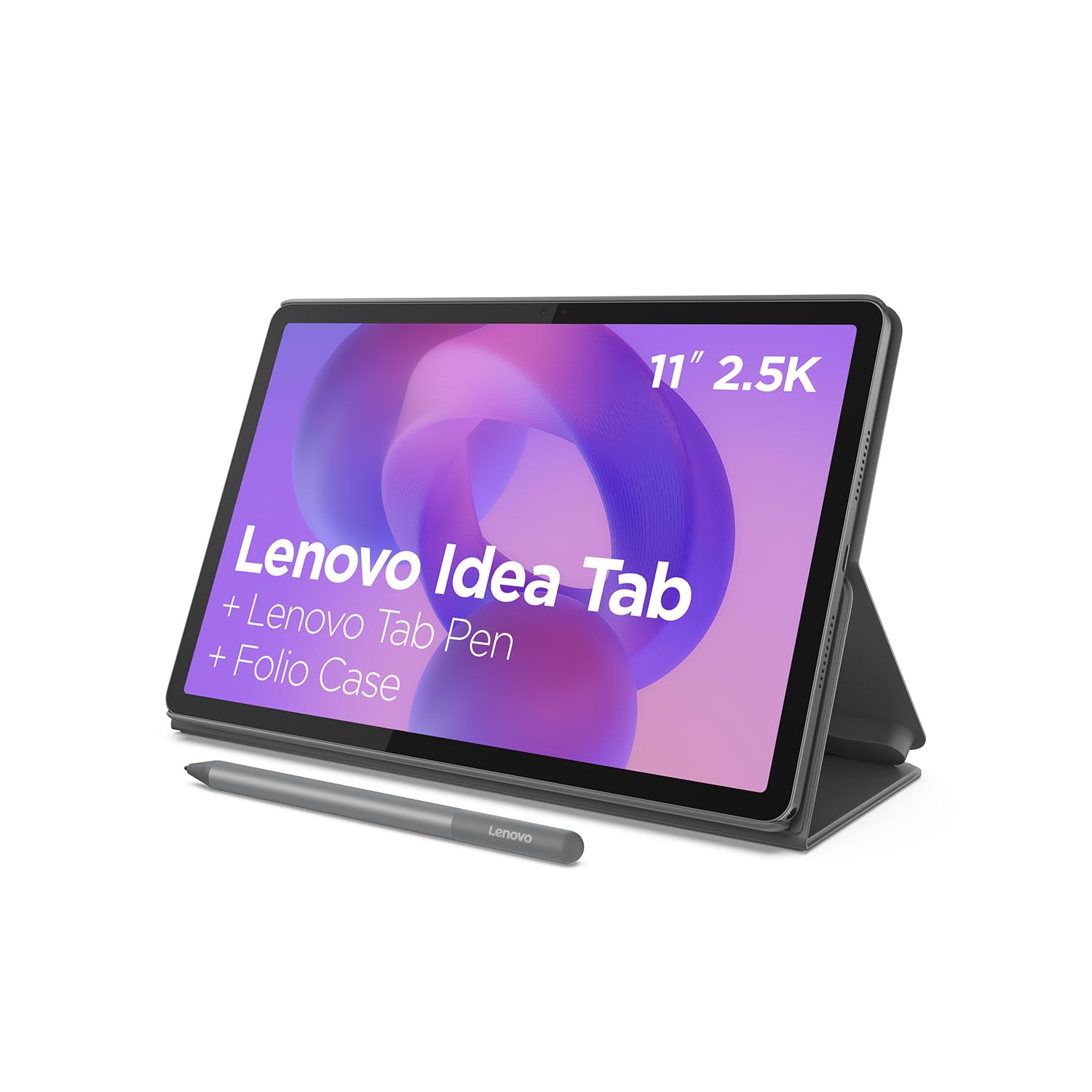
Image 1.1: Lenovo Idea Tab Octa-Core Tablet with stylus and case.
2. Cosa c'è nella scatola
Verifica che tutti gli articoli siano presenti nella confezione del prodotto:
- Lenovo Idea Tab Tablet
- Adattatore di alimentazione (20 W)
- Cavo di ricarica da USB-A a USB-C
- Protective Cover/Case
- Lenovo Tab Pen (Stylus)
- 2 punte di ricambio per penna
- MicroSD Tray Eject Pin
- Guida rapida
- Guida alla sicurezza e alla garanzia
- AAAA Battery (for pen)
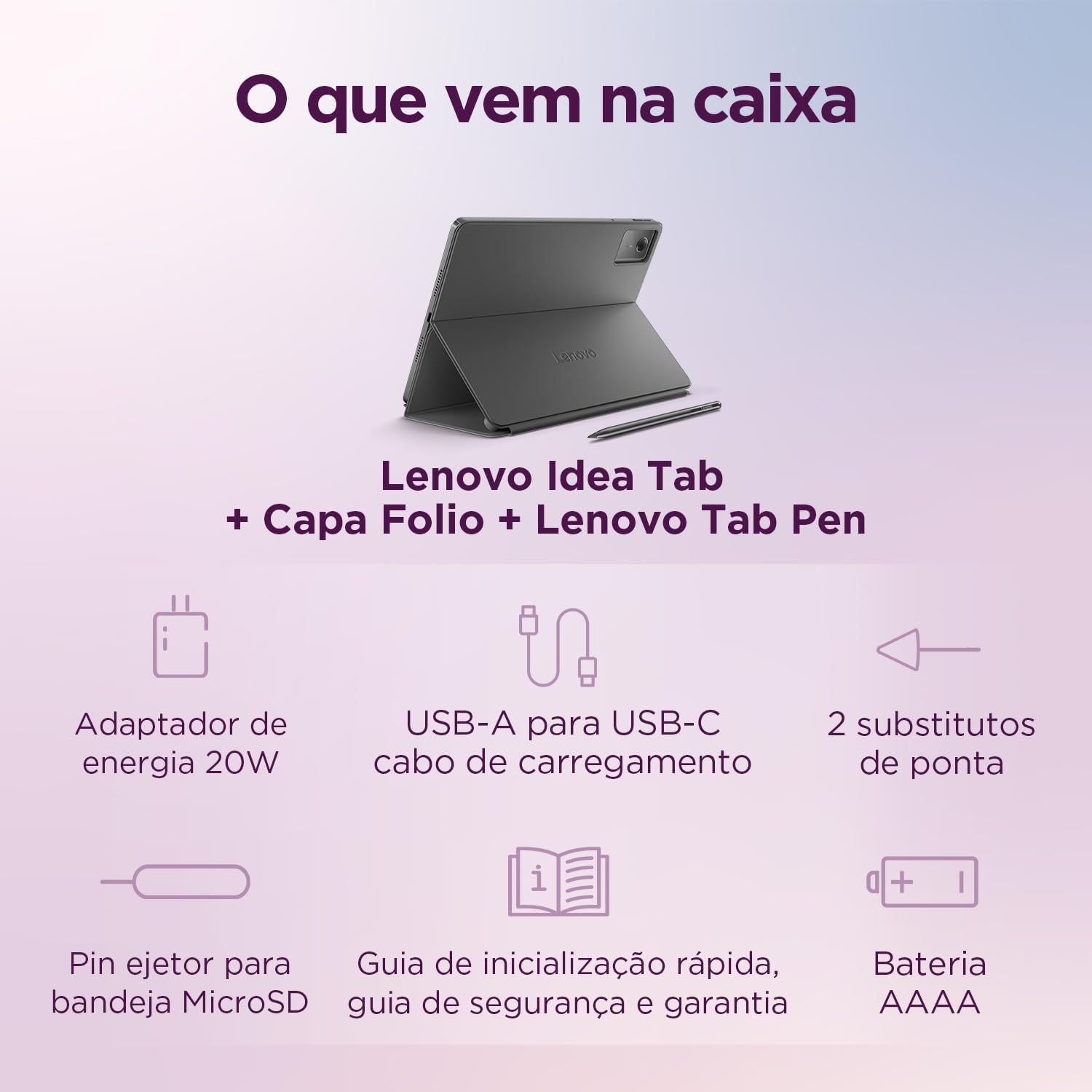
Immagine 2.1: Illustrazione degli articoli inclusi nella confezione del prodotto.
3. Impostazione
3.1 Carica iniziale
Before first use, fully charge your tablet. Connect the USB-C cable to the tablet's charging port and the power adapter to a wall outlet. The charging indicator will illuminate.
3.2 Accensione/Spegnimento
- Per accendere: Tenere premuto il pulsante di accensione finché non viene visualizzato il logo Lenovo.
- Per spegnere: Tenere premuto il pulsante di accensione, quindi selezionare "Spegni" dalle opzioni sullo schermo.
- Ricominciare: Tieni premuto il pulsante di accensione, quindi seleziona "Riavvia" dalle opzioni.
3.3 Procedura guidata di configurazione iniziale
Upon first power-on, follow the on-screen instructions to configure your tablet:
- Seleziona la lingua preferita.
- Connettersi a una rete Wi-Fi.
- Accedi con il tuo account Google o creane uno nuovo.
- Review e accettare i termini e le condizioni.
- Imposta funzioni di sicurezza come PIN, sequenza o password.
3.4 Fissaggio della custodia protettiva
Align the tablet with the case and gently press it into place. The case is designed to protect your device and can often function as a stand.

Image 3.1: Tablet positioned in its protective case, acting as a stand.
3.5 Utilizzo della penna Lenovo Tab
The Lenovo Tab Pen enhances interaction with your tablet. It may require an AAAA battery (included). Insert the battery according to the polarity markings. The pen can be used for writing, drawing, and precise navigation.

Image 3.2: Lenovo Idea Tab with the accompanying stylus.
4. Istruzioni per l'uso
4.1 Navigazione di base
Your tablet uses Android 15, offering intuitive touch gestures:
- Rubinetto: Seleziona un elemento.
- Doppio tocco: Zoom avanti/indietro web pagine o immagini.
- Scorri: Scorrere elenchi o pagine.
- Pizzico: Zoom avanti/indietro.
- Pressione prolungata: Accedi ai menu contestuali o sposta le icone.
4.2 Connessione al Wi-Fi
Per connettersi a una rete Wi-Fi:
- Vai a Impostazioni > Rete e Internet > Internet.
- Attiva il Wi-Fi.
- Seleziona la rete desiderata dall'elenco.
- Inserisci la password se richiesta, quindi tocca Collegare.
4.3 Associazione Bluetooth
Per accoppiare con un dispositivo Bluetooth:
- Vai a Impostazioni > Dispositivi connessi > Preferenze di connessione > Bluetooth.
- Attiva il Bluetooth.
- Assicurati che il tuo dispositivo Bluetooth sia in modalità di associazione.
- Select the device from the 'Available devices' list and follow any on-screen prompts.
4.4 Utilizzo della fotocamera
Your tablet features a 5MP front camera and an 8MP rear camera. Open the Camera app to take photos or record videos. Tap the screen to focus and press the shutter button to capture.
4.5 Caratteristiche di visualizzazione e audio
Experience clear visuals and immersive sound:
- Display: The 11-inch 2.5K (2560 x 1600) WVA display offers 500 nits of brightness and a 90Hz refresh rate for smooth visuals. Adjust brightness in Impostazioni > Display.
- Audio: Equipped with four speakers and Dolby Atmos support for rich, clear audio.

Image 4.1: Visual representation of the tablet's display and audio capabilities.
4.6 Circle to Search with Google
Utilize the 'Circle to Search' feature for quick information retrieval. Simply circle an object, text, or image on your screen to initiate a Google search without leaving your current application.
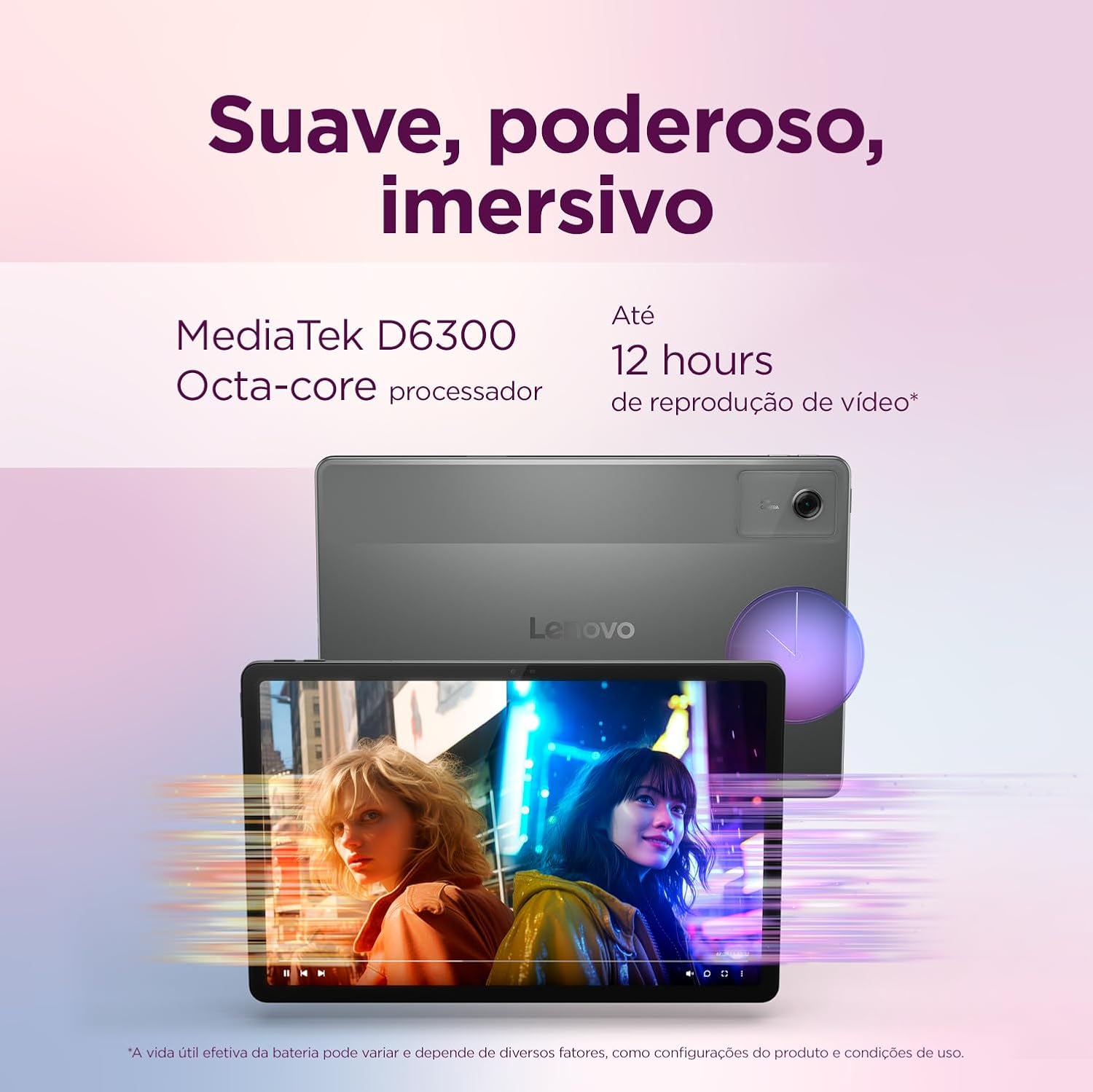
Immagine 4.2: Es.ample of using 'Circle to Search' on the tablet.
4.7 Unify Your Digital Life
The tablet supports features like Share Hub and Smart Clipboard to seamlessly integrate with your other devices, allowing for easy file sharing and content transfer.
5. Manutenzione
5.1 Pulizia del dispositivo
Per pulire il tablet:
- Utilizzare un panno morbido e privo di pelucchi.
- Per segni ostinati, leggermente dampPulisci il panno con acqua o con un detergente per schermi specifico per dispositivi elettronici.
- Evitare l'uso di prodotti chimici aggressivi, materiali abrasivi o umidità eccessiva.
5.2 Cura della batteria
Per massimizzare la durata della batteria:
- Evitare temperature estreme.
- Non lasciare che la batteria si scarichi completamente frequentemente.
- Scollegare il caricabatterie quando la batteria è carica.
5.3 Aggiornamenti software
Controlla regolarmente e installa gli aggiornamenti software per assicurarti che il tuo tablet abbia le ultime funzionalità, patch di sicurezza e miglioramenti delle prestazioni. Vai a Impostazioni > Sistema > Aggiornamento del sistema.
6. Risoluzione Dei Problemi
Se riscontri problemi con il tuo tablet, prova le seguenti soluzioni:
| Problema | Soluzione |
|---|---|
| Il tablet non si accende | Assicurarsi che la batteria sia carica. Collegare il dispositivo al caricabatterie per almeno 30 minuti, quindi riprovare ad accenderlo. |
| Problemi di connessione Wi-Fi | Riavvia il router Wi-Fi e il tablet. Elimina la rete dalle impostazioni e riconnettiti. |
| Prestazioni lente | Close unused apps. Clear cache. Check for software updates. Consider a factory reset if the issue persists (back up data first). |
| Il touchscreen non risponde | Restart the tablet. If unresponsive, force restart by holding the power button for 10-15 seconds. |
6.1 Ripristino delle impostazioni di fabbrica
If troubleshooting steps do not resolve the issue, you may perform a factory reset. Attenzione: questa operazione cancellerà tutti i dati presenti sul tablet. Esegui il backup dei dati importanti prima di procedere. Vai a Impostazioni > Sistema > Reimposta opzioni > Cancella tutti i dati (ripristino delle impostazioni di fabbrica).
7. Specifiche
| Caratteristica | Dettaglio |
|---|---|
| Nome del modello | Lenovo Idea Tab |
| Numero di modello | ZAFR0853BR |
| Processore | MediaTek Dimensity 6300 Octa Core |
| Sistema operativo | Androide 15 |
| Memoria RAM | 4 GB |
| Magazzinaggio | 128 GB |
| Dimensioni dello schermo | 11 pollici |
| Risoluzione dello schermo | Risoluzione: 2560 x 1600 (2.5K) |
| Frequenza di aggiornamento | Frequenza 90 Hz |
| Luminosità | 500 nit |
| Telecamera posteriore | 8 MP |
| Fotocamera frontale | 5 MP |
| Wifi | Wi-Fi 5 (802.11ac) |
| Bluetooth | Bluetooth 5.2 |
| Dimensioni (L x P x A) | Dimensioni: 25.4 x 16.6 x 0.69 cm |
| Peso | 1.28 kg |
| Fonte di alimentazione | Corrente alternata/corrente continua |
| Dispositivi compatibili | Cover, Pen, Stylus |
8. Informazioni sulla garanzia
Your Lenovo Idea Tab Tablet is covered by a limited warranty. Please refer to the 'Safety and Warranty Guide' included in your product packaging for detailed terms and conditions, warranty period, and claim procedures. Keep your proof of purchase for warranty service.
9. Supporto
For further assistance, technical support, or to download the latest drivers and manuals, please visit the official Lenovo support websito:
Websito: support.lenovo.com
Puoi anche trovare le informazioni di contatto per il servizio clienti nella tua regione sul supporto websito.