
1. Introduzione
This manual provides detailed instructions for the setup, operation, and maintenance of your POLONO PM220S Label Maker Machine. Please read this manual thoroughly before using the device to ensure proper function and longevity.
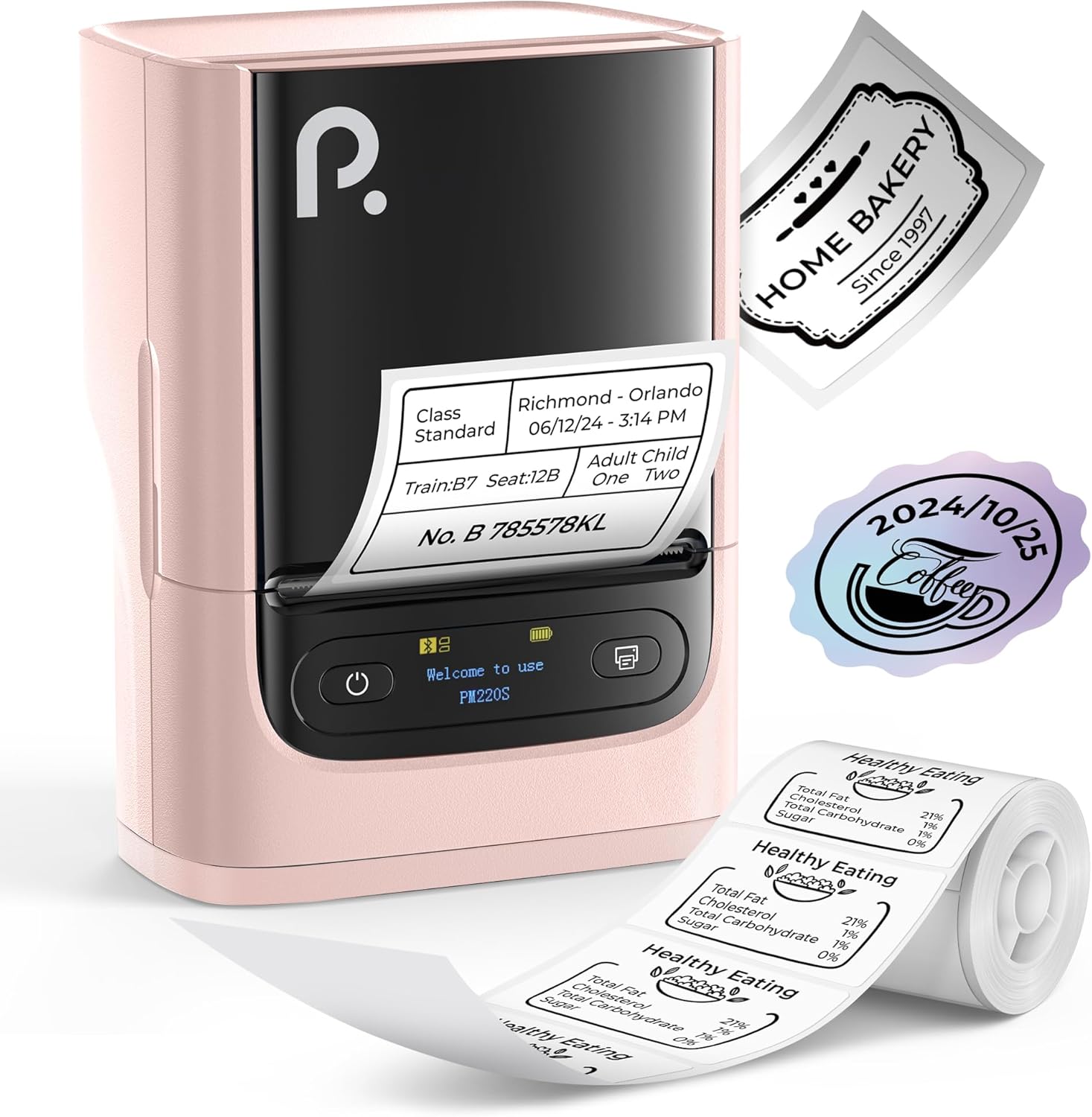
Figure 1: POLONO PM220S Label Maker Machine with sample etichette.
2. Prodotto finitoview
2.1 Componenti inclusi
- POLONO PM220S Label Maker Machine
- Label Tape (50x30mm, pre-installed or included)
- Cavo di ricarica USB
- Manuale dell'utente (questo documento)
2.2 Caratteristiche principali
- Connettività Bluetooth: Seamless connection with iOS, Android, and PC devices.
- Intuitive LED Screen: Displays battery level, Bluetooth connection status, and alerts for paper shortages or timed shutdowns.
- Feature-Rich "Labelnize" App: Offers label templates, supports QR codes, barcodes, tables, text, icons, 90+ fonts, 14+ languages, and 450+ material presets.
- Premium Thermal Printing: BPA-Free Direct Thermal Technology with 203 DPI for high-definition, inkless printing.
- Ampia compatibilità con le etichette: Supports label widths from 23-54mm (0.91"-2.12").
- Design portatile: Compact and lightweight for easy transport and use in various environments.
3. Istruzioni per l'installazione
3.1 Ricarica del dispositivo
Before first use, fully charge the label maker using the provided USB cable. The LED screen will indicate charging status.
3.2 App Installation and Driver Download
For mobile devices (iOS/Android), download the "Labelnize" app from your respective app store. For PC users, visit polono.com per scaricare il driver e l'applicazione necessari.

Figure 2: Universal compatibility with smartphones and laptops for app and driver installation.
3.3 Connessione tramite Bluetooth
- Ensure the PM220S is powered on.
- On your mobile device, open the "Labelnize" app.
- Within the app, search for and connect to the PM220S via Bluetooth. Do not connect directly via your device's Bluetooth settings for mobile devices.
- For PC, ensure the driver is installed, then connect through the downloaded application.
3.4 Caricamento del nastro per etichette
- Aprire il coperchio dello scomparto delle etichette.
- Inserire il rotolo di etichette con la superficie di stampa rivolta verso l'alto.
- Adjust the paper slot guides to secure the tape according to its width (23-54mm) for precise alignment.
- Chiudere il coperchio.

Figure 3: Proper loading of label tape into the PM220S.
4. Istruzioni per l'uso
4.1 Using the "Labelnize" App
- Open the "Labelnize" app on your connected device.
- Select from various pre-designed templates or create your own custom labels.
- The app allows you to add text, barcodes, QR codes, tables, icons, and more.
- Customize labels using a selection of over 90 fonts and 14 languages.
- Utilize the 450+ material presets for different label applications.
- Importante: For optimal results, use specialized POLONO labels. Avoid tearing the green back sticker to prevent printing issues.
4.2 Understanding the LED Screen Display
The integrated LED screen provides real-time feedback on the printer's status:
- Livello della batteria: Indicates the current charge of the device.
- Connessione Bluetooth: Shows if the device is successfully connected via Bluetooth.
- carta shortage Avviso: Notifies when the label roll is low or empty.
- Spegnimento temporizzato: Displays countdown for automatic power-off to conserve battery.

Figure 4: LED screen display functions for real-time status monitoring.
4.3 Stampa di un'etichetta
- Design your label within the "Labelnize" app.
- Review l'etichetta preview per garantire la precisione.
- Tocca il pulsante "Stampa" nell'app.
- The label maker will print the label using thermal technology.
- Carefully tear off the printed label.
5. Manutenzione
5.1 Cura generale
- Mantenere il dispositivo pulito e privo di polvere e detriti.
- Evitare di esporre il dispositivo a temperature estreme o alla luce solare diretta.
- Quando non viene utilizzato, conservare il dispositivo in un luogo asciutto.
5.2 Pulizia della testina di stampa
If print quality degrades, the thermal print head may need cleaning:
- Turn off the label maker and disconnect it from any power source.
- Aprire lo scomparto delle etichette.
- Pulire delicatamente la testina di stampa termica con un batuffolo di cotone leggermenteamparricchito con alcol isopropilico.
- Lasciare asciugare completamente la testina di stampa prima di chiudere il coperchio e riprendere l'uso.
6. Risoluzione Dei Problemi
| Problema | Possibile causa | Soluzione |
|---|---|---|
| Il dispositivo non si accende | Batteria scarica o problema di alimentazione. | Caricare completamente il dispositivo. Assicurarsi che il pulsante di accensione sia premuto correttamente. |
| Impossibile connettersi tramite Bluetooth | Incorrect connection method or app issue. | Ensure you are connecting through the "Labelnize" app, not directly via phone settings. Restart both the device and the app. For PC, verify driver installation. |
| Poor print quality / Faint printing | Testina di stampa sporca, tipo di etichetta errato o batteria scarica. | Clean the print head (see Section 5.2). Ensure you are using thermal labels. Charge the device. |
| Le etichette sono disallineate o inceppate | Improper label loading or paper slot adjustment. | Open the cover, remove any jammed labels, and reload the tape ensuring the paper slot guides are adjusted correctly for the label width. Avoid tearing the green back sticker. |
| "Paper Shortage" alert | Label roll is empty or incorrectly loaded. | Replace the label roll or re-seat it correctly. |
7. Specifiche
| Marca | POLONO |
| Nome del modello | PM220S |
| Tecnologia di connettività | Bluetooth |
| Tecnologia di stampa | Termico |
| Risoluzione di stampa massima | 203 DPI |
| Velocità di stampa massima (monocromatica) | 45.0 millimetri/secondo |
| Formati dei supporti supportati | 23-54mm (0.91"-2.12") width, 50x30mm included |
| Dimensioni del prodotto | 8.4 x 11.2 x 6.4 cm (3.3"P x 4.4"L x 2.5"A) |
| Peso dell'articolo | 13.4 once (380 g) |
| Caratteristica speciale | Portable, Inkless Printing, LED Display |
8. Garanzia e supporto
For warranty information, technical support, or to purchase accessories and replacement labels, please visit the official POLONO websito a polono.com or contact POLONO customer service directly.
Conservare la prova d'acquisto per eventuali richieste di garanzia.