
1. Introduzione
This manual provides essential information for the setup, operation, maintenance, and troubleshooting of your NIMO N159 15.6-inch IPS FHD Gaming Laptop. This device is equipped with an AMD Ryzen 7 7735HS processor, 32GB DDR5 RAM, and a 1TB PCIe SSD, designed for balanced performance in productivity and light gaming tasks. Please read this manual thoroughly to ensure proper usage and to maximize the lifespan of your laptop.
2. Cosa c'è nella scatola
Verificare che tutti gli articoli siano presenti nella confezione:
- 1 x NIMO N159 Laptop
- 1 x Type-C 100W PD Fast Charger
- 1 x Manuale utente (questo documento)
- Windows 11 Home (preinstallato)
3. Prodotto finitoview
Familiarize yourself with the components and features of your NIMO N159 laptop.

Figura 3.1: Fronte view of the NIMO N159 laptop, showcasing its 15.6-inch display and overall design.
3.1 Caratteristiche principali
- Processore: AMD Ryzen 7 7735HS with 8 Cores and 16 Threads, up to 4.75GHz.
- Grafica: Integrated AMD Radeon 680M GPU.
- Memoria: 32 GB di RAM DDR5 per un multitasking efficiente.
- Magazzinaggio: 1TB PCIe 4.0 SSD for fast boot times and data access.
- Display: 15.6-inch Full HD (1920x1080) IPS Anti-Glare Display.
- Ricarica: 100W Type-C PD Fast Charger.
- Sicurezza: Fingerprint Unlock integrated into the touchpad.
- Ingresso: Backlit Keyboard with Numeric Keypad.

Figura 3.2: Oltreview of the AMD Ryzen 7 7735HS processor and its integrated Radeon 680M graphics.
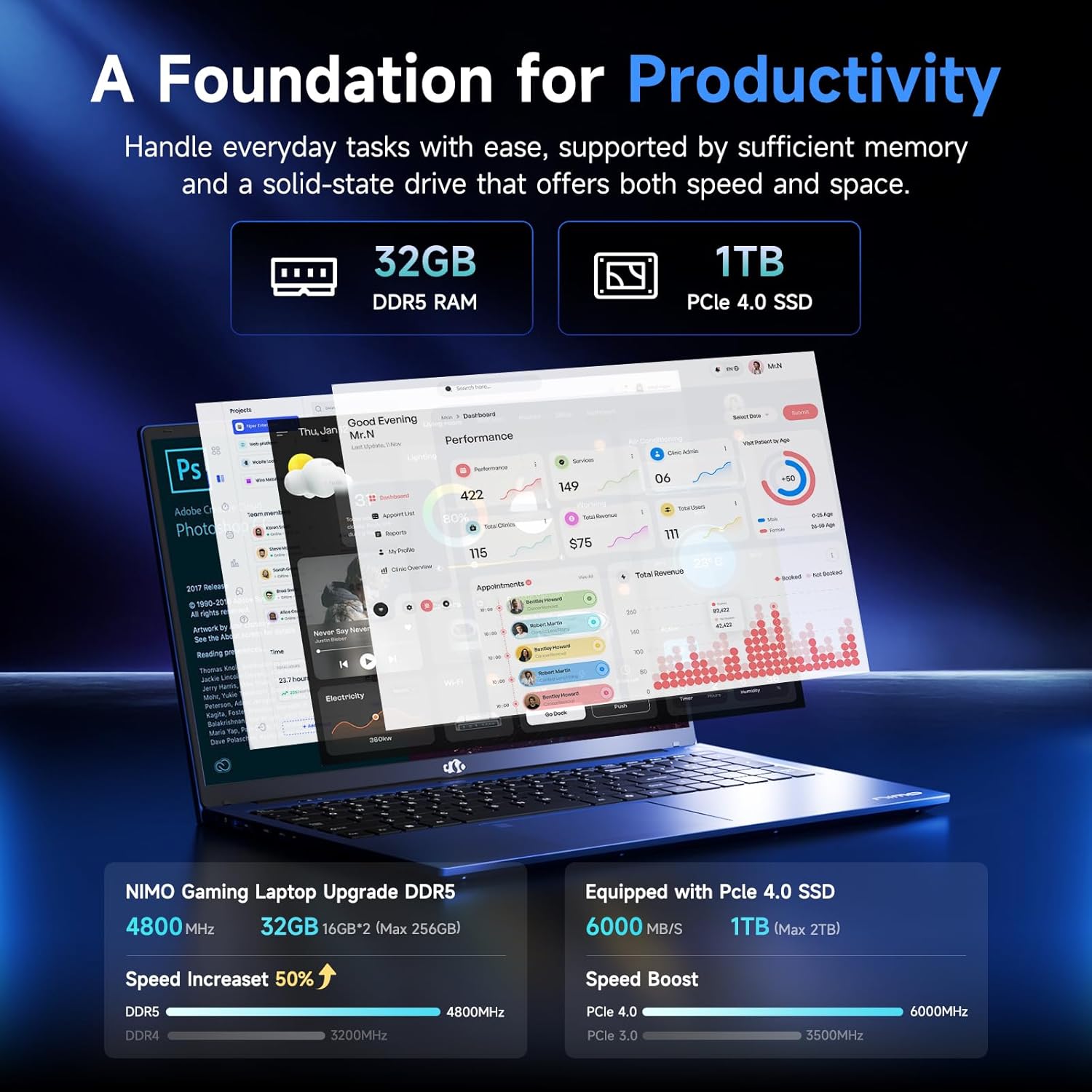
Figure 3.3: Illustration of the 32GB DDR5 RAM and 1TB PCIe 4.0 SSD, highlighting their speed and capacity.
3.2 Porte e connettori
The NIMO N159 laptop provides a variety of ports for connectivity:

Figura 3.4: dettagliata view of the laptop's ports and their functions.
- Lato sinistro: Kensington Lock, Audio Jack, USB 3.2 Gen 1, USB 2.0, Micro SD Reader.
- Lato destro: Type-C Gen2 (Multifunction), USB 3.2 Gen 1, HDMI 2.0, Type-C Gen2 (Multifunction).
3.3 Alimentazione e batteria

Figure 3.5: Battery and charging capabilities of the NIMO N159 laptop.
The laptop is equipped with a 54Wh smart battery. It supports fast charging via the included 100W Type-C PD charger, providing approximately 5 hours of usage from a 1-hour charge.
3.4 Keyboard and Fingerprint Unlock
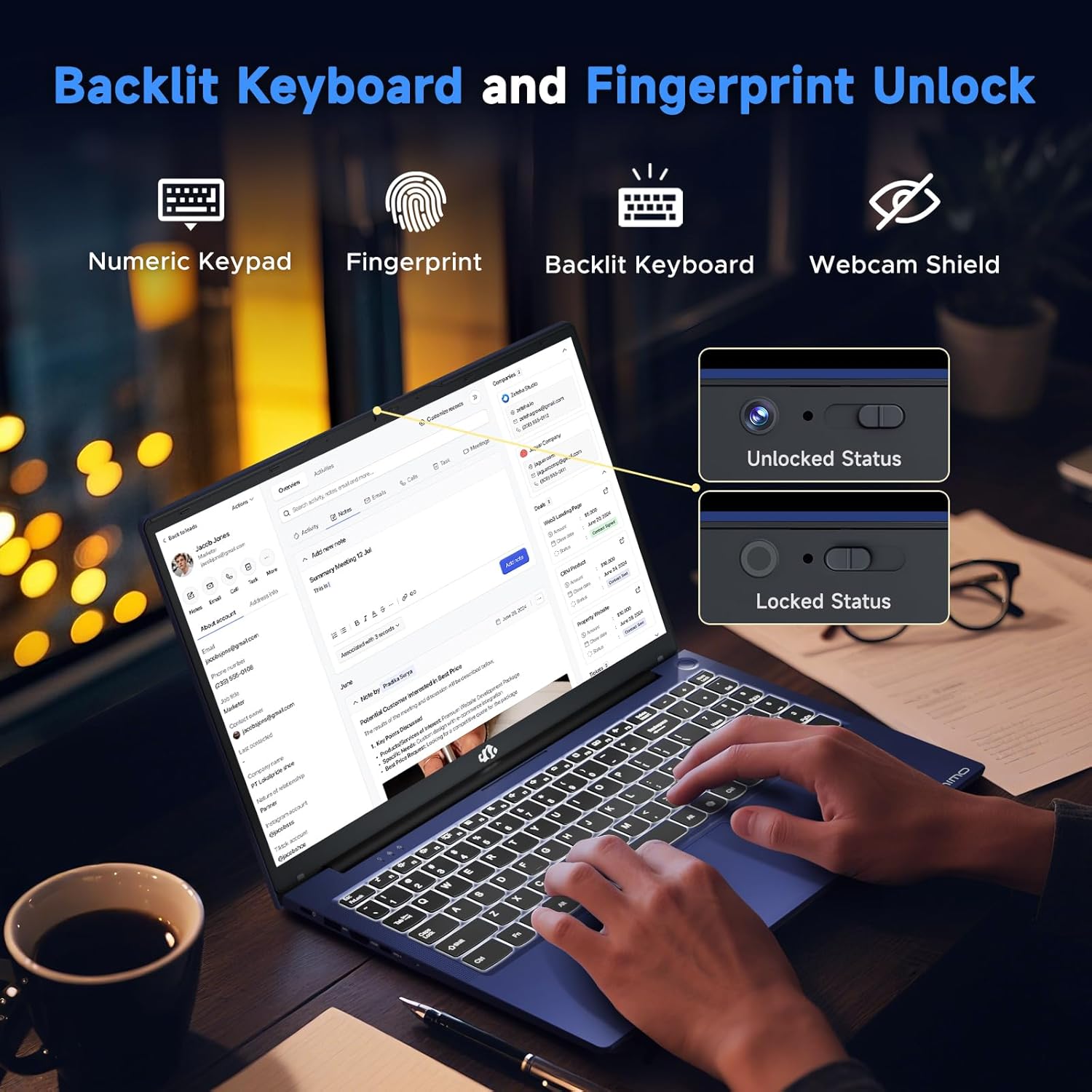
Figure 3.6: Features of the backlit keyboard, numeric keypad, fingerprint unlock, and webcam shield.
The keyboard features backlighting for use in low-light conditions and includes a numeric keypad. The fingerprint reader is integrated into the touchpad for secure and quick access.
3.5 Visualizzazione
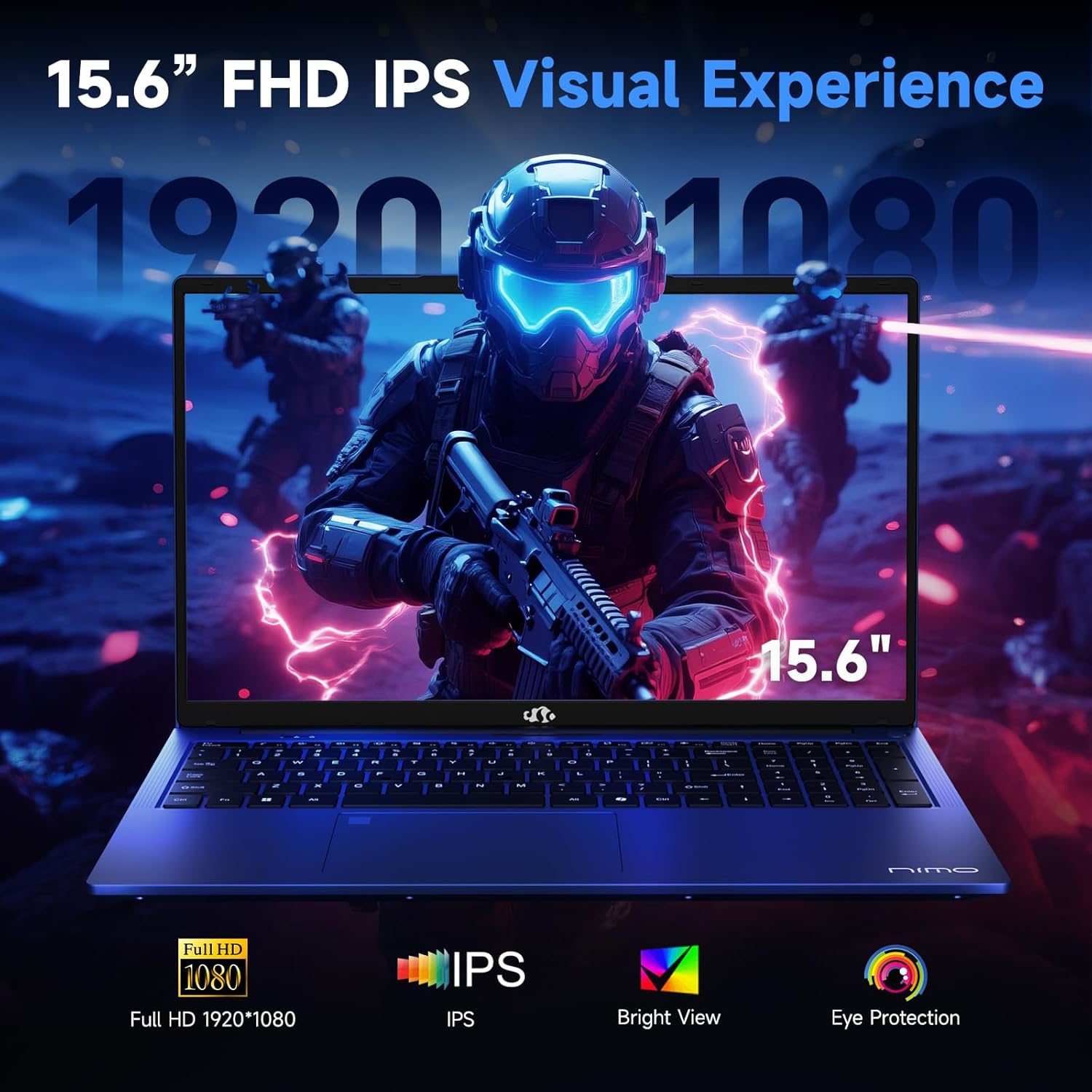
Figure 3.7: Visual representation of the 15.6-inch FHD IPS display quality.
The 15.6-inch Full HD (1920x1080) IPS Anti-Glare Display offers vibrant visuals and a wide viewing angle, suitable for various tasks from work to entertainment.
4. Impostazione
4.1 Accensione iniziale
- Disimballare: Estrarre con cautela il computer portatile e tutti gli accessori dalla confezione.
- Connetti alimentazione: Plug the Type-C 100W PD Fast Charger into a power outlet and connect the Type-C connector to one of the multifunction Type-C ports on the laptop.
- Primo avvio: Aprire il coperchio del laptop e premere il pulsante di accensione, solitamente situato in alto a destra sulla tastiera o sul lato.
- Installazione di Windows: Seguire le istruzioni visualizzate sullo schermo per completare la configurazione di Windows 11 Home, inclusa la lingua, la regione, la connessione di rete e la creazione dell'account utente.
4.2 Connessione a una rete
- Wifi: During Windows setup or later, select your Wi-Fi network from the available list and enter the password.
- Cablato (facoltativo): If an Ethernet adapter (not included) is used with a USB port, connect an Ethernet cable to the adapter and then to your router/modem.
5. Istruzioni per l'uso
5.1 Accensione/spegnimento
- Accensione: Premere il pulsante di accensione.
- Fermare: Fare clic sul pulsante Start in Windows, quindi su Arresta il sistema > Arresta il sistema.
- Sonno: Chiudere il coperchio o fare clic sul pulsante Start, quindi su Alimentazione > Sospensione.
5.2 Utilizzo della tastiera
- Controllo della retroilluminazione: Press the designated function key (e.g., F9) to cycle through backlight brightness levels (off, low, medium, high).
- Tasti funzione: Use the Fn key in combination with F1-F12 for various shortcuts (e.g., volume, brightness, Wi-Fi toggle).
5.3 Using the Touchpad and Fingerprint Sensor
- Touchpad: Supporta i gesti multi-touch per la navigazione. Per la personalizzazione, consultare le impostazioni di Windows.
- Sblocco delle impronte digitali: Enroll your fingerprint through Windows Hello settings for secure login. Place your registered finger on the sensor located on the touchpad to unlock the device.
5.4 Collegamento di dispositivi esterni
Use the available USB-A, USB-C, and HDMI ports to connect peripherals such as external monitors, USB drives, mice, and keyboards. The Type-C Gen2 ports support multifunctionality, including data transfer and video output.
6. Manutenzione
6.1 Pulizia
- Schermo: Utilizzare leggermente un panno morbido e privo di lanugine dampcon acqua o un detergente per schermi. Non spruzzare il liquido direttamente sullo schermo.
- Tastiera e chassis: Utilizzare un panno morbido e asciutto. Per lo sporco ostinato, un panno leggermente damp è possibile utilizzare un panno, assicurandosi che non penetri liquido nelle aperture.
- Porte: Utilizzare aria compressa per rimuovere delicatamente la polvere dalle porte.
6.2 Cura della batteria
- Evitare di scaricare completamente la batteria frequentemente.
- Se non lo si utilizza per lunghi periodi, conservare il portatile in un luogo fresco e asciutto, con la batteria carica al 50-60%.
- Use only the provided NIMO charger or a compatible 100W Type-C PD charger.
6.3 Aggiornamenti software
Regularly check for and install Windows updates and driver updates to ensure optimal performance and security. These can typically be found in Windows Settings > Windows Update.
7. Risoluzione Dei Problemi
This section addresses common issues you might encounter with your NIMO N159 laptop.
| Problema | Possibile causa | Soluzione |
|---|---|---|
| Il portatile non si accende. | Batteria scarica, problema con l'adattatore di alimentazione o guasto hardware. | Ensure the charger is properly connected and the outlet is working. Try charging for at least 30 minutes. If the issue persists, contact support. |
| Lo schermo è vuoto o nero. | Display settings, external monitor conflict, or driver issue. | Press Fn + F7 (or relevant display toggle key) to cycle display modes. Disconnect any external monitors. Restart the laptop. |
| Problemi di connessione Wi-Fi. | Incorrect password, router issue, or Wi-Fi adapter disabled. | Verify Wi-Fi password. Restart your router. Check Windows settings to ensure Wi-Fi is enabled. |
| Il portatile è lento. | Too many applications open, low storage, or outdated drivers. | Close unnecessary applications. Check available storage. Update Windows and drivers. Run a malware scan. |
| Il sensore delle impronte digitali non funziona. | Finger not clean, sensor dirty, or software issue. | Ensure your finger and the sensor are clean and dry. Re-enroll your fingerprint in Windows Hello settings. |
8. Specifiche
Detailed technical specifications for the NIMO N159 laptop:
| Caratteristica | Dettaglio |
|---|---|
| Marca | NIMO |
| Nome del modello | Modello N159B |
| Dimensioni dello schermo | 15.6 pollici |
| Risoluzione dello schermo | 1920 x 1080 pixel (FHD IPS) |
| Processore | AMD Ryzen 7 7735HS (8 Cores, up to 4.75 GHz) |
| Memoria RAM | 32 GB DDR5 (4800 MHz) |
| Disco rigido | 1024 GB SSD (PCIe 4.0) |
| Coprocessore grafico | AMD Radeon 680M (integrata) |
| Sistema operativo | Windows 11 Casa |
| Tipo senza fili | 802.11a/b/g/n/ac |
| Porte USB 2.0 | 1 |
| Porte USB 3.0 | 4 |
| Porte di tipo C | 2 (Gen2, Multifunction) |
| Porta HDMI | 1 (HDMI2.0) |
| Durata media della batteria | 5 ore (54 Wh) |
| Peso dell'articolo | 3.8 libbre |
| Dimensioni del prodotto | 14.07 x 8.98 x 0.76 pollici |
| Colore | Blu |
| Caratteristiche speciali | Tastiera retroilluminata, lettore di impronte digitali, audio HD, tastierino numerico |
9. Garanzia e supporto
NIMO is committed to providing quality products and customer satisfaction.
- Garanzia del produttore: Your NIMO N159 laptop is covered by a 2-Year Manufacturer's Warranty from Nimo Direct Inc. This warranty covers defects in materials and workmanship under normal use.
- Politica di ritorno: A 90-Day Hassle-Free Return Policy is offered by Nimo Direct Inc. from the date of purchase.
9.1 Contatta l'assistenza
For technical assistance, warranty claims, or product-related inquiries, please contact NIMO customer support:
- E-mail: servizio@nimopc.com
- In linea: Visit the official NIMO website for further support options and FAQs.
Our dedicated support team is available to assist you with any issues or replacements.