Antec Skeleton 240 ARGB Liquid CPU Cooler User Manual
Model: Skeleton 240 ARGB | Brand: Antec
Introduzione
The Antec Skeleton 240 ARGB is a high-performance 240mm liquid CPU cooler designed for efficient thermal management of your processor. It features a unique skeleton-frame ARGB pump head, dual PWM ARGB fans, and a robust copper base plate to ensure optimal cooling and customizable lighting effects. This manual provides essential information for the proper installation, operation, and maintenance of your liquid CPU cooler.
Contenuto della parte
Prima di iniziare l'installazione, verificare che tutti i componenti siano presenti.
Image: All components included in the Antec Skeleton 240 ARGB Liquid CPU Cooler package, including the radiator, pump, fans, various mounting brackets, screws, thermal paste, and cables.
240mm Radiator with attached tubing and pump/cold plate
2 ventole ARGB PWM da 120 mm
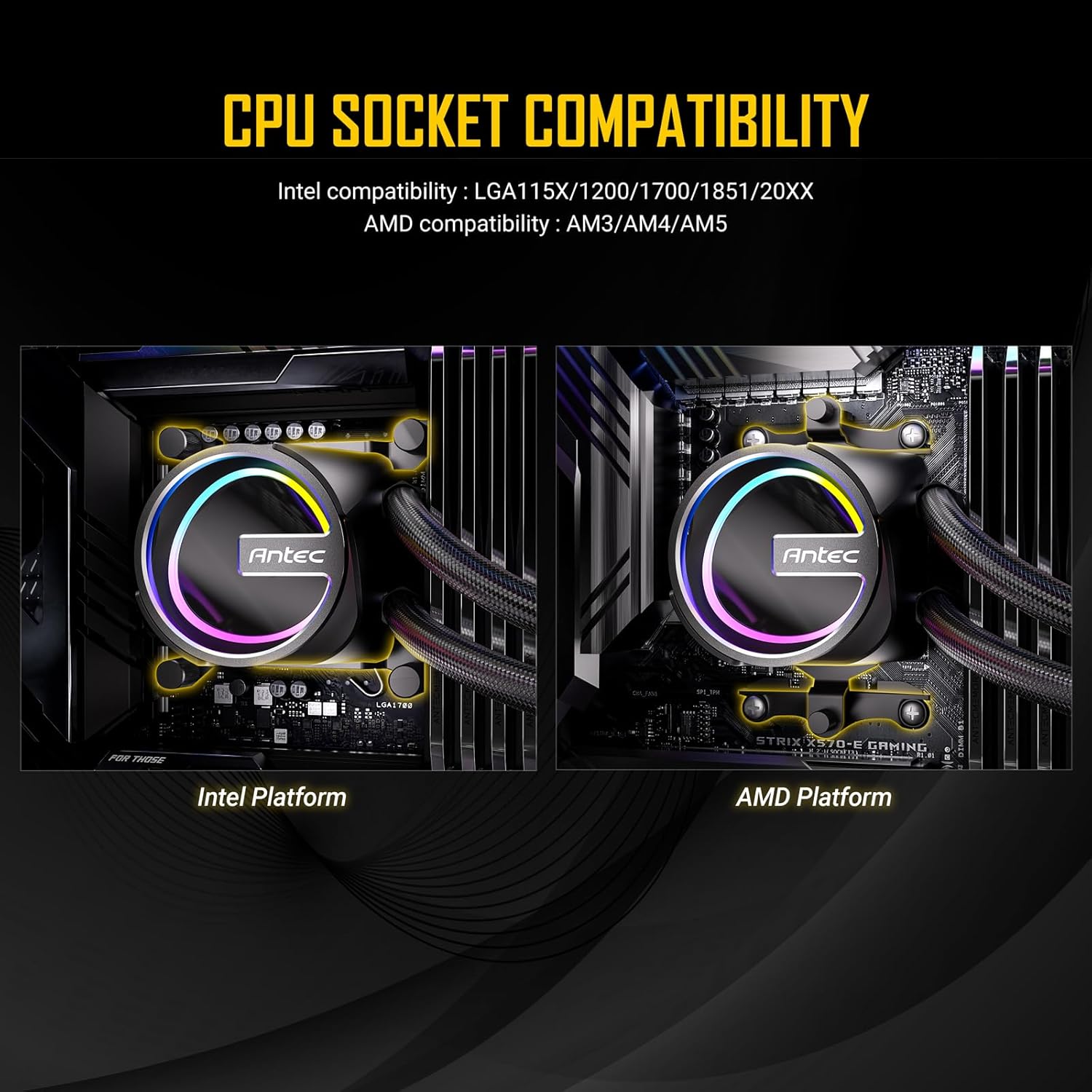
Intel Mounting Bracket Set (LGA 115X/1200/1700/20XX)
AMD Mounting Bracket Set (AM4/AM5)
Piastra posteriore universale
Viti di montaggio e distanziali
Thermal Paste Syringe
ARGB Controller Cable (if not using motherboard sync)
Cavo sdoppiatore ventola
Configurazione e installazione
Follow these steps carefully to install your Antec Skeleton 240 ARGB Liquid CPU Cooler.
1. Preparare la CPU e la scheda madre
Assicurati che il sistema sia spento e scollegato.
Clean the CPU surface with isopropyl alcohol to remove any old thermal paste.
Apply a pea-sized amount of the provided thermal paste to the center of the CPU's integrated heat spreader (IHS).
2. Install Radiator Fans
Attach the two 120mm ARGB fans to the radiator using the long fan screws. Ensure the fan orientation is correct for your desired airflow (intake or exhaust).
Image: A single Antec PWM ARGB fan, showcasing its design and lighting capabilities. These fans are mounted onto the radiator.
3. Install Backplate and Standoffs
For Intel Sockets (LGA 115X/1200/1700/20XX):
Position the universal backplate behind the motherboard, aligning the holes with the CPU socket mounting holes.
Secure the appropriate Intel standoffs through the motherboard from the front, screwing them into the backplate.
For AMD Sockets (AM4/AM5):
Remove the existing plastic retention clips from the motherboard, but retain the original AMD backplate.
Screw the appropriate AMD standoffs directly into the original AMD backplate.
Image: Depicts the Antec Skeleton 240 ARGB pump head mounted on both an Intel platform (left) and an AMD platform (right), highlighting the different mounting mechanisms for each CPU socket type.
4. Install Pump/Cold Plate
Attach the correct mounting brackets for your CPU socket to the pump head.
Carefully place the pump/cold plate assembly onto the CPU, aligning the holes in the brackets with the standoffs.
Secure the pump by tightening the four thumb nuts onto the standoffs in a diagonal pattern until snug. Do not overtighten.
Image: Close-up of the Antec Skeleton 240 ARGB pump head, featuring its unique skeleton-frame design and vibrant ARGB lighting effects.
Immagine: Lato inferiore view of the Antec Skeleton 240 ARGB pump, showing the large copper base plate designed for efficient heat transfer from the CPU.
5. Mount Radiator and Connect Cables
Mount the radiator assembly to an available fan mounting location in your PC case (e.g., top, front).
Connect the 4-pin PWM fan cables from the fans to the fan splitter cable, then connect the splitter to a CPU_FAN or SYS_FAN header on your motherboard.
Connect the 3-pin ARGB cables from the fans and pump to the included ARGB controller or directly to a 5V 3-pin ARGB header on your motherboard.
Connect the 3-pin pump power cable to a AIO_PUMP or SYS_FAN header on your motherboard. Ensure it is set to run at full speed in BIOS for optimal pump performance.
Image: The Antec Skeleton 240 ARGB liquid cooler installed inside a computer case, showing the radiator with two ARGB fans mounted at the top, and the illuminated pump head on the CPU.
Istruzioni per l'uso
Controllo dell'illuminazione ARGB
If connected to a motherboard's 5V 3-pin ARGB header, lighting effects can be controlled via the motherboard's RGB software (e.g., ASUS Aura Sync, MSI Mystic Light Sync, GIGABYTE RGB Fusion, ASRock Polychrome Sync).
If using the included ARGB controller (if applicable), refer to its specific instructions for cycling through lighting modes and colors.
Controllo della velocità della ventola
Fan speeds are controlled via PWM (Pulse Width Modulation) through your motherboard's BIOS or dedicated fan control software.
It is recommended to set a fan curve that balances cooling performance with noise levels according to your preference.
Manutenzione
Regular maintenance ensures optimal performance and longevity of your liquid CPU cooler.
Pulizia della polvere: Periodically clean the radiator fins and fan blades with compressed air to prevent dust buildup, which can impede airflow and cooling efficiency.
Ispezione visiva: Regularly check the tubing and connections for any signs of leaks or damage.
Pasta termica: While not frequently required, replacing thermal paste every few years can help maintain optimal thermal transfer.
Risoluzione dei problemi
Fans or ARGB lighting not working:
Check all fan and ARGB cable connections to the motherboard or controller. Ensure the motherboard's ARGB header is enabled in BIOS and that the correct RGB software is installed and configured.
Temperature elevate della CPU:
Verify that the pump is running (you may feel a slight vibration or hear a faint hum). Check fan orientation for proper airflow. Ensure the cold plate is securely mounted to the CPU with adequate thermal paste coverage. Confirm fan speeds are set appropriately in BIOS or software.
Rumore insolito proveniente dalla pompa:
A gurgling sound immediately after installation may indicate air in the loop. This usually resolves itself within a few hours of operation as air settles in the radiator. If persistent, gently tilt your PC case to help dislodge air bubbles. Ensure the pump is not running dry.
Specifiche
Caratteristica
Dettaglio
Dimensioni del prodotto
10.91"L x 4.72"W x 1.06"H (277 mm x 120 mm x 27 mm)
Metodo di raffreddamento
Liquido (Acqua)
Livello di rumore
32 decibel (massimo)
Velocità di rotazione massima (ventole)
2000 giri al minuto
Capacità del flusso d'aria
72.29 Cubic Centimeters Per Minute (CFM)
Tipo di connettore di alimentazione
4-Pin (PWM)
Dispositivi compatibili
PC desktop
Intel Socket Compatibility
LGA 115X/1200/1700/20XX
AMD Socket Compatibility
AM4/AM5
Garanzia e supporto
For detailed warranty information, please refer to the official Antec website or the warranty card included with your product. Antec provides technical support for its products. If you encounter any issues not covered in this manual, please visit the Antec support page or contact their customer service for assistance.
Prodotto finitoview Video
Video: Un oltreview of the Antec Skeleton Liquid CPU Cooler, demonstrating its features and design. This video provides a visual guide to the product's components and aesthetic.
Ask a question about this manual
Ask about setup, troubleshooting, compatibility, parts, safety, or missing instructions. Manuals+ will review the question and use this page’s manual context to help answer it.