
1. Introduzione
Thank you for choosing the Pisichen 24 inch Touch Screen Gaming Monitor. This manual provides essential information for setting up, operating, and maintaining your monitor. Please read it thoroughly before use to ensure optimal performance and safety.
This monitor features a 24-inch QHD (2560x1440P) display with a 165Hz refresh rate, 2ms response time, and 10-point projected capacitive touchscreen functionality. It supports FreeSync and HDR, offering a vibrant and responsive visual experience for both gaming and professional applications.

Image: The Pisichen 24-inch 2K 165Hz Touch Screen Monitor highlighting its key features like HDR, IPS Panel, and 10-point Touch.
2. Contenuto della confezione
Prima di procedere con la configurazione, verificare che tutti i componenti siano presenti nella confezione:
- Pisichen 24 inch Touch Screen Monitor
- Supporto per monitor (base e collo)
- Cavo DP
- Cavo HDMI
- USB B Touch Cable
- Cavo USB CC
- Adattatore di alimentazione CC
- Manuale dell'utente (questo documento)
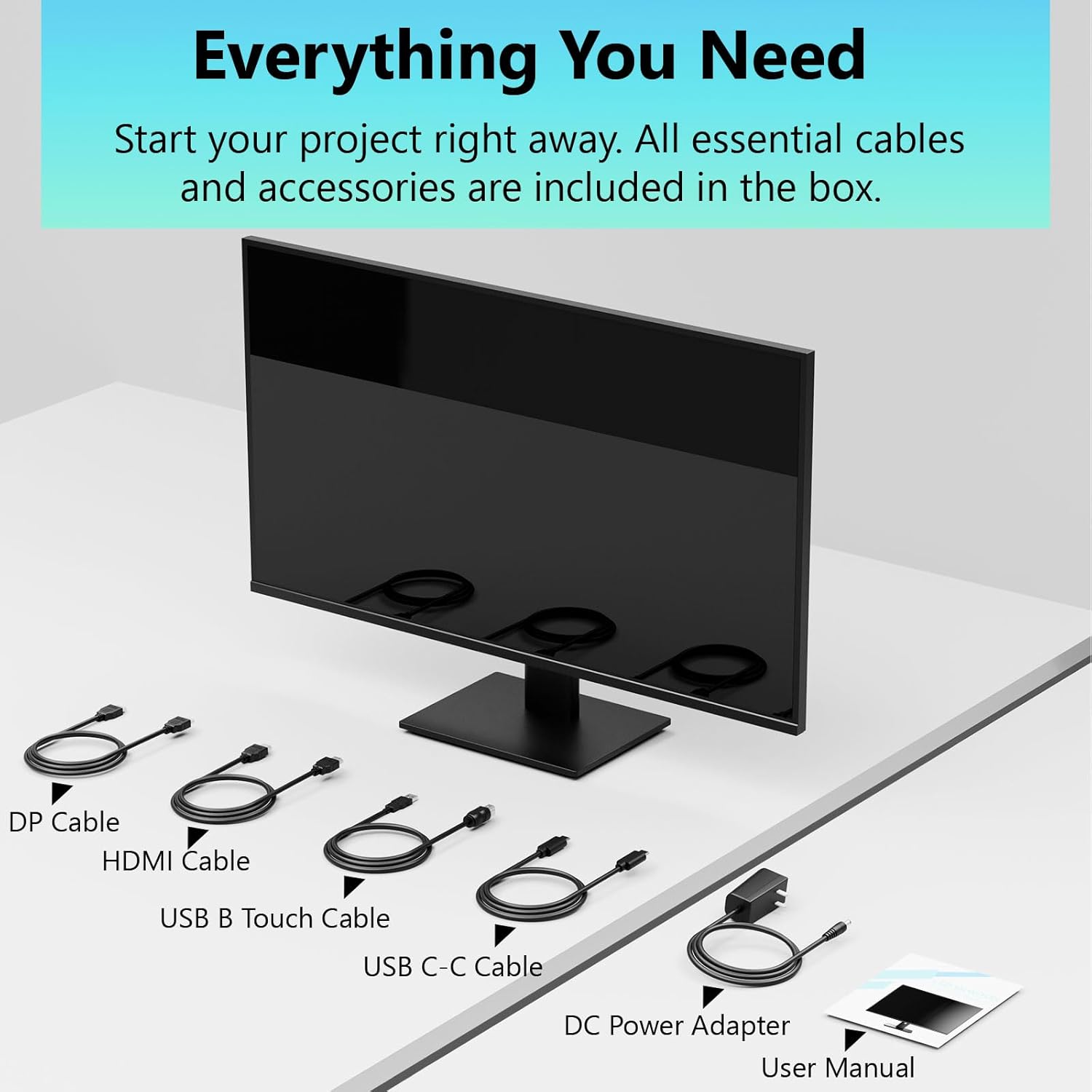
Image: All essential cables and accessories included in the box for the monitor setup.
3. Istruzioni per l'installazione
3.1 Montaggio del supporto
- Estrarre con cautela il monitor dalla confezione, posizionandolo con lo schermo rivolto verso il basso su una superficie morbida e pulita per evitare graffi.
- Fissare il collo del supporto al pannello posteriore del monitor.
- Fissare la base del supporto al collo del supporto utilizzando le viti fornite.
- Prima di posizionare il monitor in verticale, assicurarsi che tutti i collegamenti siano saldi.
3.2 Installazione con montaggio VESA (opzionale)
This monitor supports VESA mounting. If you plan to use a VESA-compatible arm or wall mount, remove the stand and attach the VESA mount according to the mount's instructions. The VESA pattern is typically 75x75mm or 100x100mm (refer to specifications for exact details).
3.3 Connessione a un dispositivo
Il monitor offre molteplici opzioni di connettività:
- HDMI: Collegare un'estremità del cavo HDMI alla porta HDMI del monitor e l'altra estremità all'uscita HDMI del computer.
- Porta Display (DP): Collegare un'estremità del cavo DP alla porta DP del monitor e l'altra estremità all'uscita DP del computer.
- USB Tipo-C: For compatible devices, connect the USB C-C cable to the monitor's USB Type-C port and your device's USB Type-C port. This single cable can transmit video, data, and power (charging).
- USB Type-B (for Touch Functionality): To enable the touch screen feature, connect the USB B Touch Cable from the monitor's USB Type-B port to an available USB Type-A port on your computer.

Image: The monitor's rear panel with various connectivity options, including HDMI, DisplayPort, and USB-C ports.
3.4 Collegamento di alimentazione
Connect the DC Power Adapter to the monitor's power input port, then plug the adapter into a power outlet.
3.5 Initial Power On and Touch Compatibility
Press the power button on the monitor. The display should light up. If no image appears, ensure all cables are securely connected and the correct input source is selected on the monitor (via the OSD menu).
For touch functionality, ensure the USB B Touch Cable is connected to your computer. Touch compatibility may vary by operating system and device. Most Windows PCs support multi-touch. For Mac devices, single-touch click is generally supported, but multi-touch may require specific drivers or configurations. Game consoles (PS3/4/5, Xbox, Steam Deck) and some other devices (Fire TV, Apple products like iPhone/iPad) typically do not support touch functionality.

Image: A compatibility chart illustrating which devices support multi-touch or single-touch, and which devices do not support touch functionality with the monitor.
4. Istruzioni per l'uso
4.1 Accensione/spegnimento
Premere il pulsante di accensione situato sul monitor per accenderlo o spegnerlo. La spia di alimentazione mostrerà lo stato del monitor.
4.2 Menu di visualizzazione su schermo (OSD)
The OSD menu allows you to adjust various monitor settings. Use the control buttons (usually located on the back or bottom of the monitor) to navigate the menu. Common menu options include:
- Impostazioni immagine: Brightness, Contrast, Sharpness, Color Temperature, HDR mode.
- Impostazioni di visualizzazione: Aspect Ratio, Input Source selection (HDMI, DP, USB-C).
- Impostazioni di gioco: FreeSync, Response Time (Overdrive), Crosshair.
- Impostazioni audio: Volume (if internal speakers or audio output are present).
- Impostazioni di sistema: Lingua, Trasparenza OSD, Ripristino impostazioni predefinite di fabbrica.
4.3 Funzionalità touch screen
The monitor supports 10-point multi-touch, allowing for intuitive interaction directly on the screen. Ensure the USB B Touch Cable is connected to your computer for this feature to work.
- Singolo tocco: Equivale a un clic con il tasto sinistro.
- Toccare e tenere premuto: Equivale a un clic con il tasto destro.
- Pizzica per ingrandire: Per ingrandire o ridurre la visualizzazione, usa due dita.
- Scorri: Navigate through content or scroll.

Image: A user interacting with the monitor's touch screen, highlighting its precision and responsiveness for creative tasks.
4.4 Regolazioni ergonomiche
The monitor stand allows for tilt adjustments to achieve the most comfortable viewing and touch angle. Gently adjust the screen to your preferred position.
4.5 Caratteristiche della cura degli occhi
The monitor includes advanced eye-comfort features such as Flicker-Free technology and Low Bluelight mode to reduce eye strain during prolonged use. These settings can typically be adjusted within the OSD menu.

Image: Visual representation of the monitor's advanced eye-comfort features, including Flicker-Free and Low Bluelight technologies.
5. Manutenzione
5.1 Pulizia del monitor
- Prima di procedere alla pulizia, spegnere sempre il monitor e scollegare il cavo di alimentazione.
- Utilizzare leggermente un panno morbido e privo di lanugine dampcon acqua o con un detergente per schermi delicato e non abrasivo.
- Non spruzzare il detergente direttamente sullo schermo. Applicalo prima sul panno.
- Evitare l'uso di benzene, diluenti, detergenti a base di ammoniaca o materiali abrasivi, poiché potrebbero danneggiare la superficie dello schermo.
5.2 Conservazione
When storing the monitor for an extended period, ensure it is powered off, unplugged, and stored in a cool, dry place away from direct sunlight and extreme temperatures. Use the original packaging if available for best protection.
6. Risoluzione Dei Problemi
Se riscontri problemi con il monitor, fai riferimento ai seguenti passaggi comuni per la risoluzione dei problemi:
- Nessun potere: Assicurarsi che l'adattatore di alimentazione sia collegato saldamente sia al monitor sia a una presa di corrente funzionante. Verificare che la spia di alimentazione sia accesa.
- Nessuna immagine/segnale:
- Verify that the video cable (HDMI, DP, or USB-C) is securely connected to both the monitor and your computer.
- Assicurarsi che nel menu OSD del monitor sia selezionata la sorgente di input corretta.
- Check your computer's display settings to ensure the monitor is detected and enabled.
- Funzionalità No Touch:
- Confirm the USB B Touch Cable is connected from the monitor to your computer.
- Check your computer's device manager to see if the touch screen driver is installed and functioning correctly.
- Refer to the "Initial Power On and Touch Compatibility" section for device-specific limitations.
- Immagine tremolante o distorta:
- Controllare che il cavo video non sia danneggiato o che i collegamenti siano allentati.
- Prova un cavo video o una porta diversa.
- Regola la frequenza di aggiornamento nelle impostazioni dello schermo del tuo computer.
- Pixel morti: Un piccolo numero di pixel luminosi o scuri è comune nella tecnologia LCD/LED e non è considerato un difetto a meno che non superi le specifiche del produttore.
Se il problema persiste dopo aver provato questi passaggi, contattare l'assistenza clienti.
7. Specifiche
| Caratteristica | Specificazione |
|---|---|
| Marca | Pesciolino |
| Numero di modello | 24IN165HZ-QHD |
| Dimensioni dello schermo | 23.8 pollici |
| Risoluzione | QHD Wide 1440p (2560 x 1440) |
| Proporzioni | 16:9 |
| Frequenza di aggiornamento | Frequenza 165 Hz |
| Tempo di risposta | 2 millisecondi |
| Tipo di visualizzazione | LED IPS |
| Luminosità | 400 candele (cd/m²) |
| Rapporto di contrasto | 3000:1 |
| Viewangolo di ing | 178 gradi |
| Gamma di colori | 99% |
| Picture Quality Enhancement | Immagine HDR |
| Sincronizzazione adattiva | Sincronizzazione gratuita |
| Tecnologia di connettività | DisplayPort, HDMI, USB Type-C, USB Type-B |
| Caratteristiche aggiuntive | Tilt Adjustment, 10-Point Touchscreen |
| Dimensioni dell'articolo (P x L x A) | 0.75"P x 21.5"L x 12.7"A |
| Peso dell'articolo | 5.38 chilogrammi |
| Colore | Nero |
8. Informazioni sulla garanzia
This product comes with a 1-year limited warranty from the date of purchase. The warranty covers manufacturing defects and workmanship under normal use. It does not cover damage caused by misuse, accidents, unauthorized modifications, or external factors. Please retain your proof of purchase for warranty claims.
9. Assistenza clienti
For technical assistance, warranty claims, or further inquiries, please contact Pisichen customer support. You may find contact information on the official Pisichen websito o tramite il tuo rivenditore.
Per ulteriori risorse e informazioni sul prodotto, visitare il Pisichen Store on Amazon.


