
1. Introduzione
Welcome to the user manual for your NIMO N152S 15.6-inch Laptop. This guide provides essential information on setting up, operating, maintaining, and troubleshooting your new device. Please read this manual thoroughly to ensure optimal performance and longevity of your laptop.
2. Prodotto finitoview
2.1 Caratteristiche principali
- Prestazioni potenti: Equipped with an AMD Ryzen 5 3500U processor and integrated Radeon graphics for smooth multitasking and efficient performance.
- Display Full HD coinvolgente: A 15.6-inch Full HD (1920x1080) IPS display with a 180° wide hinge for vibrant visuals and wide viewangoli di inclinazione.
- Design sottile e leggero: Crafted with a sleek metal top cover, weighing under 3.7 lbs and measuring just 19.2 mm thin.
- Connettività migliorata: Features 2 USB-A, 2 USB-C (full function PD/DP/Data), HDMI, MicroSD, and a 3.5mm audio jack.
- Memoria e archiviazione espandibili: Supports up to 32GB DDR4 RAM and M.2 PCIe 3.0 x4 SSD for future-proof upgrades.
- Smart Security & Comfort: Includes a fingerprint reader on the touchpad, a backlit keyboard for low-light use, and dual microphones.
2.2 Identificazione dei componenti
Familiarize yourself with the various components of your NIMO N152S laptop as illustrated below.

Figura 2.1: Fronte view of the NIMO N152S laptop, showcasing its sleek design and key features like Windows 11, 32GB RAM, 1TB SSD, Full HD display, AMD Ryzen 5, Type-C PD Charger, Backlit Keyboard, and Fingerprint Reader.

Figure 2.2: Illustration of the AMD Ryzen 5 processor, detailing its specifications including 4 Cores, 8 Threads, 15W Power Consumption, and 3.7 GHz Turbo Boost, indicating its capability for daily tasks and light gaming.

Figure 2.3: The NIMO laptop screen showcasing a vivid Full HD (1920x1080) IPS display, highlighting features like bright view and eye protection, with an 85% screen-to-body ratio.

Figura 2.4: dettagliata view of the NIMO laptop's expanded connectivity options, labeling ports such as Type-C (Charge Only), USB 3.0, HDMI, Type-C (Full Function), Charge LED, Micro SD Reader, USB 2.0, USB 3.0, Headphone Combo, and Kensington Lock.
3. Configurazione iniziale
3.1 Ricarica del laptop
Before first use, fully charge your NIMO laptop. Connect the provided 65W Type-C PD charger to the USB-C charging port on the laptop and then to a power outlet. The charge LED indicator will illuminate to confirm charging.

Figure 3.1: The 65W Type-C PD Charger, designed for universal compatibility with laptops, tablets, and smartphones, simplifying your charging needs compared to multiple chargers.
3.2 Prima accensione
- Apri il coperchio del portatile.
- Premere il pulsante di accensione situato sulla tastiera.
- Seguire le istruzioni visualizzate sullo schermo per completare la configurazione iniziale di Windows 11, inclusa la selezione della lingua, la connessione di rete e la creazione dell'account utente.
4. Operating Your NIMO Laptop
4.1 Accensione/spegnimento e modalità di sospensione
- Accensione: Premere il pulsante di accensione.
- Fermare: Fare clic sul pulsante Start, quindi su Arresta > Arresta il sistema.
- Modalità risparmio: Chiudere il coperchio o fare clic sul pulsante Start, quindi su Alimentazione > Sospensione.
4.2 Utilizzo della tastiera e del touchpad
Your NIMO laptop features a full-sized keyboard with a numeric keypad and a responsive touchpad.
- Tastiera retroilluminata: Premere Tasto F10 (or the key with the backlight icon) to toggle the keyboard backlight on/off or adjust brightness levels.
- Touchpad: Supporta i gesti multi-touch per la navigazione. Per la personalizzazione, consultare le impostazioni di Windows.
- Tastiera numerica: Use the dedicated numeric keypad for efficient data entry.

Figure 4.1: The NIMO laptop keyboard, emphasizing its backlit keys, integrated touchpad, fingerprint reader, and numeric keypad, designed for comfortable typing in various lighting conditions.
4.3 Lettore di impronte digitali
The integrated fingerprint reader on the touchpad provides quick and secure access to your laptop.
- Vai su Impostazioni di Windows > Account > Opzioni di accesso.
- Configurare l'impronta digitale di Windows Hello.
- Seguire le istruzioni sullo schermo per registrare le impronte digitali.
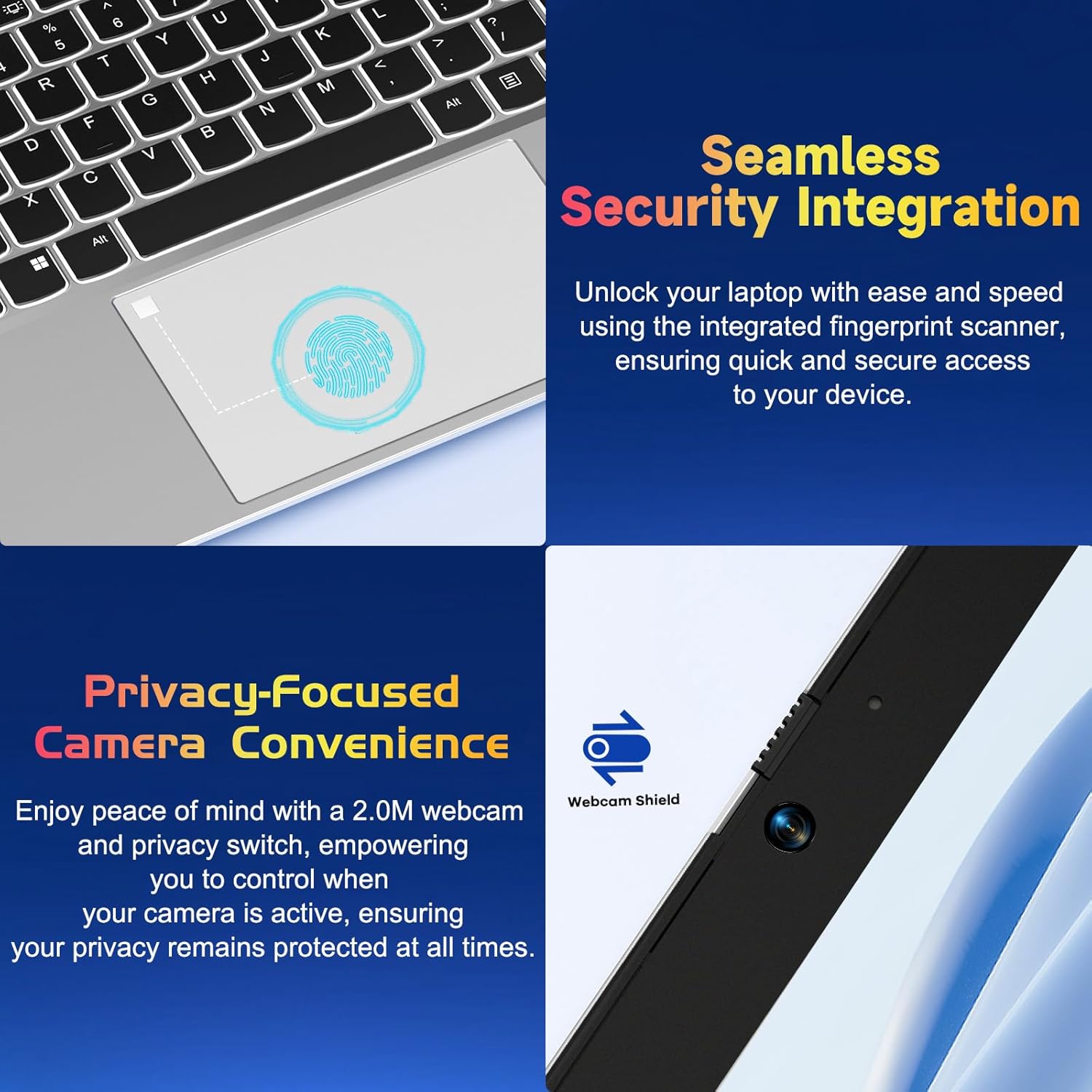
Figura 4.2: primo piano view of the NIMO laptop's touchpad, highlighting the integrated fingerprint scanner for seamless security integration, alongside the privacy-focused webcam with a physical shield.
4.4 Collegamento delle periferiche
Il tuo laptop è dotato di diverse porte per collegare dispositivi esterni:
- Porte USB-A: Per collegare dispositivi USB standard come mouse, tastiere o unità esterne.
- Porte USB-C: Two full-function USB-C ports support Power Delivery (PD), DisplayPort (DP), and data transfer. One is dedicated for charging.
- Porta HDMI: Collegare a monitor o proiettori esterni.
- Lettore di schede MicroSD: Insert a MicroSD card for additional storage or data transfer.
- Jack audio da 3.5 mm: Per cuffie o altoparlanti esterni.
4.5 WebPrivacy della camma
The laptop includes a 2.0MP webcam with a physical privacy shield. Slide the shield to cover the camera lens when not in use to ensure your privacy.
5. Manutenzione e cura
- Pulizia: Utilizzare un panno morbido e privo di lanugine leggermente dampened with water or a screen cleaner to clean the display and exterior. Avoid harsh chemicals.
- Aggiornamenti software: Aggiorna regolarmente il sistema operativo Windows e i driver per garantire prestazioni e sicurezza ottimali.
- Cura della batteria: Per prolungare la durata della batteria, evitare temperature estreme e cercare di mantenere la carica della batteria tra il 20% e l'80%, quando possibile.
- Magazzinaggio: Conservare il portatile in un luogo fresco e asciutto, lontano dalla luce solare diretta e da temperature estreme.
6. Risoluzione Dei Problemi
This section addresses common issues you might encounter with your NIMO laptop.
| Problema | Possibile soluzione |
|---|---|
| Il portatile non si accende. | Ensure the laptop is charged. Connect the charger and wait a few minutes before attempting to power on again. If unresponsive, perform a hard reset by holding the power button for 15 seconds. |
| Lo schermo è vuoto o tremolante. | Try adjusting the screen brightness (Fn + F5/F6). If connected to an external monitor, ensure the cable is secure. Restart the laptop. |
| La retroilluminazione della tastiera non funziona. | Press Fn + F10 (or the key with the backlight icon) to cycle through backlight settings. Ensure the function keys are enabled. |
| Lettore di impronte digitali non riconosciuto. | Assicurati che il dito sia pulito e asciutto. Se il problema persiste, registra nuovamente l'impronta digitale nelle impostazioni di Windows Hello. |
| Problemi di connessione Wi-Fi. | Check if Wi-Fi is enabled (Fn + F12 or Windows settings). Restart your router and laptop. Update Wi-Fi drivers if necessary. |
| Il portatile è lento. | Close unnecessary applications. Check Task Manager for resource-intensive processes. Ensure Windows and drivers are up to date. Consider running a disk cleanup. |
7. Specifiche tecniche
| Caratteristica | Specificazione |
|---|---|
| Marca | NIMO |
| Nome del modello | NIMO N152S |
| Numero modello articolo | NIMO N152 |
| Dimensioni dello schermo | 15.6 pollici |
| Risoluzione massima dello schermo | 1920 x 1080 pixel (Full HD) |
| Processore | Processore AMD Ryzen 5 3500U (3.7 GHz) |
| Memoria RAM | 32 GB DDR4 (3200 MHz) |
| Disco rigido | SSD da 1024 GB (stato solido) |
| Coprocessore grafico | AMD Integrated graphics |
| Sistema operativo | Finestre 11 |
| Tipo senza fili | 802.11abg |
| Numero di porte USB 2.0 | 1 |
| Durata media della batteria | 5 ore |
| Peso dell'articolo | 3.8 libbre |
| Dimensioni del prodotto | 14.07 x 8.98 x 0.76 pollici |
| Colore | Argento Classico |
| Posteriore WebRisoluzione della camma | 2 MP |
| Fonte di alimentazione | Alimentato a batteria |
| Batterie | 1 batterie ai polimeri di litio necessarie (incluse) |
8. Garanzia e assistenza clienti
8.1 Informazioni sulla garanzia
Your NIMO N152S laptop comes with a comprehensive warranty:
- Politica di reso gratuito di 90 giorni: You may return your NIMO laptop for any reason within 90 days of purchase.
- Garanzia di 2 anni: All NIMO products are covered by a 2-year warranty for after-sales support.

Figure 8.1: NIMO's commitment to customer satisfaction, featuring a 90-day free return policy and a 2-year warranty for reliable support.
8.2 Assistenza clienti
For any product-related questions, technical assistance, or warranty claims, please contact our U.S.-based support team:
- Visit the official NIMO websito per risorse di supporto e opzioni di contatto.
- Per i dettagli di contatto specifici, fare riferimento alla documentazione di acquisto.
Our team is dedicated to providing professional and high-quality customer service to resolve any issues you may encounter.