
Introduzione
The Fotorgear Retro Photography Kit transforms your iPhone 16 Pro into a versatile camera with physical controls and expandable lens capabilities. This kit provides a vintage tactile experience, enhancing your smartphone photography with manual focus, shutter, and zoom controls. It is designed for portability and ease of use, integrating seamlessly with your iPhone's native camera and the Fotorgear application.
Cosa c'è nella scatola
- Retro Case
- Supporto per slitta fredda
- Retro Bar (Physical Camera Control Bar)
- Manico in pelle
- cordino
- 67mm Filter Adapter
Note: External lenses and additional filters are sold separately.
Impostare
1. Attaching the Retro Case and Retro Bar
Carefully place your iPhone 16 Pro into the Retro Case. The Retro Bar, which houses the physical controls, slides onto the top edge of the case, aligning with the iPhone's camera module. Ensure it clicks securely into place.
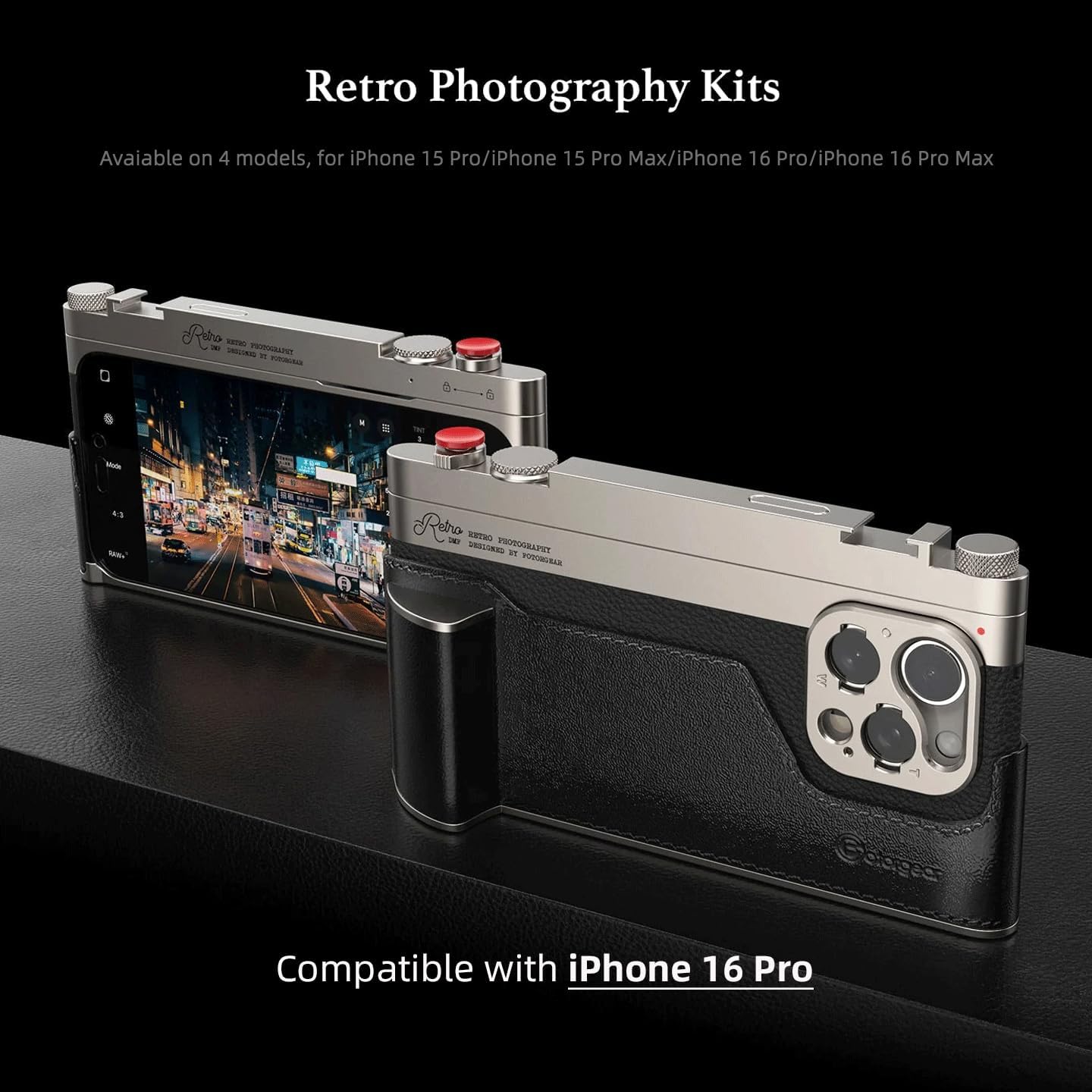
Image: The Fotorgear Retro Photography Kit assembled on an iPhone 16 Pro, highlighting its design and fit.
2. Attaching the Leather Handle
The detachable leather handle slides onto the side of the Retro Case, providing an ergonomic grip similar to a traditional camera. This handle can be removed for a slimmer profile when not actively shooting.
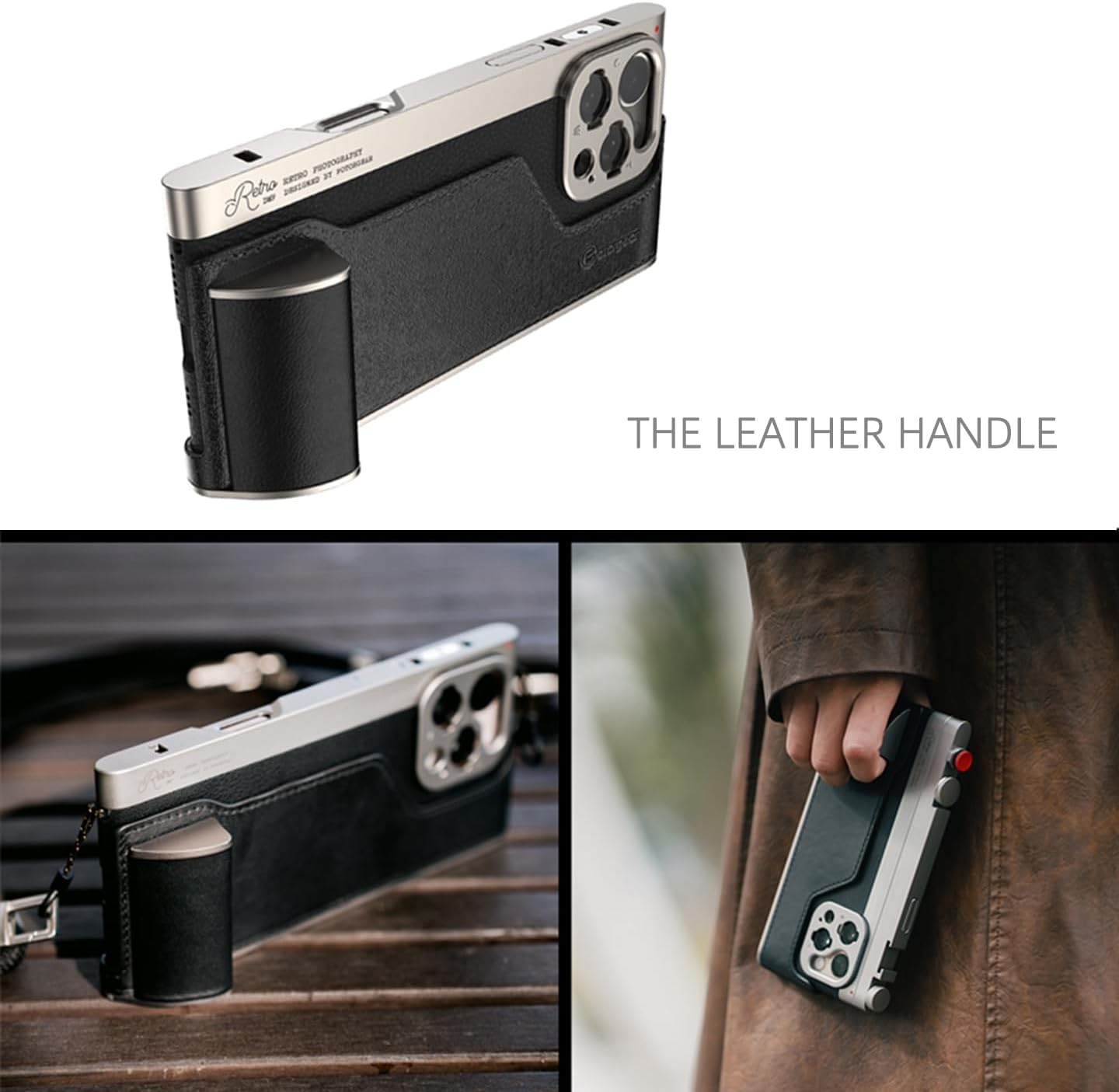
Image: The leather handle component of the kit, shown attached to the Retro Case, offering a comfortable grip.
3. Fissaggio del cordino
For added security and convenience, attach the included lanyard to the designated loop on the Retro Case. This allows for hands-free carrying.
4. Installing External Lenses
The Retro Case features a T-mount interface for attaching compatible external lenses (e.g., 1.55x wide, 60mm portrait, 45mm macro). Align the lens with the T-mount and twist gently until it is secure.
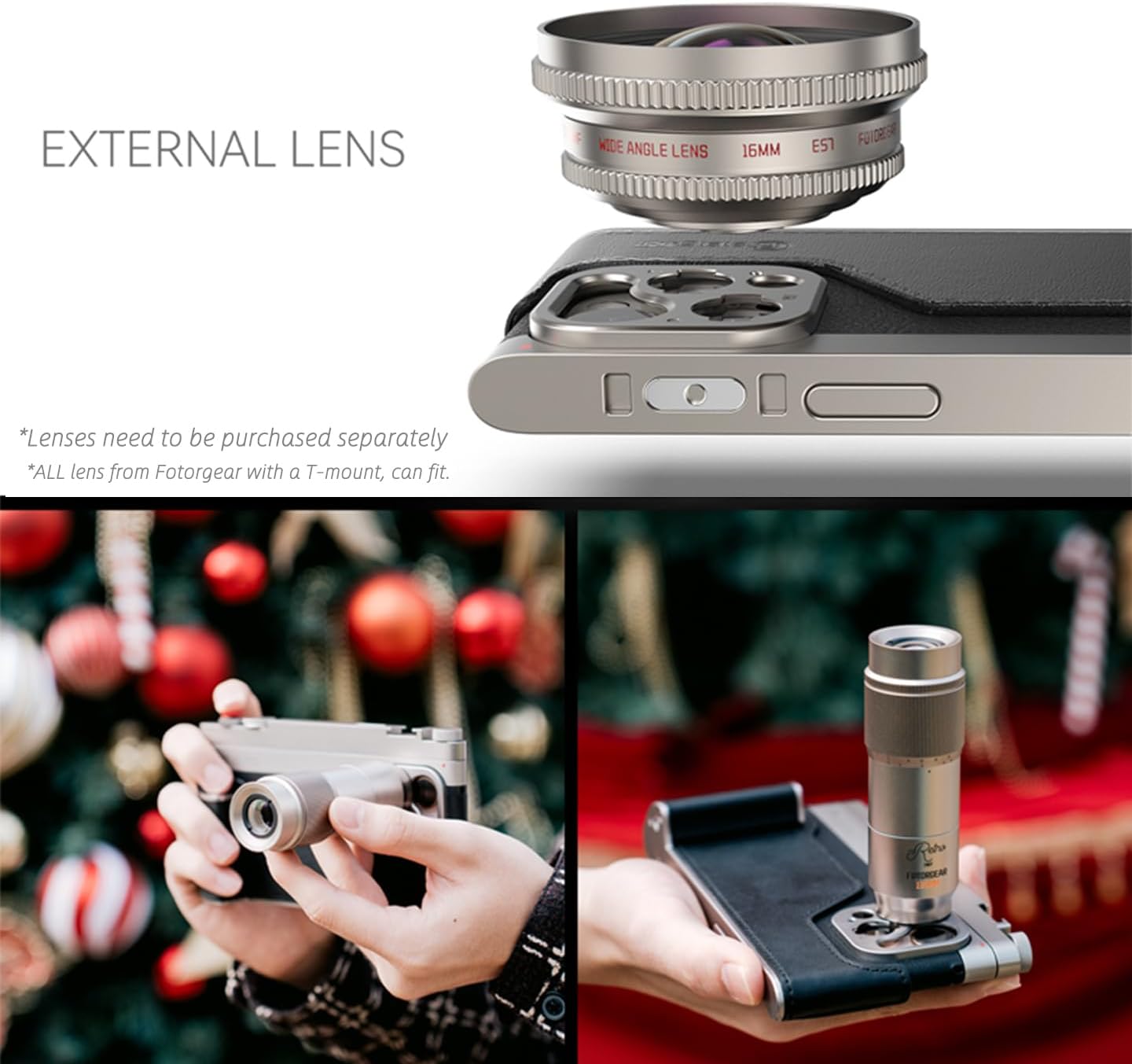
Image: Illustration of the external lens system, demonstrating how various T-mount lenses can be attached to the kit.
5. Installing 67mm Filters
Use the included 67mm filter adapter to attach standard 67mm filters to your iPhone's camera. Screw the adapter onto the lens mount area of the case, then attach your desired filter.

Image: Visual guide for attaching external filters using the 67mm filter adapter, showing the filter layers.
6. Using the Cold Shoe Mount
The cold shoe mount, located on the Retro Bar, allows you to attach external accessories such as microphones or LED lights. Slide the accessory into the mount until it is secure.

Image: The cold shoe mount feature, demonstrating its use for attaching external photographic accessories.
Operating the Fotorgear Retro Photography Kit
1. Accensione e collegamento
The Retro Bar connects to your iPhone via Bluetooth. Ensure Bluetooth is enabled on your iPhone. The Retro Bar will automatically pair when attached and powered on. Refer to the Fotorgear app for detailed connection status.
2. Using Physical Controls
The Retro Bar features physical buttons and dials for camera control:
- Pulsante dell'otturatore: Premere per scattare foto o avviare/interrompere la registrazione video.
- Adjustment Dials (Knob1, Knob2): These can be customized via the Fotorgear app to control various parameters such as focus, exposure compensation (EV), ISO, or white balance.
- Controllo dello zoom: Dedicated buttons or a dial may be present for optical or digital zoom, depending on the specific Retro Bar configuration.

Image: The Fotorgear app interface demonstrating how to customize the functions of the physical control knobs and buttons.
3. Compatibilità delle app
The kit works seamlessly with your iPhone's native camera application. For advanced features and customization of the physical controls, use the dedicated Fotorgear app. It is also compatible with third-party camera applications like DAZZ Camera and Meitu.

Image: A user adjusting settings within the Fotorgear app, showcasing the customization capabilities for photography.
4. Modular Design for Versatility
The Retro Bar and leather handle are detachable. For everyday use, you can remove these components to carry your iPhone in a more compact form. Reattach them quickly when you need the full photography experience.
5. Official Product Video: How to use a retro photography kit?
Video: This official Fotorgear video demonstrates the various features and usage of the Retro Photography Kit, including assembly, control functions, and accessory integration.
Manutenzione
To ensure the longevity and optimal performance of your Fotorgear Retro Photography Kit, follow these maintenance guidelines:
- Pulizia: Use a soft, dry cloth to wipe down the aluminum and leather surfaces. Avoid abrasive cleaners or solvents. For the lens area, use a microfiber cloth specifically designed for optics.
- Magazzinaggio: When not in use, store the kit in a clean, dry place away from direct sunlight and extreme temperatures.
- Maneggiare con cura: While durable, avoid dropping the kit or subjecting it to strong impacts, which could damage the electronic components or physical structure.
- Lenses and Filters: Keep external lenses and filters clean and free of dust. Store them in protective pouches or cases when not attached to the kit.
Risoluzione dei problemi
- I controlli non rispondono:
- Ensure the Retro Bar is securely attached to the Retro Case.
- Check if Bluetooth is enabled on your iPhone and the Retro Bar is paired.
- Restart your iPhone and reattach the Retro Bar. - App Not Recognizing Kit:
- Make sure you have the latest version of the Fotorgear app installed.
- Verify Bluetooth connection.
- Chiudere e riaprire l'app. - External Lens/Filter Issues:
- Ensure lenses and filters are clean and properly screwed onto the T-mount or adapter.
- Check for any physical obstructions or damage. - Scarsa qualità dell'immagine:
- Clean your iPhone's camera lenses and any attached external lenses/filters.
- Ensure proper lighting conditions.
- Adjust camera settings (focus, exposure, ISO) using the physical controls or app.
Specifiche
| Caratteristica | Dettaglio |
|---|---|
| Marca | Fotorgear |
| Modelli di telefono compatibili | iPhone 16 Pro |
| Colore | Nero |
| Dispositivi compatibili | iPhone |
| Materiale | Aluminum, Leather |
| Caratteristiche aggiuntive | Magnetico |
| Dimensioni dell'articolo | 6.3 x 2.96 x 0.61 pollici |
| Produttore | Fotorgear |
| ASIN | B0FPX7JZK3 |
Garanzia e supporto
Informazioni sulla garanzia
The Fotorgear Retro Photography Kit comes with a Garanzia di 1 anno dalla data di acquisto. La presente garanzia copre difetti di fabbricazione e malfunzionamenti dovuti a normale utilizzo. Non copre danni causati da uso improprio, incidenti, modifiche non autorizzate o normale usura.
Assistenza clienti
For technical assistance, warranty claims, or any questions regarding your Fotorgear Retro Photography Kit, please contact Fotorgear customer support. Refer to the contact information provided with your product packaging or visit the official Fotorgear websito per i dettagli del supporto.