
Introduzione
This manual provides instructions for the OMOTON Illuminated Keyboard. Designed with extra-large fonts, this keyboard offers enhanced visibility, making it suitable for users who benefit from clearer visual experiences, including seniors, students, and office workers. It aims to reduce eye fatigue and typing errors. The keyboard features a wired 2-in-1 USB-A/C interface for broad compatibility and includes multimedia keys for efficient control of various functions.
Caratteristiche del prodotto
- Large Font Keys: Keys feature oversized characters for improved readability, minimizing typing errors.
- Multimedia Functionality: Dedicated multimedia keys provide quick access to functions such as music, video playback, and volume control.
- Dual USB A/C Compatibility: Equipped with a 2-in-1 USB-A/C cable, allowing connection to a wide range of devices.
- Design ergonomico: Features a user-friendly, ergonomic design with an adjustable kickstand for comfortable typing positions, reducing strain during extended use.
- Compatibilità con Windows: Specifically designed for seamless operation with Windows operating systems.
Impostare
The OMOTON Illuminated Keyboard is designed for simple plug-and-play setup.
- Collegare la tastiera: Locate an available USB-A or USB-C port on your computer.
- Collegare: Connect the keyboard's 2-in-1 USB cable to the chosen port. The keyboard will be automatically recognized by your operating system (Windows).
- Verifica connessione: Once connected, the keyboard should be ready for use. The backlight will illuminate.

Image: The keyboard features a versatile 2-in-1 USB-A/C cable for easy connection to various devices, including laptops and desktop PCs.
Istruzioni per l'uso
Controllo della retroilluminazione
The keyboard features an adjustable white backlight. Use the following key combinations to control it:
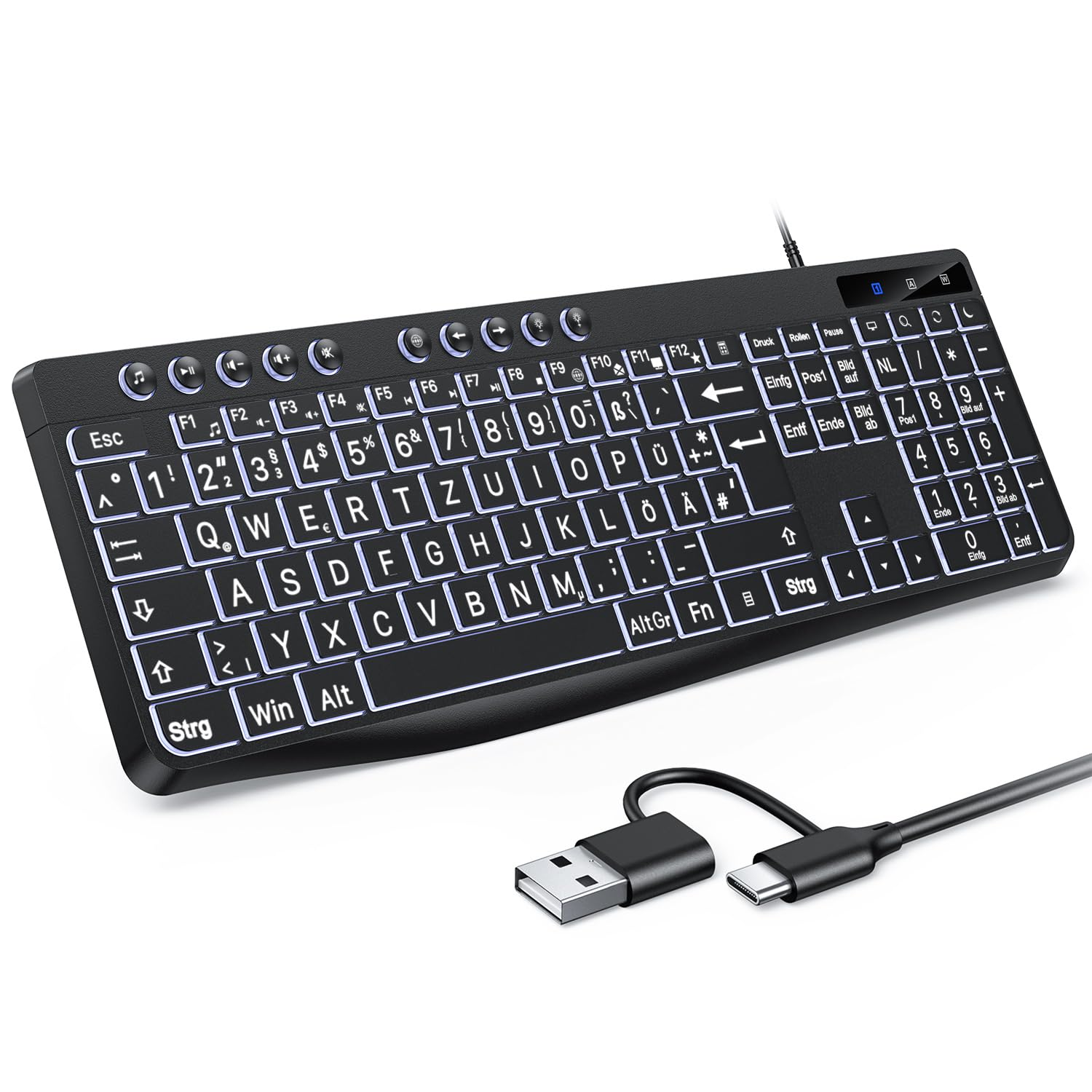
Image: Visual guide for backlight control functions.
- Fn + Print Screen (Druck): Attiva o disattiva la retroilluminazione.
- Fn + Scroll Lock (Rollen): Switches between constant illumination mode and 'breathing' mode.
- In Constant Illumination Mode:
- Fn + Freccia su: Aumenta la luminosità della retroilluminazione.
- Fn + Freccia giù: Diminuisce la luminosità della retroilluminazione.
- In 'Breathing' Mode:
- Fn + Freccia sinistra: Adjusts breathing frequency (slower).
- Fn + Freccia destra: Adjusts breathing frequency (faster).
Tasti multimediali
The keyboard includes dedicated multimedia keys (F1-F12) that provide quick access to various functions when pressed in combination with the Fn chiave.

Image: The multimedia keys (F1-F12) offer convenient shortcuts for common tasks.
- Fn + F1-F12: Access functions such as volume control, media playback, email, web browser, and calculator. Refer to the icons on the F-keys for specific functions.
Manutenzione
To ensure the longevity and optimal performance of your OMOTON Illuminated Keyboard, follow these maintenance guidelines:
- Pulizia: Regularly clean the keyboard with a soft, dry, lint-free cloth. For stubborn dirt, slightly dampPulire il panno con acqua o una soluzione detergente delicata. Evitare prodotti chimici aggressivi o materiali abrasivi.
- Rimozione della polvere: Utilizzare aria compressa per rimuovere polvere e detriti dagli spazi tra i tasti.
- Fuoriuscite di liquidi: In case of a liquid spill, immediately disconnect the keyboard from your computer. Turn it upside down to drain any liquid and allow it to dry completely before reconnecting.
- Magazzinaggio: Conservare la tastiera in un luogo fresco e asciutto, lontano dalla luce solare diretta e da temperature estreme.
Risoluzione dei problemi
If you encounter issues with your OMOTON Illuminated Keyboard, refer to the following common troubleshooting steps:
- La tastiera non risponde:
- Assicurarsi che il cavo USB sia collegato saldamente sia alla tastiera che al computer.
- Prova a collegare la tastiera a una porta USB diversa del computer.
- Riavvia il computer.
- Se si utilizza un hub USB, provare a collegare la tastiera direttamente al computer.
- La retroilluminazione non funziona:
- Premere Fn + Stampa schermo per garantire che la retroilluminazione non sia spenta.
- Regola la luminosità utilizzando Fn + Freccia su/giù chiavi.
- I tasti non funzionano correttamente:
- Check for any physical obstructions or debris under the keys.
- Ensure your operating system drivers are up to date (though typically plug-and-play for keyboards).
Specifiche
| Marca | OMOTON |
| Dispositivi compatibili | PC |
| Tecnologia di connettività | USB-A/C |
| Descrizione della tastiera | Multimedia |
| Usi consigliati per il prodotto | Uso quotidiano |
Garanzia e supporto
OMOTON products are designed for reliability and performance. For specific warranty details regarding your Illuminated Keyboard, please refer to the warranty card included with your purchase or visit the official OMOTON websito.
If you require technical assistance or have questions not covered in this manual, please contact OMOTON customer support through their official channels. Contact information can typically be found on the product packaging or the brand's websito.