
Cuifati CUIFATIvd1g4kecbu
Manuale utente del router hotspot WiFi mobile Cuifati 4G CPE Cat6
Model: CUIFATIvd1g4kecbu
1. Introduzione
This manual provides detailed instructions for the setup, operation, and maintenance of your Cuifati 4G CPE Cat6 Mobile WiFi Hotspot Router. This device offers secure, high-speed internet sharing across multiple devices using a SIM card, making it suitable for various environments including home, office, and outdoor activities.
2. Contenuto della confezione
Si prega di verificare che tutti gli articoli elencati di seguito siano presenti nel pacco:
- Cuifati 4G CPE Cat6 Mobile WiFi Hotspot Router
- Adattatore di alimentazione
- Cavo Ethernet
- Carabiner (for portability)
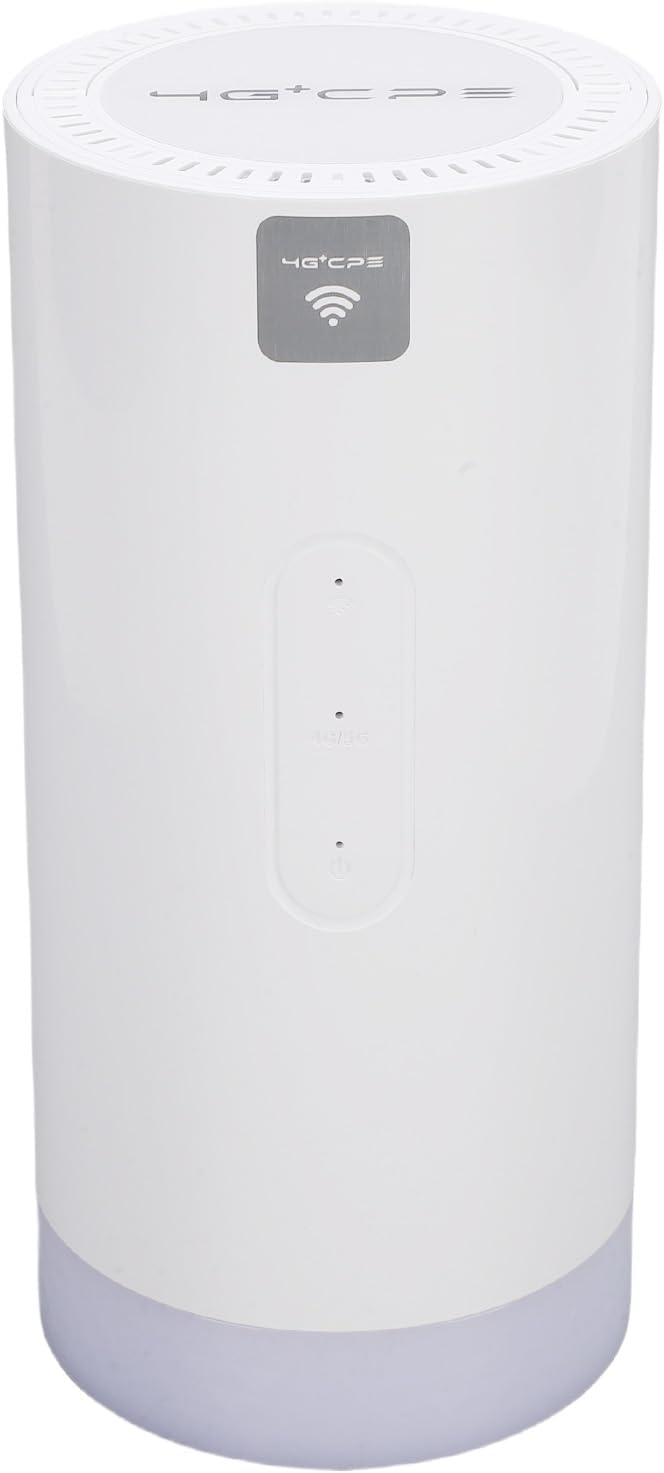
Image: Package contents including the router, power adapter, Ethernet cable, and carabiner.
3. Prodotto finitoview
3.1 Pannello frontale

Immagine: Frontale view of the router, showing LED indicators and the 4G+CPE logo.
The front panel features LED indicators for WiFi connection status, network connection status, and battery level, providing an intuitive display of the device's operational status.
3.2 Pannello posteriore e porte

Immagine: Posteriore view of the router, displaying various ports and the product information label.
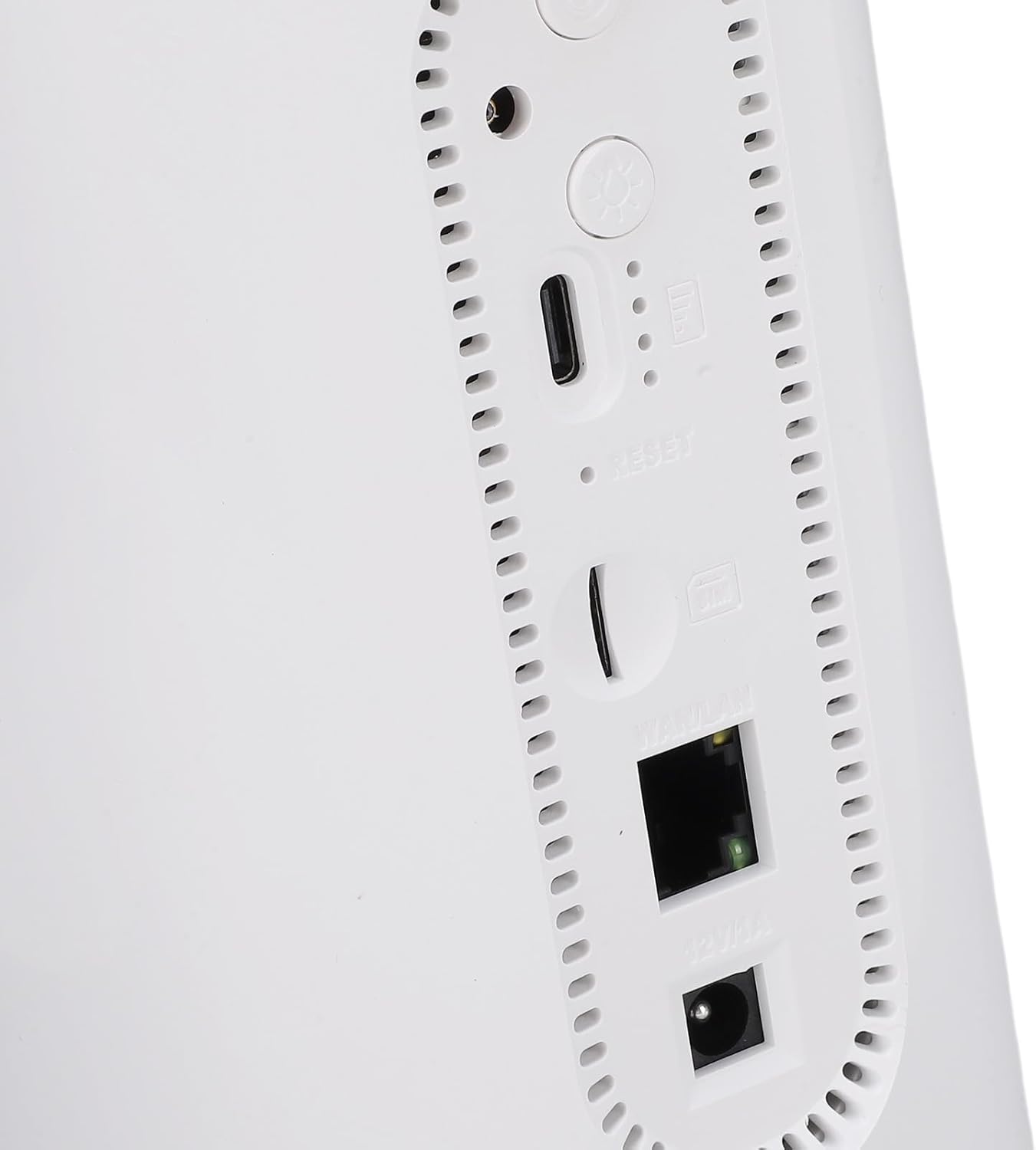
Immagine: Primo piano view of the rear ports, including SIM card slot, Reset button, WAN/LAN port, and power input.
The rear panel includes essential ports and controls:
- Slot per scheda SIM: For inserting a Micro SIM card.
- Pulsante di reset: Utilizzato per ripristinare le impostazioni di fabbrica.
- Porta WAN/LAN: An Ethernet port for wired connections or connecting to an existing network.
- Potenza in ingresso: Per collegare l'adattatore di alimentazione.
- Pulsante di accensione: Per accendere o spegnere il dispositivo.
- Camping Light Button: To activate or deactivate the colorful light feature.
4. Impostazione
4.1 Installazione della scheda SIM
- Assicurarsi che il router sia spento.
- Individuare lo slot per la scheda SIM sul pannello posteriore.
- Insert a Micro SIM card into the slot with the gold contacts facing down and the notched corner oriented correctly. Push until it clicks into place.
- Per rimuoverla, spingere di nuovo delicatamente la scheda SIM finché non viene espulsa.
4.2 Accensione
- Connect the provided power adapter to the power input port on the rear panel.
- Collegare l'adattatore di corrente a una presa a muro.
- Press and hold the Power Button until the LED indicators illuminate. The device will begin to boot up.
4.3 Initial WiFi Connection
- Once the router is powered on and the network indicator shows a stable connection, locate the default WiFi Network Name (SSID) and Password (PWD) on the label at the bottom or rear of the device. (Example: SSID: 4G+CPE-XXXX, PWD: XXXXXXXXXX)
- On your smartphone, tablet, or computer, search for available WiFi networks.
- Select the SSID corresponding to your router.
- Enter the default PWD when prompted.
- Ora dovresti essere connesso a Internet.
5. Istruzioni per l'uso
5.1 Collegamento dei dispositivi
You can connect multiple devices to the router via WiFi. For wired connections, use an Ethernet cable to connect a device to the WAN/LAN port.
5.2 Accesso al Web Interfaccia di gestione
To configure advanced settings, access the web interfaccia di gestione:
- Ensure your device is connected to the router's WiFi network.
- Aprire un web browser (ad esempio, Chrome, Firefox).
- Inserisci l'indirizzo IP predefinito (ad esempio, 192.168.199.1) into the address bar and press Enter. This IP address is typically found on the product label.
- Enter the default username (e.g., amministratore) and password (e.g., amministratore) when prompted. These credentials are also on the product label.
- From the interface, you can change WiFi settings, view connected devices, and manage network preferences.
5.3 Indicatori LED
The LED indicators on the front panel provide visual feedback on the router's status:
- Indicatore Wi-Fi: Shows the status of the WiFi network.
- Indicatore di rete: Displays the status of the 4G/3G/2G mobile network connection.
- Indicatore della batteria: Indica il livello attuale della batteria.
Refer to the full product specifications for detailed indicator behavior (e.g., solid, blinking, color codes).
5.4 gradi Celsiusamping Funzione luce
This router includes a colorful light feature. Press the dedicated Camping Light Button on the rear panel to activate or deactivate this function. This can be useful for outdoor activities.
6. Manutenzione
- Pulizia: Utilizzare un panno morbido e asciutto per pulire il dispositivo. Evitare detergenti liquidi o materiali abrasivi.
- Magazzinaggio: Store the router in a cool, dry place away from direct sunlight and extreme temperatures.
- Cura della batteria: Per una durata ottimale della batteria, evitare di scaricarla completamente frequentemente. Se non la si utilizza per lunghi periodi, caricarla fino a circa il 50%.
- Aggiornamenti del firmware: Controllare periodicamente le istruzioni del produttore websito o il web interfaccia di gestione per gli aggiornamenti firmware disponibili per garantire prestazioni e sicurezza ottimali.
7. Risoluzione Dei Problemi
- Nessuna connessione internet:
- Assicurarsi che la scheda SIM sia inserita correttamente e attivata con un piano dati.
- Check the network LED indicator. If it's off or red, there might be a network issue or no signal.
- Riavvia il router e il dispositivo connesso.
- Verificare le impostazioni APN in web interfaccia di gestione (se applicabile).
- Impossibile connettersi al Wi-Fi:
- Ensure the WiFi LED indicator is on.
- Verify you are entering the correct WiFi password.
- Avvicinatevi al router per migliorare la potenza del segnale.
- Riavviare il router.
- Bassa velocità di Internet:
- Controlla la potenza del segnale della tua rete mobile.
- Ridurre il numero di dispositivi connessi.
- Assicurarsi che nessuna applicazione in background stia consumando una larghezza di banda eccessiva.
- Try moving the router to a location with better signal reception.
- Il router non risponde:
- Press and hold the Power Button for 10 seconds to force a shutdown, then restart.
- If issues persist, perform a factory reset by pressing the Reset button with a pin for 5-10 seconds. Note: This will erase all custom settings.
8. Specifiche
| Caratteristica | Specificazione |
|---|---|
| Numero di modello | CUIFATIvd1g4kecbu |
| Marca | Cuifati |
| Tecnologia di connettività | 4G LTE (Cat6), Ethernet |
| standard wireless | 802.11 b/g/n/AC (2.4G, 5.8G) |
| Velocità WiFi | 2.4G: 300Mbps, 5.8G: 866Mbps |
| Classe di banda di frequenza | Tri-Band (LTE FDD, TDD, WCDMA, EDGE) |
| Tipo di scheda SIM | Micro SIM x 1 |
| Capacità della batteria | Cella al litio da 10000 mAh (integrata) |
| Crittografia | WiFi Protected Access™ (WPA/WPA2) 2 |
| Dimensioni | Circa 200x95x92 mm / 7.87x3.74x3.62 pollici |
| Peso dell'articolo | 1.88 libbre |
| Dispositivi compatibili | Smartphone, tablet, laptop, computer |
| Uso consigliato | Interno/Esterno |
9. Garanzia e supporto
For warranty information and technical support, please refer to the documentation included with your purchase or contact Cuifati customer service directly. You may also visit the official Cuifati websito per ulteriore assistenza e risorse.
Ask a question about this manual
Ask about setup, troubleshooting, compatibility, parts, safety, or missing instructions. Manuals+ will review the question and use this page’s manual context to help answer it.