Introduzione
This manual provides detailed instructions for the installation, operation, and maintenance of your Imagebon 11.3-inch QLED Android Car Navigation System. Please read this manual thoroughly before using the product to ensure proper function and safety. Keep this manual for future reference.
Caratteristiche principali
- High-Performance 8-Core Android System: Equipped with an 8-core Android processor, 4GB RAM, and 64GB storage for smooth operation and ampspazio per app e contenuti multimediali.
- Compatibilità con Google Play: Download and use your favorite apps directly from Google Play. Pre-installed with popular apps like YouTube and Netflix.
- Multitasking con schermo diviso: Simultaneously display navigation and entertainment apps for enhanced convenience while driving.
- Dual-Band Wi-Fi & Bluetooth: Supports 2.4GHz/5GHz Wi-Fi for stable streaming and Bluetooth for seamless smartphone connectivity and hands-free calling.
- 1080P Backup Camera: Includes a high-definition backup camera with adjustable guidelines for safe and easy parking.
- 11.3-inch IN-CELL QLED Display: Features a large, vibrant QLED screen for clear visuals and responsive touch control.
- Flexible Navigation Options: Supports CarPlay, Android Auto, and direct installation of navigation apps like Google Maps or Waze, with online and offline map capabilities.
- Controllo vocale: Operate navigation, music, and phone calls hands-free for increased safety and convenience.
- Aggiornamenti Over-The-Air (OTA): Easily update software and apps wirelessly to ensure you always have the latest features and improvements.
Impostare
Contenuto della confezione
Prima di iniziare l'installazione, verificare che tutti i componenti siano presenti:
- Imagebon 11.3-inch QLED Android Car Navigation System
- Telecamera posteriore da 10 m
- Cavo AUX
- Antenna GPS
- Supporto adesivo
- Caricabatteria da auto (adattatore per accendisigari)
- Manuale d'uso

Image: All components included with the Imagebon car navigation system, including the main unit, rear camera, cables, and mounts.
Fasi di installazione
- Montaggio dell'unità: Securely attach the main unit to your dashboard using the provided adhesive mount. Ensure the unit is positioned to not obstruct your view o interferire con i comandi del veicolo.
- Collegamento elettrico: Connect the car charger to your vehicle's cigarette lighter socket and the Type-C port on the navigation unit.
- Collegamento dell'antenna GPS: Connect the GPS antenna to the designated port on the unit and place it in a location with a clear view del cielo per una ricezione ottimale del segnale.
- Installazione della telecamera posteriore (facoltativa): If using the backup camera, install it at the rear of your vehicle and route the cable to the main unit. Connect the camera cable to the AV-IN port.
- Uscita audio: For audio output, you can use the built-in speaker, FM transmission, AUX cable connection, or Bluetooth connection to your car's audio system.
Istruzioni per l'uso
Accensione iniziale e spegnimento del sistemaview
Upon first power-on, the system will boot into the Android interface. You can customize the home screen, access apps, and adjust settings.
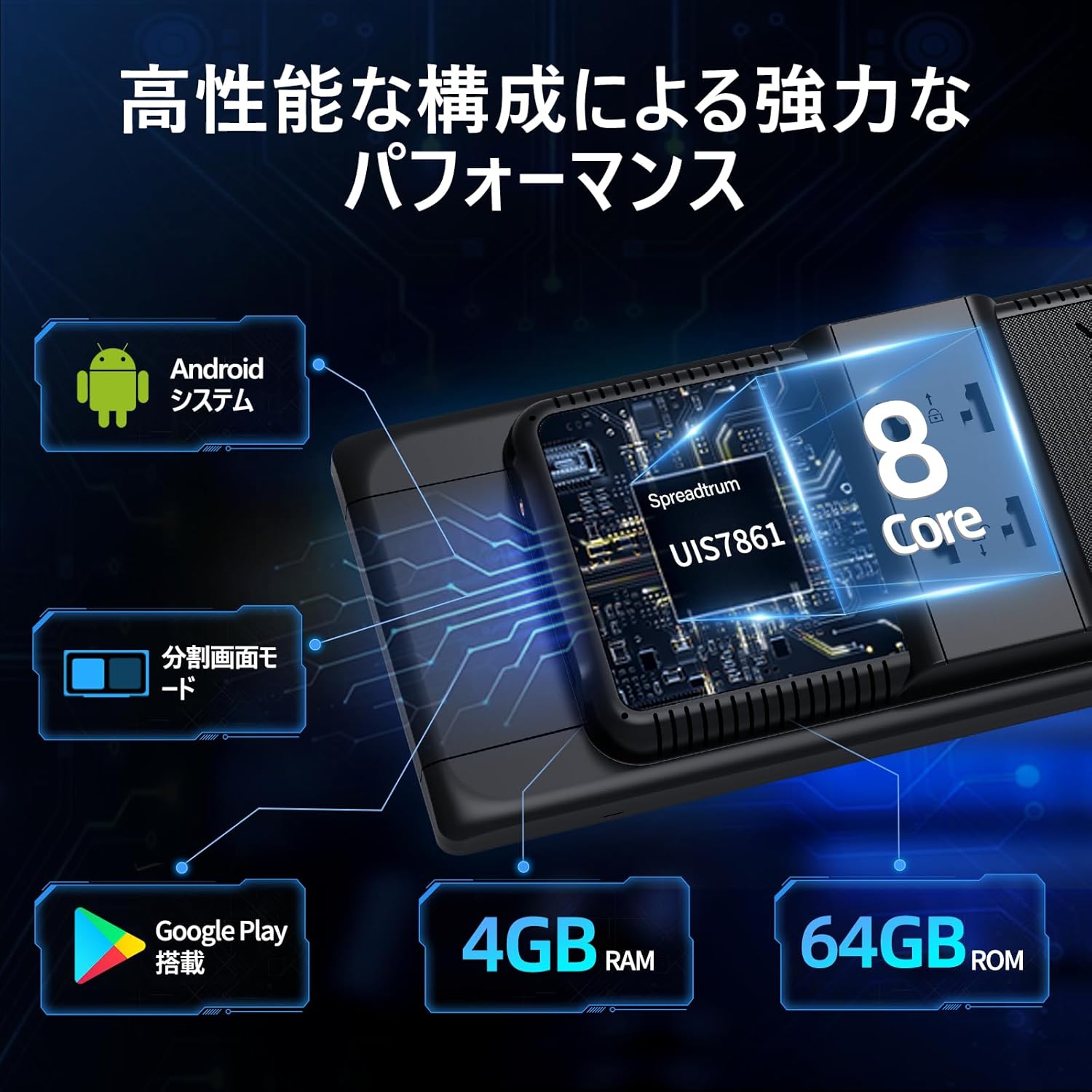
Image: The main interface of the Imagebon car navigation system, showing various app icons and the time display.
Connectivity (Wi-Fi & Bluetooth)
The unit supports dual-band Wi-Fi (2.4GHz/5GHz) and Bluetooth for seamless connectivity.
- Connessione Wi-Fi: Vai su Impostazioni > Rete e Internet > Wi-Fi. Seleziona la rete desiderata e inserisci la password.
- Accoppiamento Bluetooth: Go to Settings > Connected devices > Bluetooth. Turn on Bluetooth and search for available devices. Select your smartphone to pair.

Image: The Imagebon car navigation system demonstrating dual-band Wi-Fi and Bluetooth connectivity, showing a phone call and navigation simultaneously.
Google Play and App Installation
Accedi al Google Play Store per scaricare e installare applicazioni aggiuntive.
- Assicurarsi che l'unità sia connessa al Wi-Fi.
- Tap the "Google Play Store" icon on the home screen.
- Accedi con il tuo account Google.
- Browse or search for apps and tap "Install" to download.
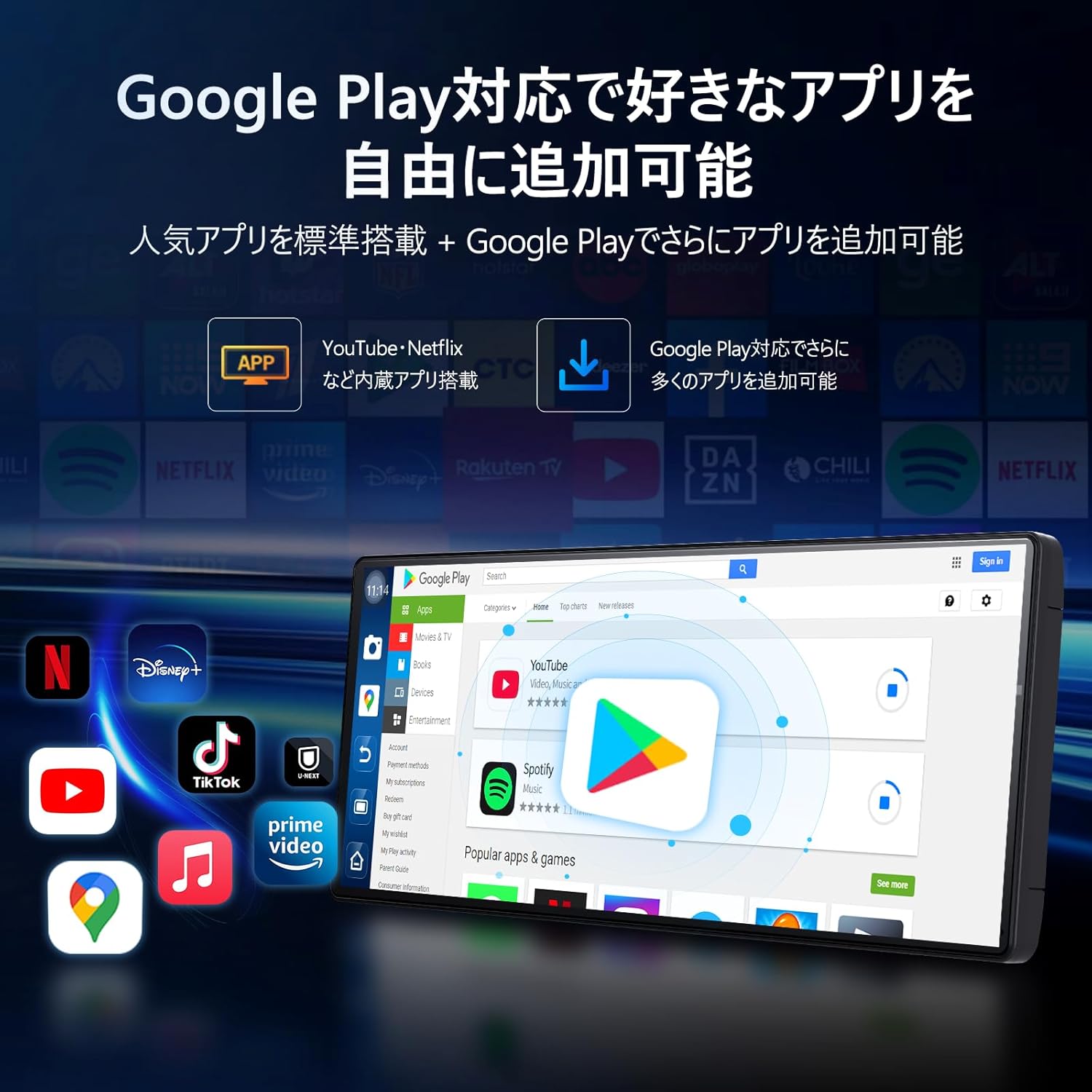
Image: The Imagebon car navigation system displaying the Google Play Store interface, showing various apps available for download.
Navigation (CarPlay / Android Auto / Built-in GPS)
The system offers multiple navigation options.
- CarPlay: Connect your iPhone via Bluetooth. A prompt will appear on your phone to allow CarPlay. Follow the on-screen instructions.
- Android Auto: Connect your Android phone via Bluetooth. A pairing request will appear. Confirm pairing and wait for the screen to cast.
- GPS integrato: Use pre-installed navigation apps or download your preferred ones from Google Play. The system supports both online and offline maps.

Image: The Imagebon car navigation system showing both Google Maps interface and a smartphone connected via CarPlay/Android Auto for navigation.
Funzionalità Split-Screen
Per utilizzare la modalità schermo diviso:
- Apri la prima applicazione che desideri utilizzare.
- Tap the split-screen button (usually represented by two rectangles) or swipe up to view app recenti.
- Drag the second application to the other half of the screen.
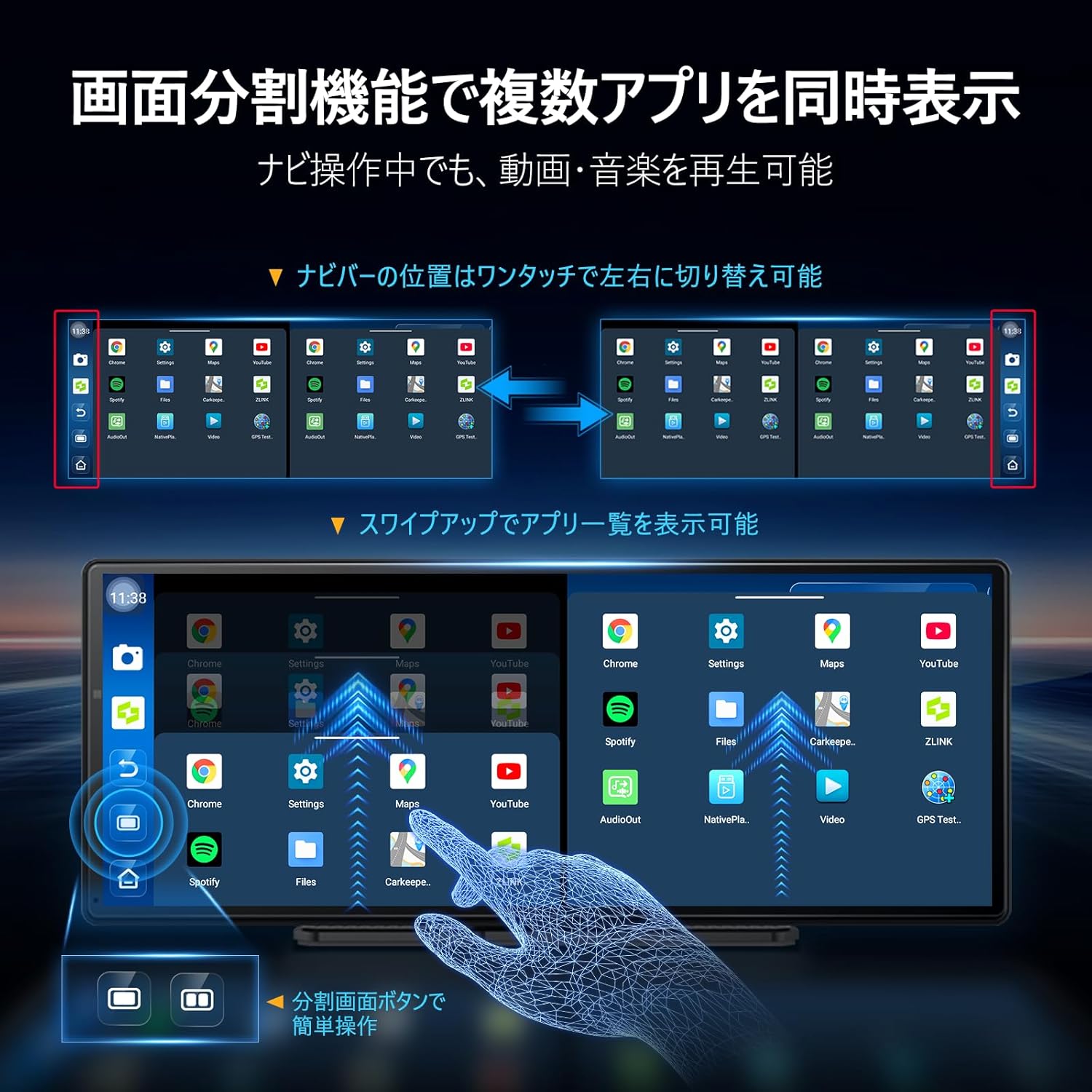
Image: The Imagebon car navigation system demonstrating split-screen functionality, showing two applications running side-by-side.
Controllo vocale
Activate voice control by saying "Hey Siri" (for CarPlay) or "OK Google" (for Android Auto/Android system) or by tapping the microphone icon. You can issue commands such as:
- "Vai a [destinazione]"
- "Riproduci [canzone/artista]"
- "Chiama [nome del contatto]"
- "Increase/Decrease volume"
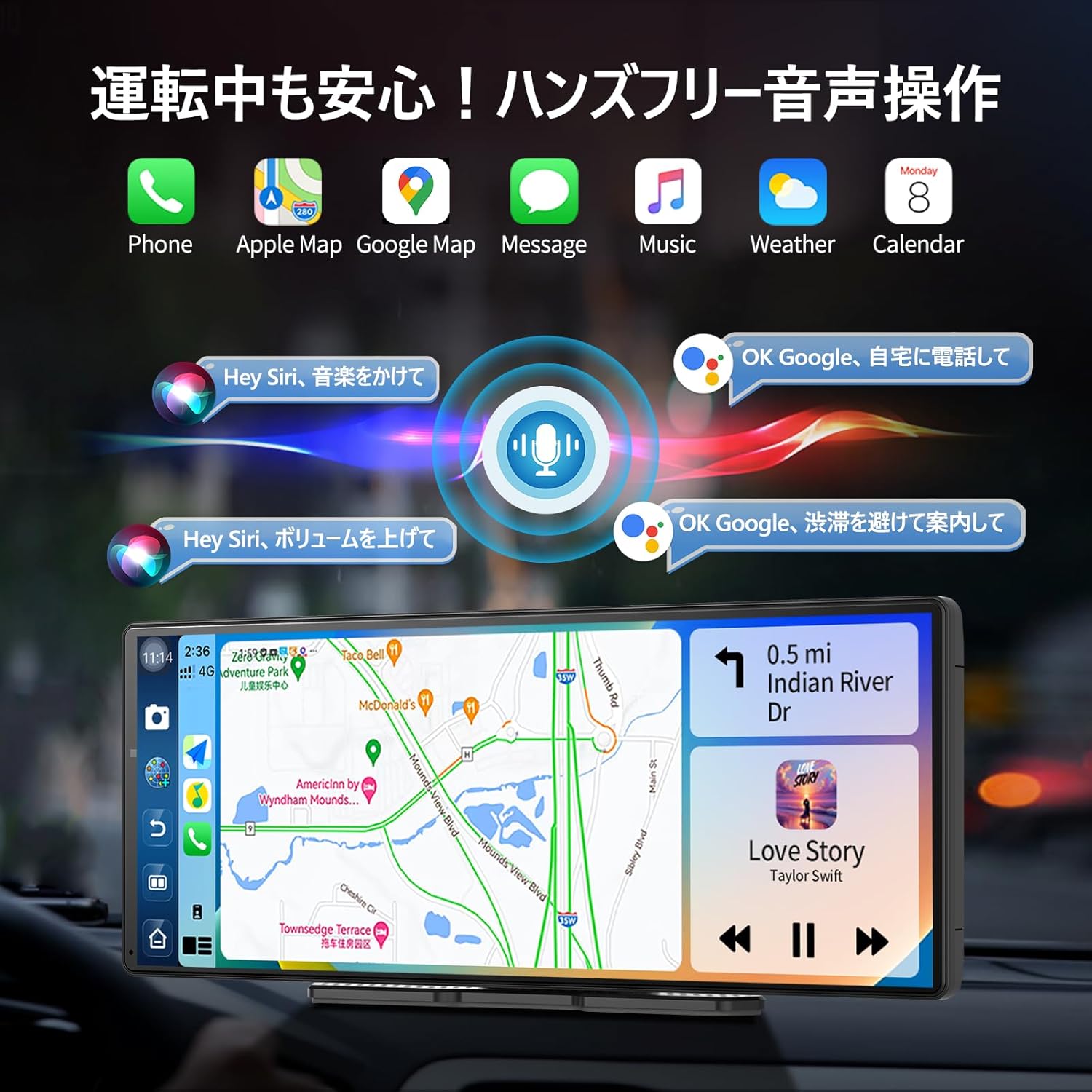
Image: The Imagebon car navigation system illustrating voice control commands for navigation, music, and calls, with a visual representation of sound waves.
Funzionamento della telecamera posteriore
Quando il veicolo viene innestato in retromarcia, il display passerà automaticamente alla telecamera posteriore view. Adjustable guidelines assist with parking.

Image: The Imagebon car navigation system displaying the 1080P rear camera view with adjustable parking guidelines, showing a car reversing into a parking spot.
OTA Aggiornamenti
The system supports Over-The-Air (OTA) updates to keep your software and maps current.
- Assicurarsi che l'unità sia connessa al Wi-Fi.
- Go to "App List" > "Settings".
- Select "Updater" from the "Device Information" menu.
- Follow the on-screen prompts to download and install updates. The unit will restart automatically after the update is complete.
Manutenzione
- Pulizia: Utilizzare un panno morbido e asciutto per pulire lo schermo e l'esterno. Evitare detergenti abrasivi o solventi.
- Aggiornamenti software: Controlla e installa regolarmente gli aggiornamenti OTA per garantire prestazioni ottimali e l'accesso alle nuove funzionalità.
- Temperatura: Evitare di esporre l'unità a temperature estreme.
- Gestione dei cavi: Ensure all cables are securely connected and not interfering with vehicle operation.
Risoluzione dei problemi
| Problema | Possibile causa | Soluzione |
|---|---|---|
| L'unità non si accende | Power cable not connected or faulty; vehicle's power outlet issue. | Check power cable connection. Ensure vehicle's cigarette lighter socket is functional. |
| Nessun segnale GPS | Antenna GPS non collegata correttamente o ostruita view di cielo. | Assicurarsi che l'antenna GPS sia collegata saldamente e posizionata in un luogo libero da ostacoli. |
| Problemi di connessione Wi-Fi/Bluetooth | Password errata; dispositivo fuori portata; interferenza. | Verify password. Ensure devices are within range. Restart unit and connecting device. |
| La telecamera di backup non viene visualizzata | Camera cable loose or faulty; vehicle not in reverse. | Check camera cable connection. Ensure vehicle is in reverse gear. |
| Il touch screen non risponde | Problema temporaneo del software. | Restart the unit. If problem persists, perform a factory reset (data will be lost). |
Specifiche
| Caratteristica | Dettaglio |
|---|---|
| Dimensioni dello schermo | 11.3 pollici |
| Tipo di visualizzazione | QLED |
| Processore | 8-Core Android |
| Memoria RAM | 4 GB |
| Magazzinaggio | 64 GB |
| Connettività | Bluetooth, USB, Wi-Fi (2.4GHz/5GHz) |
| Metodo di controllo | Tocco, Voce |
| Caratteristiche speciali | Android Auto, Apple CarPlay, Built-in Bluetooth, Hands-free calling, 1080P Backup Camera |
| Modalità di uscita audio | Stereo |
| Peso dell'articolo | 0.95 kg |
| Dimensioni (confezione) | Dimensioni: 31.1 x 14.7 x 11.2 cm |
| Numero di modello | W60N-JP |
Garanzia e supporto
This product comes with a standard manufacturer's warranty. For specific warranty details, please refer to the warranty card included in your package or contact Imagebon customer support.
For technical support, troubleshooting assistance, or any questions regarding your Imagebon car navigation system, please contact our customer service team. Contact information can be found on our official websito o sulla confezione del prodotto.
Video del prodotto
Prodotto finitoview
Video: Un generale sopraview of the Imagebon 11.3-inch QLED Android Car Navigation System, highlighting its main features and design. (Duration: 1:15)
Split-Screen Demonstration
Video: A demonstration of the split-screen functionality, showing how to run two applications simultaneously on the display. (Duration: 0:44)
Connettività CarPlay e Android Auto
Video: This video illustrates the process of connecting and using Apple CarPlay and Android Auto with the navigation system. (Duration: 2:07)
Funzionalità di controllo vocale
Video: A short demonstration of the voice control capabilities, showing how to issue commands for navigation and media playback. (Duration: 0:23)
Funzionalità della telecamera di backup
Video: This video showcases the 1080P backup camera in action, including the adjustable guidelines for safe parking. (Duration: 2:00)