
1. Introduzione
Welcome to the user manual for your Hisense 32C35R 32-inch Smart Full HD TV. This television is designed to provide a rich entertainment experience with its Full HD display, smart features, and advanced audio processing. This manual will guide you through the setup, operation, and maintenance of your new TV, ensuring you get the most out of its capabilities.
2. Informazioni sulla sicurezza
Before operating your TV, please read all safety instructions carefully. Keep this manual for future reference. Always disconnect the power cord from the wall outlet before cleaning or servicing the TV. Do not expose the TV to rain or moisture to prevent fire or electric shock. Ensure proper ventilation and avoid blocking ventilation openings.
3. Contenuto della confezione
Si prega di verificare che tutti gli articoli siano inclusi nel pacco:
- Hisense 32C35R 32-inch Smart Full HD TV
- Telecomando
- Cavo di alimentazione
- Supporto TV e viti
- Anti-tip bracket (for TV stand installation)
- Manuale dell'utente (questo documento)
4. Impostazione
4.1 Installazione fisica
Place the TV on a stable, flat surface or mount it on a wall using a compatible VESA mount (sold separately). If using the included stand, attach it securely to the TV using the provided screws. For added safety, install the anti-tip bracket to prevent accidental tipping.
Nota: Ensure the installation location is prepared in advance. Removal of existing products or wall mounts is not supported by the installation service.
4.2 Cavi di collegamento
Collega i cavi necessari al tuo televisore:
- Cavo dell'antenna: Connect your terrestrial digital, BS, or CS antenna cable to the TV's antenna input.
- Cavo di alimentazione: Collegare il cavo di alimentazione al televisore e poi a una presa a muro.
- Dispositivi esterni: Connect any external devices such as Blu-ray players, game consoles, or sound systems using HDMI or other appropriate ports.
Nota: Antenna cables and other connection cables are not included and must be prepared by the customer.
4.3 Configurazione iniziale
After connecting all cables and powering on the TV for the first time, follow the on-screen instructions for initial setup:
- Insert the B-CAS card (if applicable).
- Set your region and postal code.
- Perform initial channel scanning and other basic settings.
Nota: Network connection settings are not covered by the installation service and must be configured by the user.
5. Istruzioni per l'uso
5.1 Controllo remoto finitoview
Familiarize yourself with the TV remote control. It provides access to all TV functions, including power, volume, channel selection, smart TV apps, and voice control.
5.2 Funzionalità Smart TV (sistema operativo VIDAA)
Your Hisense 32C35R TV runs on VIDAA OS, offering quick access to popular streaming services like YouTube, Netflix, and more. It also supports AirPlay2 for seamless content sharing from Apple devices and Bluetooth for wireless audio.

Image: The Hisense TV displaying its VIDAA OS home screen with various streaming applications and content recommendations. The interface is designed for quick navigation and access to online videos.

Image: A close-up of the Hisense TV remote control, highlighting dedicated buttons for popular streaming services and a voice control button for easy access to smart features.
5.3 HI-VIEW Engine 2K+ (Image Quality)
The HI-VIEW Engine 2K+ enhances image quality, especially for online video content. It features a rich video menu allowing you to select optimal picture settings for different content types, such as sports, games, or PC monitor use. The TV also includes an automatic sensor that adjusts screen brightness based on room lighting conditions.

Image: A detailed diagram illustrating the Hisense HI-VIEW Engine 2K+ chip, which is responsible for advanced image processing and enhancing visual clarity, particularly for 4K content.
5.4 Caratteristiche audio
Experience high-quality audio with the TV's 2.0 speaker configuration and 12W practical maximum audio output. It incorporates eilex sound processing and supports Dolby Audio for an immersive sound experience.

Image: The Hisense TV screen showing various sound processing features such as Auto Volume for automatic volume adjustment, Clear Voice for enhanced dialogue, Sound Remaster for improved audio quality, and VIR Filter for better sound range.
5.5 Screen Share & Bluetooth
The TV supports screen sharing to display content from your smartphone. With Bluetooth connectivity, you can enjoy audio wirelessly through devices like soundbars, speakers, headphones, or wireless earphones without disturbing others.
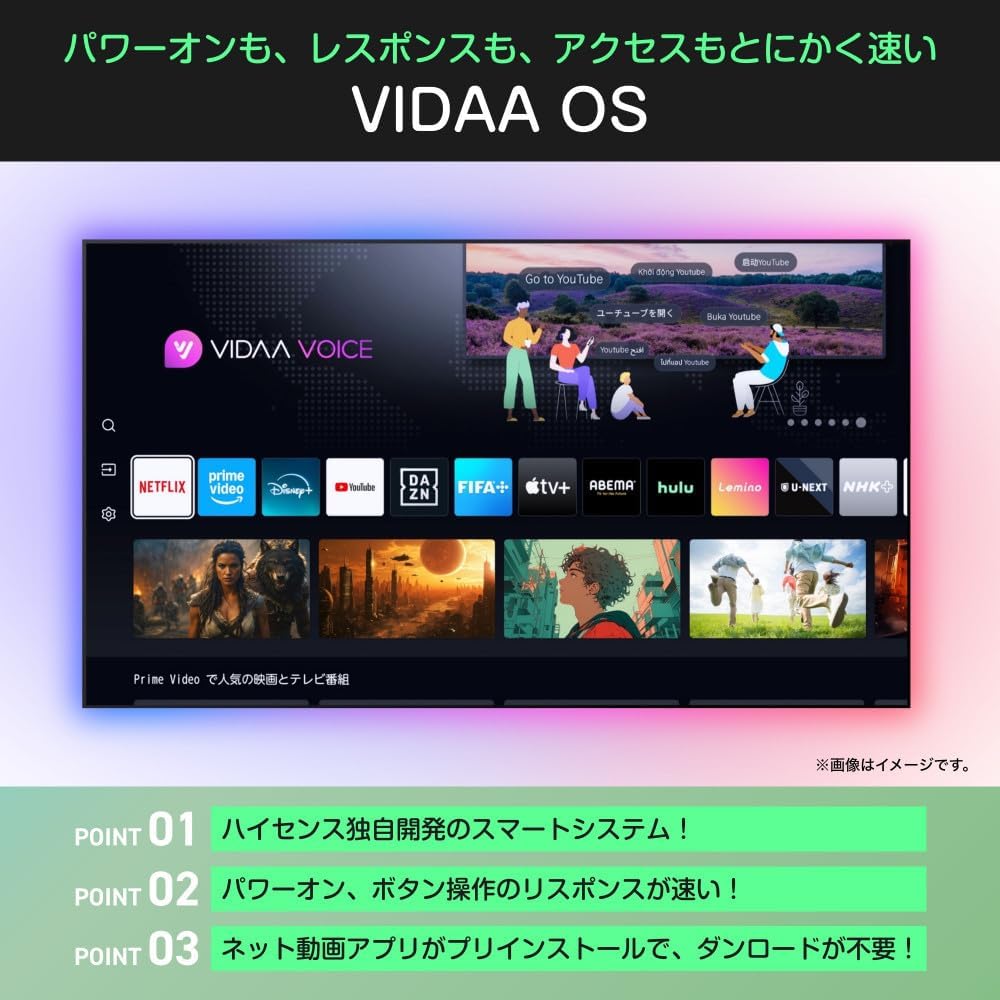
Image: An illustration demonstrating the TV's Bluetooth capabilities, allowing users to connect wireless headphones, soundbars, and speakers for private listening or enhanced audio.
5.6 Controllo vocale (Alexa)
The Hisense 32C35R is compatible with Alexa voice control. By speaking to an Alexa-enabled smart speaker (sold separately), you can control TV functions such as power on/off, volume adjustment, and launching streaming services.

Image: A diagram illustrating the integration of the Hisense TV with Alexa. A user can issue voice commands to an Alexa smart speaker to control the TV, such as changing channels, while performing other tasks.
5.7 Game Mode (ALLM)
For gamers, the TV features a low-latency game mode and ALLM (Auto Low Latency Mode) support, ensuring a smoother and more responsive gaming experience by minimizing input lag.
5.8 Google TV Video
This video demonstrates the features and user experience of Google TV, which is integrated into some Hisense models, showcasing content aggregation, personalized recommendations, and voice search capabilities.
Video: Un video ufficiale del venditore mostraasing the Google TV interface, its ability to consolidate streaming services, personalized content recommendations, family profiles, and voice control features. It highlights how users can easily find and enjoy content across various platforms.
6. Manutenzione
Per garantire la longevità e le prestazioni ottimali del tuo televisore Hisense, segui queste linee guida per la manutenzione:
- Pulizia dello schermo: Pulire delicatamente lo schermo con un panno morbido, asciutto e privo di lanugine. Per macchie ostinate, strofinare leggermenteampImmergere il panno in acqua o in un detergente specifico per schermi. Non spruzzare mai liquidi direttamente sullo schermo.
- Pulizia dell'armadio: Per pulire il mobile TV, utilizzare un panno morbido e asciutto. Evitare l'uso di detergenti abrasivi o solventi.
- Ventilazione: Assicurarsi che le aperture di ventilazione sul retro del televisore non siano ostruite per evitare il surriscaldamento.
- Cavo di alimentazione: Controllare regolarmente il cavo di alimentazione per verificare la presenza di eventuali danni. In caso contrario, sostituirlo immediatamente.
7. Risoluzione Dei Problemi
Se riscontri problemi con il tuo televisore, fai riferimento ai seguenti passaggi comuni per la risoluzione dei problemi:
| Problema | Possibile soluzione |
|---|---|
| Nessun potere | Verificare che il cavo di alimentazione sia collegato saldamente al televisore e alla presa a muro. Premere il pulsante di accensione sul telecomando o sul televisore. |
| Nessuna immagine, ma l'audio è presente | Controlla la sorgente di ingresso. Assicurati che i dispositivi esterni siano accesi e collegati correttamente. Prova un cavo HDMI diverso. |
| Nessun suono, ma l'immagine è presente | Check the volume level and mute settings. Ensure external audio devices are connected and configured correctly. |
| Il telecomando non funziona | Sostituisci le batterie. Assicurati che non ci siano ostacoli tra il telecomando e il televisore. |
| Impossibile connettersi al Wi-Fi | Check your router and modem. Ensure the Wi-Fi password is correct. Try restarting the TV and your network equipment. |
8. Specifiche
| Caratteristica | Specificazione |
|---|---|
| Numero di modello | 32C35R |
| Dimensioni dello schermo | 32 pollici |
| Tecnologia di visualizzazione | LCD |
| Risoluzione | Risoluzione Full HD (1920 x 1080) |
| Frequenza di aggiornamento | Frequenza 60 Hz |
| Motore di immagine | CIAO-VIEW Engine 2K+ |
| Retroilluminazione | LED diretto |
| Configurazione degli altoparlanti | 2.0 canali |
| Uscita audio | 12W (Practical Max) |
| Elaborazione del suono | eilex Sound Processing, Dolby Audio |
| Funzionalità intelligenti | VIDAA OS, YouTube, Netflix, AirPlay2, Bluetooth, Alexa Voice Control, Game Mode (ALLM) |
| Consumo energetico nominale | 55W |
| Consumo energetico annuale | 60 kWh/anno |
| Main Unit Weight (without stand) | 3.4 kg |
| Main Unit Dimensions (W x H x D, without stand) | Dimensioni: 725 x 429 x 78 mm |
| Peso (con supporto) | 3.5 kg |
| Dimensioni (L x A x P, con supporto) | Dimensioni: 725 x 472 x 183 mm |
9. Garanzia e supporto
9.1 Informazioni sulla garanzia
Your Hisense 32C35R TV comes with a Garanzia di 3 anno from the date of purchase. Please retain your proof of purchase for warranty claims. The warranty covers manufacturing defects under normal use. It does not cover damage caused by misuse, accidents, unauthorized repairs, or natural disasters.
9.2 Assistenza clienti
For technical assistance, troubleshooting, or warranty inquiries, please contact Hisense customer support. Refer to the contact information provided with your product documentation or visit the official Hisense websito per i dettagli di supporto più aggiornati.