
1. Introduzione
The ASUS ROG Harpe Mini Core is a lightweight (52g) wired gaming mouse designed for precision and comfort. It features a pro-approved shape, a high-performance 12,000 DPI optical sensor, and durable ROG Micro Switch II with push-fit sockets for customization. The mouse is equipped with a flexible ROG Paracord cable and 100% PTFE feet for smooth, unrestricted movement, catering to claw and fingertip grip styles.
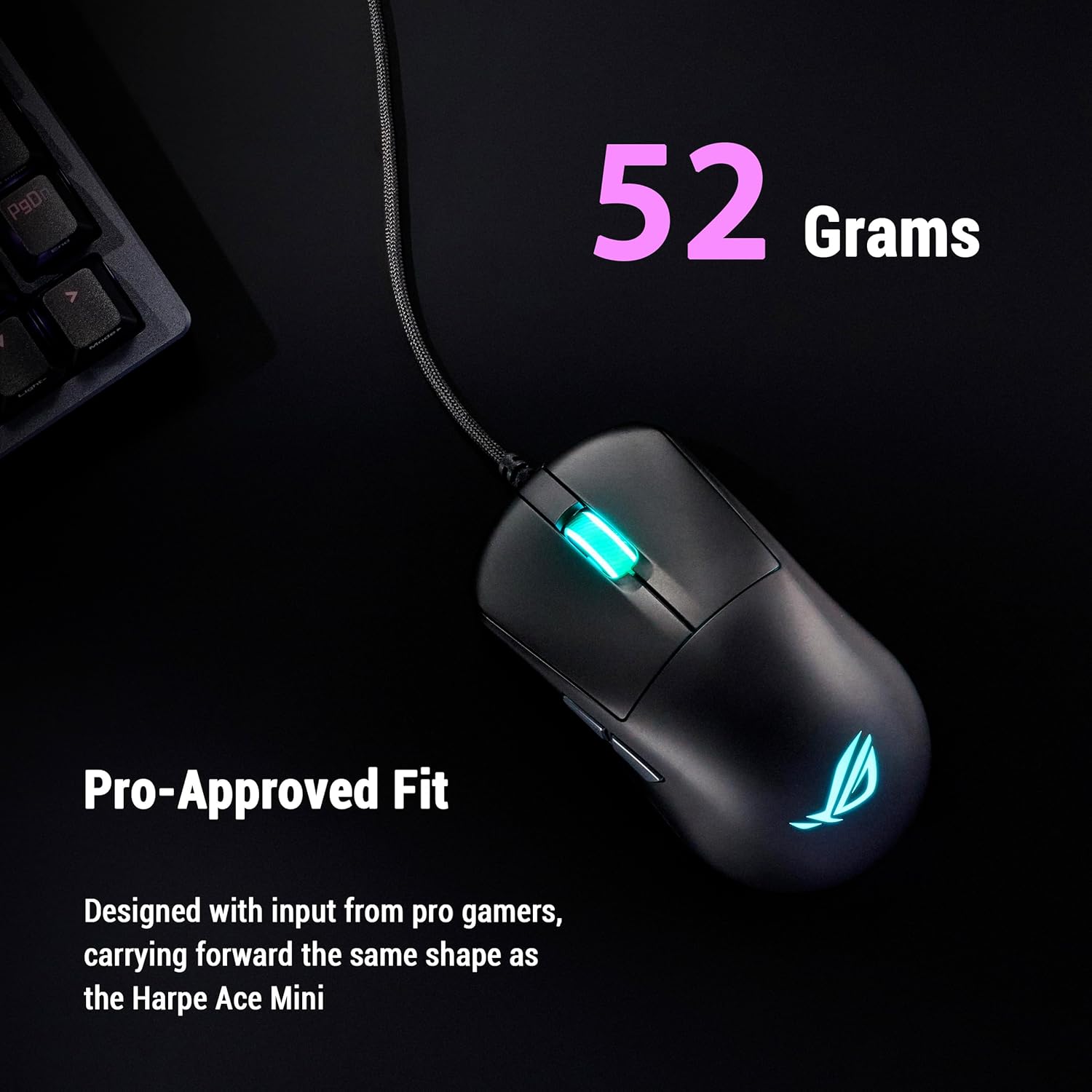
Superiore view of the ROG Harpe Mini Core, emphasizing its 52-gram lightweight design.
2. Contenuto della confezione
Verifica che tutti gli articoli siano presenti nel tuo pacco:
- P524 ROG Harpe Mini Core Gaming Mouse
- Scheda di garanzia
- Guida rapida
3. Impostazione
3.1 Collegamento del mouse
- Unpack the ROG Harpe Mini Core gaming mouse and its accessories.
- Connect the USB cable of the mouse to an available USB port on your computer.
- Your operating system (Windows 10 or above, or Mac) should automatically detect and install the necessary drivers.
3.2 Installazione del software (facoltativa)
For advanced customization and settings, it is recommended to use the ASUS Gear Link software. This web-based application allows you to configure your mouse without requiring a download.
- Aprire un web browser and navigate to the ASUS Gear Link websito.
- Follow the on-screen instructions to connect and customize your mouse settings.

Screenshot of the ASUS Gear Link software for mouse customization.
4. Utilizzo del mouse
4.1 Funzioni di base
The ROG Harpe Mini Core features 6 programmable buttons:
- Pulsante clic sinistro
- Pulsante clic destro
- Rotellina di scorrimento (cliccabile)
- Two Side Buttons (typically Forward/Backward)
- DPI Cycle Button (usually located behind the scroll wheel)
4.2 Regolazione DPI
The mouse features a 12,000 DPI sensor with less than 3% deviation and a 1000Hz polling rate for precise tracking. You can cycle through preset DPI levels using the dedicated DPI button. For fine-tuning DPI settings and creating custom profiles, use the ASUS Gear Link software.
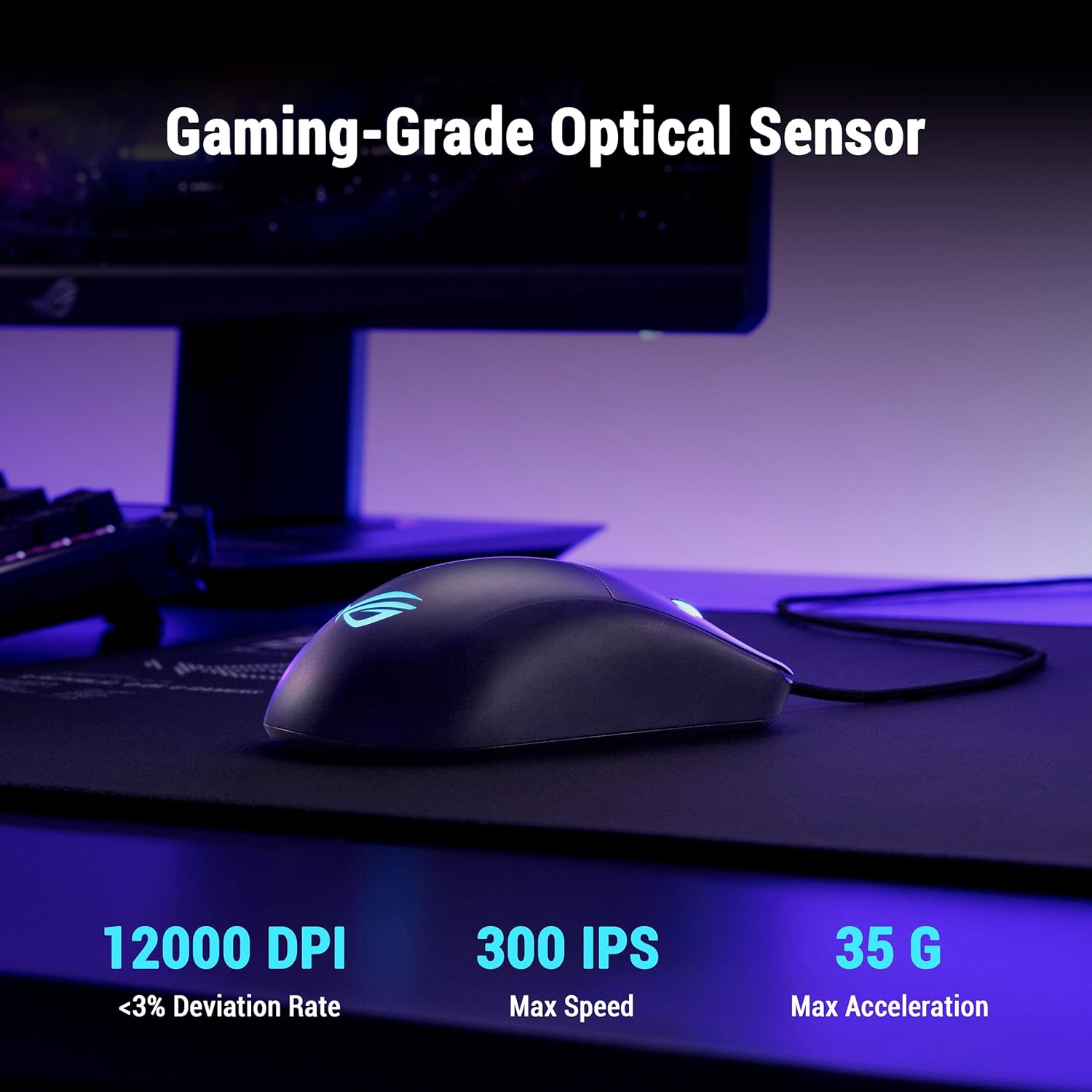
The ROG Harpe Mini Core on a mousepad, illustrating its gaming-grade optical sensor with 12000 DPI.
4.3 Personalizzazione dei pulsanti
Utilize the ASUS Gear Link software to remap buttons, assign macros, and configure other performance settings to suit your gaming style.
5. Manutenzione
5.1 Pulizia
Per pulire il mouse, utilizzare un panno morbido e asciutto. Per lo sporco ostinato, un panno leggermenteamp È possibile utilizzare un panno, assicurandosi che l'umidità non penetri nei componenti interni del mouse. Evitare prodotti chimici aggressivi o materiali abrasivi.
5.2 Sostituzione dell'interruttore
The ROG Harpe Mini Core features Push-Fit Switch Sockets, allowing you to easily replace the ROG Micro Switch II. This extends the mouse's lifespan and allows for customization of click force.
- Carefully open the mouse casing according to the instructions provided in the detailed manual (if available) or by consulting ASUS support.
- Gently pull out the existing switch from its socket.
- Insert the new compatible mechanical switch into the socket, ensuring it is seated correctly.
- Close the mouse casing in modo sicuro.

Close-up of the ROG Harpe Mini Core's Push-Fit Switch Socket.
5.3 Mouse Feet Replacement
The mouse comes with 100% PTFE mouse feet for optimal glide. Over time, these may wear down. Replacement feet can be purchased separately. To replace them, carefully peel off the old feet and apply new ones, ensuring the surface is clean and dry.

Metter il fondo a view of the ROG Harpe Mini Core, showing the 100% PTFE mouse feet.
6. Risoluzione Dei Problemi
6.1 Il mouse non risponde
- Assicurarsi che il cavo USB sia collegato saldamente sia al mouse che al computer.
- Prova a collegare il mouse a una porta USB diversa del computer.
- Prova il mouse su un altro computer per determinare se il problema riguarda il mouse o il computer.
6.2 Slow or Erratic Tracking
- Pulire il sensore ottico nella parte inferiore del mouse con un panno morbido e asciutto.
- Ensure you are using the mouse on a suitable surface, preferably a mouse pad.
- Check DPI settings in the ASUS Gear Link software or by using the DPI cycle button on the mouse.
- Reinstall or update the mouse drivers.
6.3 Software Installation Issues
If you encounter problems installing or using ASUS Armoury Crate or Gear Link:
- Assicurati che il tuo sistema operativo sia aggiornato.
- Temporarily disable any antivirus or firewall software that might interfere with the installation.
- Download the latest software version directly from the official ASUS support websito.
7. Specifiche
| Caratteristica | Dettaglio |
|---|---|
| Marca | Asus |
| Nome del modello | P524 HARPE MINI CORE |
| Connettività | USB cablato |
| Peso | 52 grammi |
| Tipo di sensore | Ottico |
| DPI massimo | 12,000 punti_per_pollice |
| Tasso di sondaggio | 1000 Hz |
| Interruttori | ROG Micro Switch II (100 million click lifespan) |
| Prese di corrente | Prese per interruttori a innesto |
| Piedi del mouse | 100% PTFE |
| Cavo | ROG Paracord |
| Pulsanti | 6 |
| Orientamento della mano | Giusto |
| Sistema operativo compatibile | Windows 10 or above, Mac |
| Dimensioni (L x L) | 6.3" x 4.37" |
| Codice UPC | 199291014046 |
8. Garanzia e supporto
8.1 Informazioni sulla garanzia
Questo prodotto viene fornito con un Garanzia limitata di 1 anno dalla data di acquisto. Si prega di conservare la prova d'acquisto per eventuali reclami in garanzia. La garanzia copre i difetti di fabbricazione, ma non copre i danni causati da uso improprio, incidenti, modifiche non autorizzate o normale usura.
8.2 Supporto tecnico
Per assistenza tecnica, download di driver o ulteriori informazioni, visitare il supporto ufficiale ASUS websito:
You may also refer to the included Quick Start Guide for initial setup instructions or contact ASUS customer service in your region.