
1. Prodotto finitoview
This manual provides essential information for setting up, operating, and maintaining your CRUA 34-inch UWQHD 3440x1440P IPS Ultrawide Gaming Monitor. Please read it thoroughly before use.
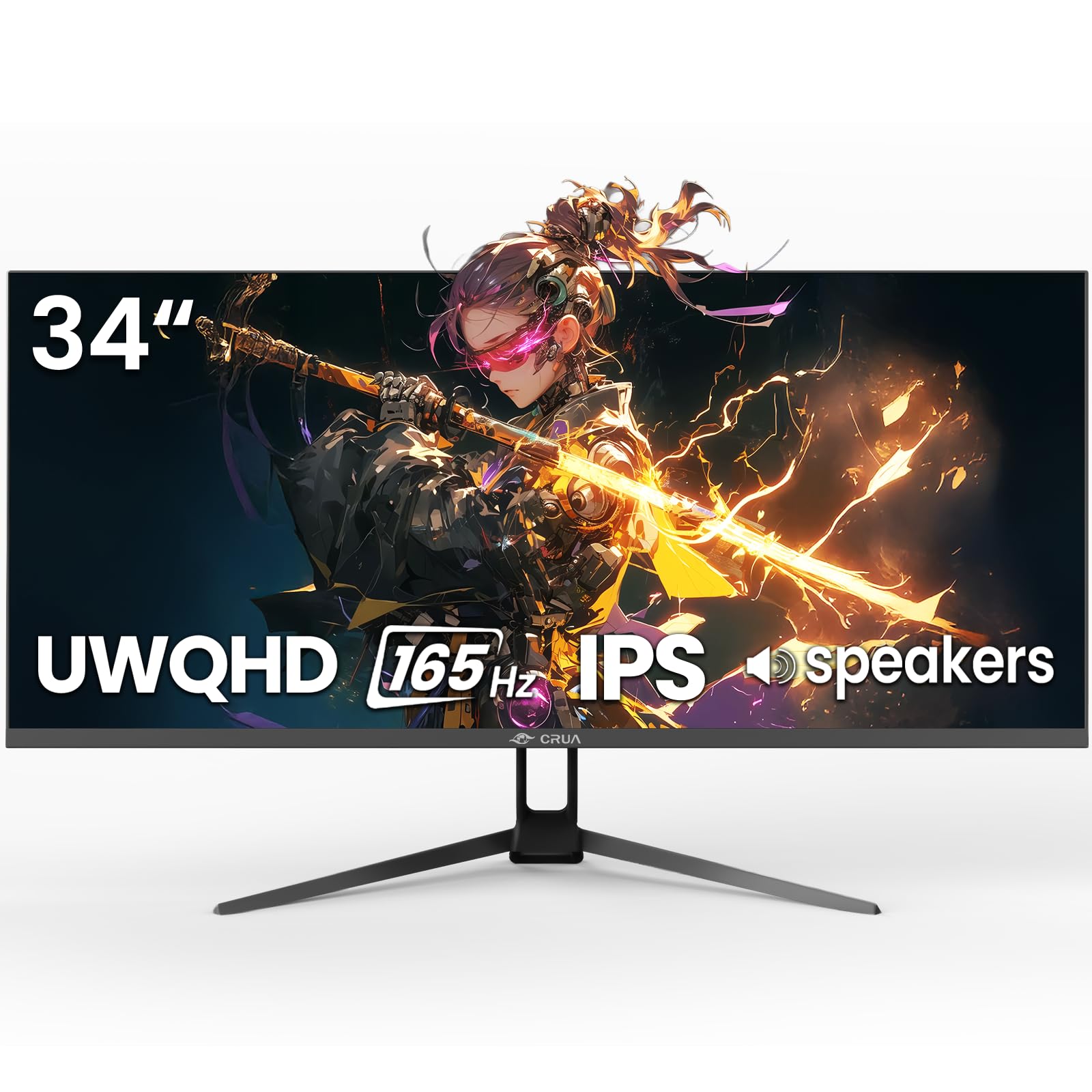
Figura 1: Fronte view of the CRUA 34-inch Ultrawide Gaming Monitor.
2. Contenuto della confezione
Verificare che tutti gli articoli siano presenti nel pacco:
- 34-inch Ultrawide Monitor
- Base e supporto
- Manuale d'uso
- DP Cable x1 (4.92 ft)
- Power Adapter x1 (4.92 ft)
3. Istruzioni per l'installazione
3.1 Montaggio del supporto
- Estrarre con cautela il monitor dalla confezione, posizionandolo con lo schermo rivolto verso il basso su una superficie morbida e pulita per evitare graffi.
- Fissare la base del supporto al collo del supporto utilizzando le viti fornite.
- Allineare il supporto assemblato con i punti di montaggio sul retro del monitor e fissarlo saldamente.
3.2 Montaggio a parete (opzionale)
The monitor supports VESA wall mounting (75x75mm). Use appropriate wall mount hardware (not included) and follow the wall mount manufacturer's instructions. Ensure the stand is removed before mounting.
3.3 Connessione a un dispositivo
Collegare il monitor al computer o ad altri dispositivi utilizzando i cavi appropriati.
- DisplayPort (DP 1.4): For optimal performance, including 165Hz refresh rate and FreeSync, use the supplied DP cable.
- HDMI (HDMI 2.0): Supporta una frequenza di aggiornamento fino a 100 Hz.
- Uscita audio (3.5 mm): Collegare altoparlanti esterni o cuffie.

Figura 2: Posteriore view of the monitor displaying available ports and wall mount area.
3.4 Collegamento di alimentazione
Connect the power adapter to the monitor's DC input port, then plug the power adapter into a power outlet.
4. Istruzioni per l'uso
4.1 Accensione/spegnimento
Press the power button located on the monitor to turn it on or off. The monitor will typically detect an active input signal automatically.
4.2 Menu di visualizzazione su schermo (OSD)
Use the control buttons (often a joystick or set of buttons) on the monitor to navigate the OSD menu. This menu allows you to adjust various display settings.
Impostazioni chiave:
- Luminosità/Contrasto: Regola la luminanza e la distinzione dell'immagine.
- Impostazioni colore: Fine-tune color temperature, gamma, and saturation. The monitor features 120% sRGB, 8-bit color depth, and 16.7 million colors for vivid visuals.
- Sorgente di input: Selezionare manualmente tra gli ingressi HDMI e DisplayPort.
- Frequenza di aggiornamento: Ensure your device is configured to output at 165Hz (via DP) or 100Hz (via HDMI) for the smoothest experience.
- Sincronizzazione libera: Enable AMD FreeSync for tear-free gaming. This feature synchronizes the monitor's refresh rate with your GPU's frame rate.

Figure 3: Visual representation of 165Hz refresh rate and FreeSync in action.
4.3 PIP/PBP Functions
The monitor supports Picture-in-Picture (PIP) and Picture-by-Picture (PBP) modes, allowing you to display content from multiple input sources simultaneously.
- Modalità PIP: Visualizza una finestra più piccola da una seconda sorgente sopra il display principale.
- Modalità PBP: Divides the screen into multiple sections, each displaying a different input source side-by-side.

Figure 4: Illustration of PIP and PBP modes for multitasking.
4.4 Altoparlanti integrati
The monitor includes built-in speakers for audio output. You can also connect external speakers or headphones via the 3.5mm audio port for enhanced sound.
5. Manutenzione
5.1 Pulizia del monitor
- Scollegare sempre il monitor prima di pulirlo.
- Utilizzare leggermente un panno morbido e privo di lanugine dampcon acqua o con un detergente per schermi delicato e non abrasivo.
- Non spruzzare il detergente direttamente sullo schermo.
- Evitare l'uso di alcol, ammoniaca o detergenti abrasivi, poiché potrebbero danneggiare la superficie dello schermo.
5.2 Cura generale
- Tenere il monitor lontano dalla luce solare diretta, da fonti di calore e da polvere eccessiva.
- Assicurare un'adeguata ventilazione attorno al monitor.
- Evitare di posizionare oggetti pesanti sul monitor o sui suoi cavi.
6. Risoluzione Dei Problemi
Se riscontri problemi con il monitor, fai riferimento alle seguenti soluzioni comuni:
- Nessun potere: Ensure the power cable is securely connected to both the monitor and the power outlet. Verify the power adapter is functioning.
- Nessun segnale: Check that the video cable (DP or HDMI) is firmly connected to both the monitor and your computer. Select the correct input source in the OSD menu. If using HDMI, ensure your device's display settings are compatible with the monitor's capabilities (e.g., set to 60Hz if experiencing issues at higher refresh rates).
- Image Flickering/Distortion: Check cable connections. Ensure your graphics card drivers are up to date. Try a different video cable. If FreeSync is enabled, try disabling it to see if the issue persists.
- Scarsa qualità dell'immagine: Adjust brightness, contrast, and color settings in the OSD menu. Ensure the display resolution is set to 3440x1440P on your connected device.
- Nessun audio: Verify that the audio cable (if using external speakers) is connected correctly. Check the volume settings on both the monitor and your computer. Ensure the correct audio output device is selected in your computer's sound settings.
Se il problema persiste dopo aver provato questi passaggi, contattare l'assistenza clienti.
7. Specifiche
| Caratteristica | Specificazione |
|---|---|
| Marca | CRUA |
| Numero di modello | CR340G |
| Dimensioni dello schermo | 34 pollici |
| Risoluzione | UWQHD 3440 x 1440 Pixels |
| Proporzioni | 21:9 |
| Tecnologia di visualizzazione | Informazione pubblica |
| Frequenza di aggiornamento | Frequenza 165 Hz |
| Tempo di risposta | 1 millisecondo |
| Luminosità | 380 cd/m² |
| Rapporto di contrasto | 1000:1 |
| Gamma di colori | 120% sRGB |
| Viewangolo di ing | 178 gradi |
| Connettività | 2x HDMI 2.0, 1x DisplayPort 1.4, 1x 3.5mm Audio |
| Sincronizzazione adattiva | Sincronizzazione gratuita AMD |
| Caratteristiche aggiuntive | Built-In Speakers, PIP & PBP function, Tilt Adjustment |
| Tipo di montaggio | Desk Mount/Wall Mount (75x75mm VESA) |
| Dimensioni dell'articolo (P x L x A) | 9"P x 32"L x 17"A |
8. Garanzia e supporto
8.1 Informazioni sulla garanzia
This CRUA monitor comes with a Garanzia di 1 anno. Additionally, a 30-day free return and exchange policy is provided from the date of purchase. Please retain your proof of purchase for warranty claims.
8.2 Assistenza clienti
For technical assistance, warranty claims, or any questions regarding your CRUA monitor, please contact CRUA customer support through the retailer where the product was purchased or visit the official CRUA websito per i contatti.