
1. Introduzione
Thank you for choosing the PHILIPS EVNIA SPK9418 Wireless Gaming Mouse. This ultra-lightweight (52g) mouse is engineered for precision, speed, and comfort, offering versatile connectivity options and advanced features for both gaming and professional use. Please read this manual carefully to ensure proper setup, operation, and maintenance of your device.
2. Prodotto finitoview
The PHILIPS EVNIA SPK9418 mouse features an ergonomic design, multiple programmable buttons, and a high-precision optical sensor. Familiarize yourself with the components:
- Left/Right Click Buttons
- Scroll Wheel (TTC Silver Wheel)
- Pulsanti laterali (programmabili)
- DPI Adjustment Button (on bottom)
- Connection Mode Switch (on bottom)
- USB-C Charging/Wired Connection Port
- 2.4GHz USB Receiver Storage Compartment (on bottom)
- Sensore ottico PAW3311
- Huano Micro Switches (approx. 100 million click lifespan)
- Batteria integrata da 500 mAh

Figura 2.1: Esploso view showing internal components like the 500mAh battery, PAW3311 optical sensor, and Huano micro switches.

Figura 2.2: in alto view of the mouse indicating the location of its 6 programmable buttons.
3. Impostazione
Follow these steps to set up your PHILIPS EVNIA SPK9418 mouse:
- Disimballare il mouse: Estrarre con cautela il mouse e tutti gli accessori dalla confezione.
- Carica il mouse: For optimal performance, it is recommended to fully charge the mouse before first use. Connect the supplied USB-C cable to the mouse and a USB power source (e.g., computer USB port, wall adapter). The LED indicator will show charging status.
- Seleziona la modalità di connessione: The mouse supports three connection modes: 2.4GHz Wireless, Bluetooth, and USB-C Wired. Use the switch on the bottom of the mouse to select your desired mode.

Figure 3.1: The 2.4GHz USB receiver is stored in a compartment on the bottom of the mouse for convenience.
4. Istruzioni per l'uso
4.1. Collegamento del mouse
The mouse offers three connection methods:
- Wireless a 2.4 GHz: Remove the USB receiver from the bottom of the mouse and plug it into an available USB port on your computer. Switch the mode selector on the mouse bottom to 2.4GHz. The mouse should connect automatically.
- Bluetooth: Switch the mode selector on the mouse bottom to Bluetooth. The mouse will enter pairing mode (LED may flash). On your device (PC, tablet, smartphone), go to Bluetooth settings and select "PHILIPS EVNIA SPK9418" to pair.
- USB-C cablato: Connect the supplied USB-C cable to the mouse and the other end to a USB port on your computer. Switch the mode selector on the mouse bottom to Wired. The mouse will function as a wired mouse and charge simultaneously.
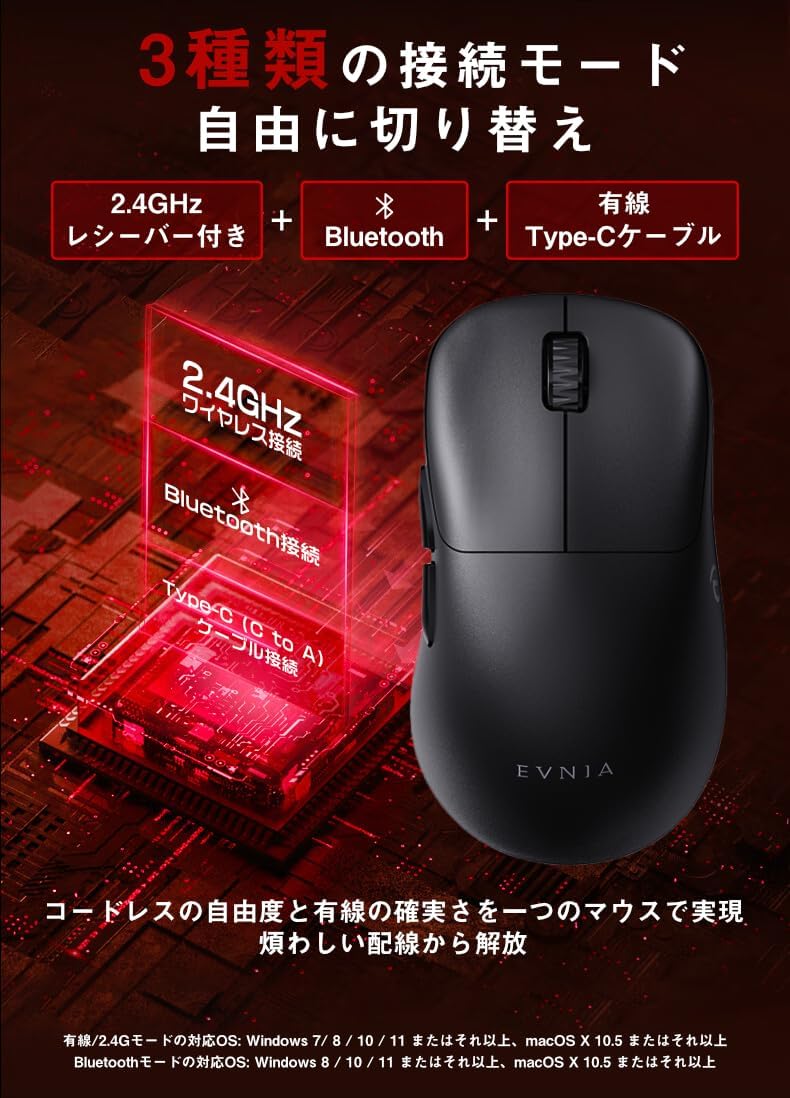
Figure 4.1: The mouse supports 2.4GHz wireless, Bluetooth, and USB-C wired connections, easily switchable via a button on the bottom.
4.2. Regolazione DPI
The mouse features a DPI adjustment button on its bottom, allowing you to cycle through 6 preset DPI levels up to 12000 DPI. This enables fine-tuning of cursor sensitivity for different tasks or game genres.

Figure 4.2: The DPI adjustment button on the mouse bottom allows switching between 6 sensitivity levels (800, 1200, 1600, 3200, 5000, 12000 DPI).
4.3. Pulsanti programmabili
The PHILIPS EVNIA SPK9418 mouse is equipped with 6 programmable buttons. To customize these buttons, download and install the "Evnia Precision Center" software from the official PHILIPS support website. This software allows you to assign macros, key functions, and other commands to enhance your workflow or gaming experience.

Figure 4.3: The Evnia Precision Center software provides comprehensive customization options for the mouse buttons and settings.
5. Batteria e ricarica
The mouse features a built-in 500mAh rechargeable battery, providing up to 60 hours of continuous use on a full charge. It supports Type-C charging, allowing you to use the mouse in wired mode while it charges.
- Ricarica: Connect the USB-C cable to the mouse and a power source. The LED indicator will show charging status.
- Indicatore di batteria scarica: When the battery level drops below 15%, the LED indicator will flash red.
- Risparmio energetico: The mouse incorporates smart power-saving features to maximize battery life.

Figure 5.1: The mouse can be charged via its USB-C port, allowing for continuous use even while charging.
6. Manutenzione
Per garantire la longevità e le prestazioni ottimali del mouse, seguire queste linee guida per la manutenzione:
- Pulizia: Utilizzare un panno morbido e asciutto per pulire la superficie del mouse. Per lo sporco ostinato, un panno leggermenteamp È possibile utilizzare un panno, ma assicurarsi che non penetri umidità nel dispositivo. Evitare prodotti chimici aggressivi o detergenti abrasivi.
- Pulizia del sensore: Occasionally, use a cotton swab or compressed air to gently clean the optical sensor area on the bottom of the mouse.
- Magazzinaggio: Quando non lo si utilizza per lunghi periodi, conservare il mouse in un luogo fresco e asciutto, lontano dalla luce solare diretta e da temperature estreme.
- Evitare gocce: Proteggere il mouse da cadute e urti che potrebbero danneggiare i componenti interni.
7. Risoluzione Dei Problemi
If you encounter issues with your PHILIPS EVNIA SPK9418 mouse, refer to the following common solutions:
| Problema | Soluzione |
|---|---|
| Il mouse non risponde | Check battery level and charge if necessary. Ensure the correct connection mode (2.4GHz, Bluetooth, or Wired) is selected. For 2.4GHz, ensure the USB receiver is properly inserted. For Bluetooth, re-pair the device. Try a different USB port or cable. |
| Il movimento del cursore è irregolare o lento | Clean the optical sensor on the bottom of the mouse. Ensure you are using the mouse on a suitable surface (e.g., mouse pad). Adjust DPI settings if sensitivity is too high or low. |
| Pulsanti non funzionanti | Ensure the mouse is properly connected. If using custom button assignments, check the Evnia Precision Center software settings. |
| Problemi di connessione Bluetooth | Ensure your device's Bluetooth is enabled and the mouse is in Bluetooth pairing mode. Remove the mouse from your device's paired list and attempt to re-pair. Ensure the mouse is within range of your device. |
Se il problema persiste, consultare la sezione supporto o contattare il servizio clienti.
8. Specifiche
Detailed technical specifications for the PHILIPS EVNIA SPK9418 mouse:
| Caratteristica | Descrizione |
|---|---|
| Modello | SPK9418 |
| Sensore ottico | PAW3311 |
| Impostazioni DPI | Anno 6tages, up to 12000 DPI |
| Tasso di sondaggio | 1000 Hz (risposta 1 ms) |
| Accelerazione | 35G |
| Tracking Speed (IPS) | 300 IPS |
| Peso | 52g |
| Capacità della batteria | 500mAh |
| Tempo di utilizzo continuo | Fino a 60 ore |
| Connettività | Wireless a 2.4 GHz, Bluetooth, USB-C cablato |
| Dimensioni (L x P x A) | 11.9 x 6.6 x 0.1 cm (Note: Height value may be a typo in source data) |
| Sistema operativo compatibile | Windows 7/8/10/11, Android 3.2+, Mac OS 10.5+ |
| Pulsanti programmabili | 6 |
| Materiale | Plastica |
9. Garanzia e supporto
Your PHILIPS EVNIA SPK9418 mouse comes with a warranty. Please refer to the included warranty card and after-service card for details regarding warranty coverage and service procedures.
For driver downloads, additional support, or to contact customer service, please visit the official PHILIPS support websito:
You can also find the Evnia Precision Center software for button customization and advanced settings on the support websito.