
Thunderobot Zero 16
Thunderobot Zero 16 Gaming Laptop User Manual
Model: Zero 16
1. Introduzione
This manual provides essential information for setting up, operating, and maintaining your Thunderobot Zero 16 Gaming Laptop. Please read this guide thoroughly to ensure optimal performance and longevity of your device.
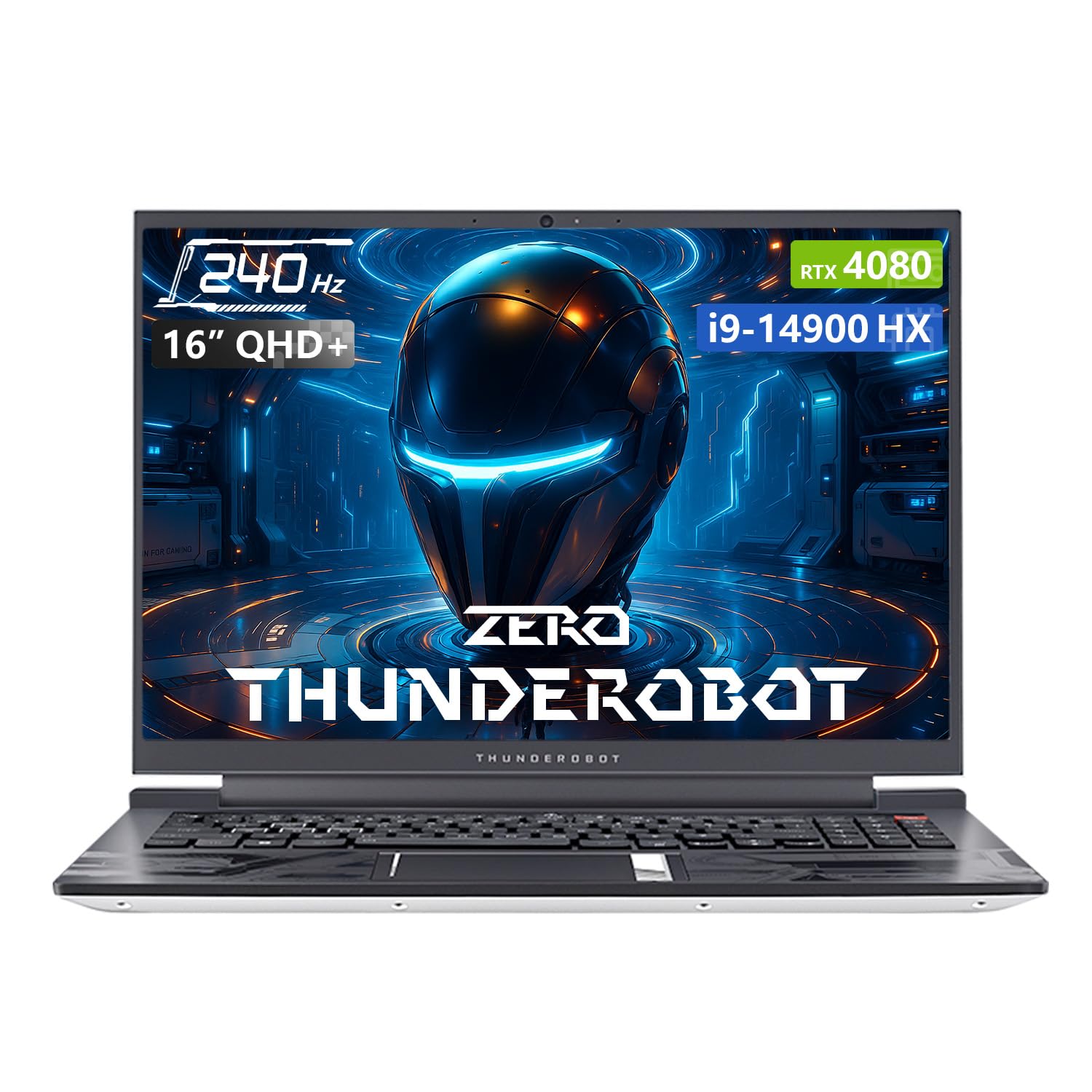
Image: The Thunderobot Zero 16 Gaming Laptop, showcasinil suo design elegante e il suo display.
2. Impostazione
2.1 Disimballaggio e ispezione iniziale
Carefully remove the laptop and all accessories from the packaging. Verify that all components are present and undamaged. The box should contain:
- Thunderobot Zero 16 Laptop
- Adattatore di alimentazione e cavo
- Manuale dell'utente (questo documento)
2.2 Collegamento dell'alimentazione
- Collegare l'adattatore di alimentazione alla porta di ingresso dell'alimentazione del laptop.
- Collegare il cavo di alimentazione a una presa a muro.
- The laptop is designed to operate on AC power and will charge the battery automatically.
2.3 Primo avvio e configurazione del sistema operativo
Upon first startup, the Windows 11 Home operating system will guide you through the initial setup process. Follow the on-screen instructions to configure language, region, network settings, and user accounts.
3. Utilizzo del laptop
3.1 Funzionalità di visualizzazione
Your laptop features a 16-inch QHD+ (2560x1600) display with a 240Hz refresh rate, offering crisp visuals and smooth motion. It supports a 16:10 aspect ratio and high color accuracy.

Image: Close-up of the laptop display highlighting QHD+ resolution, 240Hz refresh rate, and color accuracy.
3.2 Tastiera e touchpad
The laptop is equipped with an RGB backlit keyboard featuring an independent numeric keypad. The keys have a 1.8mm travel distance for comfortable typing and gaming. The touchpad provides precise cursor control.

Immagine: View of the laptop's RGB backlit keyboard and touchpad, showing the numeric keypad and key travel.
3.3 Control Center Software
The Thunderobot Control Center software allows you to customize performance modes, fan speeds, and RGB lighting. It offers three main performance modes:
- Berserk Mode: Full performance release for demanding tasks.
- Modalità di gioco: Optimized for smooth gaming experiences.
- Audio and Office Mode: Balances performance with power efficiency for everyday use and extended battery life.
Note: System mode switching in Control Center requires the device to be connected to a power source.
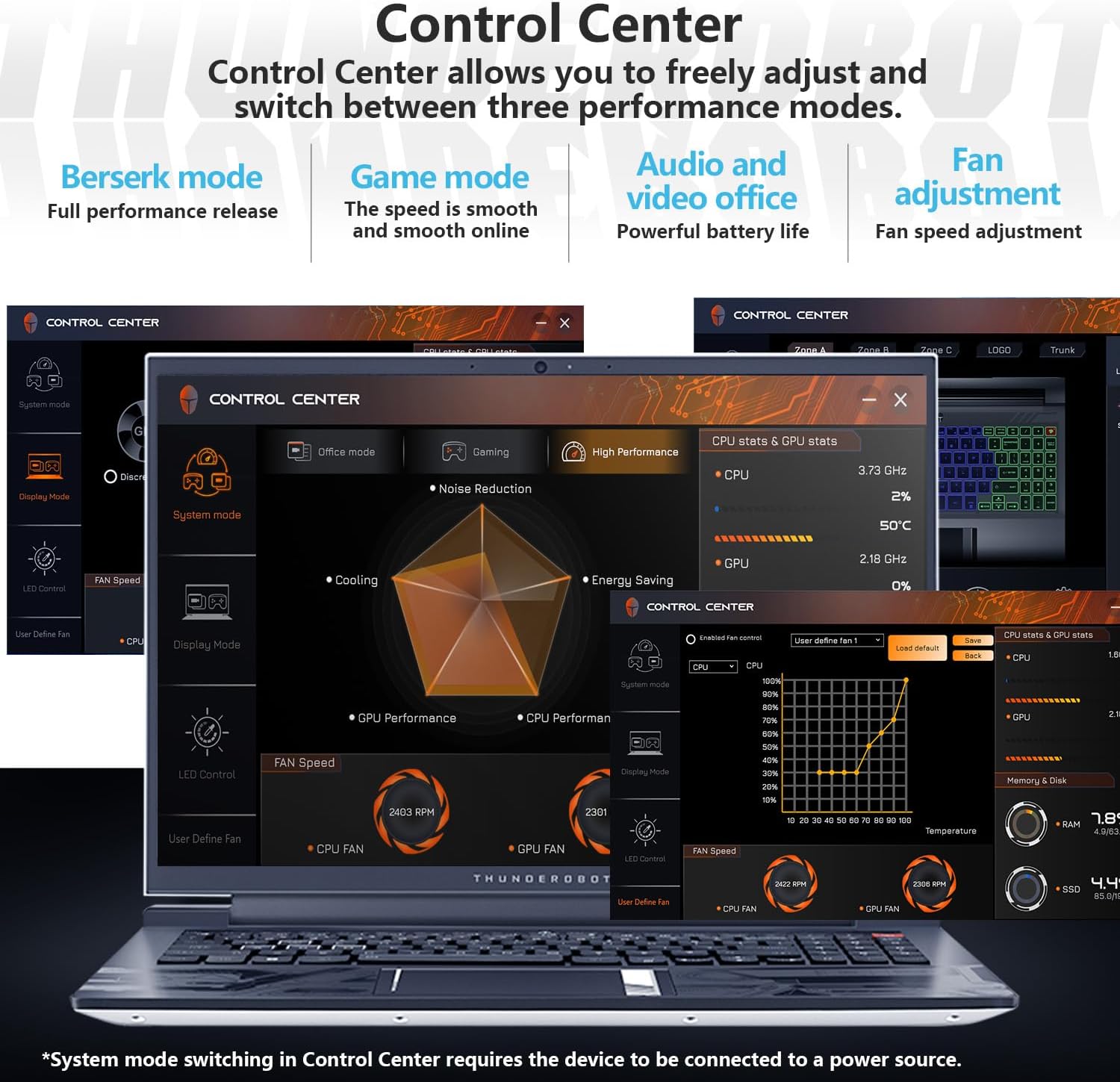
Image: Screenshots of the Thunderobot Control Center interface, showing options for performance modes, fan control, and system monitoring.
3.4 Connettività e porte
The laptop provides extensive connectivity options:
- 3 porte USB 3.0 di tipo A
- 1 porta USB di tipo C
- 1 porta HDMI 2.1
- 1 porta Ethernet RJ45
- 1 x Headphone/Microphone combo jack
- 1 x Mini DP 1.4 port
- Integrated Wi-Fi 6 for fast wireless networking
- Bluetooth for connecting wireless peripherals

Image: Diagram illustrating the various ports available on the Thunderobot Zero 16 laptop, including USB, HDMI, RJ45, and Mini DP.
3.5 Sistema audio
Equipped with Nahimic sound effects, the audio system delivers immersive sound quality with 3D surround, treble stabilization, and noise reduction features for an enhanced listening experience.

Image: Visual representation of the laptop's audio capabilities, highlighting Nahimic sound features like 3D surround and noise reduction.
4. Manutenzione
4.1 Sistema di raffreddamento
The Thunderobot Zero 16 features an advanced direct-flow cooling technology with a wind tunnel structure, dual fans, four air outlets, and six air channels. This system includes 5*3D composite heat pipes and ultra-thin heat sink fins for efficient heat dissipation. Regular cleaning of air vents is recommended to maintain optimal cooling performance.

Image: Diagram illustrating the laptop's omnidirectional four air outlets and internal cooling components like heat pipes and dual turbo fans.
4.2 Cura generale
- Conservare il portatile in un ambiente pulito e asciutto.
- Evitare di esporre il portatile a temperature estreme o alla luce solare diretta.
- Pulisci lo schermo con un panno morbido e privo di lanugine e una soluzione detergente adatta allo schermo.
- Use compressed air to clear dust from keyboard and ventilation openings.
- Evitare di appoggiare oggetti pesanti sul portatile.
5. Risoluzione Dei Problemi
| Problema | Possibile causa | Soluzione |
|---|---|---|
| Il portatile non si accende. | Nessuna alimentazione, batteria scarica, adattatore di alimentazione difettoso. | Ensure power adapter is securely connected and plugged into a working outlet. Check battery charge level. |
| Il display è vuoto. | Laptop in sleep mode, external display connected, display driver issue. | Press any key or move the mouse to wake. Disconnect external displays. Restart the laptop. |
| Scarse prestazioni o surriscaldamento. | Dust in vents, background applications, incorrect power mode. | Clean air vents. Close unnecessary applications. Switch to a higher performance mode in Control Center (ensure power adapter is connected). |
| Problemi di connessione Wi-Fi. | Wi-Fi disattivato, problema con il driver, problema con il router. | Ensure Wi-Fi is enabled. Restart router. Update Wi-Fi drivers. |
6. Specifiche
| Caratteristica | Dettaglio |
|---|---|
| Marca | Thunderobot |
| Nome del modello | Zero 16 |
| Processore | Intel Core i9-14900HX (24 core, 32 thread, fino a 5.8 GHz) |
| Scheda grafica | GPU per laptop NVIDIA GeForce RTX 4080 (12 GB GDDR6) |
| Memoria RAM | 64 GB di DDR5 SDRAM (4800 MHz) |
| Magazzinaggio | 2 TB PCIe M.2 SSD |
| Display | 16-inch QHD+ (2560x1600) LCD, 240 Hz Refresh Rate |
| Sistema operativo | Windows 11 Casa |
| Connettività | Wi-Fi 6 (802.11ax), Bluetooth, Ethernet |
| Porti | 3x USB 3.0 Type-A, 1x USB Type-C, 1x HDMI 2.1, 1x RJ45, 1x Headphone/Mic Combo, 1x Mini DP 1.4 |
| Tastiera | Tastiera numerica retroilluminata RGB |
| Webcamma | SÌ |
| Dimensioni (L x P x P) | 14.09" x 10" x 0.82" |
| Colore | Bianco |
7. Garanzia e supporto
Every Thunderobot laptop includes a Garanzia di 12 mesi. This warranty provides expert support, thorough diagnostics, and genuine parts if a repair is needed. Additionally, a Garanzia di 90 giorni is provided on all warranty replacement parts, ensuring hassle-free repairs.
For technical assistance or warranty claims, please contact Thunderobot customer support through their official channels. Refer to the product packaging or the Thunderobot websito per le informazioni di contatto.

Image: Information regarding Thunderobot's warranty and support services.
Ask a question about this manual
Ask about setup, troubleshooting, compatibility, parts, safety, or missing instructions. Manuals+ will review the question and use this page’s manual context to help answer it.