
1. Introduzione
This manual provides instructions for the setup, operation, and maintenance of your EVICIV 15.6-inch Portable Monitor, Model EC156FHD. This monitor is designed to extend your display capabilities for various devices, including laptops, smartphones, and game consoles, offering a Full HD 1080p resolution display with a 125% sRGB color gamut.
2. Contenuto della confezione
Prima di procedere con la configurazione, verifica che tutti gli elementi elencati di seguito siano presenti nella confezione:
- 15.6" Portable Monitor
- Mini cavo HDMI
- Cavo da tipo C a tipo C
- Cavo da USB-A a USB-C
- Guida per l'utente

Se qualche articolo risulta mancante o danneggiato, contattare l'assistenza clienti.
3. Monitorare oltreview
3.1 Caratteristiche fisiche
The EVICIV portable monitor features an ultra-slim design with narrow bezels, maximizing screen area and minimizing visual distractions. It is lightweight for portability.

3.2 Porte e controlli
The monitor is equipped with various ports and controls for versatile connectivity and easy navigation:
- Mini porta HDMI: Per l'ingresso video da dispositivi con uscita HDMI.
- Porte USB-C 3.1 (x2): For power, video, and data transmission with compatible devices.
- Jack audio da 3.5 mm: Per collegare cuffie o altoparlanti esterni.
- Pulley Button/Menu: Used to navigate the On-Screen Display (OSD) menu and adjust settings.
- Pulsante di ritorno/accensione: Used to power the monitor on/off and return from OSD menus.
4. Configurazione e connessione
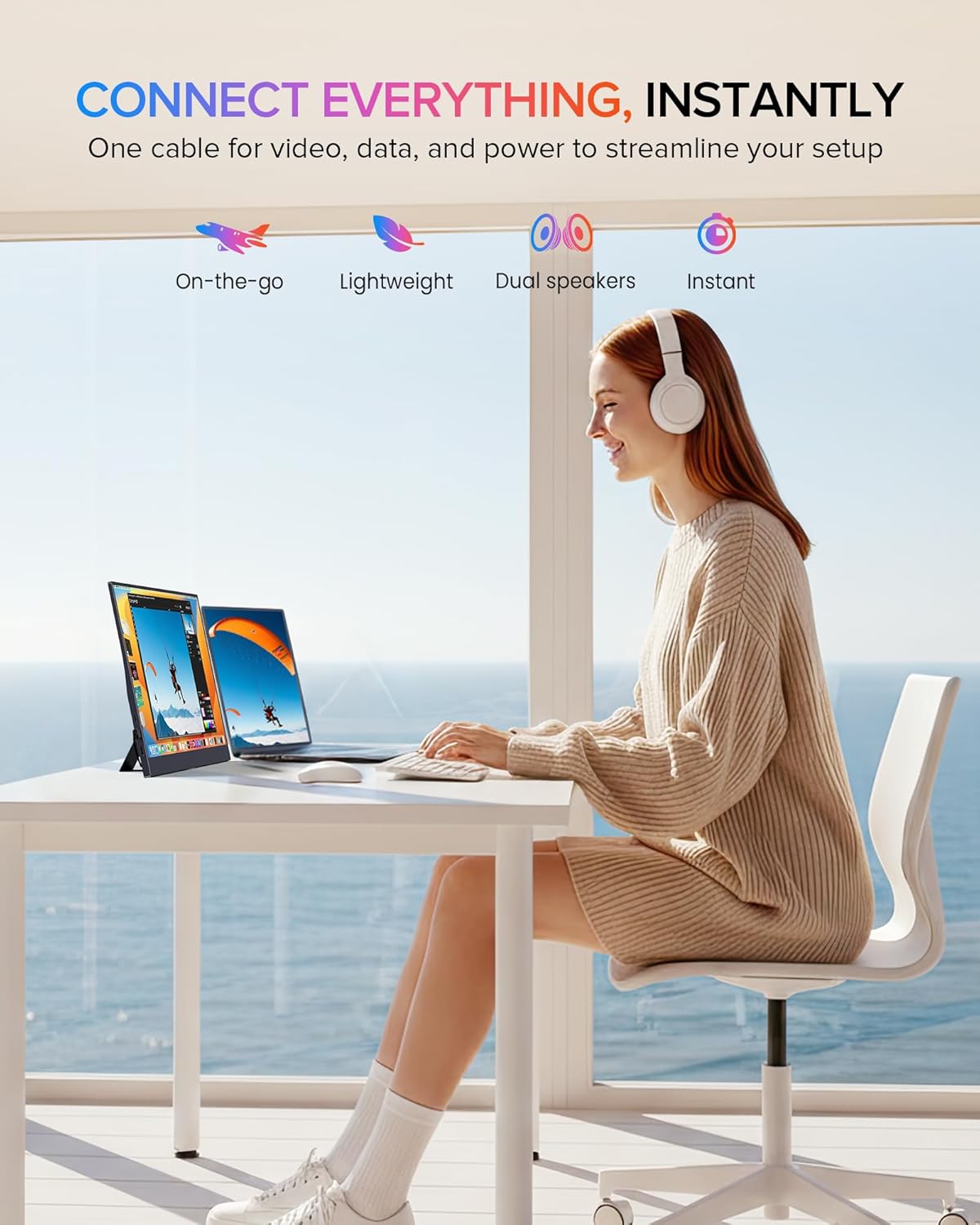
The monitor supports plug-and-play functionality with most devices. Ensure your device supports video output over USB-C (DisplayPort Alternate Mode) or HDMI.
4.1 Connecting via USB-C (Full-featured)
For devices with a full-featured USB-C port (supporting power, video, and data), a single USB-C to USB-C cable can provide both power and display signal.
- Connect one end of the Type-C to Type-C cable to your device's USB-C port.
- Connect the other end of the Type-C to Type-C cable to one of the monitor's USB-C 3.1 ports.
- Il monitor dovrebbe rilevare automaticamente il segnale e accendersi.

4.2 Connessione tramite Mini HDMI
For devices with an HDMI output, use the Mini HDMI to HDMI cable for video signal and a USB-A to USB-C cable for power.
- Connect one end of the Mini HDMI cable to your device's HDMI port and the other end to the monitor's Mini HDMI port.
- Connect the USB-A end of the USB-A to USB-C cable to a power source (e.g., laptop USB port, wall adapter) and the USB-C end to one of the monitor's USB-C 3.1 ports for power.
- The monitor should display the signal from your device.

4.3 Compatibilità del dispositivo
Il monitor è compatibile con un'ampia gamma di dispositivi:
- Type-C (Android/Windows): Phones, Tablets, Laptops, PCs.
- HDMI (Game Consoles): Nintendo Switch, Steam Deck, PlayStation (PS3/4/5), Xbox.

5. Istruzioni per l'uso
5.1 Accensione/spegnimento
Press and hold the Power button (often combined with the Return function) for a few seconds to turn the monitor on or off.
5.2 Menu di visualizzazione su schermo (OSD)
The OSD menu allows you to adjust various display settings. Use the Pulley Button to navigate and select options.
- Press the Pulley Button to open the OSD menu.
- Roll the Pulley Button up or down to navigate through menu options.
- Press the Pulley Button to select an option or confirm a setting.
- Press the Return/Power button to exit the current menu or the OSD entirely.
Le impostazioni OSD più comuni includono luminosità, contrasto, temperatura colore, sorgente di ingresso e modalità HDR.
6. Caratteristiche dello schermo
The EVICIV portable monitor is designed with several features to enhance your viewesperienza di ing:
- Gamma di colori sRGB al 125%: Provides a wider range of colors compared to standard sRGB, resulting in more accurate and vibrant color reproduction.
- Full HD 1080p Resolution (1920x1080): Fornisce immagini chiare e dettagliate.
- Luminosità 350 nit: Offers sufficient brightness for various indoor lighting conditions.
- Rapporto di contrasto 2000:1: Produces deeper blacks and brighter whites for improved image depth.
- IPS Display Technology: Ensures consistent color and image quality across wide 178-degree viewangoli di inclinazione.
- Supporto HDR: Enhances dynamic range for compatible content, showing more detail in both bright and dark areas.
- Caratteristiche della cura degli occhi: Includes a blue light filter and flicker-free technology to reduce eye strain during extended use.


7. Opzioni di montaggio
7.1 Built-in Adjustable Stand
The monitor includes a built-in stand that can be adjusted up to 70 degrees, allowing you to find an ergonomic viewposizione di avanzamento.

7.2 Montaggio VESA
For more permanent setups, the monitor is VESA compatible (75x75mm, M4*4mm). This allows it to be mounted on a wall or a desk arm.
- Individuare i fori di montaggio VESA sul retro del monitor.
- Secure the VESA mount bracket to the monitor using the provided M4*4mm screws.
- Attach the monitor to your VESA-compatible arm or wall mount.

8. Manutenzione
Per garantire la longevità e le prestazioni ottimali del monitor, seguire queste linee guida per la manutenzione:
- Pulizia dello schermo: Pulire delicatamente lo schermo con un panno morbido e privo di lanugine. Per macchie ostinate, dampInumidire leggermente il panno con acqua o una soluzione detergente adatta allo schermo. Evitare prodotti chimici aggressivi o materiali abrasivi.
- Pulizia del Casing: Utilizzare un panno morbido e asciutto per pulire il monitor.asing.
- Magazzinaggio: When not in use, store the monitor in a cool, dry place, preferably in its protective sleeve or original packaging, to prevent dust accumulation and physical damage.
- Evitare i liquidi: Tenere i liquidi lontano dal monitor per evitare danni elettrici.
- Evitare temperature estreme: Do not expose the monitor to extreme hot or cold temperatures.
9. Risoluzione Dei Problemi
Se riscontri problemi con il monitor, fai riferimento ai seguenti problemi comuni e alle relative soluzioni:
9.1 Nessun segnale / Schermo nero
- Controllare i cavi: Ensure all video (USB-C or Mini HDMI) and power cables are securely connected to both the monitor and your device.
- Fonte di energia: Verify the monitor is receiving adequate power. If using USB-C, ensure your device's USB-C port supports power delivery. If using HDMI, ensure the USB-C power cable is connected to a sufficient power source.
- Sorgente di input: Use the OSD menu to manually select the correct input source (USB-C or HDMI).
- Uscita dispositivo: Confirm your connected device is configured to output video to an external display.
9.2 Nessun potere
- Cavo di alimentazione: Ensure the USB-C power cable is connected to a functional power source (e.g., wall adapter, powered USB port).
- Pulsante di accensione: Tieni premuto il pulsante di accensione per alcuni secondi per assicurarti che non sia solo in modalità standby.
- Try Different Cable/Port: Test with a different USB-C cable or a different power source if available.
9.3 Sfarfallio o distorsione dell'immagine
- Qualità del cavo: Use the provided cables or high-quality certified cables. Poor quality cables can cause signal issues.
- Risoluzione/Frequenza di aggiornamento: Ensure your device's output resolution and refresh rate are supported by the monitor (Max 1920x1080 at 60Hz).
- Interferenza: Move the monitor away from other electronic devices that might cause electromagnetic interference.
If these steps do not resolve the issue, please contact EVICIV customer support.
10. Specifiche tecniche
| Caratteristica | Specificazione |
|---|---|
| Marca | EVICIV |
| Numero di modello | EC156FHD |
| Dimensioni dello schermo | 15.6 pollici |
| Risoluzione | Risoluzione Full HD 1080p (1920 x 1080) |
| Tecnologia di visualizzazione | Schermo LCD IPS |
| Frequenza di aggiornamento | Frequenza 60 Hz |
| Luminosità | 350 candele (Nit) |
| Rapporto di contrasto | 2000:1 |
| Gamma di colori | 125% sRGB |
| Viewangolo di ing | 178 gradi |
| Tempo di risposta | 3 millisecondi |
| Connettività | 2x USB 3.0 Type-C, 1x Mini HDMI, 1x 3.5mm Audio |
| Tipo di montaggio | VESA (75x75mm), Built-in Stand |
| Consumo energetico | 10 Watt |
| Dimensioni (P x L x A) | 0.27"P x 14"L x 9"A |
11. Garanzia e supporto
Your EVICIV Portable Monitor comes with a Garanzia del produttore di 2 annoLa presente garanzia copre i difetti di materiali e di fabbricazione in normali condizioni di utilizzo.
For warranty claims, technical assistance, or further inquiries, please contact EVICIV customer support through the official EVICIV websito o il tuo rivenditore.
Per ulteriori informazioni e supporto, visitare il EVICIV Store on Amazon.