
1. Introduzione
Grazie per l'acquistoasing the LG 27G411A UltraGear Gaming Monitor. This manual provides essential information for the safe and efficient use of your monitor. Please read it thoroughly before operating the product and retain it for future reference. This 27-inch Full HD (1920 x 1080) IPS display is designed for an immersive gaming experience, featuring a 144Hz refresh rate, 1ms Motion Blur Reduction (MBR), HDR10 support, and compatibility with NVIDIA G-Sync and AMD FreeSync technologies.
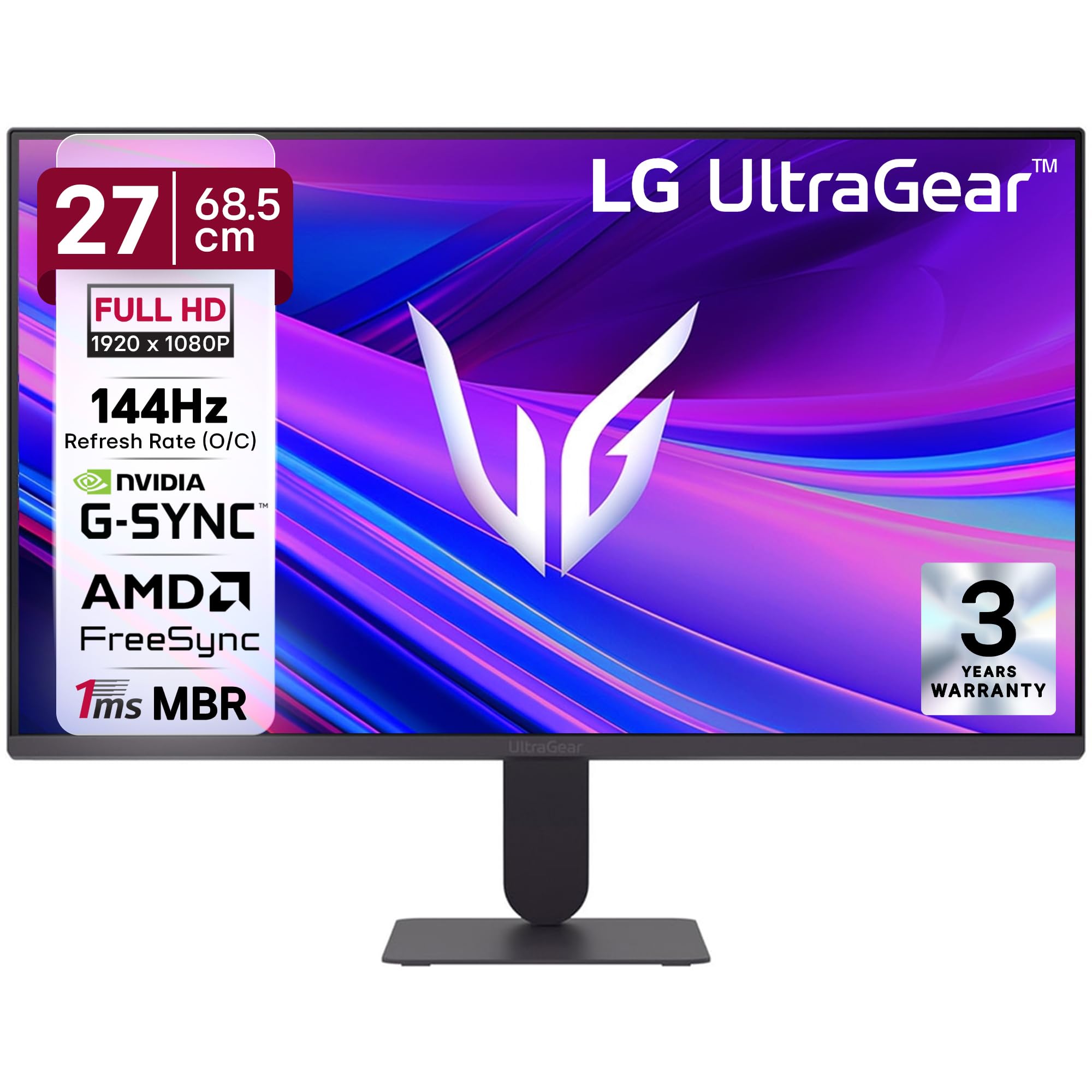
Figura 1: Fronte view of the LG 27G411A UltraGear Gaming Monitor.
2. Informazioni sulla sicurezza
Osservare le seguenti precauzioni di sicurezza per evitare danni al prodotto o lesioni a se stessi e agli altri.
- Energia: Use only the power cord and adapter supplied with the monitor. Do not overload power outlets.
- Posizionamento: Place the monitor on a stable, level surface. Avoid direct sunlight, heat sources, and areas with high humidity or dust. Ensure adequate ventilation around the monitor.
- Gestione: Do not drop the monitor or subject it to strong impacts. Avoid touching the screen with sharp objects.
- Pulizia: Scollegare il cavo di alimentazione prima della pulizia. Utilizzare un panno morbido e asciutto. Non utilizzare detergenti liquidi o spray aerosol.
- Riparazioni: Non tentare di riparare questo prodotto da soli. Affidare tutte le operazioni di manutenzione a personale di assistenza qualificato.
3. Contenuto della confezione
Verifica che tutti gli articoli siano presenti nella confezione del prodotto:
- LG 27G411A UltraGear Monitor
- Cavo di alimentazione
- Cavo HDMI
- Supporto per monitor (base e collo)
- Manuale dell'utente (questo documento)
4. Impostazione
4.1 Montaggio del monitor
Follow these steps to assemble the monitor stand and attach it to the display panel.
- Carefully place the monitor face down on a soft cloth or cushion to prevent scratches.
- Attach the stand neck to the base, securing it with the captive screw.
- Align the assembled stand with the mounting slot on the back of the monitor panel and push until it clicks into place.
- Alternatively, the monitor supports VESA 100x100mm wall mounting. Remove the stand if using a wall mount.

Figure 2: Illustration of the monitor's ultra-slim design, tilt adjustment, and VESA wall mount compatibility.
4.2 Collegamento del monitor
Collega i tuoi dispositivi al monitor utilizzando i cavi appropriati.
- Collegamento elettrico: Collegare il cavo di alimentazione all'ingresso di alimentazione del monitor e quindi a una presa a muro.
- Connessione HDMI: Use the supplied HDMI cable to connect your computer or gaming console to the HDMI port on the monitor.
- Connessione DisplayPort: For optimal performance, especially for 144Hz refresh rate, connect your computer to the DisplayPort (DP) on the monitor using a DisplayPort cable (not always included).
- Uscita cuffie: Connect headphones or external speakers to the 3-pole headphone out port for audio output.

Figura 3: Posteriore view of the monitor displaying the power input, HDMI, DisplayPort, and headphone out ports.

Figura 4: dettagliata view of the DisplayPort (DP-IN), HDMI, and Headphone (HP) ports.
5. Istruzioni per l'uso
5.1 Accensione/spegnimento
Press the joystick button located at the bottom center of the monitor to turn it on or off. A short press will bring up the OSD menu, while a long press will power off the monitor.
5.2 Menu di visualizzazione su schermo (OSD)
Il menu OSD consente di regolare diverse impostazioni del monitor. Utilizzare il pulsante del joystick per navigare:
- Muovi il joystick verso l'alto/il basso/sinistra/destra per navigare tra le opzioni del menu.
- Premere il joystick per selezionare un'opzione o confermare un'impostazione.
5.3 Modalità immagine
The monitor offers several preset picture modes optimized for different content types:
- Costume: Consente la regolazione manuale di tutte le impostazioni dell'immagine.
- Gamer1/Gamer2: User-configurable modes for gaming preferences.
- FPS/RTS: Optimized for First-Person Shooter and Real-Time Strategy games.
- Vivido: Enhances color and contrast for general viewing.
- Lettore: Riduce la luce blu per una lettura confortevole.
- Effetto HDR: Simula contenuti HDR per sorgenti non HDR.
- Debolezza del colore: Regola le impostazioni del colore per aiutare gli utenti con deficit della visione dei colori.
5.4 Miglioramenti del gioco
The LG 27G411A is equipped with features to enhance your gaming experience:
- Frequenza di aggiornamento di 144 Hz e MBR di 1 ms: Experience fluid motion and reduced ghosting. The monitor supports a native 120Hz refresh rate and up to 144Hz in overclock mode via DisplayPort 1.4 (HDMI 2.0 supports up to 144Hz).
- AMD FreeSync & NVIDIA G-Sync Compatible: Sincronizza la frequenza di aggiornamento del monitor con la frequenza dei fotogrammi della GPU per eliminare lo screen tearing e lo stuttering.
- Stabilizzatore nero: Illumina le aree scure per aiutarti a individuare i nemici nascosti nell'ombra.
- Sincronizzazione dinamica delle azioni (DAS): Riduce al minimo il ritardo di input per azioni in tempo reale.
- Mirino: Places a fixed crosshair in the center of the screen for improved aiming in FPS games.
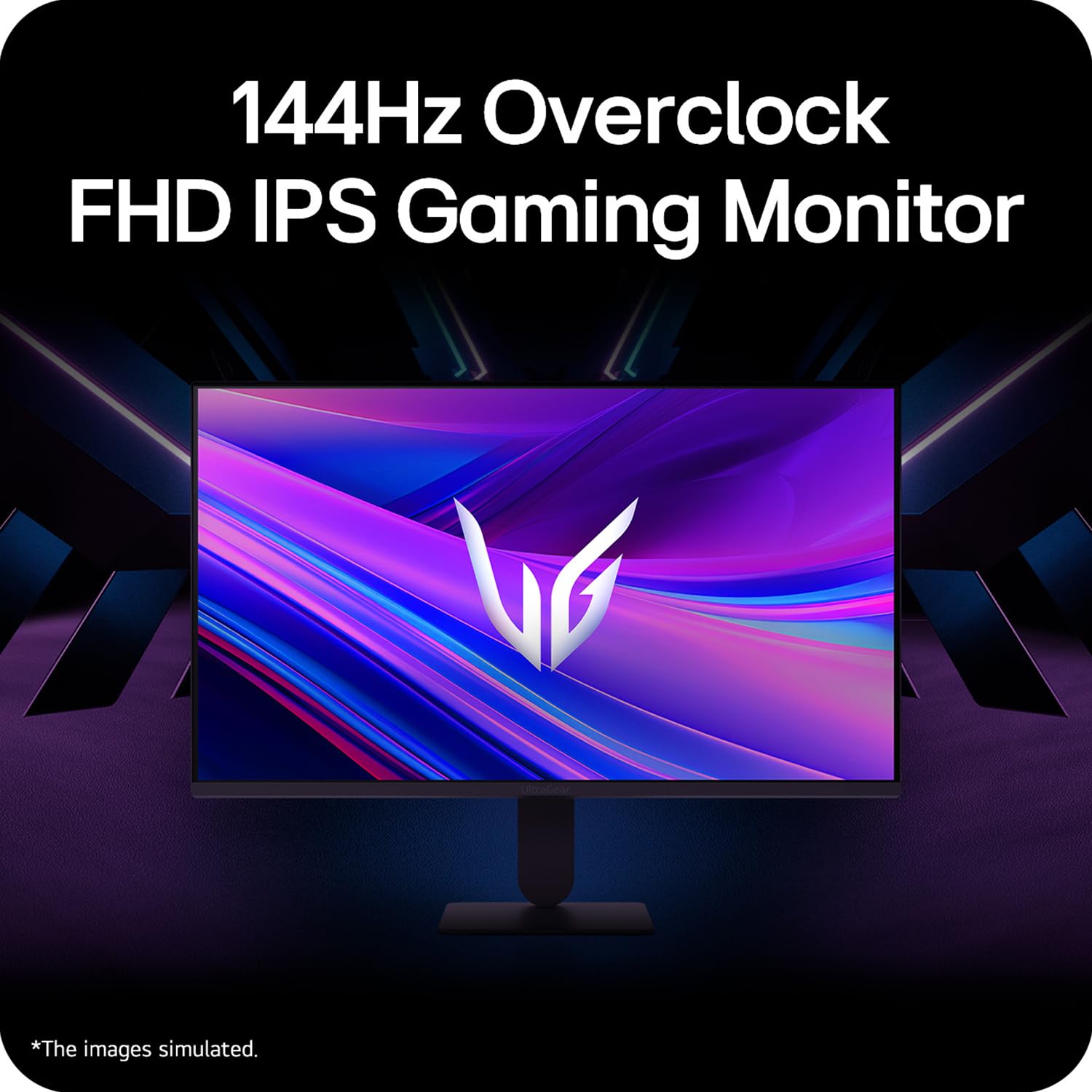
Figure 5: Visual representation of 144Hz overclock for fluid gaming motion.

Figure 6: Illustration of 1ms Motion Blur Reduction (MBR) for fast-paced gaming. Note: 1ms MBR causes lowered luminance and cannot be used with AMD FreeSync/DAS. Flicker may occur during 1ms MBR operation.

Figure 7: The monitor is certified compatible with NVIDIA G-Sync and AMD FreeSync technologies.

Figure 8: Precision Gaming Mode features: Dynamic Action Sync (DAS), Black Stabilizer, and Crosshair.
5.5 Caratteristiche per la cura degli occhi
Per ridurre l'affaticamento degli occhi durante l'uso prolungato, il monitor include:
- Sicuro contro lo sfarfallio: Riduce lo sfarfallio dello schermo per ridurre al minimo l'affaticamento degli occhi.
- Modalità lettore: Adjusts color temperature and brightness to simulate paper, making it easier on the eyes for reading tasks.
- Debolezza del colore: Provides color adjustments for users with color vision deficiencies.
5.6 Smart Convenience (LG Switch App)
The LG Switch app offers enhanced control and customization options for your monitor directly from your computer. Features include Dual mode, Smart screen split, Launch a video call, and Personalized Picture Wizard.

Figure 9: The LG Switch app provides smarter control and seamless switching between various display modes and settings.
6. Manutenzione
6.1 Pulizia del monitor
Per mantenere l'aspetto e le prestazioni del monitor:
- Prima di pulire il monitor, scollegarlo sempre dalla presa di corrente.
- Utilizzare un panno morbido e privo di lanugine per pulire delicatamente lo schermo e le superfici esterne.
- Per segni ostinati, leggermente dampPulire il panno con acqua o con un detergente per schermi delicato e non abrasivo. Non spruzzare il liquido direttamente sullo schermo.
- Avoid using benzene, alcohol, or other volatile solvents, as they may damage the monitor.
7. Risoluzione Dei Problemi
Se riscontri problemi con il monitor, fai riferimento alle seguenti soluzioni comuni:
| Problema | Possibile causa/soluzione |
|---|---|
| Nessun potere | Ensure the power cable is securely connected to the monitor and a working power outlet. Check if the power outlet is functional. |
| Nessun segnale / Schermo vuoto | Verify that the video cable (HDMI or DisplayPort) is securely connected to both the monitor and your computer/device. Ensure the correct input source is selected in the OSD menu. Check if the computer is powered on and not in sleep mode. |
| Immagine tremolante o distorta | Check the video cable for damage or loose connections. Try a different video cable or port. Adjust the refresh rate settings on your computer. Disable 1ms MBR if flicker is observed. |
| Backlight leakage on corners | Minor backlight leakage can be a characteristic of IPS panels, especially visible on a completely black screen in a dark environment. This is generally not considered a defect unless it significantly impacts normal viewing. |
| Monitor not recognized by PC | Update your graphics card drivers. Restart your computer. |
8. Specifiche
Key technical specifications for the LG 27G411A UltraGear Gaming Monitor:
- Dimensioni dello schermo: 27 pollici (68.5 cm)
- Tipo di pannello: Informazione pubblica
- Risoluzione: Schermo Full HD (1920 x 1080)
- Proporzioni: 16:9
- Frequenza di aggiornamento: 144 Hz (Overclock)
- Tempo di risposta: 1ms MBR (5ms GTG)
- Luminosità: 250 cd/m² (tipico)
- Rapporto di contrasto: 1500:1
- Gamma di colori: RGB 99%
- Supporto HDR: L'HDR10
- Sincronizzazione adattiva: Compatibile con NVIDIA G-Sync, AMD FreeSync
- Viewangolo di ing: 178° (O/V)
- Connettività: 1 x HDMI, 1 x DisplayPort, 1 x uscita cuffie
- Dimensions (with stand, WxHxD): 61.2 x 45.2 x 22 cm (24.07 x 17.81 x 8.66 pollici)
- Peso (con supporto): 3.8 kg
- Consumo energetico: 20W (tipico)
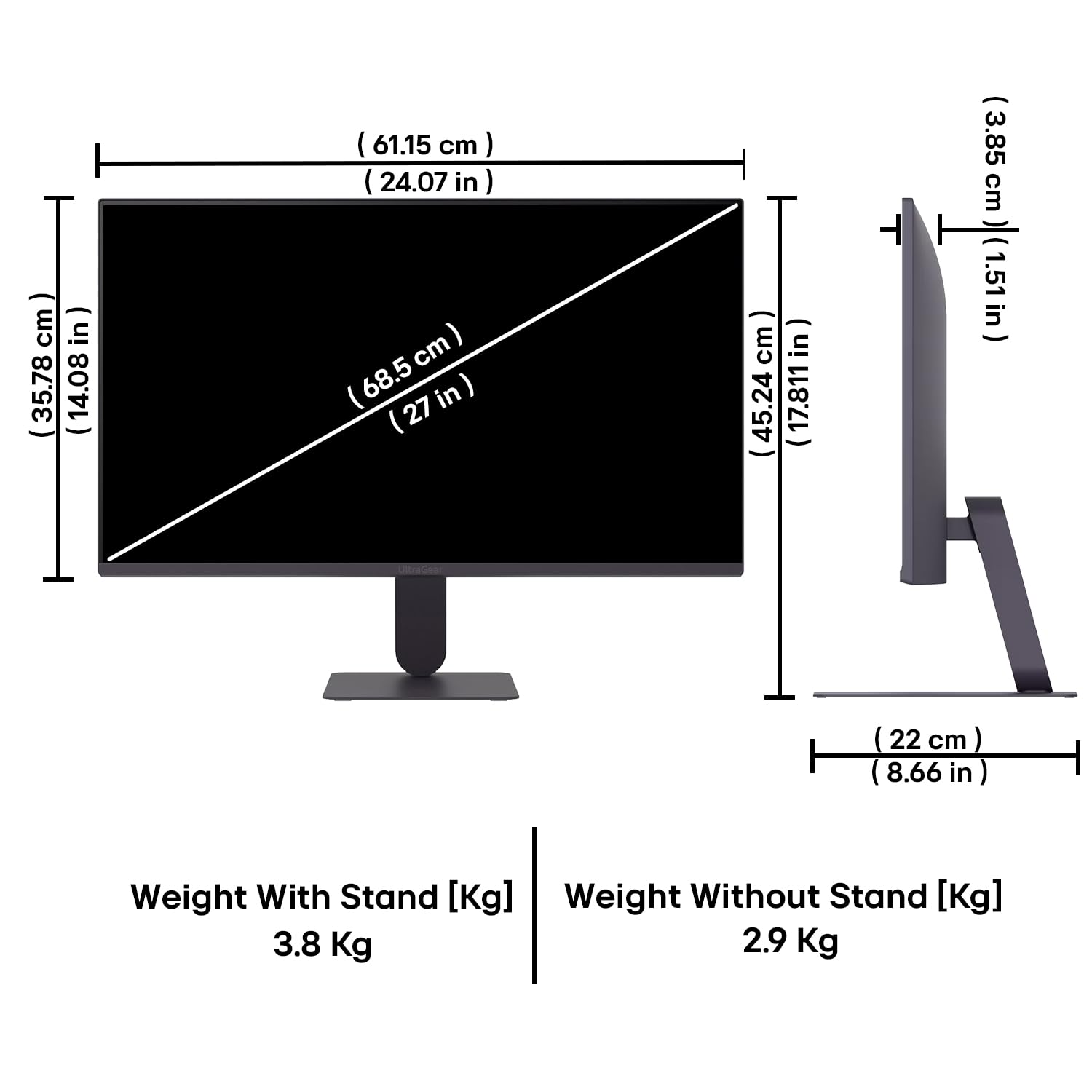
Figure 10: Physical dimensions and weight of the LG 27G411A monitor with and without the stand.
9. Informazioni sulla garanzia
This LG 27G411A UltraGear Gaming Monitor comes with a 3 anni di garanzia del produttore covering parts and labor. Please retain your proof of purchase for warranty claims. For detailed terms and conditions, refer to the warranty card included in your product packaging or visit the official LG websito.
10. Assistenza clienti
Per ulteriore assistenza, supporto tecnico o richieste di assistenza, contattare il Servizio Clienti LG. Le informazioni di contatto sono disponibili sul sito ufficiale LG. websito o nella documentazione fornita con il monitor.
LG Electronics India Pvt. srl
PLOT NO. A-5, MIDC RANJANGAON.
TALUKA SHIRUR, PUNE, MAHRASHTRA (INDIA), 412220