
1. Introduzione
This manual provides essential information for setting up, operating, maintaining, and troubleshooting your NIMO 15.6-inch Laptop N152. Please read this manual thoroughly before using your device to ensure proper functionality and longevity.

Image 1.1: NIMO 15.6-inch Laptop, top-down view.
2. Impostazione
2.1 Disimballaggio e ispezione iniziale
Carefully remove all components from the packaging. Verify that all items listed in the 'What's in the Box' section (Section 6) are present and undamaged. If any items are missing or damaged, contact customer support.
2.2 Ricarica del laptop
Before first use, fully charge your NIMO laptop. Connect the provided 65W USB-C PD Fast Charger to the laptop's USB-C port and then to a power outlet. The charging indicator light will illuminate. A 15-minute charge provides approximately 2 hours of use.

Image 2.1: The 65W USB-C PD Fast Charger can charge multiple devices.
2.3 Accensione e configurazione iniziale
Press the power button to turn on the laptop. Follow the on-screen instructions to complete the Windows 11 Home setup, including language selection, network connection, and user account creation. You can set up the fingerprint reader during this process for secure login.
3. Istruzioni per l'uso
3.1 Tastiera e touchpad
The NIMO N152 features an ergonomic backlit keyboard. To adjust the backlight brightness or toggle it on/off, use the dedicated function keys (Fn + F-key combination, refer to keyboard legends). The touchpad supports multi-touch gestures for enhanced navigation.
3.2 Lettore di impronte digitali
The fingerprint reader is integrated into the touchpad for secure and instant login. Once configured, simply place your registered finger on the sensor to unlock your device.
3.3 Funzionalità di visualizzazione
The 15.6-inch Full HD (1920x1080) IPS anti-glare display offers clear visuals. The 180° hinge allows the screen to lay completely flat, useful for sharing content or collaborating.

Image 3.1: The 180° lay-flat hinge for versatile viewing.
3.4 Connettività
The laptop is equipped with various ports for external devices:
- Porte USB: 3.0 Per il trasferimento dati ad alta velocità.
- Porta USB 2.0: Per dispositivi USB standard.
- HDMI: Collegati a display o proiettori esterni.
- Porte di tipo C: Per la ricarica e il trasferimento dei dati.
- Micro SD Reader: Per espandere lo spazio di archiviazione o trasferire files dalle schede di memoria.
- Jack audio: Per cuffie o altoparlanti esterni.
- Blocco Kensington: Per la sicurezza fisica.
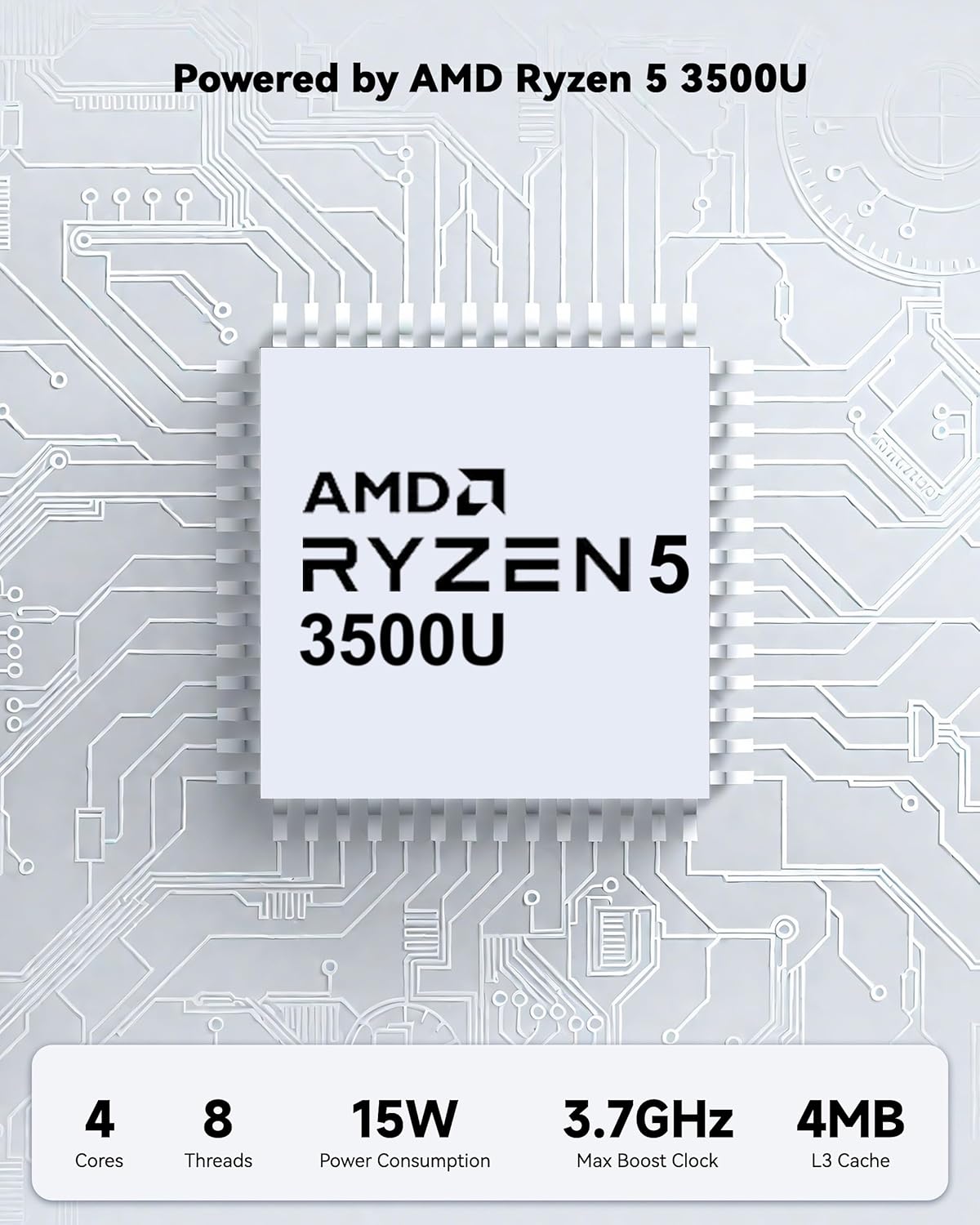
Immagine 3.2: Lato view of the NIMO laptop showing available ports.
For wireless connectivity, the laptop supports Wi-Fi 6 for stable, high-speed internet and Bluetooth 5.2 for connecting wireless peripherals.
4. Caratteristiche principali
4.1 Prestazioni
Powered by an AMD Ryzen 5 processor with 4 cores up to 3.7GHz and 16GB DDR4 RAM, the NIMO N152 is designed for efficient multitasking. The 512GB PCIe SSD ensures fast boot-ups and quick file transfers. The RAM is upgradable for future needs.

Image 4.1: AMD Ryzen 5 processor details.
4.2 Visuals and Audio
The 15.6-inch Full HD (1920x1080) IPS anti-glare display provides vibrant visuals with an 85% screen-to-body ratio. The integrated 2MP webcam allows for clear video calls.
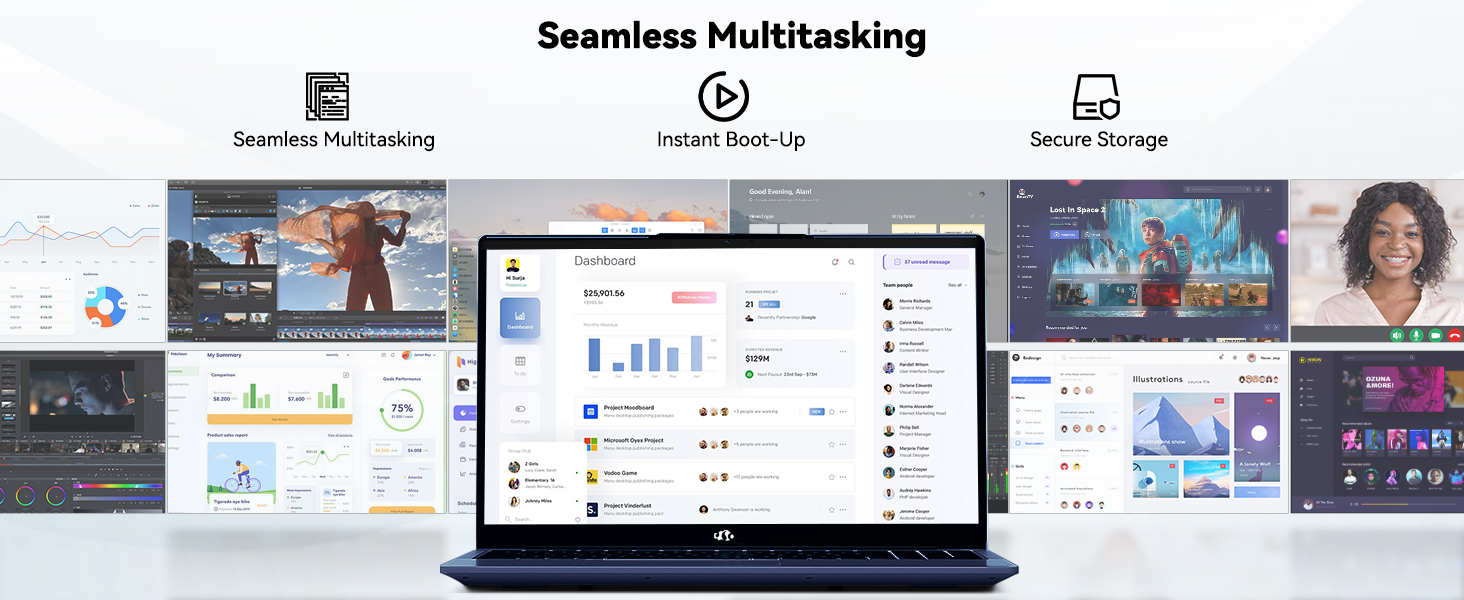
Image 4.2: The laptop's stunning Full HD display.

Image 4.3: The 1080p FHD camera for clear video conferencing.
4.3 Durata della batteria
The laptop features a 54WH battery with smart battery optimization for extended lifespan and efficient power control, providing approximately 9 hours of average battery life.

Image 4.4: Smart Battery Optimization features.
4.4 Design e portabilità
The NIMO N152 has a durable metal A-shell and a slim, lightweight design, weighing approximately 3.75 pounds.

Image 4.5: The NIMO laptop's lightweight and slim profile.
4.5 Prodotto finitoview Video
Video 4.1: Un generale sopraview of the NIMO 15.6-inch laptop, highlighting its features and design.
4.6 Power and Portability Video
Video 4.2: This video demonstrates the power and portability aspects of the NIMO 15.6-inch laptop.
5. Manutenzione
5.1 Pulizia
- Per pulire lo schermo e la parte esterna, utilizzare un panno morbido e privo di lanugine.
- Per macchie ostinate, applicare leggermenteampPulisci il panno con acqua o con un detergente per schermi.
- Evitare prodotti chimici aggressivi, abrasivi o solventi.
- Keep vents clear of dust and debris to ensure proper airflow.
5.2 Cura della batteria
- Evitare di scaricare completamente la batteria frequentemente.
- Quando non lo si utilizza per lunghi periodi, conservare il computer portatile in un luogo fresco e asciutto.
- Use only the provided NIMO charger.
5.3 Aggiornamenti software
Regularly update your operating system and drivers to ensure optimal performance and security. Windows 11 Home will prompt you for updates.
6. Risoluzione Dei Problemi
6.1 Il laptop non si accende
- Assicurarsi che il caricabatterie sia collegato saldamente sia al laptop sia a una presa di corrente funzionante.
- Verificare che la presa di corrente funzioni collegandovi un altro dispositivo.
- Lasciare caricare il laptop per almeno 30 minuti prima di provare ad accenderlo nuovamente.
6.2 Problemi dello schermo
- If the screen is blank, try connecting an external monitor to check if the display output is working.
- Regolare la luminosità dello schermo utilizzando i tasti funzione.
- Riavviare il portatile.
6.3 Problemi di connettività
- Wifi: Check your router and internet connection. Ensure Wi-Fi is enabled on the laptop.
- Bluetooth: Verify Bluetooth is enabled and devices are in pairing mode.
- Dispositivi USB: Try connecting the device to a different USB port or another computer to rule out device issues.
6.4 Prestazioni lente
- Chiudere le applicazioni non necessarie in esecuzione in background.
- Controlla e installa eventuali aggiornamenti di Windows in sospeso.
- Assicurarsi che ci sia spazio libero sufficiente sull'SSD.
- Esegui una scansione antivirus.
7. Specifiche
| Caratteristica | Specificazione |
|---|---|
| Nome del modello | NIMO N152 |
| Dimensioni dello schermo | 15.6 pollici |
| Risoluzione dello schermo | 1920 x 1080 pixel (Full HD IPS) |
| Processore | AMD Ryzen 5 (4 Cores, up to 3.7 GHz) |
| Memoria RAM | 16 GB DDR4 (Upgradable) |
| Velocità di memoria | 3200 MHz |
| Disco rigido | SSD da 512 GB (PCIe) |
| Coprocessore grafico | AMD Integrated graphics |
| Sistema operativo | Windows 11 Casa |
| Tipo senza fili | Wi-Fi 6 (802.11a/b/g/n/ac), Bluetooth 5.2 |
| Porte USB 2.0 | 1 |
| Porte USB 3.0 | 3 |
| Durata media della batteria | 9 ore |
| Peso dell'articolo | 3.75 libbre |
| Dimensioni del prodotto | 14.07 x 8.98 x 0.76 pollici |
| Colore | Blu |
| Posteriore WebRisoluzione della camma | 2 MP |
| Caratteristiche speciali | Tastiera retroilluminata, lettore di impronte digitali, audio HD, tastierino numerico |
7.1 Cosa c'è nella scatola
- 1 x NIMO N152 Laptop
- 1 x Type-C 65W PD Fast Charger
- 1 x Manuale utente
- Windows 11 Home (Pre-installed)
8. Garanzia e supporto
Your NIMO N152 laptop comes with a Garanzia del produttore di 2 anni. Additionally, NIMO offers a 90-day hassle-free return and exchange policy. For any product-related questions, technical assistance, or warranty claims, please contact NIMO customer service.
Informazioni di contatto 8.1
For support, you can reach out to the professional after-sales team via email or phone. Please refer to the official NIMO website or product page for the most current contact details.

Image 8.1: NIMO products are covered by a 2-year support.

Image 8.2: 90-Day Return policy.