
Introduzione
The FREEWOLF K100 is a versatile 99-key wireless membrane keyboard designed for various computing environments. It offers three connectivity modes: Bluetooth, 2.4GHz wireless, and USB-C wired, ensuring compatibility with a wide range of devices including PCs, Macs, laptops, tablets, and phones. Key features include customizable RGB backlighting, a convenient multimedia control knob, durable PBT keycaps with side-printed legends, and a long-lasting 4000mAh battery.
Caratteristiche del prodotto
Connettività Tri-Mode
Connect via Bluetooth (up to 3 devices), 2.4GHz wireless (with included receiver), or USB-C wired mode. Seamlessly switch between devices for enhanced productivity and gaming.

This image illustrates the three available connection modes: Bluetooth, 2.4GHz wireless, and USB-C wired, highlighting the flexibility for various devices.
Retroilluminazione RGB
Experience vibrant 16.8 million color RGB lighting with multiple dynamic effects. Customize your keyboard's appearance to match your setup or mood.

This image demonstrates the various RGB backlight effects and the key combinations used to control them, including switching modes, colors, brightness, and speed.
Multimedia Control Knob
An intuitive rotary knob allows for quick volume adjustments (rotate) and instant muting (press). Dedicated media keys for play/pause, previous, and next track are also included.

Questa immagine fornisce una descrizione dettagliata view of the multimedia knob and its functions, including volume control and mute, alongside the dedicated media playback buttons.
Durable PBT Gradient Keycaps
Crafted from high-quality PBT material, these gradient keycaps resist shine, oil, and wear. Double-shot injection molding ensures legends never fade, with side-printed characters for a clean look and radiant backlighting.

This image highlights the gradient PBT keycaps, showcasing their side-printed legends and how they allow backlight to shine through for improved visibility.
4000mAh Battery & Smart Sleep Mode
A large 4000mAh rechargeable battery provides extended wireless usage. Intelligent sleep modes conserve power: backlight off after 2 minutes of inactivity, deep sleep after 30 minutes (2.4G/BT), and wired mode follows computer sleep.

This image details the keyboard's 4000mAh battery and its intelligent sleep features designed to maximize battery life during wireless operation.
Compact 99-Key Layout & Anti-Ghosting
The 99-key layout includes a crucial number pad while saving desk space. Full 26-key rollover (NKRO) ensures every keystroke is registered accurately, ideal for fast typing and gaming.
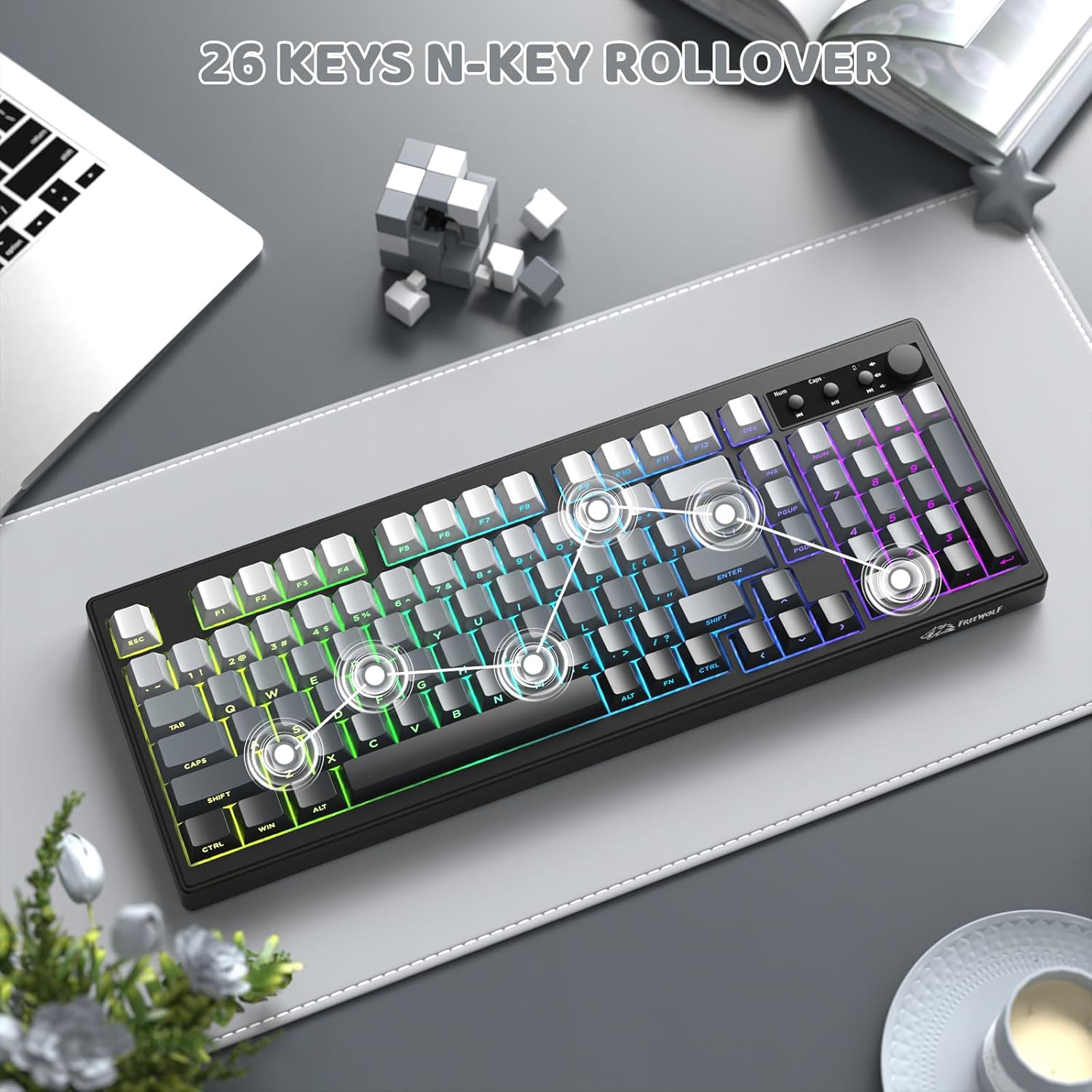
This image shows the compact 99-key layout of the keyboard, emphasizing its N-key rollover capability for precise input.
Design ergonomico
The keyboard features adjustable double leg braces, allowing you to set the typing angle for optimal comfort. A built-in slot securely stores the 2.4G USB receiver when not in use.

This image illustrates the adjustable feet for ergonomic positioning and the convenient storage slot for the 2.4G USB receiver.
Istruzioni di installazione
- Disimballare la tastiera: Carefully remove the keyboard and all accessories from the packaging. Ensure all components are present: keyboard, USB-C cable, and 2.4GHz USB receiver.
- Carica iniziale: Connect the keyboard to a USB power source using the provided USB-C cable. The battery indicator light will show charging status. A full charge is recommended before first use.
- Seleziona la modalità di connessione: Use the switch located on the back or side of the keyboard to select your desired connection mode:
- Modalità wireless a 2.4 GHz:
- Locate the 2.4GHz USB receiver, typically stored in a slot on the keyboard's underside.
- Collega il ricevitore a una porta USB disponibile sul tuo computer.
- Imposta la tastiera in modalità 2.4G. La tastiera dovrebbe connettersi automaticamente.
- Modalità Bluetooth:
- Switch the keyboard to BT mode.
- Premere e tenere premuto NV + 2 (O NV + 3, NV + 4) for 3-5 seconds until the indicator light flashes, indicating pairing mode.
- On your device (PC, Mac, tablet, phone), go to Bluetooth settings and search for "K100 Keyboard" (or similar).
- Select the keyboard to pair. Repeat for up to three different Bluetooth devices using FN+2, FN+3, and FN+4.
- Modalità cablata USB-C:
- Collega il cavo USB-C dalla tastiera al computer.
- Switch the keyboard to wired mode (if applicable, some keyboards automatically detect wired connection).
- Compatibilità del sistema:
- Premere FN+W to switch to Windows system layout.
- Premere FN+M to switch to macOS system layout.
Istruzioni per l'uso
Controllo dell'illuminazione RGB
- FN+INS: Switch between different RGB lighting effects.
- FN + CANC: Switch between solid RGB colors.
- FN + Backspace: Attiva/disattiva la retroilluminazione.
- FN + PagSu: Aumentare la luminosità della retroilluminazione.
- FN + PgDn: Ridurre la luminosità della retroilluminazione.
- FN + - / =: Regola la velocità dell'effetto di illuminazione.
Multimedia Knob and Keys
- Ruota la manopola: Regola il volume su o giù.
- Premere la manopola: Disattiva o riattiva l'audio.
- Tasti multimediali dedicati: Use the buttons next to the knob for Play/Pause, Previous Track, and Next Track.
Sleep Mode Behavior
- Modalità wireless: Backlight turns off after 2 minutes of inactivity. The keyboard enters deep sleep (disconnected) after 30 minutes of inactivity. Wake by pressing any key.
- Modalità cablata: The keyboard's sleep behavior follows your connected computer's sleep settings.
Manutenzione
- Pulizia della tastiera: Utilizzare un panno morbido e privo di lanugine leggermente dampened with water or a mild cleaning solution to wipe down the surface of the keyboard. Avoid excessive moisture.
- Pulizia dei tasti: For deeper cleaning, keycaps can be carefully removed (using a keycap puller if available) and washed with mild soap and water. Ensure they are completely dry before reattaching.
- Rimozione della polvere: Use compressed air to remove dust and debris from between the keycaps and under the keyboard.
- Magazzinaggio: Quando non si utilizza la tastiera per lunghi periodi, conservarla in un luogo fresco e asciutto, lontano dalla luce solare diretta.
Risoluzione dei problemi
- Keyboard not connecting via 2.4GHz wireless:
- Ensure the 2.4GHz USB receiver is securely plugged into a working USB port. Check that the keyboard is switched to 2.4G mode. Try re-pairing by unplugging and re-plugging the receiver, then restarting the keyboard.
- Problemi di connessione Bluetooth:
- Make sure the keyboard is in BT mode and in pairing mode (indicator light flashing after holding FN+2/3/4). Ensure Bluetooth is enabled on your device and try removing and re-pairing the keyboard in your device's Bluetooth settings. Check the keyboard's battery level.
- RGB backlight not working or dim:
- Premere FN + Backspace to ensure the backlight is turned on. Use FN + PagSu to increase brightness. Check the battery level; low battery can affect backlight performance. If in wired mode, ensure the USB-C cable is fully connected.
- Keys not responding or input lag:
- Ensure the keyboard is fully charged. If using wireless modes, try moving closer to the receiver/device or switching to wired mode to rule out interference. Clean any debris from under the affected keys. For multiple keys, check the connection mode.
- Multimedia knob not functioning:
- Ensure the keyboard is properly connected. Try restarting the keyboard. Verify that no software conflicts are present on your operating system that might override multimedia controls.
Specifiche
| Modello | K100 |
| Marca | FREEWOLF |
| Connettività | Bluetooth, wireless a 2.4 GHz, USB-C cablato |
| Conteggio delle chiavi | 99 Chiavi |
| Tipo di tastiera | Membrana |
| Retroilluminazione | RGB (16.8 milioni di colori) |
| keycaps | PBT Gradient, Side-Printed Legends |
| Capacità della batteria | 4000mAh |
| Anti-ghosting | 26-Key Rollover (NKRO) |
| Dimensioni | 16.06 x 5.79 x 1.50 pollici (408 mm x 147 mm x 38 mm) |
| Peso dell'articolo | 1.98 libbre |
| Compatibilità | Windows, macOS |

This image provides a visual representation of the keyboard's dimensions, including length, width, and height.
Prodotto finitoview Video
Questo video fornisce una panoramica visivaview of the FREEWOLF K100 Wireless Membrane Keyboard, showcasing its design, RGB lighting, multimedia knob, and connectivity options.
Garanzia e supporto
The FREEWOLF K100 keyboard comes with a standard manufacturer's warranty. For specific warranty details, return policies, or technical support, please refer to the documentation included with your purchase or contact FREEWOLF customer service directly through their official websito o rivenditore presso cui è stato acquistato il prodotto.


