
Introduzione
Thank you for choosing the Trueque Wireless Mouse. This manual provides detailed instructions to help you set up, operate, and maintain your new ergonomic wireless mouse. Designed for comfort and efficiency, this mouse features a stable 2.4GHz wireless connection, adjustable DPI levels, and six responsive buttons for enhanced productivity.
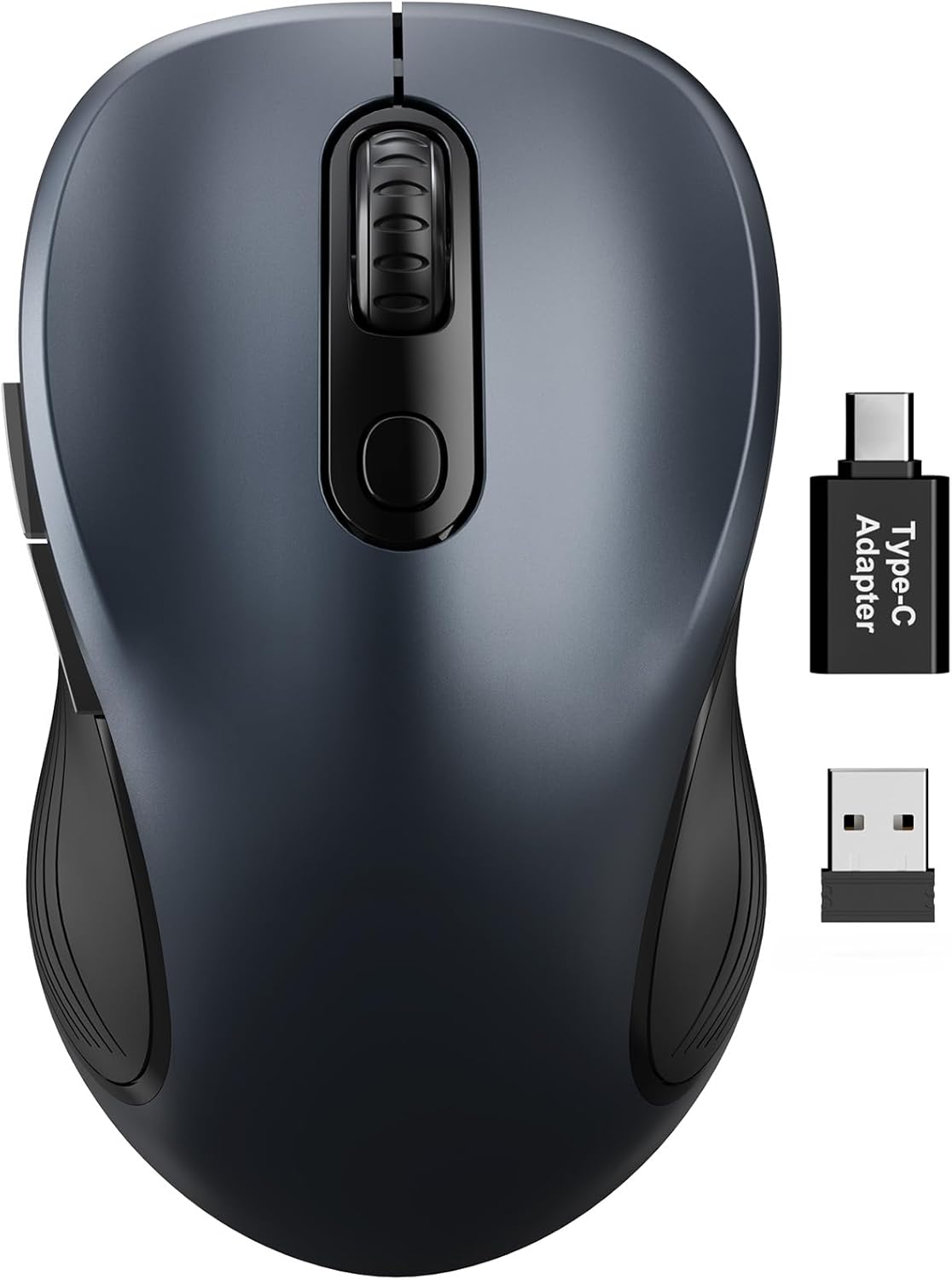
Figure 1: Trueque Wireless Mouse. Un generale view of the Trueque Wireless Mouse in Space Gray.
Prodotto finitoview
Familiarize yourself with the components and design features of your Trueque Wireless Mouse.
Componenti del mouse
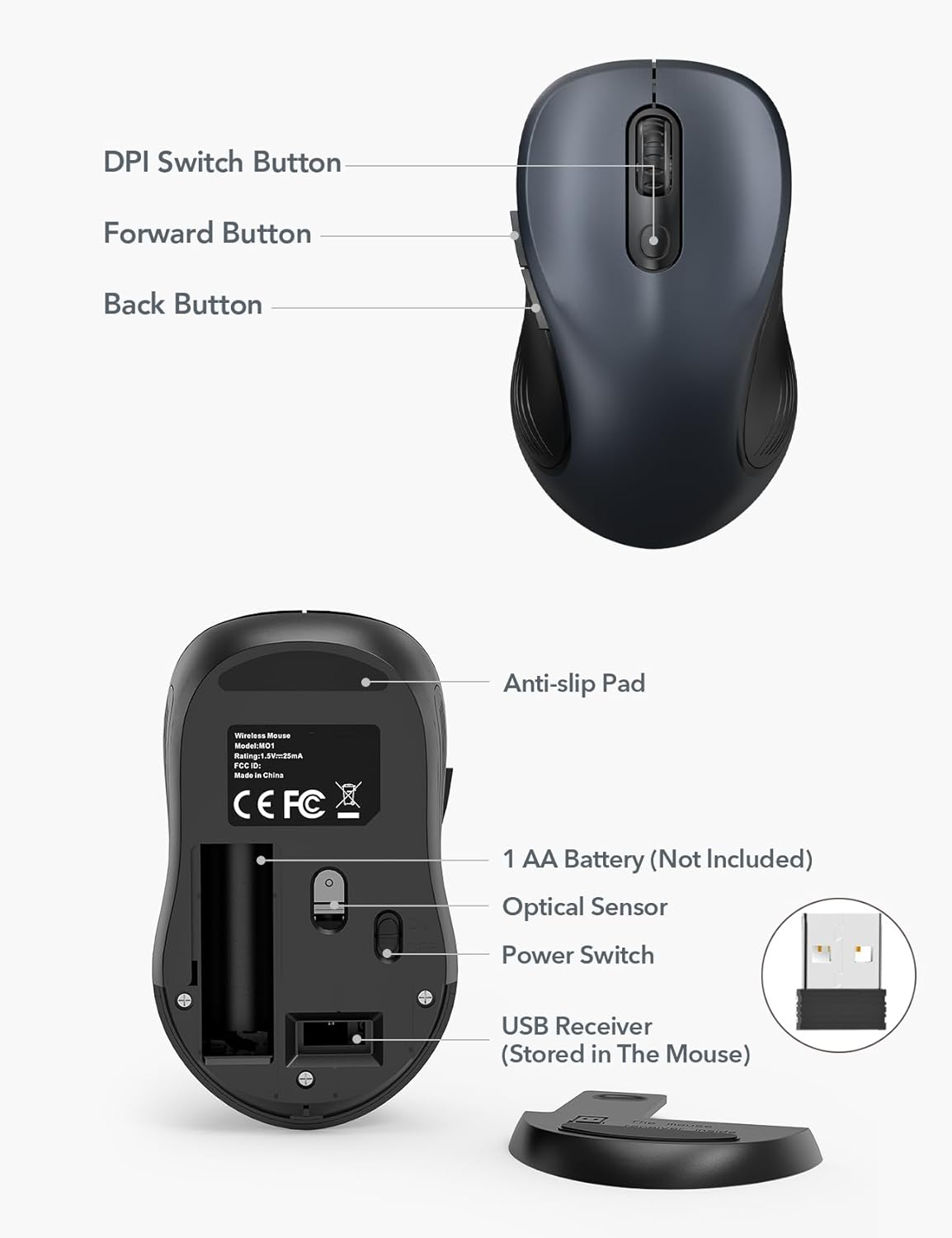
Figure 2: Mouse Components. This image shows the top and bottom views of the Trueque Wireless Mouse, highlighting key components such as the DPI Switch Button, Forward Button, Back Button, Anti-slip Pad, AA Battery compartment, Optical Sensor, Power Switch, and the USB Receiver storage slot.
- Pulsante di commutazione DPI: Regola la sensibilità del cursore.
- Pulsante Avanti: Naviga in avanti in web browser o file esploratori.
- Pulsante Indietro: Naviga indietro in web browser o file esploratori.
- Cuscinetto antiscivolo: Garantisce stabilità durante l'uso.
- 1 AA Battery (Not Included): Power source for the mouse.
- Sensore ottico: Tiene traccia del movimento del mouse.
- Interruttore di alimentazione: Accende o spegne il mouse.
- USB Receiver (Stored In The Mouse): Collega il mouse al computer in modalità wireless.
Design ergonomico
The mouse features a natural curved shape and a skin-friendly silicone grip to minimize thumb and wrist strain, ensuring comfort during extended use.

Figure 3: Ergonomic Comfort. This image shows a hand comfortably resting on the Trueque Wireless Mouse, highlighting its ergonomic design for all-day use.
The mouse is designed to fit small to medium hands. Refer to the hand size guide below to determine if this mouse is suitable for your palm length and width.

Figure 4: Hand Size Guide. This image provides a guide for palm length and width to determine the ideal fit for the mouse, suggesting it's suitable for palms under 7.5 inches.
Design leggero
Weighing less than 60 grams, the mouse is lightweight and portable, ideal for everyday carry and travel.

Figure 5: Lightweight and Portable. This image shows the mouse being easily stored in a bag, emphasizing its lightweight design for portability.
Istruzioni di installazione
Follow these steps to set up your Trueque Wireless Mouse for first-time use.
1. Installare la batteria
Il mouse richiede una batteria AA (non inclusa).
- Aprire il coperchio del vano batterie situato nella parte inferiore del mouse.
- Inserire una batteria AA, assicurandosi della corretta polarità (+/-).
- Chiudere il coperchio del vano batterie.
Figure 6: Battery and USB Receiver Location. This image illustrates the battery compartment and the storage slot for the USB receiver on the underside of the mouse.
2. Collegare il ricevitore USB
The USB receiver is stored within the mouse for convenience.
- Gently remove the USB receiver from its storage slot on the bottom of the mouse.
- Collegare il ricevitore USB a una porta USB-A disponibile sul computer.
- If your device only has USB-C ports, use the included USB-A to USB-C adapter. Connect the USB receiver to the adapter, then plug the adapter into your device's USB-C port.
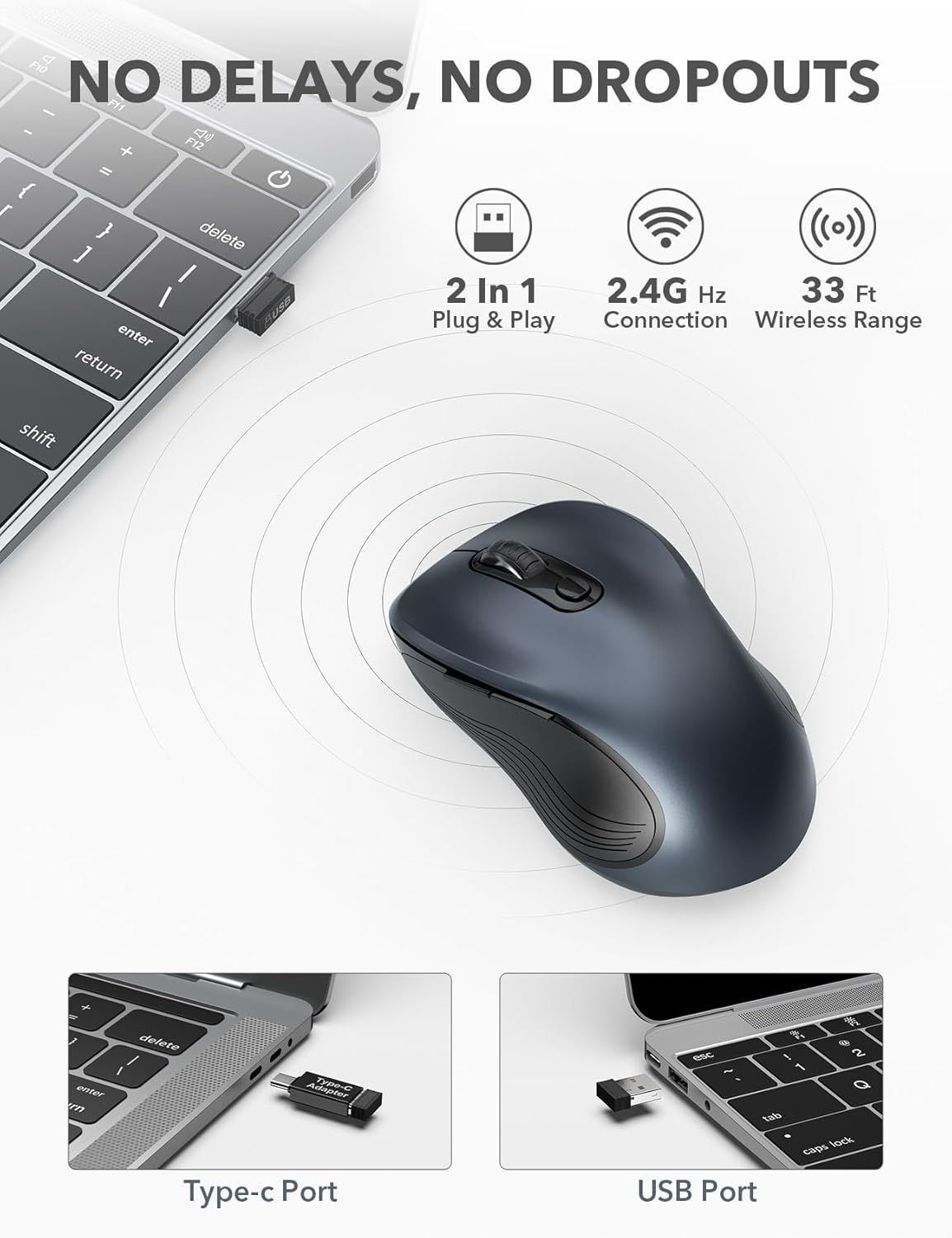
Figure 7: USB Receiver Connection. This image demonstrates how to connect the 2.4GHz USB receiver to both a standard USB-A port and a USB-C port using the provided adapter.
3. Accensione
Slide the power switch on the underside of the mouse to the "ON" position. The mouse will automatically connect to the receiver.
4. Compatibilità
The Trueque Wireless Mouse is compatible with various operating systems, including Windows, Mac OS, Linux, and Chrome OS.

Figure 8: Operating System Compatibility. This image shows the Trueque Wireless Mouse is compatible with Windows, Chrome OS, Mac OS, and Linux.
Istruzioni per l'uso
Accensione/spegnimento
Use the power switch on the bottom of the mouse to turn it on or off. Turning the mouse off when not in use helps conserve battery life.
Regolazione DPI
The mouse features 3 adjustable DPI (Dots Per Inch) levels to control cursor sensitivity.
- Press the DPI Switch Button (located behind the scroll wheel) to cycle through the available DPI settings: 800, 1200, and 1600 DPI.
- Select the DPI level that best suits your preference for speed and precision.
Figure 9: DPI Levels. This image illustrates the three adjustable DPI settings (800, 1200, 1600) available on the mouse.
Pulsanti avanti e indietro
The side buttons provide quick navigation:
- IL Pulsante Avanti (top side button) allows you to navigate forward in web browser o file esploratori.
- IL Pulsante Indietro (bottom side button) allows you to navigate backward in web browser o file esploratori.
Modalità sospensione automatica
To conserve battery, the mouse enters an auto-sleep mode after 1 minute of inactivity.
- To wake the mouse, double-click any button.
- A single AA battery can last up to 16 months thanks to this smart feature.

Figure 10: Battery Life and Auto-Sleep. This image highlights the mouse's long battery life (up to 16 months) and its power-saving auto-sleep mode.
Funzione di clic silenzioso
The mouse is designed with silent click buttons to minimize noise, making it suitable for quiet environments.

Figure 11: Silent Click Comparison. This image visually compares the low sound level of the Trueque mouse (20dB) to other common sounds like breathing (10dB), office noise (50dB), and an alarm (70dB).
Manutenzione
Sostituzione della batteria
When the mouse performance degrades or it stops responding, it's time to replace the AA battery.
- Spegnere il mouse tramite l'interruttore di alimentazione.
- Aprire il coperchio del vano batterie.
- Rimuovere la vecchia batteria AA.
- Insert a new AA battery, observing correct polarity.
- Close the battery compartment cover and turn the mouse on.
Pulizia
Per mantenere prestazioni e igiene ottimali:
- Scollegare il mouse dal computer e spegnerlo.
- Utilizzare leggermente un panno morbido e privo di lanugine dampPulire la parte esterna del mouse con acqua o una soluzione detergente delicata.
- Evitare che l'umidità penetri nelle aperture.
- Non utilizzare prodotti chimici aggressivi o detergenti abrasivi.
Risoluzione dei problemi
| Problema | Soluzione |
|---|---|
| Il mouse non risponde |
|
| Il movimento del cursore è irregolare o saltellante |
|
| Back/Forward buttons not working |
|
Specifiche
| Caratteristica | Dettaglio |
|---|---|
| Marca | Permuta |
| Modello | M01_19 |
| Tecnologia di connettività | Wireless a 2.4 GHz (ricevitore USB) |
| Rilevamento del movimento | Ottico |
| Livelli DPI | 800/1200/1600 |
| Numero di pulsanti | 6 (Sinistra, Destra, Rotellina di scorrimento, DPI, Avanti, Indietro) |
| Orientamento della mano | Ambidestro |
| Fonte di alimentazione | Batteria 1 x AA (non inclusa) |
| Durata della batteria | Up to 16 months (with auto-sleep) |
| wireless Range | Fino a 33 piedi (10 metri) |
| Dimensioni del prodotto | Dimensioni: 10.41 x 6.1 x 0.25 cm |
| Peso dell'articolo | 68.04 grammi |
| Caratteristiche speciali | Ergonomic Design, Silent Click, Auto-Sleep Mode, USB-A to USB-C Adapter Included |
Garanzia e supporto
The Trueque Wireless Mouse is backed by a 12-month warranty from the date of purchase. This warranty covers manufacturing defects under normal use.
For technical support, warranty claims, or any questions regarding your product, please contact Trueque customer service. Please have your purchase information ready when contacting support.
Nota: La garanzia non copre i danni causati da uso improprio, incidenti, modifiche non autorizzate o installazione non corretta.