
1. Introduzione
This manual provides detailed instructions for the safe and efficient use of your MUNBYN MC240 Bluetooth Thermal Label Printer. Please read this manual thoroughly before operating the device and retain it for future reference. Proper use ensures optimal performance and longevity of your printer.

Figure 1.1: MUNBYN MC240 Printer in operation with accompanying labels and mobile application interface.
2. Prodotto finitoview
2.1. Caratteristiche principali
- Smart Dual Connectivity: Connects wirelessly via the MUNBYN Print App (iOS/Android) or via USB to Windows, Mac, and Chromebook.
- Flexible Dual Printing Modes: Features a built-in paper bin for rolls up to 52mm wide (approx. 50–150 labels) and supports an external feed option for larger labels (1.57"–4.3" sizes).
- Portable Battery Design: Integrated rechargeable battery allows for printing 4x6 shipping labels without a power outlet.
- Ampia compatibilità con le etichette: Supports various thermal label sizes, including 1.97'' x 1.18'' (50mm x 30mm) labels.
2.2. Contenuto della confezione
Dopo aver disimballato la confezione, assicurati che siano presenti tutti gli articoli:
- Stampante termica per etichette MUNBYN MC240
- Cavo USB
- Adattatore di alimentazione
- Guida rapida
- Sample Thermal Labels
3. Impostazione
3.1. Caricamento delle etichette termiche
The MUNBYN MC240 supports both internal roll loading and external fanfold label feeding.
- Aprire il coperchio della stampante sollevandolo delicatamente.
- For roll labels, place the label roll into the built-in paper bin. Ensure the labels feed smoothly through the printer's mechanism. The built-in bin accommodates rolls up to 52mm in width.
- For fanfold labels, feed them from the rear external slot.
- Chiudere saldamente il coperchio della stampante.

Figure 3.1: Loading labels into the MUNBYN MC240 printer, demonstrating both internal roll and external fanfold label options.
3.2. Collegamento della stampante
La stampante offre connettività sia Bluetooth che USB.
3.2.1. Connessione Bluetooth (iOS/Android)
- Scarica il MUNBYN Print App dall'app store del tuo dispositivo.
- Assicurati che la stampante sia accesa e che il Bluetooth sia abilitato sul tuo dispositivo mobile.
- Open the MUNBYN Print App and follow the in-app instructions to pair with your MC240 printer.
3.2.2. USB Connection (Windows/Mac/Chromebook)
- Collega la stampante al computer utilizzando il cavo USB in dotazione.
- Install the appropriate printer drivers for your operating system. Drivers can typically be found on the official MUNBYN websito.
- Once drivers are installed, the printer should appear in your computer's list of available printers.

Figure 3.2: Connectivity options for the MUNBYN MC240 printer, including Bluetooth for mobile and USB for desktop devices.
4. Istruzioni per l'uso
4.1. Accensione/Spegnimento
- Per accendere, tenere premuto il pulsante di accensione finché la spia non si accende.
- Per spegnere, tenere premuto nuovamente il pulsante di accensione finché la spia non si spegne.
4.2. Printing from the MUNBYN Print App
- Assicurati che la stampante sia connessa al tuo dispositivo mobile tramite Bluetooth.
- Open the MUNBYN Print App.
- Select or create your desired label design. The app offers over 2,000 templates and 3,500 pre-made elements for customization.
- Adjust print settings such as label size and quantity.
- Tap the 'Print' button to send the job to the printer.

Figure 4.1: The MUNBYN Print App interface for label customization and printing.
4.3. Stampa da un computer
- Assicurati che la stampante sia collegata al computer tramite USB e che i driver siano installati.
- Aprire il documento o l'applicazione da cui si desidera stampare (ad esempio, software di spedizione, elaboratore di testi).
- Selezionare "Stampa" dal menu dell'applicazione.
- Choose the MUNBYN MC240 from the list of available printers.
- Adjust print settings, such as paper size (to match your labels) and orientation, as needed.
- Click 'Print' to send the job.
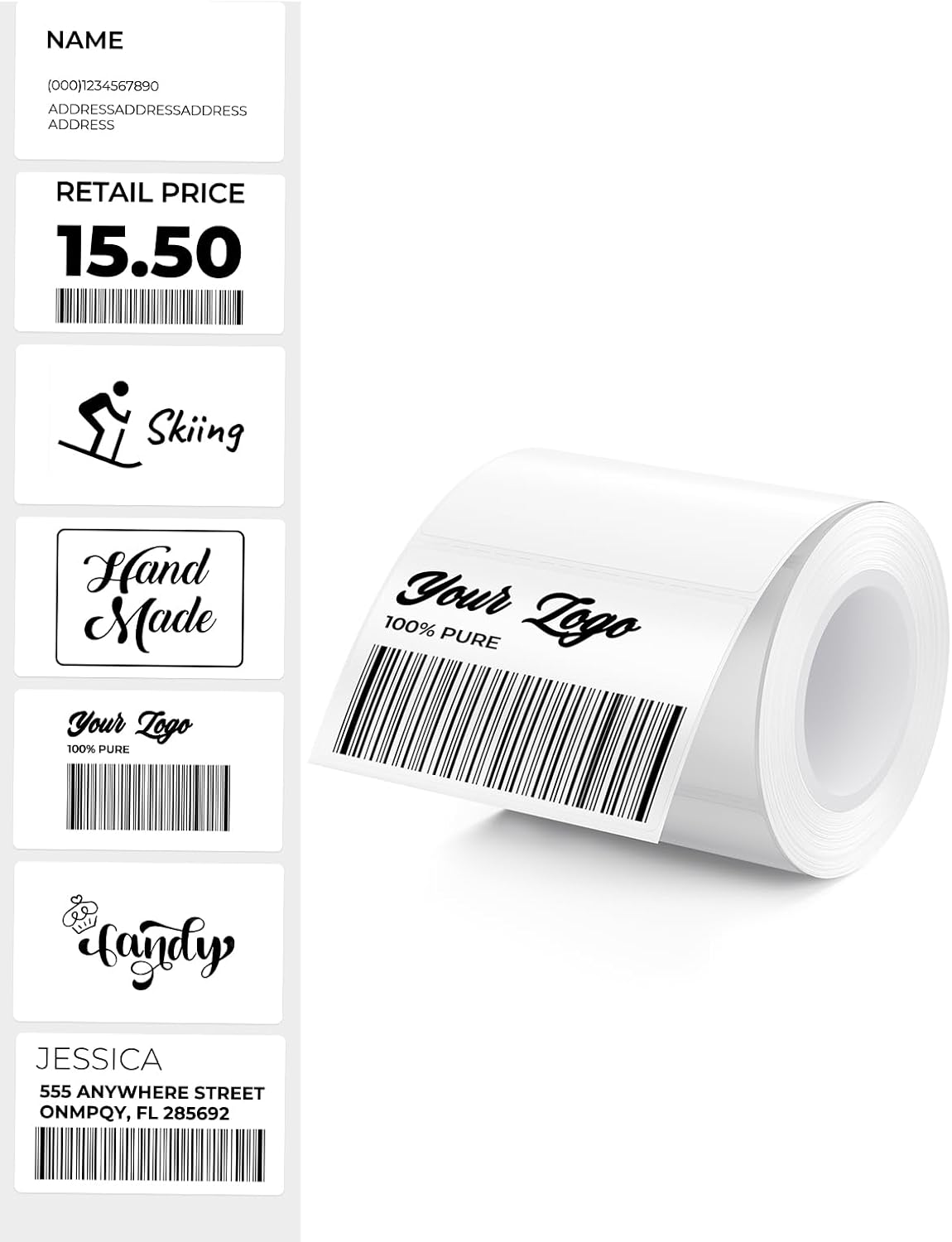
Figura 4.2: Esamples of labels that can be printed with the MUNBYN MC240.
5. Manutenzione
5.1. Pulizia della testina di stampa
Regular cleaning of the print head ensures clear and consistent print quality.
- Spegnere la stampante e scollegarla dalla fonte di alimentazione.
- Aprire il coperchio della stampante.
- Pulire delicatamente la testina di stampa con un batuffolo di cotone leggermenteampcon alcol isopropilico. Non utilizzare acqua o detergenti abrasivi.
- Lasciare asciugare completamente la testina di stampa prima di chiudere il coperchio e accendere la stampante.
5.2. Conservazione
Store the printer in a cool, dry place away from direct sunlight and extreme temperatures. When not in use for extended periods, ensure the printer is powered off and disconnected.
6. Risoluzione Dei Problemi
If you encounter issues with your MUNBYN MC240 printer, refer to the following common problems and solutions:
| Problema | Possibile causa | Soluzione |
|---|---|---|
| La stampante non si accende | Batteria scarica o nessuna connessione di alimentazione | Charge the printer or connect to a power source. |
| Le etichette non vengono alimentate correttamente | Labels improperly loaded or jammed | Ensure labels are loaded correctly and clear any jams. Refer to Section 3.1. |
| Qualità di stampa scadente | Dirty print head or incorrect label type | Clean the print head (Section 5.1). Ensure you are using direct thermal labels. |
| Errore di connessione Bluetooth | Printer not discoverable or app issue | Ensure printer is on and in pairing mode. Restart the app and your device's Bluetooth. Refer to Section 3.2.1. |
| USB printing not working | Driver mancanti o errati | Install or update printer drivers from the MUNBYN website. Refer to Section 3.2.2. |
7. Specifiche
- Modello: MC240
- Metodo di stampa: Termico diretto
- Connettività: Bluetooth, USB
- Sistemi operativi supportati: iOS, Android, Windows, Mac, Chromebook
- Label Width (Internal Bin): Up to 52mm (approx. 50-150 labels per roll)
- Label Width (External Feed): 1.57" – 4.3" (40 mm – 110 mm)
- Batteria: Rechargeable (Portable operation)
- Etichette incluse: 1.97'' x 1.18'' (50mm x 30mm), 230 labels/roll
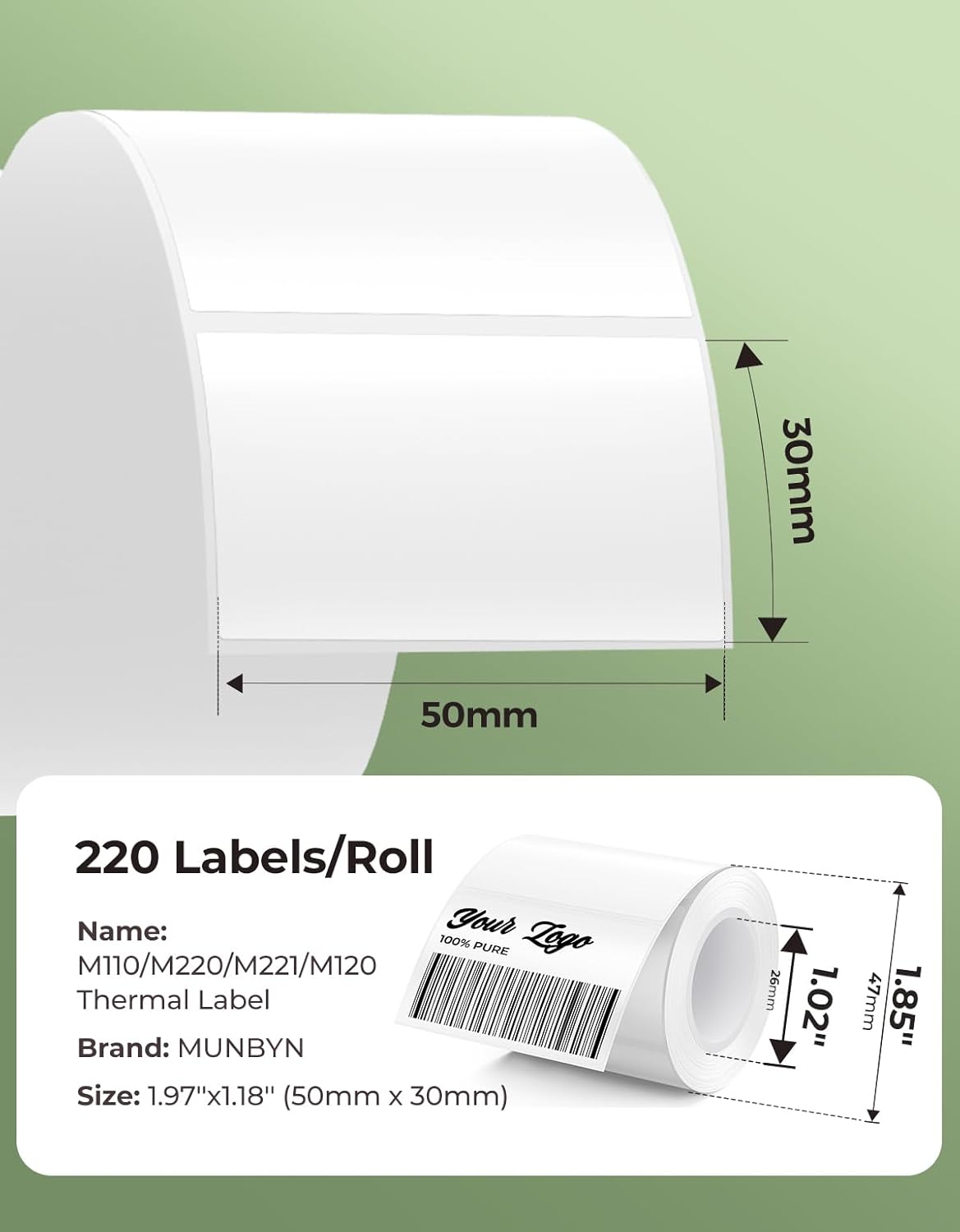
Figura 7.1: Esample label dimensions compatible with the MUNBYN MC240 printer.
8. Garanzia e supporto
The MUNBYN MC240 Bluetooth Thermal Label Printer comes with a standard manufacturer's warranty. For specific warranty terms, registration, or technical support, please visit the official MUNBYN websito o contattare il servizio clienti. Conservare la ricevuta d'acquisto come prova d'acquisto.
Supporto online: Visita www.munbyn.com per domande frequenti, download di driver e informazioni di contatto.