
1. Informazioni importanti sulla sicurezza
Leggere attentamente tutte le istruzioni prima di utilizzare questo monitor. Conservare il manuale per riferimento futuro.
- Non esporre il monitor a pioggia, umidità o temperature estreme.
- Garantire un'adeguata ventilazione attorno al monitor per evitare il surriscaldamento.
- Utilizzare solo l'adattatore di alimentazione fornito con il monitor.
- Evitare di posizionare oggetti pesanti sul cavo di alimentazione o sul monitor.
- Scollegare la spina di alimentazione dalla presa se il monitor non verrà utilizzato per un periodo prolungato.
- Non tentare di riparare il monitor da soli. Per qualsiasi intervento di manutenzione, rivolgersi a personale qualificato.
2. Contenuto della confezione
Verifica che tutti gli articoli siano presenti nel tuo pacco:
- 27-inch QHD 210Hz Monitor (1 unit)
- Supporto per monitor (1 unità)
- Guida rapida (QSG) (1 unità)
- Cavo DP (1 unità)
- Adattatore di alimentazione (1 unità)
- Cavo di alimentazione (1 unità)
- Shielding Hood (2 units)

Video: KTC 27M1 27 Inch 210Hz Gaming Monitor. This video provides a visual overview of the monitor and its features.
3. Istruzioni per l'installazione
3.1 Montaggio del supporto del monitor
- Estrarre con cautela il monitor e i componenti del supporto dalla confezione.
- Attach the stand base to the stand arm using the provided screw.
- Align the stand arm with the mounting slot on the back of the monitor and push until it clicks into place.
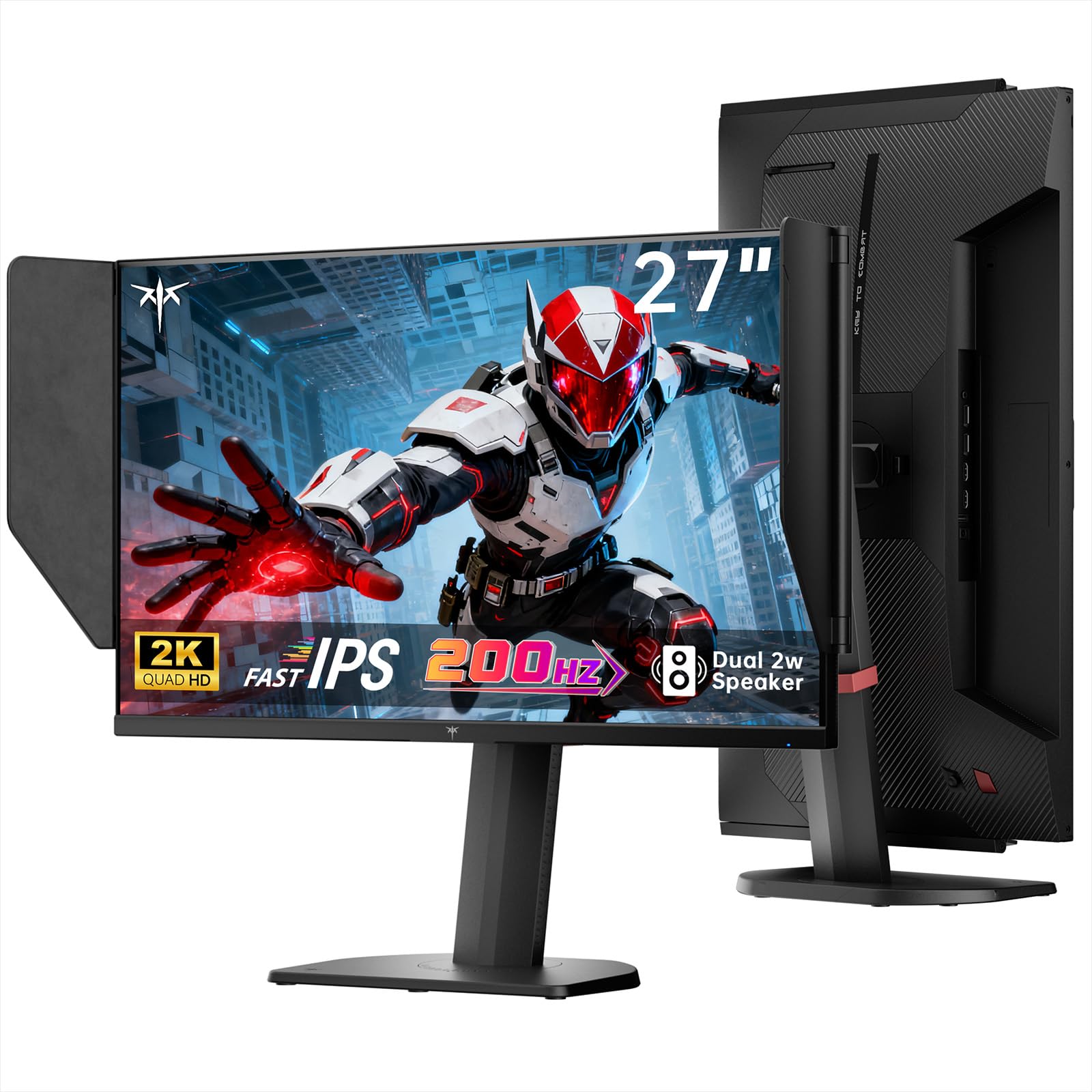
Image: The KTC 27M1 monitor with its stand fully assembled, ready for use.
3.2 Attaching the Shielding Hood
The shielding hood helps reduce glare and reflections for an optimal viewesperienza di acquisizione.
- Locate the two shielding hood pieces.
- Align each piece with the designated slots on the sides of the monitor and gently slide them into place until secure.

Image: The KTC 27M1 monitor shown with the shielding hood attached, designed to block reflected light.
3.3 Cavi di collegamento
Collega il monitor al tuo computer o ad altri dispositivi utilizzando gli appositi cavi:
- Porta Display (DP): For 200Hz (overclockable to 210Hz) refresh rates, connect the DP cable from your graphics card to the monitor's DP 1.4 port.
- HDMI: For 144Hz refresh rates, connect an HDMI 2.0 cable from your device to one of the monitor's HDMI ports.
- Energia: Connect the power adapter to the DC input on the monitor, then plug the power cord into a wall outlet.
- Audio: Connect headphones or external speakers to the 3.5mm earphone jack if desired.

Immagine: Primo piano view of the KTC 27M1 monitor's rear ports, including HDMI, DisplayPort, USB, and earphone jack.
4. Istruzioni per l'uso
4.1 Accensione/spegnimento
Press the 5-way navigation joystick located on the back of the monitor to power it on or off.
4.2 Navigazione nel menu OSD
The 5-way navigation joystick is used to access and navigate the On-Screen Display (OSD) menu:
- Premere il joystick per aprire il menu OSD.
- Muovi il joystick verso l'alto/il basso/sinistra/destra per navigare tra le opzioni del menu.
- Premere nuovamente il joystick per selezionare un'opzione o confermare un'impostazione.
- Move the joystick Left to go back to the previous menu or exit the OSD.
4.3 Regolazione delle impostazioni di visualizzazione
Nel menu OSD è possibile regolare varie impostazioni di visualizzazione:
- Luminosità/Contrasto: Regola i livelli generali di luminanza e contrasto.
- Impostazioni colore: Modify color temperature (Warm, Cool, User), gamma, hue, and saturation. The monitor offers 130% sRGB color gamut and ΔE<2 for accurate color reproduction.
- Configurazione di gioco: Enable/disable Adaptive Sync (FreeSync/G-Sync Compatible), adjust Overdrive (Ultra Fast recommended for gaming), and activate Game Assist features.
- Impostazioni avanzate: Toggle HDR (Auto/Off) and OverClock (to achieve 210Hz refresh rate).
- Ingresso: Manually select the input source (DP, HDMI1, HDMI2).
- Set di sistema: Change OSD language, LED indicator, audio volume, and other system preferences.
4.4 Regolazioni ergonomiche
The monitor stand supports multiple ergonomic adjustments for comfortable viewin:
- Regolazione dell'altezza: Adjust the monitor height by 150±5mm.
- Inclinazione: Tilt the screen from -5° to 35°.
- Girevole: Swivel the monitor ±60°.
- Perno: Pivot the screen from -5° to 90° for vertical orientation.

Image: Visual representation of the KTC 27M1 monitor's tilt, swivel, elevate, and pivot adjustments.
5 Caratteristiche
- Display: 27-inch QHD (2560x1440) Fast IPS panel.
- Frequenza di aggiornamento: 200Hz, overclockable to 210Hz.
- Tempo di risposta: 1ms (MPRT) for sharp visuals.
- Precisione del colore: 130% sRGB color gamut, 99% DCI-P3 coverage, ΔE<2, 450 cd/m² brightness, 1.07 Billion Colors, 1000:1 Contrast Ratio.
- Sincronizzazione adattiva: FreeSync and G-Sync Compatible to eliminate screen tearing.
- Cura degli occhi: Flicker-free and low blue light modes for extended comfortable viewing.
- Audio: Built-in dual 2W speakers.
- Connettività: 2x HDMI 2.0 ports, 1x DisplayPort 1.4 port, 1x USB 2.0 port, 1x Earphone jack.
- Montaggio: 100x100mm VESA mount compatible.
- Progetto: Includes a detachable shielding hood to block reflected light.

Image: The KTC 27M1 monitor displaying vibrant colors, highlighting its color accuracy and brightness features.
6. Specifiche
| Caratteristica | Specificazione |
|---|---|
| Marca | KTC |
| Numero di modello | H27T8 (Marketed as 27M1) |
| Dimensioni dello schermo | 27 pollici |
| Risoluzione nativa | 2560x1440 (QHD) |
| Tecnologia di visualizzazione | Quasi IPS |
| Frequenza di aggiornamento | 200 Hz (Overclockable to 210 Hz) |
| Tempo di risposta | 1 millisecondo (MPRT) |
| Luminosità | 450 candele (cd/m²) |
| Rapporto di contrasto | 1000:1 |
| Gamma di colori | Colore: 130% sRGB, 99% DCI-P3 |
| Viewangolo di ing | 178 gradi |
| Supporto HDR | SÌ |
| Sincronizzazione adattiva | FreeSync, G-Sync Compatible |
| Altoparlanti incorporati | 2x 2W Speakers |
| Connettività | 2x HDMI 2.0, 1x DisplayPort 1.4, 1x USB 2.0, 1x Earphone |
| Supporto VESA | 100x100mm |
| Ergonomia | Height, Tilt, Swivel, Pivot Adjustment |
| Consumo energetico | 48 Watt |
7. Manutenzione e cura
- Pulizia dello schermo: Pulire delicatamente lo schermo con un panno morbido e privo di lanugine. Per macchie ostinate, dampen the cloth with a mild, non-abrasive screen cleaner.
- Pulizia del Casing: Utilizzare un panno morbido e asciutto per pulire il monitor casing. Evitare l'uso di detergenti aggressivi o abrasivi.
- Ventilazione: Ensure the ventilation openings on the monitor are clear and unobstructed to prevent overheating.
- Magazzinaggio: Se si conserva il monitor per un periodo prolungato, scollegarlo dall'alimentazione e conservarlo in un luogo fresco e asciutto.
8. Risoluzione Dei Problemi
8.1 Nessun potere
- Verificare che il cavo di alimentazione sia collegato saldamente al monitor e alla presa di corrente.
- Verificare che la presa di corrente funzioni correttamente collegandovi un altro dispositivo.
- Assicurarsi che l'adattatore di alimentazione sia collegato correttamente.
8.2 No Signal/Blank Screen
- Verificare che il cavo video (DP o HDMI) sia collegato saldamente sia al monitor sia al computer/dispositivo.
- Press the OSD joystick to open the menu and manually select the correct input source.
- Assicurati che il computer/dispositivo sia acceso e non in modalità sospensione.
- Try using a different video cable or port to rule out cable/port issues.
8.3 Flickering/Distorted Image
- Controllare il cavo video per eventuali danni o collegamenti allentati.
- Adjust the refresh rate in your computer's display settings to match the monitor's native refresh rate (200Hz or 210Hz if overclocked).
- Enable Adaptive Sync (FreeSync/G-Sync Compatible) in the monitor's OSD menu and your graphics card settings.
- Assicurati che i driver della scheda grafica siano aggiornati.
8.4 No Sound from Built-in Speakers/Earphone Jack
- Check the volume settings in the monitor's OSD menu and your computer's operating system.
- Assicurati che nelle impostazioni audio del tuo computer sia selezionato il dispositivo di output audio corretto.
- Verify that the audio cable (if using external speakers) or headphones are properly connected.
9. Garanzia e supporto
KTC is committed to providing quality service and support for your monitor.
- Garanzia: Questo prodotto è dotato di una garanzia di qualità di 3 anni.
- Supporto tecnico: Lifetime technical support is available for all KTC products.
- Contattaci: If you have any questions or encounter issues, please contact KTC customer support. Solutions will be provided within 24 hours.