
Introduzione
Thank you for choosing the KAMRUI Hyper H2 Mini PC. This compact and powerful desktop computer is designed for a wide range of applications, from demanding office tasks and creative projects to home entertainment and light gaming. Equipped with an Intel Core i5-14450HX processor, 16GB DDR4 RAM, and a 512GB NVMe SSD, it offers robust performance and seamless multitasking capabilities. Its versatile connectivity options and triple 4K display support ensure a flexible and immersive user experience.
This manual provides essential information on setting up, operating, maintaining, and troubleshooting your KAMRUI Hyper H2 Mini PC. Please read it thoroughly to ensure optimal performance and longevity of your device.
Cosa c'è nella scatola
Upon opening your KAMRUI Hyper H2 Mini PC package, please verify that all the following items are included:
- 1 x KAMRUI Hyper H2 Mini PC
- 1 x cavo HDMI
- 1 x supporto VESA con viti
- 1 x adattatore di alimentazione
- 1 x Manuale utente

Prodotto finitoview
The KAMRUI Hyper H2 Mini PC is engineered for efficiency and connectivity. Its compact chassis houses a powerful Intel Core i5-14450HX processor, supported by a robust cooling system to ensure stable performance even under heavy workloads.
Porte del pannello frontale
- 1 x USB 3.2 Gen2 Type-C port (10Gbps data transfer, DisplayPort Alt Mode, 15W power delivery)
- 2 x USB 3.2 Gen2 Type-A ports (10Gbps)
- 1 x Audio Jack (3.5mm for headphones/microphone)
- 1 x Pulsante di accensione
Porte del pannello posteriore
- 1 porta HDMI 2.0
- 1 x DisplayPort 1.4b
- 1 x RJ45 Gigabit Ethernet Port
- 4 x USB 3.2 Gen1 Type-A ports (5Gbps)
- 1 x ingresso di alimentazione CC

Guida all'installazione
Follow these steps for initial setup of your KAMRUI Hyper H2 Mini PC:
- Connetti Display: Connect your monitor(s) to the Mini PC using the HDMI, DisplayPort, or USB-C port. For triple display setup, utilize all three available video outputs.
- Connetti le periferiche: Collega la tastiera, il mouse e qualsiasi altro dispositivo USB alle porte USB disponibili.
- Connetti alla rete: For wired internet, connect an Ethernet cable to the RJ45 Gigabit Ethernet port. For wireless, ensure your Wi-Fi 6 network is available after initial boot.
- Connetti alimentazione: Collegare l'adattatore di alimentazione alla porta di ingresso CC del Mini PC, quindi collegare l'adattatore a una presa di corrente.
- Accensione: Press the power button on the front panel to turn on your Mini PC.
- Configurazione iniziale: Follow the on-screen instructions to complete the Windows 11 Pro setup, including language, network, and user account settings.
Installazione con montaggio VESA
The included VESA mount allows you to attach the Mini PC to the back of a compatible monitor or TV, saving desk space and creating a clean setup.
- Fissare la staffa di montaggio VESA sul retro del monitor utilizzando le viti fornite.
- Slide the KAMRUI Hyper H2 Mini PC onto the mounted bracket until it clicks securely into place.
Istruzioni per l'uso
Funzionamento di base
- Accensione/spegnimento: Press the power button once to turn the device on or off. For a forced shutdown, press and hold the power button for 5-7 seconds.
- Ricomincia: Use the operating system's restart option for proper system reboots.
- Modalità risparmio: The system will enter sleep mode after a period of inactivity or by selecting the sleep option in the OS.
Configurazione multi-display
The KAMRUI Hyper H2 supports up to three 4K@60Hz displays simultaneously, enhancing productivity and entertainment. Connect your displays to the HDMI, DisplayPort, and full-featured USB-C ports. Once connected, configure your display settings within the operating system (e.g., Extend, Duplicate, or Second screen only).

Manutenzione e aggiornamenti
Sistema di raffreddamento
The KAMRUI Hyper H2 features a premium thermal design with a dual-fan cooling system, full copper heat pipes, and a dedicated aluminum SSD heatsink. This ensures the CPU and storage remain cool, even under sustained heavy workloads. To maintain optimal cooling performance:
- Assicurare un corretto flusso d'aria mantenendo le prese d'aria libere da ostruzioni.
- Pulire regolarmente le prese d'aria dalla polvere utilizzando aria compressa.

RAM and SSD Upgrades
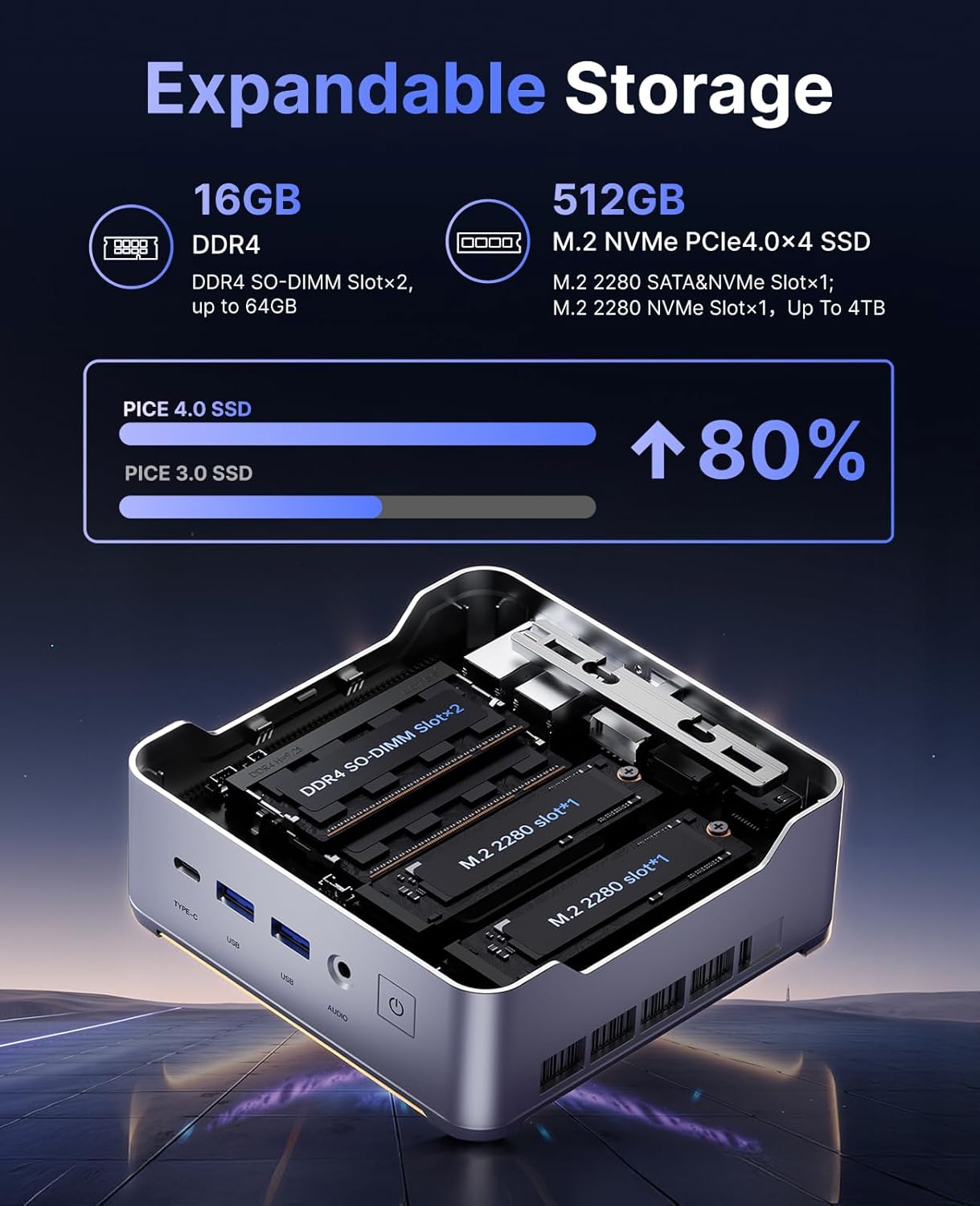
The KAMRUI Hyper H2 is designed for easy upgrades, allowing you to expand its memory and storage capacity. The Mini PC supports:
- Memoria RAM: Up to 2x 32GB DDR4 3200MHz/s SO-DIMM (total 64GB).
- SSD: Up to 2x 2TB NVMe SSD (M.2 2280 PCIe Gen4x4).
To access the RAM and SSD slots:
- Ensure the Mini PC is powered off and disconnected from all cables.
- Locate the small Phillips screw on the rear panel next to the lock/unlock switch. Remove this screw.
- Slide the lock switch to the unlock position. The top cover will lift slightly.
- Rimuovere con cautela il coperchio superiore.
- Unscrew the four Phillips screws holding the metal plate/cover.
- Gently lift the metal plate to reveal the RAM and NVMe SSD slots.
- Install or replace your RAM modules or NVMe SSDs as needed.
- Reassemble the Mini PC by reversing these steps, ensuring all screws are tightened and the cover is securely locked.
Risoluzione dei problemi
If you encounter any issues with your KAMRUI Hyper H2 Mini PC, please refer to the following common solutions:
- Nessun potere:
- Assicurarsi che l'adattatore di alimentazione sia collegato saldamente sia al Mini PC sia a una presa di corrente funzionante.
- Verificare che la presa di corrente funzioni collegandovi un altro dispositivo.
- Nessuna visualizzazione:
- Check all video cable connections (HDMI, DP, USB-C) between the Mini PC and your monitor(s).
- Ensure your monitor is powered on and set to the correct input source.
- Try connecting to a different display or using a different video cable.
- Nessuna connessione internet:
- Per la connessione cablata, assicurati che il cavo Ethernet sia collegato correttamente e che il router/modem funzioni.
- For Wi-Fi, check if Wi-Fi is enabled in Windows settings and ensure you are connected to the correct network with the right password.
- Riavvia il router/modem e il Mini PC.
- Prestazioni lente:
- Chiudere le applicazioni non necessarie in esecuzione in background.
- Assicurati che il sistema operativo e i driver siano aggiornati.
- Verificare la presenza di malware o virus utilizzando un software antivirus affidabile.
- Consider upgrading RAM or SSD if performance issues persist, especially with demanding tasks.
Specifiche
| Caratteristica | Specificazione |
|---|---|
| Processore | Intel Core i5-14450HX (10 Cores/16 Threads, up to 4.8GHz) |
| Grafica | Integrated UHD Graphics for 14th Gen Processors (max frequency 1.5GHz) |
| Memoria RAM | 16GB DDR4 (Expandable up to 64GB, 2x SO-DIMM slots) |
| Magazzinaggio | 512GB NVMe PCIe 4.0 SSD (Expandable up to 2x 2TB NVMe SSD) |
| Uscita video | Triple 4K@60Hz (HDMI 2.0, DP 1.4b, USB-C with DisplayPort Alt Mode) |
| Connettività wireless | Wi-Fi 6 (802.11ax), Bluetooth 5.2 |
| Connettività cablata | 1 x RJ45 Gigabit Ethernet Port |
| Porte USB | 1 x USB 3.2 Gen2 Type-C (10Gbps, DP Alt Mode, 15W PD) 2 x USB 3.2 Gen2 Tipo-A (10 Gbps) 4 x USB 3.2 Gen1 Tipo-A (5 Gbps) |
| Audio | 1 x jack audio da 3.5 mm |
| Sistema operativo | OS PRO |
| Dimensioni | 6.46 x 6.42 x 4.53 pollici (confezione) |
| Peso dell'articolo | 2.99 libbre |
Garanzia e supporto
Your KAMRUI Hyper H2 Mini PC comes with a Garanzia di 12 mesi from the date of purchase, covering manufacturing defects and hardware malfunctions under normal use. For any technical assistance, troubleshooting, or warranty claims, please contact KAMRUI customer support.
KAMRUI offers Assistenza clienti 24 ore su XNUMX to assist you with any queries or issues you may encounter. Please refer to the contact information provided in your product packaging or visit the official KAMRUI websito per i dettagli del supporto.
Per ulteriori risorse e informazioni sul prodotto, visitare il KAMRUI Store on Amazon.