
1. Introduzione
This manual provides essential information for setting up, operating, maintaining, and troubleshooting your CHUWI Hi10 X2 2-in-1 Laptop Tablet. Please read it thoroughly before using your device.
Cosa c'è nella scatola
- Hi10 X2 Tablet
- Tastiera magnetica
- Custodia con supporto
- Set caricabatterie
- Manuale dell'utente (questo documento)

Image 1.1: CHUWI Hi10 X2 Tablet with Magnetic Keyboard and Case.
2. Impostazione
2.1 Carica iniziale
Before first use, fully charge your CHUWI Hi10 X2 tablet using the provided charger set. Connect the charger to the Type-C port on the tablet and plug it into a power outlet. The charging indicator light will illuminate.
2.2 Attaching the Magnetic Keyboard and Case
Align the tablet with the magnetic connectors on the keyboard. The magnets will secure the tablet in place. The case with stand can be adjusted to your preferred viewangolo di ing.
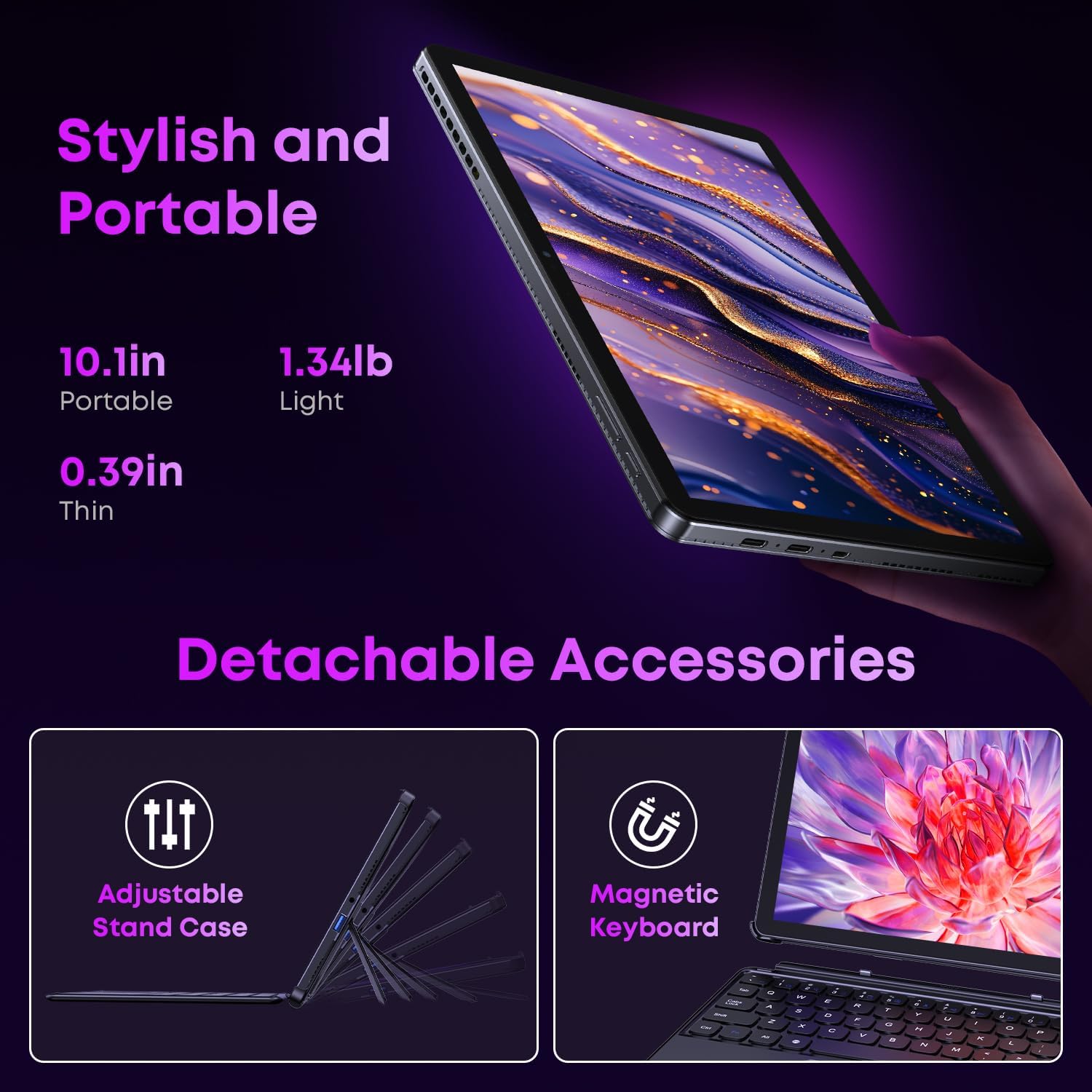
Image 2.1: Detachable accessories including the magnetic keyboard and adjustable stand case.
2.3 First Boot-Up and Windows Activation
Press and hold the power button until the screen turns on. Follow the on-screen instructions to complete the initial Windows 11 setup. If your Windows system arrives unactivated, please send the serial number (located on the back of the device) to CHUWI support via Amazon for your activation key.
2.4 Connessione al Wi-Fi
During setup, you will be prompted to connect to a Wi-Fi network. Select your network and enter the password. The device supports Wi-Fi 6 for fast and stable connections.
3. Istruzioni per l'uso
3.1 Accensione/spegnimento e modalità di sospensione
- Accensione: Tenere premuto il pulsante di accensione finché lo schermo non si illumina.
- Spegni: From the Windows Start menu, select Power > Shut down.
- Modalità risparmio: Briefly press the power button to enter or exit sleep mode.
3.2 Utilizzo del touchscreen
The 10.1-inch HD touchscreen supports 10-point multi-touch gestures. Use taps, swipes, and pinches for navigation and interaction with applications.

Image 3.1: The 10.1-inch HD touchscreen display.
3.3 Modalità laptop e tablet
The magnetic keyboard allows for seamless switching between laptop and tablet modes. Attach the keyboard for typing and productivity, or detach it for a pure tablet experience.

Image 3.2: Usage scenarios demonstrating laptop, tablet, and tablet with case modes.
3.4 Connettività
- Porte USB: The tablet features a full-featured Type-C port and a USB 3.2 Gen1 port for data transfer and connecting peripherals.
- MicroHDMI: Connect to external monitors or TVs using the Micro HDMI port for extended display options, supporting up to 4K video output.
- Bluetooth 5.3: Pair with wireless headphones, mice, and other Bluetooth accessories.
- Wi-Fi 6: Enjoy high-speed internet connectivity for streaming and browsing.
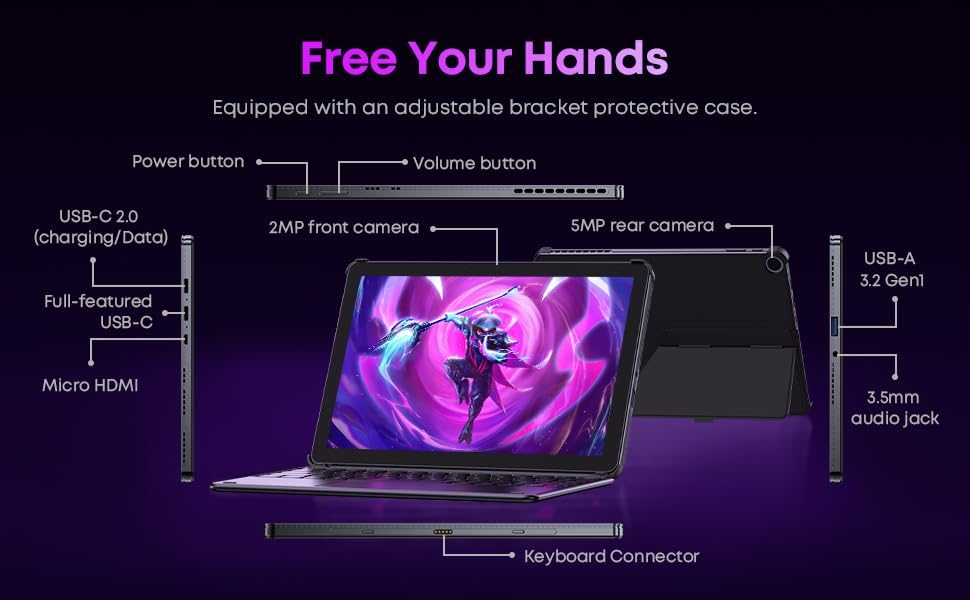
Immagine 3.3: Dettagliata view of the tablet's ports and connectors.
3.5 Utilizzo della fotocamera
The tablet is equipped with a 5MP autofocus rear camera for capturing photos and videos, and a 2MP front camera for video calls and selfies.

Image 3.4: Camera and wireless connectivity features.
3.6 Processor and Storage
Powered by a 10th Gen Intel Core i3 processor (up to 3.9GHz) and 8GB RAM, the tablet handles multitasking efficiently. The 256GB SSD provides ample storage and fast access to your files.

Image 3.5: Intel 10th Gen Core i3 Processor details.
3.7 Prodotto finitoview Video
Video 3.6: Un overview of the CHUWI Hi10 X2 2-in-1 Laptop Tablet, highlighting its features and functionality.
4. Manutenzione
4.1 Pulizia del dispositivo
Utilizzare un panno morbido e privo di lanugine per pulire lo schermo e il corpo del tablet. Per le macchie ostinate, strofinare leggermenteampImmergere il panno in acqua o in una soluzione detergente per schermi. Evitare prodotti chimici aggressivi o materiali abrasivi.
4.2 Cura della batteria
To prolong battery life, avoid exposing the tablet to extreme temperatures. It is recommended to keep the battery charge between 20% and 80% for optimal longevity. Avoid fully discharging the battery frequently.
4.3 Aggiornamenti software
Controlla regolarmente la disponibilità di aggiornamenti di Windows e installali per assicurarti che il tuo sistema disponga delle patch di sicurezza più recenti e dei miglioramenti delle prestazioni. Vai su Impostazioni > Windows Update.
4.4 Gestione dell'archiviazione
Periodicamente riview ed eliminare ciò che non è necessario files and applications to free up storage space on the 256GB SSD. This helps maintain optimal device performance.
5. Risoluzione Dei Problemi
5.1 Il dispositivo non si accende
- Ensure the device is fully charged. Connect the charger and wait a few minutes before attempting to power on.
- Per eseguire un hard reset, tenere premuto il pulsante di accensione per 10-15 secondi.
5.2 Problemi di connettività Wi-Fi
- Riavvia il router Wi-Fi e il tablet.
- Controlla se altri dispositivi riescono a connettersi alla stessa rete Wi-Fi.
- Dimentica la rete nelle impostazioni di Windows e riconnettiti.
5.3 Screen Not Responding to Touch
- Riavviare il tablet.
- Assicurarsi che lo schermo sia pulito e privo di detriti.
5.4 Keyboard Not Working
- Ensure the tablet is correctly aligned and securely connected to the magnetic keyboard.
- Riavviare il tablet.
Per ulteriore assistenza, consultare la sezione Supporto.
6. Specifiche
| Caratteristica | Specificazione |
|---|---|
| Marca | CHUWI |
| Nome del modello | Hi10 X2 |
| Processore | Intel Core i3 (10th Gen, up to 3.9 GHz) |
| Sistema operativo | Windows 11 Casa |
| Memoria RAM | 8 GB |
| Magazzinaggio | SSD da 256 GB |
| Dimensioni dello schermo | 10.1 pollici |
| Risoluzione dello schermo | 1280x800 pixel |
| Connettività | Wi-Fi 6, Bluetooth 5.3 |
| Porti | Full-featured Type-C, USB 3.2 Gen 1, Micro HDMI, 3.5mm Audio Jack |
| Telecamere | 5MP Autofocus Rear, 2MP Front |
| Peso | 1.3 libbre (circa 0.59 kg) |
| Dimensioni (L x P x P) | 9.6" x 6.49" x 0.39" |
| Capacità della batteria | 3400 mAh |
7. Informazioni sulla garanzia
The CHUWI Hi10 X2 2-in-1 Laptop Tablet comes with a Garanzia limitata di 1 annoLa presente garanzia copre difetti di fabbricazione e malfunzionamenti in condizioni di normale utilizzo. Si prega di conservare la prova d'acquisto per eventuali reclami in garanzia.
For detailed warranty terms and conditions, please refer to the official CHUWI websito o contattare l'assistenza clienti.
8. Supporto
If you encounter any issues not covered in the Troubleshooting section, or require assistance with Windows activation, please contact CHUWI customer support. You can typically find support contact information on the official CHUWI website or through your purchase platform (e.g., Amazon seller messaging).
Quando contatti l'assistenza, tieni a portata di mano il numero di serie del tuo dispositivo e la prova d'acquisto.