
1. Introduzione
Thank you for choosing the Eurannit E16 Portable Inkjet Printer. This manual provides essential information for the safe and efficient operation, setup, and maintenance of your device. Please read it thoroughly before use and keep it for future reference.
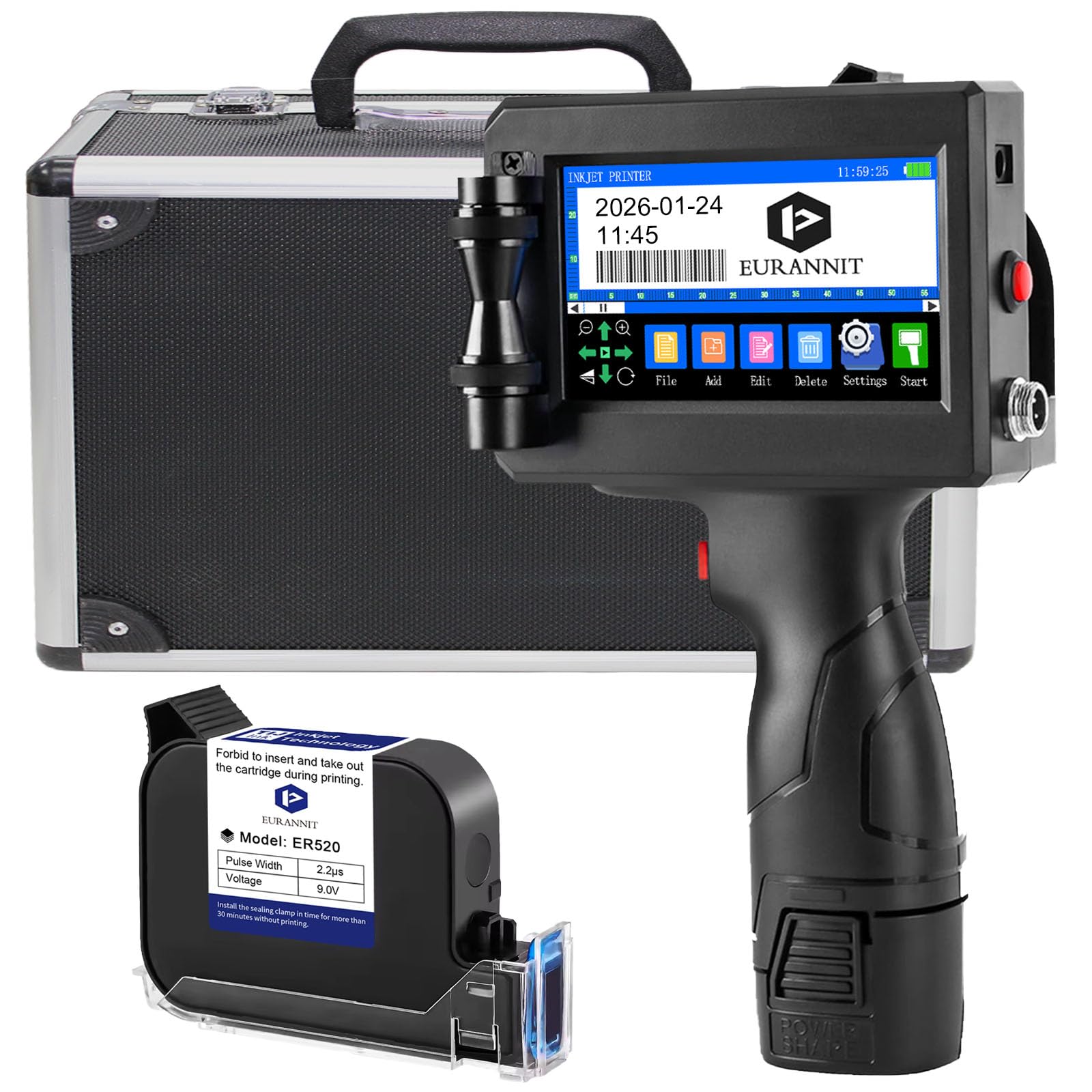
Image 1.1: The Eurannit E16 Portable Inkjet Printer.
2. Caratteristiche del prodotto
The Eurannit E16 Portable Inkjet Printer offers a range of features designed for versatile and efficient marking:
- Smart Printing Function: Supports multi-line printing with a maximum height of 12.7 mm and unlimited length. Font size and text layout are adjustable.
- Ampia compatibilità superficiale: Utilizes fast-drying solvent cartridges suitable for marking on various materials including cardboard, fabric, wood, leather, plastic, metal, and more. An auxiliary positioning plate can enhance printing performance.
- Diverse Content Printing: Capable of printing text, numbers, dates, serial numbers, QR codes, barcodes, logos, and trademarks with a resolution up to 600 DPI. Supports automatic printing in industrial flow scenarios.
- Operazione portatile: Features a 4.3-inch high-definition LED touchscreen for stable operation without requiring connection to an application, computer, or mobile phone.
- Supporto multilingua: Includes 28 built-in languages. The default language is English. For other languages, install a compatible font (.ttf) via U-disk. Print content can be edited directly on the device or imported via U-disk.
- Original Fast-Drying Ink Cartridge: Comes with one 42ml original HD fast-drying black ink cartridge, designed to prevent leaks and nozzle clogging. Provides smooth, clear, and waterproof prints after drying.

Image 2.1: The Eurannit E16 printer demonstrating various print contents including text, date, barcode, and QR code. For example, a barcode with the number 0123456789 viene mostrato.

Image 2.2: The printer's versatility across different materials such as wood, carton, plastic, glass, metal, PVC pipes, stone, and cloth.
3. Contenuto della confezione
Verifica che tutti gli articoli elencati di seguito siano inclusi nel tuo pacchetto:
- 1 x Handheld Inkjet Printer (Eurannit E16)
- 1 x Black Ink Cartridge (42ml)
- 1 x caricabatteria
- 1 penna touch
- 1 x anello di gomma
- 1 x Positioning Plate
- 1 x Valigia (per lo stoccaggio e il trasporto)
- 1 x U-disk (for data import/export and font installation)

Image 3.1: Visual representation of the Eurannit E16 printer and its included accessories.
4. Impostazione
4.1 Disimballaggio e ispezione
- Rimuovere con attenzione tutti i componenti dalla confezione.
- Inspect the printer and accessories for any signs of damage. If any damage is found, do not proceed with setup and contact customer support.
4.2 Ricarica del dispositivo
- Connect the power charger to the printer's charging port.
- Collegare il caricabatterie a una presa di corrente adeguata.
- Allow the printer to charge fully before first use. The charging indicator on the screen will show the battery status.
4.3 Installazione della cartuccia d'inchiostro
- Assicurarsi che la stampante sia spenta.
- Locate the cartridge slot on the printer.
- Remove the protective cap from the ink cartridge.
- Insert the ink cartridge into the slot firmly until it clicks into place. Ensure it is seated correctly to prevent printing issues.

Image 4.1: The Eurannit ER520 ink cartridge. Always use original cartridges for optimal performance.
4.4 Accensione e selezione della lingua
- Tenere premuto il pulsante di accensione finché lo schermo non si illumina.
- Upon first startup, you may be prompted to select a language. Use the touch pen to select your preferred language from the 28 available options. The default language is English.
- If you need to install a specific font for a language not natively supported, use the provided U-disk to transfer the .ttf font file alla stampante.

Image 4.2: Language selection interface on the 4.3-inch touchscreen.
5. Istruzioni per l'uso
5.1 Navigazione nell'interfaccia touchscreen
The printer features an intuitive 4.3-inch touchscreen. Use the included touch pen for precise navigation and input.
- Menu principale: Access various functions like File, Add, Edit, Delete, Settings, and Start.
- File Gestione: Create, save, and load print templates.
- Impostazioni: Adjust printer parameters, language, time, and other system settings.
5.2 Creazione e modifica di contenuti stampati
- From the main menu, select "Add" to create new content or "Edit" to modify existing content.
- Choose the type of content you wish to print: text, date, time, serial number, barcode, QR code, or logo.
- Use the on-screen keyboard or input options to enter your desired information.
- Adjust parameters such as font size, style, line spacing, and print height (up to 12.7mm).
- Arrange multiple content elements on the screen to create your desired layout.
5.3 Importing Content via U-disk
You can import images (e.g., logos) or text files (.txt) using the provided U-disk:
- Save your desired image or text file all'U-disk.
- Insert the U-disk into the printer's USB port.
- Vai a "File" or "Import" section on the printer's screen.
- Selezionare il file from the U-disk to import it into the printer's memory.
5.4 Performing a Test Print
Before printing on your final material, it is recommended to perform a test print:
- Select your prepared content.
- Hold the printer firmly and press the print trigger button.
- Gently roll the printer across a test surface (e.g., scrap cardboard) to observe the print quality and alignment.
- Adjust settings as needed based on the test print results.
5.5 Printing on Various Surfaces
The Eurannit E16 is designed for handheld operation on diverse materials:
- Place the positioning plate (if needed for stability or precise alignment) on the surface to be printed.
- Position the printer's nozzle close to the surface.
- Press the print trigger button and move the printer smoothly and consistently across the surface. Maintain a steady speed for optimal print quality.
- Allow the ink to dry completely, especially on non-porous surfaces, to ensure waterproof results.

Immagine 5.1: Es.amples of the Eurannit E16 printer in use across different application scenarios.
6. Manutenzione
6.1 Pulizia della testina di stampa
Regular cleaning of the print head is crucial for maintaining print quality and preventing clogs:
- Spegnere la stampante.
- Gently wipe the print head surface with a lint-free cloth lightly dampened with a suitable print head cleaning solution (not water).
- Avoid touching the nozzle directly with your fingers.
- Perform a test print after cleaning to ensure proper ink flow.
6.2 Replacing the Ink Cartridge
When the ink cartridge is empty or print quality deteriorates significantly:
- Spegnere la stampante.
- Carefully remove the empty ink cartridge from its slot.
- Unpack a new original Eurannit ink cartridge and remove its protective cap.
- Insert the new cartridge firmly into the slot until it clicks.
- Power on the printer and perform a test print.
6.3 Conservazione
Quando non in uso per periodi prolungati:
- Ensure the protective cap is placed back on the ink cartridge to prevent drying.
- Store the printer and cartridges in a cool, dry place, away from direct sunlight and extreme temperatures.
- Use the provided suitcase for safe storage and transport.
7. Risoluzione Dei Problemi
This section addresses common issues you might encounter with your Eurannit E16 printer.
| Problema | Possibile causa | Soluzione |
|---|---|---|
| No print output or faint print | Ink cartridge empty or clogged nozzle. Print head dirty. Incorrect print settings. | Replace ink cartridge. Clean print head (see Section 6.1). Check print density and speed settings. |
| La stampante non si accende | Low battery. Power button not pressed correctly. | Charge the printer. Press and hold the power button firmly. |
| Poor print quality (streaks, blurry) | Dirty print head. Ink cartridge low. Printer moved too fast/slow. Incorrect surface contact. | Clean print head. Replace ink cartridge. Adjust printing speed and ensure consistent contact with the surface. |
| Il touchscreen non risponde | Software glitch. Screen protector interference. | Restart the printer. Ensure the touch pen is used correctly. |
| Impossibile importare files from U-disk | Non corretto file format. U-disk not properly inserted. | Garantire files are in compatible formats (.txt, common image formats). Reinsert U-disk. Check U-disk for errors on a computer. |
For further assistance, please refer to the official video tutorials:
- General Video Instructions: Amazon Live Video 1
- Additional Video Instructions: Amazon Live Video 2

Image 7.1: Scan the QR code on the printer or in the manual for direct access to video instructions.
8. Specifiche
| Caratteristica | Dettaglio |
|---|---|
| Numero di modello | E16 |
| Marca | Eurannit |
| Dimensioni del prodotto (PxLxA) | Dimensioni: 11 x 14 x 22.5 cm |
| Peso | 990 grammi |
| Batteria | 1 x 9V (incluso) |
| Tecnologia di connettività | USB |
| Tecnologia di stampa | Getto d'inchiostro |
| Caratteristica speciale | Portatile |
| Colore | Nero |
| Uscita della stampante | Monocromo |
| Max Print Speed (Monochrome/Color) | 100 (units not specified) |
| Altezza massima di stampa | 12.7 millimetri |
| Schermo | Touchscreen HD da 4.3 pollici |
| Sistema operativo | Industrial-Grade Linux System |
| Temperatura di esercizio | -20~40°C |
| Umidità Ambiente | 10-90% UR |

Image 8.1: The printer operates on an industrial-grade Linux system for stable performance.

Image 8.2: Stable industrial-grade hardware designed for various environmental conditions.
9. Garanzia e supporto
Eurannit provides comprehensive application video tutorials and technical support for its products. For specific warranty information, please refer to the documentation included with your purchase or contact Eurannit customer service directly.
For additional resources and support, please visit the Eurannit brand store on Amazon: Eurannit Store