
1. Introduzione
Thank you for choosing the FUNYET NY-14 15.6-inch Laptop. This manual provides essential information for setting up, operating, maintaining, and troubleshooting your new device. Please read this manual thoroughly before using the laptop to ensure proper function and longevity.
2. Prodotto finitoview
The FUNYET NY-14 is a versatile 15.6-inch laptop designed for everyday computing. It features a Full HD IPS display, a 4425Y processor, 16GB of RAM, and a 512GB SSD, offering a balance of performance and portability.

Figura 2.1: The FUNYET NY-14 laptop showcasing its 180-degree hinge design, allowing the screen to lay flat for versatile viewangoli di inclinazione.
Caratteristiche principali:
- Display: Schermo IPS Full HD (1920x1080) da 15.6 pollici per immagini nitide.
- Processore: Intel 4425Y processor with 2.4GHz maximum frequency.
- Memoria e archiviazione: 16GB DDR4 RAM and 512GB SSD for efficient multitasking and fast data access.
- Batteria: 5000mAh (38Wh) battery for extended usage.
- Sistema operativo: Preinstallato con Windows 11 Pro.
- Connettività: Integrated WiFi 5 (802.11ac) and Bluetooth 5.0.
- Porte: Multiple ports including USB 3.0, Mini HDMI, and a 3.5mm audio jack.
- Progetto: 180-degree hinge for flexible screen positioning and a numeric keypad for enhanced productivity.

Figura 2.2: An illustration detailing the laptop's internal components, highlighting the Intel 4425Y processor, WiFi 5, Bluetooth 5.0, 15.6-inch FHD IPS display, 30W front camera, Windows 11 Pro, 512GB SSD support (TF max 128G), and 38Wh battery.

Figura 2.3: The 15.6-inch Full HD (1920x1080) IPS display, emphasizing its vibrant colors and wide viewing angles, with a screen-to-body ratio of 93%.

Figura 2.4: The laptop's keyboard layout, including a numeric keypad, and indicators for WiFi, front camera, and Bluetooth 5.0. The touchpad area is also highlighted, indicating a 40% increased area for improved navigation.
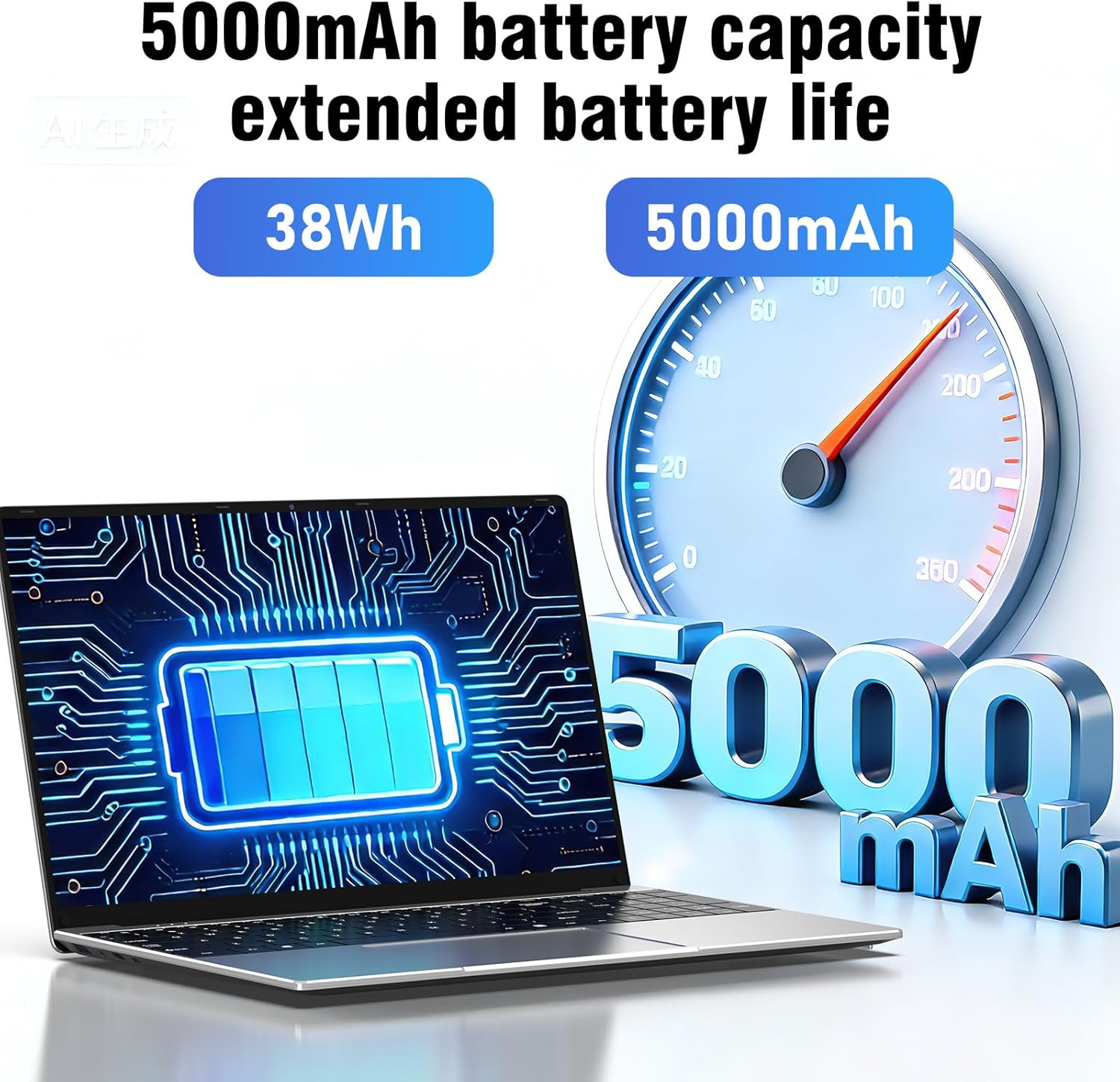
Figura 2.5: Visual representation of the laptop's 5000mAh (38Wh) battery capacity, indicating extended battery life for portable use.

Figura 2.6: Un oltreview of the laptop's multiple port designs, including USB 3.0, 12V2A DC Port, Mini HDMI, 3.5mm headphone jack, and TF Card Slot. The dimensions (14.09 x 9.05 x 0.78 inches) and weight (3.30 pounds) are also indicated.
3. Impostazione
3.1 Disimballaggio
Estrarre con cautela il laptop e tutti gli accessori dalla confezione. Assicurarsi che siano presenti i seguenti elementi:
- FUNYET NY-14 Laptop
- Adattatore di alimentazione
- Manuale dell'utente (questo documento)
3.2 Caricamento della batteria
Before initial use, fully charge the laptop's battery. Connect the power adapter to the DC-in port on the laptop and then plug the adapter into a power outlet. The charging indicator light will illuminate. Once fully charged, the indicator light may change color or turn off, depending on the model.
3.3 Accensione iniziale e configurazione di Windows
- Apri il coperchio del portatile.
- Premere il pulsante di accensione situato sulla tastiera.
- The laptop will boot up and guide you through the Windows 11 Pro setup process. Follow the on-screen instructions to select your language, region, connect to a Wi-Fi network, and create a user account.
- Si consiglia di connettersi a Internet durante la configurazione per assicurarsi che siano installati gli aggiornamenti più recenti.
4. Istruzioni per l'uso
4.1 Accensione/spegnimento e modalità di sospensione
- Accensione: Premere il pulsante di accensione.
- Fermare: Fare clic sul pulsante Start di Windows, quindi selezionare Arresta il sistema > Arresta il sistema.
- Ricomincia: Fare clic sul pulsante Start di Windows, quindi selezionare Arresta > Riavvia.
- Sonno: Click the Windows Start button, then select Power > Sleep, or close the laptop lid.
4.2 Utilizzo della tastiera e del touchpad
The laptop features a full-size keyboard with a dedicated numeric keypad. The touchpad supports multi-touch gestures for navigation. Refer to Windows settings for customizing touchpad gestures.
4.3 Collegamento delle periferiche
- Dispositivi USB: Connect USB devices (e.g., mouse, external hard drive) to the available USB 3.0 ports.
- Display esterno: Use the Mini HDMI port to connect to an external monitor or TV. An appropriate Mini HDMI to HDMI cable (not included) may be required.
- Dispositivi audio: Collegare le cuffie o gli altoparlanti esterni al jack audio da 3.5 mm.
- Scheda di memoria: Insert a TF card into the TF Card Slot for additional storage (supports up to 128GB).
4.4 Connettività wireless
- Wifi: Per connettersi a una rete Wi-Fi, fare clic sull'icona Wi-Fi nella barra delle applicazioni, selezionare la rete desiderata e immettere la password se richiesta.
- Bluetooth: To pair Bluetooth devices, go to Windows Settings > Bluetooth & devices, turn on Bluetooth, and select 'Add device'.
4.5 Usando il Webcamma
The integrated front camera can be used for video calls and conferences. Access it through applications like Camera, Microsoft Teams, or Zoom.
4.6 Regolazione delle impostazioni di visualizzazione
You can adjust screen brightness by using the function keys (Fn + Fx keys, typically F5/F6) or through Windows Settings > System > Display. Resolution can also be changed in Display settings.
4.7 Utilizing the 180° Hinge
The laptop's 180-degree hinge allows the screen to lay completely flat. This feature is useful for sharing content with others around a table or for specific presentation scenarios.
5. Manutenzione
5.1 Pulizia
- Schermo: Utilizzare un panno morbido e privo di lanugine leggermente dampcon acqua o un detergente per schermi. Non spruzzare il liquido direttamente sullo schermo.
- Tastiera e Casing: Utilizzare un panno morbido e asciutto. Per lo sporco ostinato, un panno leggermente damp è possibile utilizzare un panno. Evitare prodotti chimici aggressivi.
- Porte: Mantenere le porte libere da polvere e detriti. Utilizzare aria compressa se necessario, ma con delicatezza.
5.2 Cura della batteria
- Evitare di scaricare completamente la batteria frequentemente.
- Non esporre il portatile a temperature estreme.
- Se si conserva il portatile per un periodo prolungato, assicurarsi che la batteria sia carica al 50-70%.
5.3 Aggiornamenti software
Regularly check for and install Windows updates to ensure your system has the latest security patches and performance improvements. Go to Windows Settings > Windows Update.
5.4 Gestione dell'archiviazione
Pulire periodicamente ciò che non è necessario files and applications to maintain optimal performance. Windows provides tools like Disk Cleanup and Storage Sense (in Settings > System > Storage) to assist with this.
6. Risoluzione Dei Problemi
This section addresses common issues you might encounter with your FUNYET NY-14 laptop.
6.1 Il laptop non si accende
- Assicurarsi che l'adattatore di alimentazione sia collegato saldamente sia al laptop sia a una presa di corrente funzionante.
- Verificare che la presa di corrente funzioni collegandovi un altro dispositivo.
- Se la batteria è completamente scarica, potrebbero essere necessari alcuni minuti di ricarica prima che il laptop possa accendersi.
- Prova a tenere premuto il pulsante di accensione per 10-15 secondi per eseguire un hard reset.
6.2 Nessuna connessione Wi-Fi
- Controlla se il Wi-Fi è abilitato in Impostazioni di Windows > Rete e Internet > Wi-Fi.
- Riavvia il router e il modem.
- Assicurati di trovarti nel raggio di azione della rete Wi-Fi.
- Prova a dimenticare la rete e a riconnetterti.
- Aggiornare i driver Wi-Fi tramite Gestione dispositivi.
6.3 Prestazioni lente
- Chiudere le applicazioni non necessarie in esecuzione in background.
- Controlla e installa eventuali aggiornamenti di Windows in sospeso.
- Assicurati che lo spazio di archiviazione (SSD) non sia quasi pieno.
- Esegui una scansione antivirus per verificare la presenza di malware.
- Consider performing a system restore or reinstalling Windows if issues persist after backing up your data.
6.4 Problemi dello schermo (nessuna visualizzazione, sfarfallio)
- If there is no display, connect an external monitor via Mini HDMI to check if the issue is with the laptop's screen or the graphics output.
- Regola la luminosità dello schermo.
- Aggiornare i driver grafici.
- Riavviare il portatile.
7. Specifiche
| Caratteristica | Specificazione |
|---|---|
| Numero di modello | NY-14 |
| Dimensioni dello schermo | 15.6 pollici |
| Risoluzione dello schermo | 1920 x 1080 (IPS Full HD) |
| Processore | Intel 4425Y (Pentium 4 type, 2.4 GHz, 1 core, 2 threads) |
| Memoria RAM | 16 GB DDR4 (2666 MHz) |
| Magazzinaggio | SSD da 512 GB |
| Grafica | Integrato |
| Sistema operativo | Windows 11 Pro |
| Capacità della batteria | 5000 mAh (38 Wh) |
| Wifi | Wi-Fi 5 (802.11ac) |
| Bluetooth | Bluetooth 5.0 |
| Porte USB | 2 porte USB 3.0 |
| Uscita video | Mini HDMI |
| Porta audio | Jack per cuffie da 3.5 mm |
| Lettore di schede | TF Card Slot (max 128GB) |
| Webcamma | Front Camera (30W, typically 0.3MP) |
| Dimensioni (L x P x A) | 35.7 x 22 x 2 cm (14.09 x 9.05 x 0.78 pollici) |
| Peso | 2.4 kg (3.30 libbre) |
| Caratteristiche speciali | 180° Hinge, Numeric Keypad, HD Audio |
8. Garanzia e supporto
For warranty information and technical support, please refer to the warranty card included with your product or visit the official FUNYET website. If you encounter issues not covered in this manual, please contact FUNYET customer service for assistance.