
Introduzione
Thank you for choosing the MEETION C9990 Wireless Bluetooth Keyboard and Mouse combo. This product offers versatile connectivity options (2.4GHz USB and dual Bluetooth channels), an ergonomic design for comfort, and rechargeable batteries for extended use. This manual will guide you through the setup, operation, and maintenance of your new device.
Contenuto della confezione
- Tastiera wireless MEETION C9990
- Mouse wireless MEETION
- Ricevitore USB (conservato nel vano batteria del mouse)
- Cavo di ricarica USB-C
- Manuale d'uso
Prodotto finitoview
Caratteristiche della tastiera
- Layout a grandezza naturale: Includes a numeric pad for comprehensive data entry.
- Low-Noise Scissor-Switch Keys: Offre un'esperienza di digitazione silenziosa e confortevole.
- Tasti multimediali: Tasti funzione dedicati per un rapido accesso ai controlli multimediali e alle funzioni di sistema.
- Fixed Anti-Slip Stand: Ensures stability and an ergonomic typing angle.
- Design ultrasottile: Esteticamente gradevoleasing and space-efficient.

Image: Close-up of the keyboard keys, illustrating the low-noise scissor-switch design for quiet and comfortable typing.

Image: The keyboard features a fixed-angle anti-slip stand for enhanced stability and typing comfort.
Caratteristiche del mouse
- Ergonomic Sculpted Design: Contoured shape supports natural wrist and hand posture.
- DPI regolabile: Four DPI settings (800-2400) for precise cursor control.
- Tilt-Scroll Wheel: Allows for horizontal and vertical scrolling.
- Interruttore di modalità: Easily switch between 2.4GHz and Bluetooth modes.

Image: The mouse features an ergonomic sculpted design to provide comfort during extended use.

Image: Detailed diagram of the mouse highlighting its various components and functions, including buttons, scroll wheel, and switches.
Istruzioni di installazione
1. Ricarica dei dispositivi
Both the keyboard and mouse are equipped with built-in rechargeable batteries. Before first use, or when the battery indicator shows low power, charge both devices using the provided USB-C cable.
- Collegare l'estremità USB-C del cavo di ricarica alla porta di ricarica della tastiera e del mouse.
- Collegare l'estremità USB-A del cavo di ricarica a una fonte di alimentazione USB (ad esempio, una porta USB del computer, un adattatore da parete USB).
- La spia di carica si accenderà durante la ricarica e si spegnerà quando la carica sarà completamente completata.
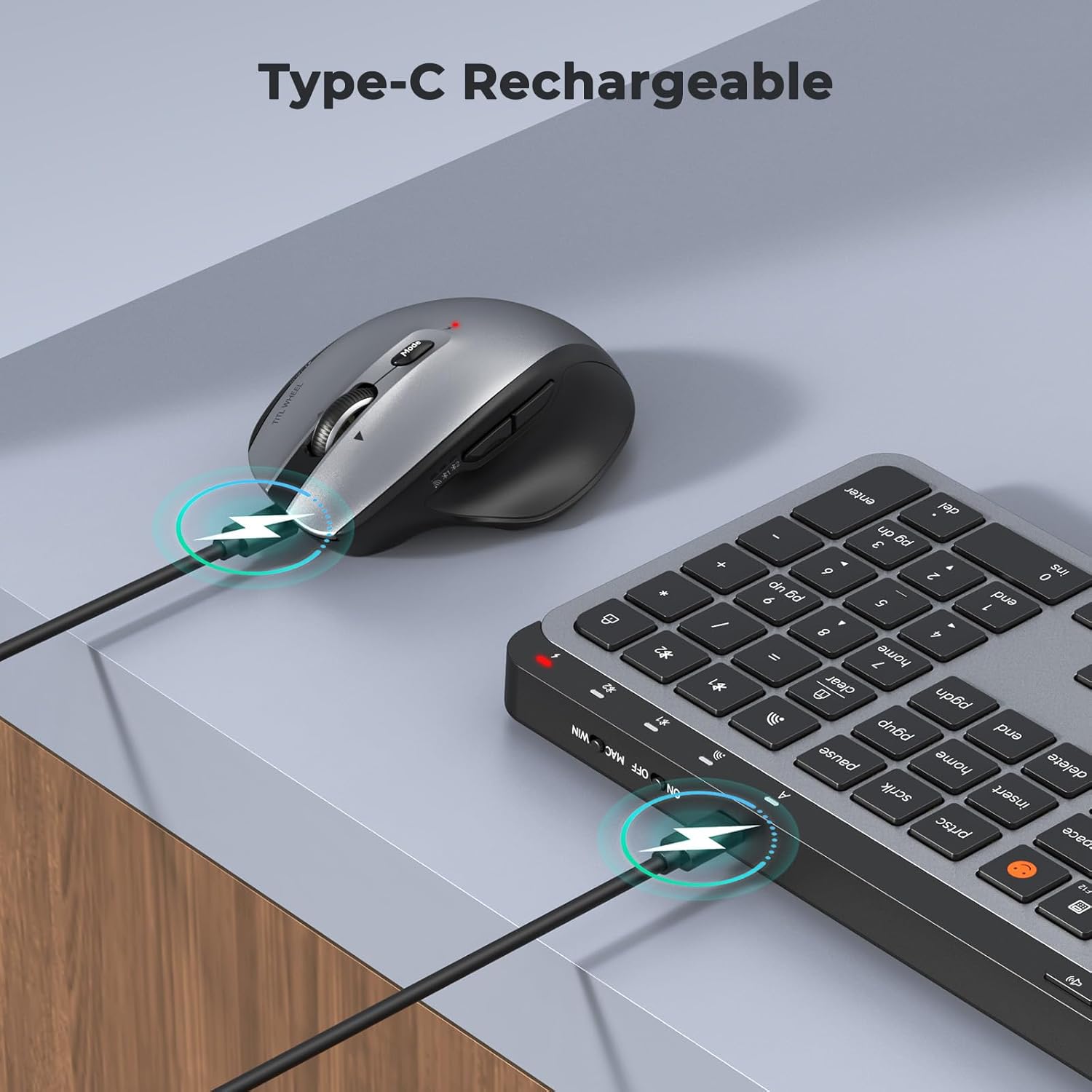
Image: Both the keyboard and mouse are rechargeable via USB-C, ensuring convenience and eliminating the need for disposable batteries.
2. Connessione ai dispositivi
The C9990 combo supports three connection modes: 2.4GHz wireless (via USB receiver) and two Bluetooth channels (BT1, BT2).
2.1. Connessione wireless a 2.4 GHz
- Individuare il ricevitore USB, solitamente conservato nel vano batterie del mouse.
- Collega il ricevitore USB a una porta USB disponibile sul tuo computer.
- Accendere la tastiera e il mouse utilizzando i rispettivi interruttori di alimentazione.
- For the keyboard, press the 2.4G button (usually indicated by a USB icon) to switch to 2.4GHz mode.
- For the mouse, switch the mode selector to the 2.4G posizione.
- The devices should connect automatically.
2.2. Connessione Bluetooth (BT1 / BT2)
- Accendi la tastiera e il mouse.
- Per la tastiera: Premere e tenere premuto il tasto Modello BT1 or Modello BT2 button for 3-5 seconds until the indicator light flashes rapidly, indicating pairing mode.
- Per il mouse: Switch the mode selector to the Modello BT1 or Modello BT2 position, then press and hold the Bluetooth pairing button (often located on the underside) until the indicator light flashes.
- Sul tuo dispositivo (laptop, tablet, smartphone), vai alle impostazioni Bluetooth e cerca nuovi dispositivi.
- Select "MEETION Keyboard" and "MEETION Mouse" from the list to pair.
- Repeat for the second Bluetooth channel (BT2) if connecting to another device.
3. Passaggio da un dispositivo all'altro
The C9990 allows seamless switching between up to three connected devices (one 2.4GHz and two Bluetooth).
- Per la tastiera: Premere il tasto dedicato 2.4G, Modello BT1, O Modello BT2 button to switch to the desired connected device.
- Per il mouse: Use the mode switch on the underside of the mouse to select 2.4G, Modello BT1, O Modello BT2.

Image: The keyboard and mouse can switch between three devices (PC, tablet, phone) with a single click, indicated by the Bluetooth and 2.4G icons.
Istruzioni per l'uso
Funzioni della tastiera
- Multimedia Keys (F1-F12): These keys provide quick access to functions like brightness control, display window, home, dictation, sleep, app switcher, screen mirroring, screen capture, music player, email, and calculator. Functions may vary slightly depending on the operating system.
- Emoji Key: The dedicated emoji key supports Windows, macOS, iPad (iPadOS), and Android Samsung devices. It does not support iPhone (iOS).

Image: The keyboard features a row of multimedia keys (F1-F12) for quick access to various system functions.
Funzioni del mouse
- Regolazione DPI: Press the DPI switch button (usually located near the scroll wheel) to cycle through the available DPI settings (800, 1200, 1600, 2400). Adjust to your preference for cursor speed and precision.
- Tilt-Scroll Wheel: In addition to vertical scrolling, tilt the scroll wheel left or right for horizontal scrolling in applications that support it (e.g., spreadsheets).
- Pulsanti Avanti/Indietro: Utilizzare i pulsanti laterali per una navigazione rapida in web browser e file esploratori.
Manutenzione
- Pulizia: Utilizzare un panno morbido e asciutto per pulire le superfici della tastiera e del mouse. Per lo sporco ostinato, leggermente dampPulire il panno con acqua o una soluzione detergente delicata. Evitare prodotti chimici aggressivi o materiali abrasivi.
- Cura della batteria: To prolong battery life, avoid fully discharging the devices frequently. Charge them when the low battery indicator appears. If storing for an extended period, charge them to about 50% and recharge every few months.
- Magazzinaggio: Conservare i dispositivi in un luogo fresco e asciutto, lontano dalla luce solare diretta e da temperature estreme.
Risoluzione dei problemi
Problemi di connessione
- Dispositivo non connesso: Ensure both the keyboard and mouse are powered on and fully charged. Check that the correct connection mode (2.4G, BT1, or BT2) is selected on both devices. For Bluetooth, ensure your host device's Bluetooth is enabled and the devices are in pairing mode.
- Connessione intermittente: Move the devices closer to your computer. Avoid using them near strong electromagnetic interference sources (e.g., Wi-Fi routers, other wireless devices).
- 2.4GHz receiver not recognized: Try plugging the USB receiver into a different USB port. Ensure the receiver is fully inserted.
Problemi di funzionalità
- I tasti o il mouse non rispondono: Recharge the devices. Restart your computer or device. Re-pair the devices if using Bluetooth or re-insert the USB receiver for 2.4GHz.
- Cursore del mouse irregolare: Clean the mouse sensor. Ensure you are using the mouse on a suitable surface (not highly reflective or transparent). Adjust DPI settings.
Specifiche
| Numero di modello | C9990 |
| Tecnologia di connettività | Bluetooth, USB (2.4GHz Wireless) |
| Disposizione della tastiera | QWERTY, Full Size |
| Rilevamento del movimento del mouse | Ottico |
| Impostazioni DPI del mouse | 800, 1200, 1600, 2400 |
| Fonte di alimentazione | Alimentato a batteria (ricaricabile tramite USB-C) |
| Sistemi operativi compatibili | Windows, macOS, Linux, Chrome OS, Android |
| Peso dell'articolo | 1.16 Kilograms (combined) |
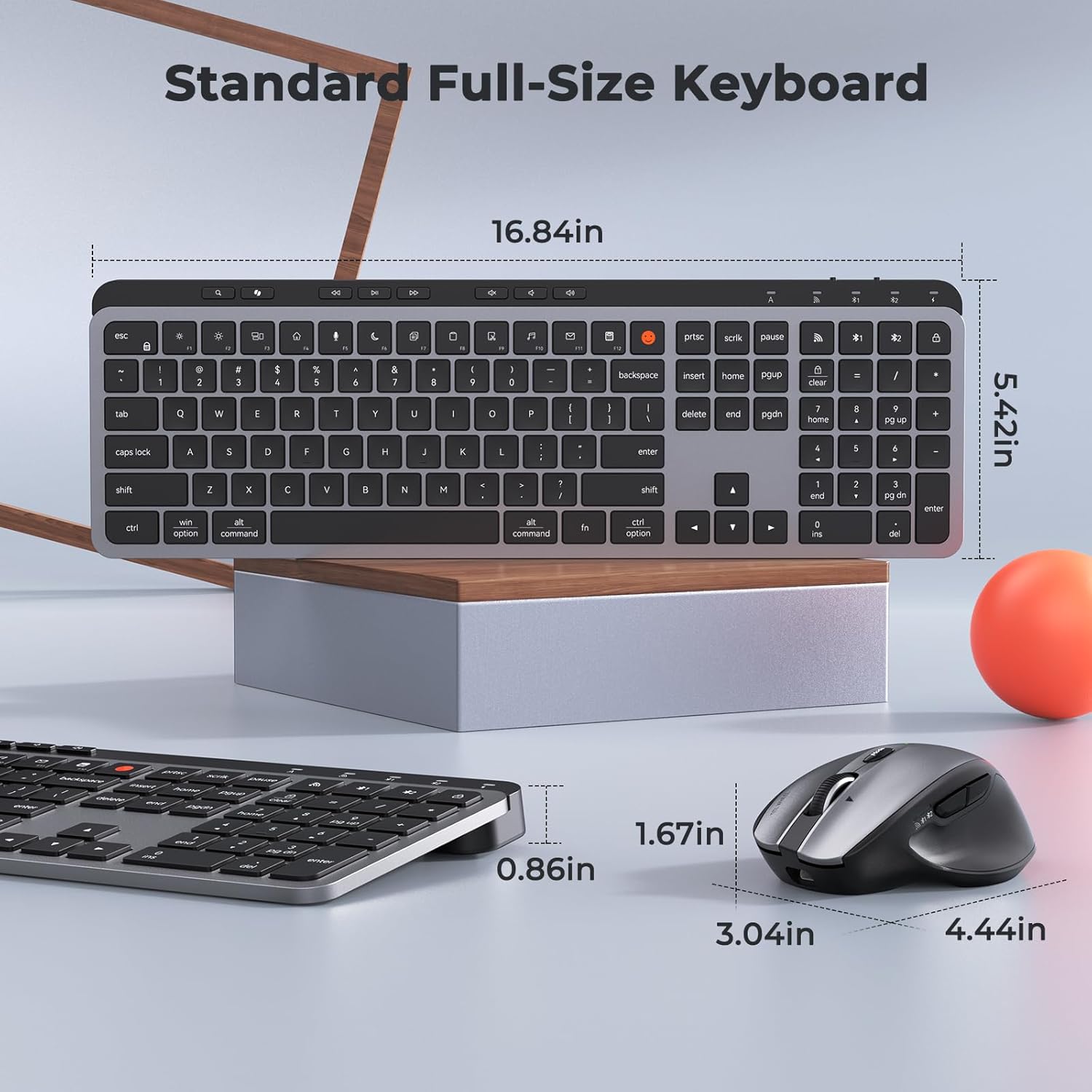
Image: Dimensions of the MEETION C9990 keyboard and mouse for reference.
Garanzia e supporto
The MEETION C9990 Wireless Bluetooth Keyboard and Mouse comes with a Garanzia di 1 anno dalla data di acquisto. La presente garanzia copre i difetti di fabbricazione in condizioni di normale utilizzo.
For technical support, troubleshooting assistance, or warranty claims, please contact MEETION customer service through the retailer where you purchased the product or visit the official MEETION websito per le informazioni di contatto.
Informazioni sulla sicurezza
- Non esporre i dispositivi ad acqua, umidità o temperature estreme.
- Evitare di far cadere o di sottoporre i dispositivi a forti urti.
- Non tentare di smontare o riparare i dispositivi autonomamente. Rivolgersi a personale qualificato.
- Tenere fuori dalla portata dei bambini.
- Smaltire le batterie e i componenti elettronici in modo responsabile, nel rispetto delle normative locali.