
1. Impostazione
1.1 Contenuto della confezione
Prima del montaggio, verificare che tutti i componenti siano presenti nella confezione:
- KTC H24F7 24 Inch 240Hz Monitor
- Base del monitor
- Supporto per monitor
- Adattatore di alimentazione
- Cavo HDMI
- Guida rapida (QSG)
1.2 Istruzioni di montaggio
Per assemblare il monitor, seguire questi passaggi:
- Estrarre con cautela il monitor e tutti i componenti dalla confezione.
- Attach the monitor stand to the monitor base. Ensure it clicks securely into place.
- Connect the assembled stand and base to the back of the monitor. The stand is designed for easy snap-in installation.
- Posizionare il monitor su una superficie stabile e piana.

1.3 Installazione con montaggio VESA
The KTC H24F7 monitor supports VESA 100mm x 100mm mounting for alternative stand or wall mount solutions. Ensure you use M4-0.7 x 10mm screws (not included) for secure installation.

1.4 Connessione ai dispositivi
Collegare il computer o altri dispositivi al monitor utilizzando i cavi appropriati.
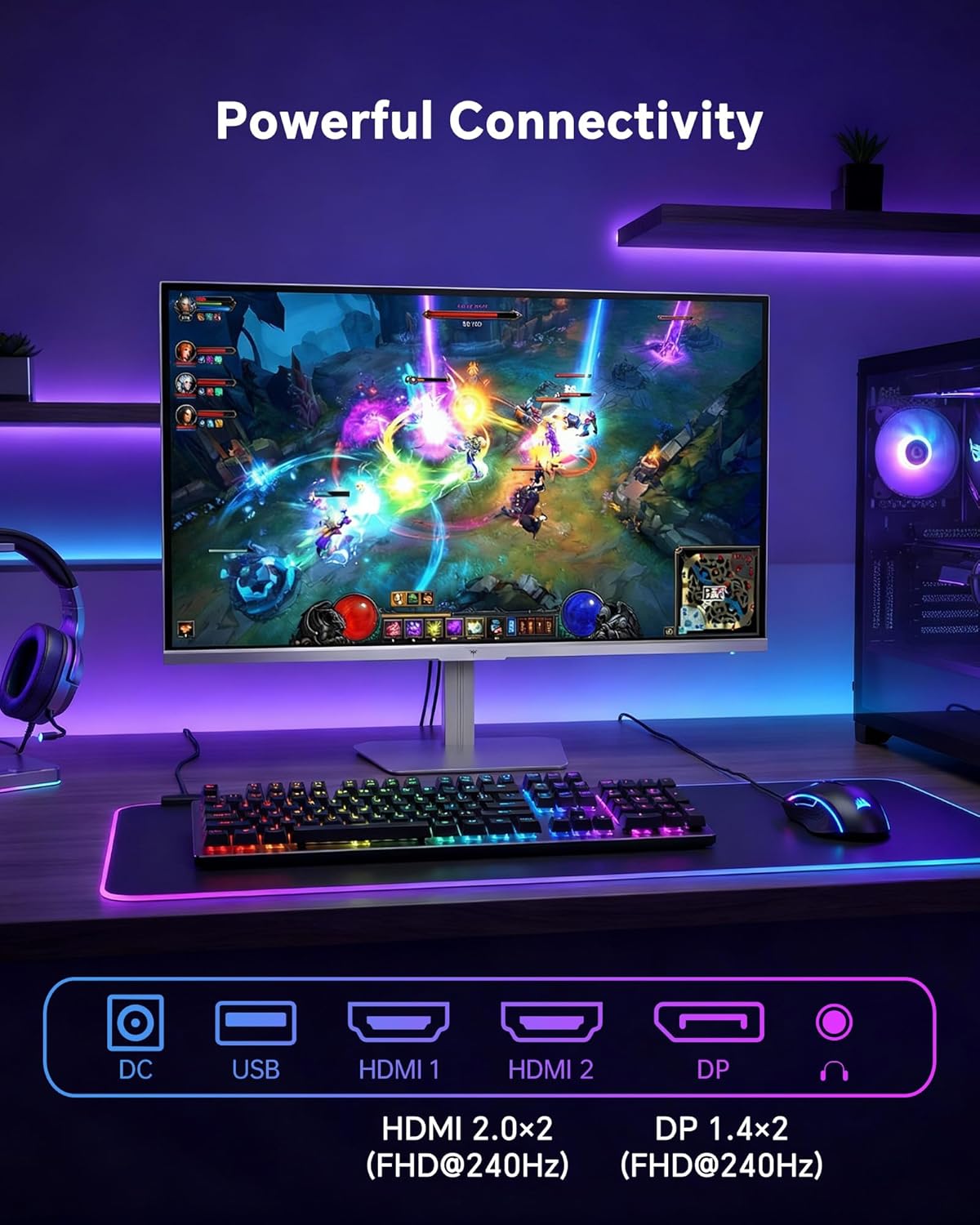
- HDMI: Use an HDMI cable to connect to devices with HDMI output. The monitor has two HDMI 2.0 ports, supporting FHD at 240Hz.
- Porta Display: Use a DisplayPort cable for devices with DisplayPort output. The monitor has one DisplayPort 1.4, supporting FHD at 240Hz.
- Energia: Connect the power adaptor to the DC input on the monitor and then to a power outlet.
- USB: A USB 2.0 port is available for connecting peripherals.
- Uscita audio: A 3.5mm audio jack is available for connecting headphones or external speakers.
2. Istruzioni per l'uso
2.1 Accensione/spegnimento
Premere il pulsante di accensione situato sul monitor per accenderlo o spegnerlo. La spia di accensione si accende quando il monitor è attivo.
2.2 Menu di visualizzazione su schermo (OSD)
The OSD menu allows you to adjust various monitor settings. Use the control buttons (typically located on the back or bottom of the monitor) to navigate the menu and select options. Refer to the Quick Start Guide for specific button functions.
2.3 Impostazioni di visualizzazione
Ottimizza il tuo viewesperienza modificando le seguenti impostazioni:
- Frequenza di aggiornamento: The monitor supports a 240Hz refresh rate for smooth motion. Ensure your graphics card settings are configured to utilize this rate.

- Sincronizzazione adattiva: This technology synchronizes the monitor's refresh rate with your graphics card's frame rate to eliminate screen tearing and stuttering. Enable Adaptive Sync in the OSD menu and ensure it is also enabled in your graphics card control panel (FreeSync/G-Sync compatible).

- Colore: High Dynamic Range 400 provides enhanced contrast and color accuracy, delivering brighter highlights and deeper shadows. Activate HDR in the OSD menu and your operating system display settings for compatible content.

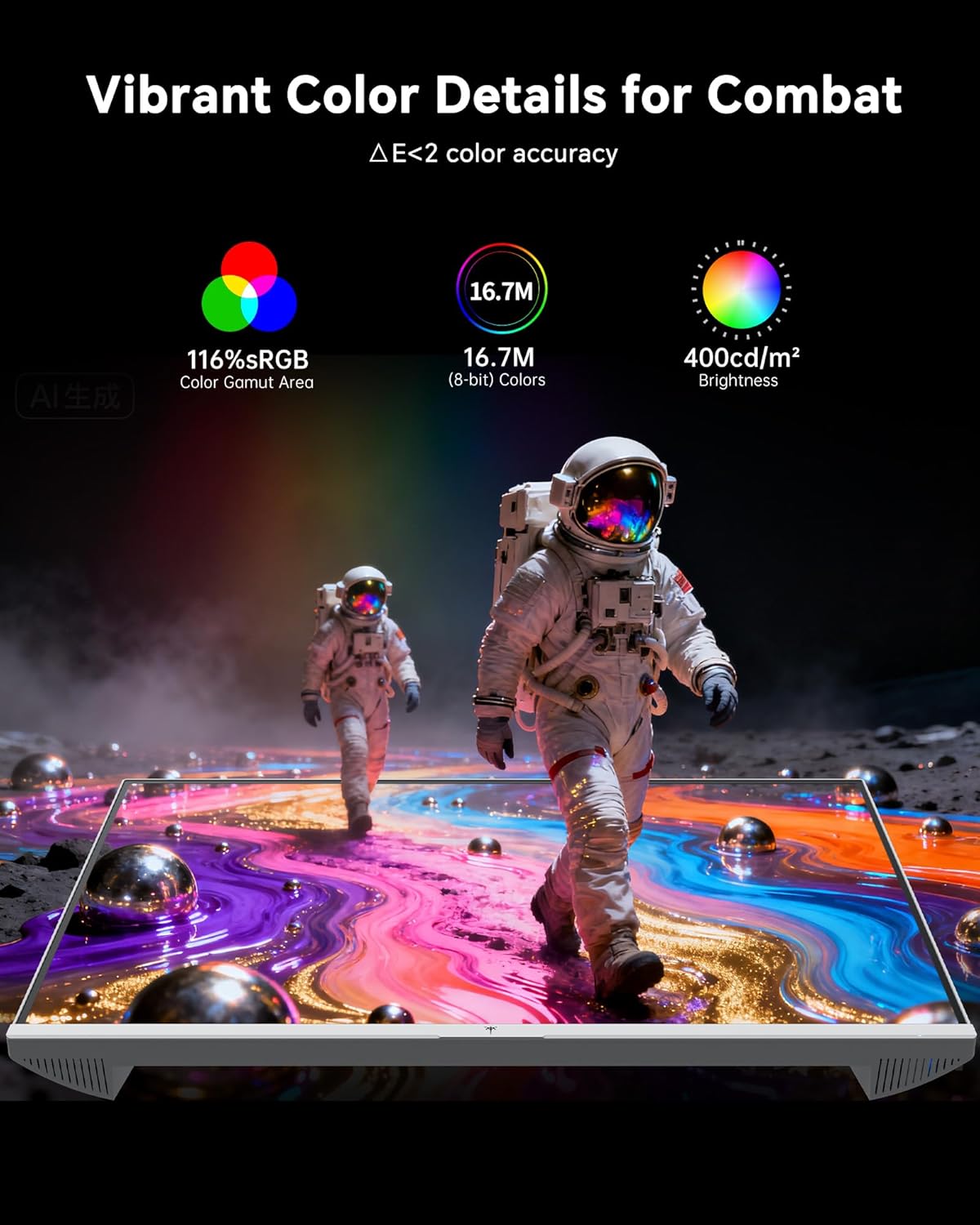
- Impostazioni colore: The monitor offers 116% sRGB color gamut and 16.7 million colors. Adjust brightness (up to 400 cd/m²) and color temperature through the OSD menu to suit your preference.
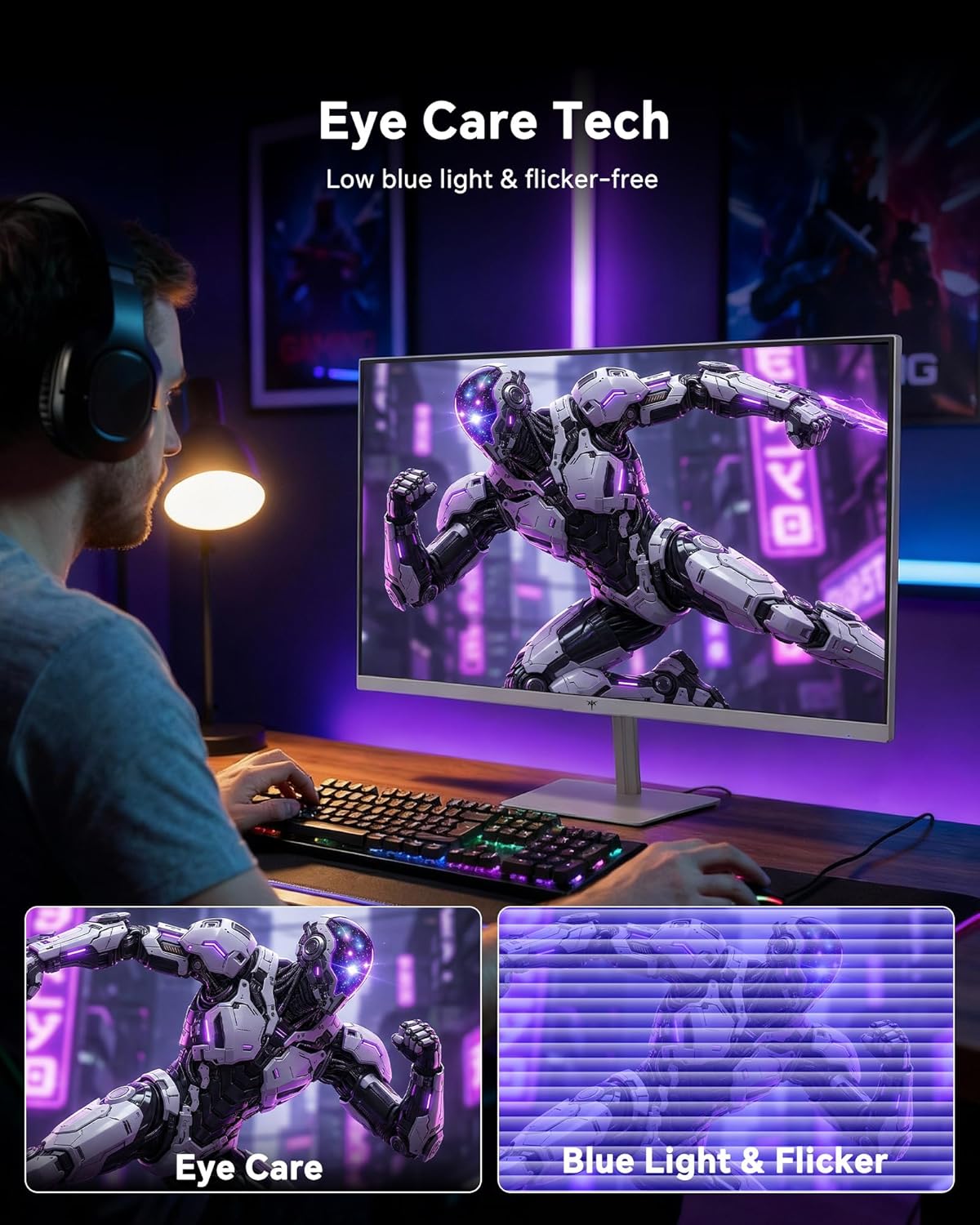
- Tecnologia per la cura degli occhi: The monitor features low blue light and flicker-free technology to reduce eye strain during prolonged use. These settings can typically be adjusted or enabled within the OSD menu.
2.4 Monitor Tilt Adjustment
The monitor supports tilt adjustment from -5° to 15° (±3°). Gently adjust the monitor panel to your desired viewangolo di ing.
3. Manutenzione
3.1 Pulizia del monitor
Per pulire lo schermo del monitor e casing:
- Prima di procedere alla pulizia, spegnere sempre il monitor e scollegare il cavo di alimentazione.
- Utilizzare un panno morbido e privo di lanugine leggermente dampcon acqua o con un detergente per schermi delicato e non abrasivo.
- Pulisci delicatamente lo schermo per rimuovere polvere e macchie. Evita di esercitare una pressione eccessiva.
- Per il casing, use a dry, soft cloth. Do not use alcohol, ammonia, or abrasive cleaners, as these can damage the surface.
3.2 Cura generale
- Evitare di posizionare oggetti pesanti sul monitor o sui suoi cavi.
- Non esporre il monitor alla luce solare diretta, a calore eccessivo o a freddo estremo.
- Tenere il monitor lontano da liquidi e da umidità elevata.
- Garantire un'adeguata ventilazione attorno al monitor per evitare il surriscaldamento.
4. Risoluzione Dei Problemi
If you encounter issues with your KTC H24F7 monitor, refer to the following common problems and solutions:
| Problema | Possibile causa | Soluzione |
|---|---|---|
| Nessuna immagine sullo schermo | Cavo di alimentazione scollegato; Cavo video scollegato o allentato; Sorgente di ingresso selezionata non corretta; Monitor spento. | Ensure power cable is securely connected and monitor is on. Check video cable connections (HDMI/DisplayPort) at both the monitor and computer. Press the input source button on the monitor to cycle through inputs. |
| Sfarfallio o strappo dell'immagine | Adaptive Sync not enabled; Graphics card driver issues; Faulty video cable. | Enable Adaptive Sync in the OSD menu and your graphics card control panel. Update graphics card drivers. Try a different video cable. If using DisplayPort 1, try DisplayPort 2 or HDMI if available, as some units may experience issues with specific ports. |
| I colori appaiono errati o sbiaditi | Color settings incorrect; HDR not properly configured; Faulty video cable. | Adjust color settings (brightness, contrast, color temperature) in the OSD menu. Ensure HDR is enabled in both the OSD and your operating system for HDR content. Try a different video cable. |
| Il monitor non raggiunge i 240 Hz | Graphics card limitations; Incorrect display settings in OS; Cable bandwidth limitations. | Ensure your graphics card supports 240Hz at 1080p. Verify display settings in your operating system (e.g., Windows Display Settings or NVIDIA/AMD control panel) are set to 240Hz. Use the provided HDMI cable or a certified DisplayPort 1.4 cable. |
| Stuck or dead pixels | Difetto di fabbricazione. | A small number of stuck or dead pixels (typically 1-3) may be considered normal for LCD panels. If the issue is severe or persistent, contact customer support. |
5. Specifiche
| Caratteristica | Dettaglio |
|---|---|
| Marca | KTC |
| Numero di modello | Numero di modello: H24F7 |
| Dimensioni dello schermo | 24 pollici |
| Risoluzione | FHD 1080p (1920 x 1080 pixel) |
| Tipo di pannello | Quasi IPS |
| Frequenza di aggiornamento | Frequenza 240 Hz |
| Tempo di risposta | 1 millisecondo (MPRT) |
| Proporzioni | 16:9 |
| Luminosità | 400 candele al metro quadrato |
| Rapporto di contrasto | 1000:1 |
| Gamma di colori | 116% sRGB |
| Supporto HDR | Colore: HDR400 |
| Sincronizzazione adattiva | FreeSync, G-Sync Compatible |
| Connettività | 2x HDMI 2.0, 1x DisplayPort 1.4, 1x USB 2.0, 1x Audio Out (3.5mm) |
| Caratteristiche della cura degli occhi | Low Blue Light, Flicker-Free, Anti-Glare Screen |
| Regolazioni | Inclinazione (da -5° a 15°) |
| Supporto VESA | 100 mm x 100 mm |
| Dimensioni (P x L x A) | 5.39"P x 21.25"L x 15.74"A |
| Peso dell'articolo | 3.2 chilogrammi |
| Colore | Bianco |
6. Garanzia e supporto
6.1 Informazioni sulla garanzia
The KTC H24F7 monitor comes with a garanzia del produttore di tre anniLa presente garanzia copre i difetti di materiali e di fabbricazione in normali condizioni di utilizzo.
Conservare la prova d'acquisto per eventuali richieste di garanzia.
6.2 Assistenza clienti
For technical assistance, warranty claims, or any questions regarding your KTC H24F7 monitor, please contact KTC customer support. KTC aims to provide responsive customer support and typically responds within 12 hours.
You can usually find contact information on the official KTC website or through the retailer where you purchased the product. When contacting support, please have your monitor model number (H24F7) and purchase details ready.