
1. Impostazione
This section guides you through the initial setup of your CHUWI CoreBook X laptop.
1.1 Disimballaggio e accensione iniziale
- Estrarre con cautela il computer portatile e tutti gli accessori dalla confezione.
- Connect the provided USB-C power adapter to the laptop's USB-C port (PD Charging/USB 2.0) and then to a power outlet.
- Open the laptop lid. The laptop may power on automatically or you may need to press the power button located on the keyboard.
- Seguire le istruzioni visualizzate sullo schermo per completare la configurazione iniziale di Windows 11 Pro, inclusa la selezione della lingua, la connessione di rete e la creazione dell'account utente.
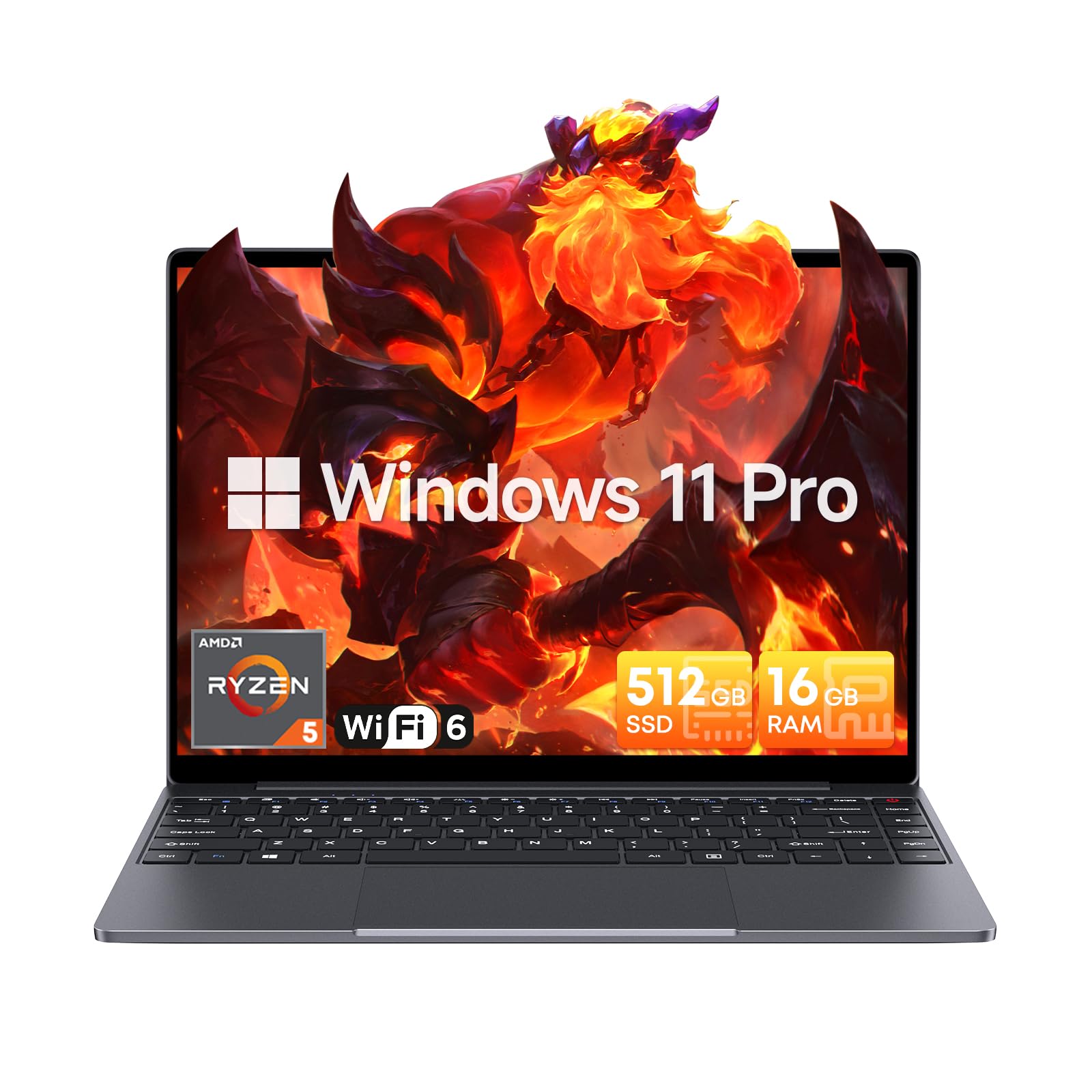
Image: The CHUWI CoreBook X laptop open on a desk, ready for use.
1.2 Collegamento delle periferiche
- Dispositivi USB: Connect USB mice, keyboards, or external storage devices to the available USB 3.0 ports.
- Display esterno: Use the HDMI 1.4 port or the full-featured USB Type-C port to connect an external monitor.
- Dispositivi audio: Collegare le cuffie o gli altoparlanti esterni al jack audio da 3.5 mm.
- Carta TF: Insert a TF card into the TF card slot for additional storage.

Immagine: dettagliata view of the laptop's ports, including TF Card Slot, 3.5mm Headphone Jack, USB 3.0 Port, Lock Slot, USB Type-C (PD Charging/USB 2.0), HDMI 1.4, and Full-featured USB Type-C Port.
1.3 Connessione di rete e Bluetooth
- Wi-Fi 6: To connect to a wireless network, click the Wi-Fi icon in the taskbar, select your network, and enter the password.
- Bluetooth 5.2: To pair Bluetooth devices, go to Windows Settings > Bluetooth & devices, turn on Bluetooth, and select your device to pair.
2. Operativo
This section covers the basic operation of your CHUWI CoreBook X laptop.
2.1 Gestione dell'alimentazione
- Accensione: Premere il pulsante di accensione.
- Modalità risparmio: Chiudere il coperchio o selezionare "Sospensione" dal menu Start.
- Fermare: Selezionare "Arresta il sistema" dal menu Start.
- Ricomincia: Selezionare "Riavvia" dal menu Start.
2.2 Tastiera e touchpad
- The laptop features a full-sized backlit keyboard with white illumination. Use the function keys (Fn) in combination with other keys for shortcuts like adjusting brightness, volume, or toggling the backlight.
- The large touchpad supports multi-touch gestures for navigation. Refer to Windows settings for customizing touchpad gestures.

Immagine: un primo piano view of the laptop's backlit keyboard and large touchpad, highlighting its navigation features.
2.3 Display e audio
- The 14-inch IPS display offers a 2160*1440 resolution. Adjust display settings (brightness, resolution, scaling) through Windows Display Settings.
- The laptop is equipped with stereo speakers. Volume can be controlled via the keyboard function keys or the Windows sound settings.
- An HD webcam is integrated for video conferencing.

Image: The laptop's 14-inch 2K IPS display showcasing vibrant colors and a comparison of 3:2 and 16:9 aspect ratios.
2.4 Video Oltreview
Video: An official product video demonstrating various features and usage scenarios of the CHUWI CoreBook X laptop, including its performance, display, and connectivity options.
3. Manutenzione
Una corretta manutenzione garantisce la longevità e le prestazioni ottimali del tuo laptop.
3.1 Pulizia
- Use a soft, lint-free cloth to clean the screen. For stubborn marks, dampInumidire leggermente il panno con acqua o un detergente per schermi.
- Wipe the chassis and keyboard with a soft, dry cloth. Avoid using harsh chemicals or abrasive materials.
- Periodically use compressed air to clear dust from the vents to maintain efficient cooling.
3.2 Cura della batteria
- Avoid fully discharging the battery frequently. Charge the laptop when the battery level is low.
- Se non lo si utilizza per lunghi periodi, conservare il portatile in un luogo fresco e asciutto, con la batteria carica al 50-70%.
- Use only the original or certified compatible USB-C PD charger.
3.3 Aggiornamenti di memoria e archiviazione
The laptop supports RAM and SSD upgrades.
- The 16GB DDR4 RAM can be expanded up to 64GB via 2 SODIMM slots.
- The 512GB PCIe SSD can be expanded up to 2TB using the M.2 2280 PCIe slot.
- A convenient detachable bottom cover allows for easier access to upgrade components without removing the entire back panel.

Image: The underside of the laptop with the detachable cover removed, revealing the dual-channel SO-DIMM slot for RAM upgrades.
4. Risoluzione Dei Problemi
Questa sezione fornisce soluzioni ai problemi più comuni che potresti riscontrare.
4.1 Problemi comuni e soluzioni
- Il portatile non si accende:
- Assicurarsi che l'adattatore di alimentazione sia collegato saldamente sia al laptop sia a una presa di corrente funzionante.
- Verificare che la presa di corrente funzioni.
- Prova a tenere premuto il pulsante di accensione per 10-15 secondi per eseguire un hard reset.
- Problemi di visualizzazione (nessuna immagine, sfarfallio):
- Regolare la luminosità dello schermo utilizzando i tasti funzione.
- Se è collegato un monitor esterno, provare a scollegarlo.
- Riavviare il portatile.
- Problemi di connettività Wi-Fi o Bluetooth:
- Assicurati che il Wi-Fi/Bluetooth sia abilitato nelle impostazioni di Windows.
- Riavvia il router/modem per problemi con il Wi-Fi.
- Rimuovere e riassociare i dispositivi Bluetooth.
- Update network and Bluetooth drivers through Device Manager.
- Prestazioni lente:
- Chiudere le applicazioni non necessarie in esecuzione in background.
- Controlla gli aggiornamenti di Windows e dei driver.
- Assicurarsi che ci sia spazio libero sufficiente sull'SSD.
- Esegui una scansione antimalware.
If you encounter issues not covered here or require further assistance, please refer to the Support section.
5. Specifiche
Detailed technical specifications for the CHUWI CoreBook X laptop.

Image: An illustration of the AMD Ryzen 5 processor, highlighting its core count, threads, and clock speed.
| Caratteristica | Specificazione |
|---|---|
| Nome del modello | Corebook X |
| Processore | AMD Ryzen 5 (6 Cores, 12 Threads, up to 4.3 GHz) |
| Grafica | AMD Radeon Graphics (1800MHz, Max 2GB Memory) |
| Memoria RAM | 16GB DDR4 (Expandable up to 64GB via 2 SODIMM slots) |
| Magazzinaggio | 512GB PCIe SSD (Expandable up to 2TB via M.2 2280 PCIe slot) |
| Display | 14-inch IPS, 2160*1440 Resolution, 100% sRGB Color Gamut |
| Sistema operativo | Windows 11 Pro |
| Connettività | Wi-Fi 6 (802.11ax), Bluetooth 5.2 |
| Porti | USB Type-C (PD Charging/USB 2.0), USB 3.0, HDMI 1.4, Full-featured USB Type-C, 3.5mm Audio Jack, TF Card Slot, Lock Slot |
| Batteria | 46.2Wh Lithium-Ion Battery, 65W USB-C PD Fast Charging |
| Tastiera | Full-sized Backlit Keyboard with White Illumination |
| Tastiera touch | Large Touchpad, Multi-touch |
| Webcamma | HD Webcamma |
| Dimensioni | 12.2"L x 9"W x 0.67"Th (17mm thin) |
| Peso | 2.2 libbre (1.4 kg) |
6. Garanzia
The CHUWI CoreBook X laptop comes with a Garanzia del produttore di 1 anni.
This warranty covers defects in materials and workmanship under normal use. It does not cover damage caused by accidents, misuse, unauthorized repairs, or modifications. Please retain your proof of purchase for warranty claims.
7. Supporto
For technical assistance, warranty claims, or further inquiries, please contact CHUWI customer support.
- Supporto del produttore: Visit the official CHUWI websito per risorse di supporto, FAQ e informazioni di contatto.
- Supporto al venditore: If purchased through a retailer, you may also contact the seller for assistance.