
1. Introduzione
Grazie per l'acquistoasing the FreeWolf G6 Wireless Gaming Mouse. This manual provides detailed instructions for setting up, operating, and maintaining your device. Please read this manual carefully before use to ensure optimal performance and longevity of your mouse.
2. Informazioni sulla sicurezza
- Tenere il dispositivo lontano dall'acqua e da altri liquidi per evitare scosse elettriche o danni.
- Do not attempt to disassemble or repair the mouse yourself. Refer all servicing to qualified personnel.
- Evitare di esporre il mouse a temperature estreme o alla luce solare diretta.
- Smaltire la batteria secondo le normative locali. Non incenerire.
3. Contenuto della confezione
- FreeWolf G6 Wireless Gaming Mouse
- Cavo di ricarica USB
- Ricevitore USB 2.4G (memorizzato nel mouse)
- Manuale d'uso
4. Prodotto finitoview
Familiarize yourself with the various components and buttons of your FreeWolf G6 mouse:

Image: Diagram illustrating the button layout and features of the FreeWolf G6 Wireless Gaming Mouse. Key components include the Left Button, Right Button, Middle Button (scroll wheel), CPI Cycle button, Light Switch, Webpage Button, Backward button, Forward button, Desktop Button, Fire Button, Receiver Storage Compartment, BT Connection Button, and Power Switch Button (2.4G-OFF-BT).
- Pulsante sinistro: Funzione standard del clic sinistro.
- Pulsante destro: Funzione standard del clic destro.
- Pulsante centrale (rotellina di scorrimento): Funzione di scorrimento e clic centrale.
- Pulsante Ciclo CPI: Adjusts the mouse's DPI sensitivity.
- Interruttore della luce: Controls the mouse's LED lighting.
- WebPulsante pagina: Navigates to a webpage (functionality may vary by software).
- Pulsante indietro: Torna indietro web browser o file esploratori.
- Pulsante Avanti: Naviga in avanti in web browser o file esploratori.
- Pulsante Desktop: Ritorno al desktop con un clic.
- Pulsante di fuoco: Programmable button, often used for rapid-fire actions in games.
- Receiver Storage Compartment: Stores the 2.4G USB receiver when not in use.
- BT Connection Button: Avvia la modalità di associazione Bluetooth.
- Power Switch Button (2.4G-OFF-BT): Seleziona la modalità di connessione o spegne il mouse.
5. Impostazione
5.1 Ricarica del mouse
The FreeWolf G6 mouse features a built-in rechargeable lithium battery. Before first use, or when the battery is low, connect the mouse to a power source using the provided USB charging cable.

Image: The FreeWolf G6 mouse connected via its USB cable to a laptop, indicating the charging process. The mouse features a built-in rechargeable battery for extended use.
- Collegare l'estremità piccola del cavo di ricarica USB alla porta di ricarica sulla parte anteriore del mouse.
- Connect the larger end of the USB cable to a USB port on your computer or a USB wall adapter.
- The mouse's indicator light will show charging status (e.g., breathing light, solid light, or off when fully charged).
5.2 Connessione wireless 2.4G
- Individuare il ricevitore USB 2.4G riposto nello scomparto nella parte inferiore del mouse.
- Collega il ricevitore USB a una porta USB disponibile sul tuo computer.
- Slide the Power Switch Button on the bottom of the mouse to the '2.4G' position.
- Il computer dovrebbe rilevare e installare automaticamente i driver necessari. Il mouse è pronto per l'uso.
5.3 Connessione Bluetooth
- Slide the Power Switch Button on the bottom of the mouse to the 'BT' position.
- Press and hold the BT Connection Button on the bottom of the mouse for 3-5 seconds until the indicator light starts flashing, indicating pairing mode.
- Sul tuo computer o dispositivo, vai alle impostazioni Bluetooth e cerca nuovi dispositivi.
- Select 'FreeWolf G6' (or similar name) from the list of available devices to pair.
- Once paired, the indicator light on the mouse will stop flashing and remain solid or turn off. The mouse is now connected via Bluetooth.
6. Istruzioni per l'uso
6.1 Accensione/spegnimento
Use the Power Switch Button on the bottom of the mouse to turn it on or off, or to select the desired connection mode (2.4G or BT).
6.2 Regolazione DPI
The mouse features 5 adjustable DPI levels, allowing you to customize cursor sensitivity for different tasks or games. Press the Pulsante ciclo CPI (fare riferimento al Prodotto Overview, item 4) to cycle through the available DPI settings.
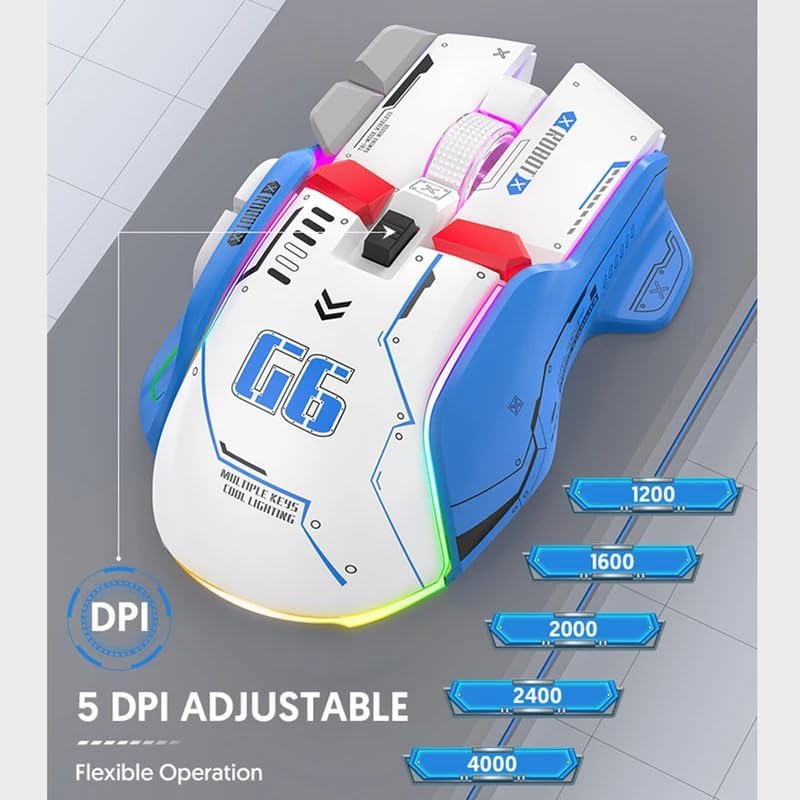
Image: The FreeWolf G6 mouse displaying its 5 adjustable DPI settings: 1200, 1600, 2000, 2400, and 4000 DPI. This allows for flexible operation and sensitivity control.
- Available DPI levels: 1200, 1600, 2000, 2400, 4000.
- Each press of the CPI Cycle Button will switch to the next DPI level.
6.3 Funzioni dei pulsanti
Beyond the standard left, right, and middle clicks, the FreeWolf G6 offers several additional buttons for enhanced functionality. Refer to the Product Overview section (Section 4) for the location of each button.
- WebPulsante pagina: Typically used for specific browser functions or can be customized.
- Backward/Forward Buttons: Navigare web pagine o cartelle.
- Pulsante Desktop: Instantly minimizes all open windows to show the desktop.
- Pulsante di fuoco: Often used in gaming for rapid, repeated clicks.
6.4 Design ergonomico
The FreeWolf G6 features a symmetrical design with a high curve back, engineered to provide a comfortable grip for various hand positions and reduce strain during extended use.

Image: A hand gripping the FreeWolf G6 mouse, illustrating its symmetrical design, high curve back, and slip-resistant surface for comfortable and secure handling.
6.5 Funzionamento silenzioso
The FreeWolf G6 is designed for silent clicking, minimizing noise during use, which is beneficial in quiet environments or during late-night gaming sessions.
7. Manutenzione
- Pulizia: Utilizzare un panno morbido e asciutto per pulire la superficie del mouse. Per lo sporco ostinato, un panno leggermenteamp È possibile utilizzare un panno, ma assicurarsi che non penetri umidità nel dispositivo.
- Magazzinaggio: When not in use for extended periods, turn off the mouse and store it in a cool, dry place.
- Cura della batteria: Evitare di scaricare completamente la batteria frequentemente. Caricare il mouse regolarmente per preservare la salute della batteria.
8. Risoluzione Dei Problemi
- Il mouse non risponde:
- Assicurarsi che il mouse sia acceso e che sia selezionata la modalità di connessione corretta (2.4G o BT).
- Controllare il livello della batteria e caricarla se necessario.
- Per la connessione 2.4G, assicurarsi che il ricevitore USB sia collegato saldamente a una porta USB funzionante.
- For Bluetooth connection, ensure Bluetooth is enabled on your device and the mouse is properly paired. Try re-pairing if necessary.
- Il movimento del cursore è irregolare o lento:
- Pulisci il sensore ottico nella parte inferiore del mouse.
- Adjust the DPI setting using the CPI Cycle Button.
- Assicurati di utilizzare il mouse su una superficie adatta (non molto riflettente o trasparente).
- La connessione si interrompe frequentemente:
- Avvicinare il mouse al ricevitore/dispositivo per ridurre le interferenze.
- Avoid using the mouse near other wireless devices that may cause interference.
- Assicurarsi che la batteria sia sufficientemente carica.
9. Specifiche
| Caratteristica | Dettaglio |
|---|---|
| Modello | G6 |
| Tecnologia di connettività | Bluetooth, 2.4G Wireless (Tri-Mode) |
| Tipo di alimentazione | Rechargeable (Built-in Lithium Battery) |
| Numero di pulsanti | 9 |
| Numero di rulli | 1 (Rotellina di scorrimento) |
| Livelli DPI | 1200, 1600, 2000, 2400, 4000 (regolabile) |
| Modalità di funzionamento | Opto-elettronico |
| Caratteristiche speciali | Silent Operation, One-Click Return Desktop, Backlight, Portable |
| Orientamento della mano | Giusto |
| Dispositivi compatibili | Personal computer |
| Peso lordo | 195g |
10. Garanzia e supporto
This product comes with a standard manufacturer's warranty. For detailed warranty information or technical support, please refer to the documentation included with your purchase or contact the retailer. Keep your proof of purchase for warranty claims.