
1. Introduzione
Thank you for choosing the AULA G7 Pro Wireless Gaming Headset. This manual provides detailed instructions for setting up, operating, and maintaining your headset to ensure optimal performance and an immersive audio experience. Please read this manual thoroughly before using the product.
2. Prodotto finitoview
2.1 Contenuto della confezione
The AULA G7 Pro package includes the following items:
- AULA G7 Pro Wireless Gaming Headset
- Microfono Boom staccabile
- Cavo di ricarica da USB-C a USB-A
- Cavo audio da 3.5 mm
- 2.4G Wireless USB-A Receiver
- Adattatore da USB-C a USB-A
- Manuale d'uso
2.2 Componenti e controlli delle cuffie
Familiarize yourself with the various parts and controls of your AULA G7 Pro headset.
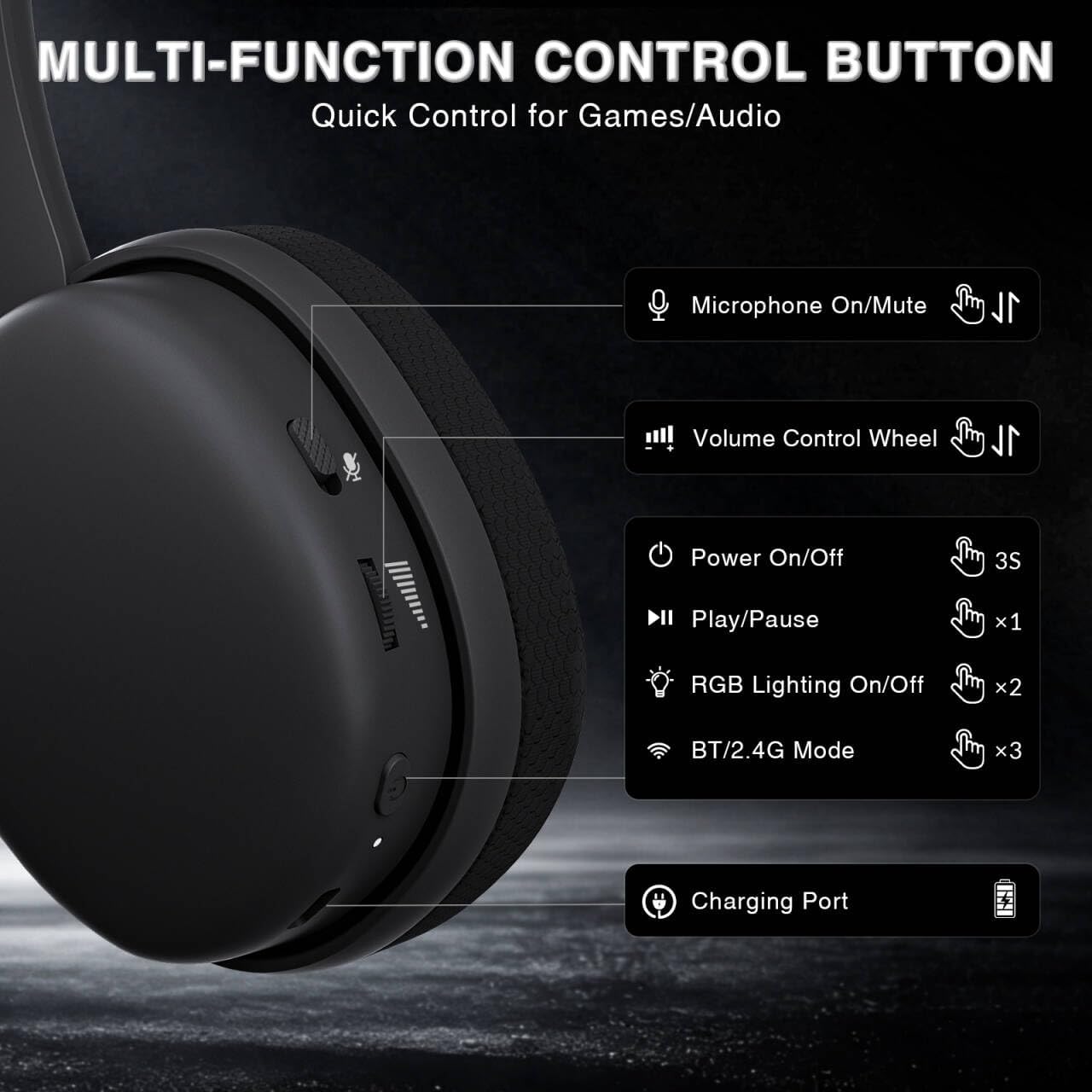
Image: Multi-function control buttons on the AULA G7 Pro headset, showing the microphone on/off toggle, volume control wheel, power switch, play/pause button, RGB lighting on/off button, BT/2.4G mode switch, and charging port.
- Microphone On/Off Toggle: Scorri per disattivare o riattivare il microfono.
- Rotella di controllo del volume: Regola il volume di uscita audio.
- Interruttore di alimentazione: Tenere premuto per 3 secondi per accendere/spegnere.
- Pulsante Play/Pausa: Premere una volta per riprodurre o mettere in pausa l'audio.
- Accensione/spegnimento illuminazione RGB: Press twice to toggle RGB lighting.
- BT/2.4G Mode Switch: Press three times to switch between Bluetooth and 2.4G wireless modes.
- Porta di ricarica: Porta USB-C per caricare le cuffie.
- Jack audio da 3.5 mm: Per connessione cablata.
- Porta microfono: For attaching the detachable boom microphone.
Video: Un oltreview of the AULA G7 Pro Wireless Gaming Headset, showcasing its design, features, and different color options (black and pink).
3. Configurazione e connettività
3.1 2.4G Wireless Connection (PC, PS5, PS4, Switch)
For low-latency gaming, use the 2.4G wireless connection.
- Insert the 2.4G USB-A receiver into an available USB port on your PC, PS5, PS4, or Nintendo Switch dock. If your device only has USB-C ports, use the provided USB-C to USB-A adapter.
- Power on the AULA G7 Pro headset by pressing and holding the power button for 3 seconds.
- The headset will automatically attempt to connect to the receiver. The indicator light on the headset will show a stable color once connected.
- On your device, ensure the audio output is set to the AULA G7 Pro headset.

Image: The AULA G7 Pro headset demonstrating its tri-mode connectivity options: 3.5mm wired, Bluetooth 5.3, and 2.4G wireless with USB-C and USB-A receivers, compatible with various devices including PC, PS5, PS4, Switch, and smartphones.
3.2 Bluetooth 5.3 Connection (PC, Smartphones, Tablets)
Connect your headset via Bluetooth for general use with compatible devices.
- Power on the AULA G7 Pro headset.
- Press the BT/2.4G mode switch three times to enter Bluetooth pairing mode. The indicator light will flash.
- On your device (PC, smartphone, tablet), go to Bluetooth settings and search for available devices.
- Select "AULA G7 Pro" from the list to pair. The indicator light on the headset will become stable once connected.
3.3 3.5mm Wired Connection (Xbox, PC, PS5, PS4, Switch, Smartphones)
Use the 3.5mm audio cable for a universal wired connection, especially for Xbox consoles.
- Connect one end of the 3.5mm audio cable to the 3.5mm audio jack on the headset.
- Connect the other end of the 3.5mm audio cable to the audio output port of your device (e.g., Xbox controller, PC audio jack).
- The headset will operate in wired mode. Note that some advanced features like virtual 7.1 surround sound may not be available in wired mode, depending on the device.
4. Istruzioni per l'uso
4.1 Utilizzo del microfono
The AULA G7 Pro features a detachable noise-canceling microphone.
- Collegamento del microfono: Align the 3.5mm plug of the boom microphone with the microphone port on the headset and insert it firmly.
- Disattivazione/Riattivazione audio: Use the microphone on/off toggle switch on the headset to quickly mute or unmute your microphone.
- Cancellazione del rumore: The 360° omnidirectional microphone filters out approximately 80% of background noise. For enhanced noise cancellation and voice clarity, install the driver software (Windows 2.4G mode only).
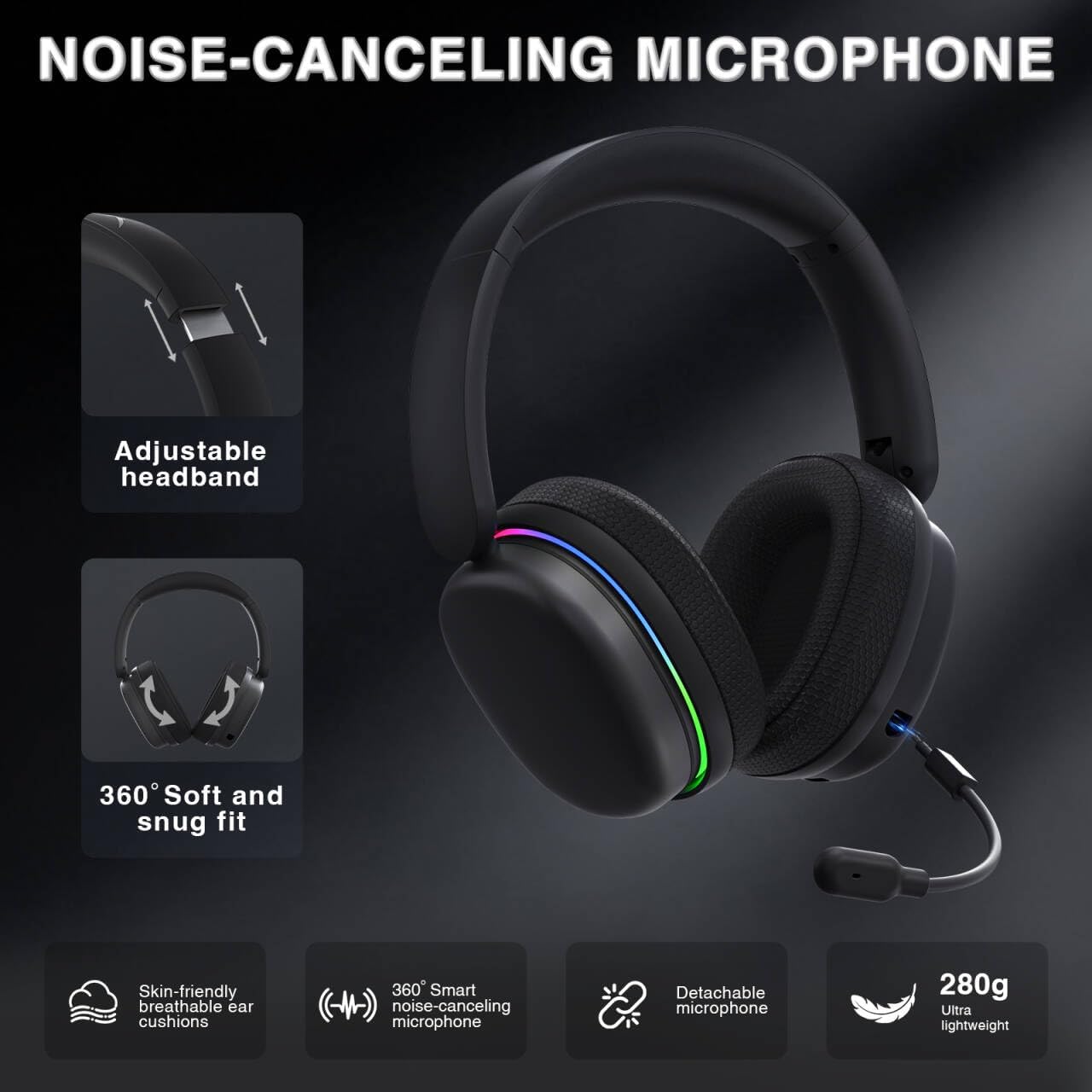
Image: The AULA G7 Pro headset highlighting its adjustable headband, soft and snug fit, skin-friendly breathable ear cushions, 360° smart noise-canceling microphone, detachable microphone, and ultra-lightweight 280g design.
4.2 Virtual 7.1 Surround Sound and EQ Software
Experience immersive audio with virtual 7.1 surround sound and customize your sound profile.
- Suono surround virtuale 7.1: Available in Windows 2.4G mode, this feature provides precise audio positioning for gaming.
- EQ Software: Scaricare e installare il driver da soaidriver.com (Windows 2.4G mode only). The software allows for customizable EQ settings, dynamic bass boost, vocal enhancement, and voice morphing.
- Nota di installazione: First, insert the 2.4G receiver into your computer, then install the driver. After entering the driver interface, right-click the icon on the left side of the screen to access the audio settings menu.
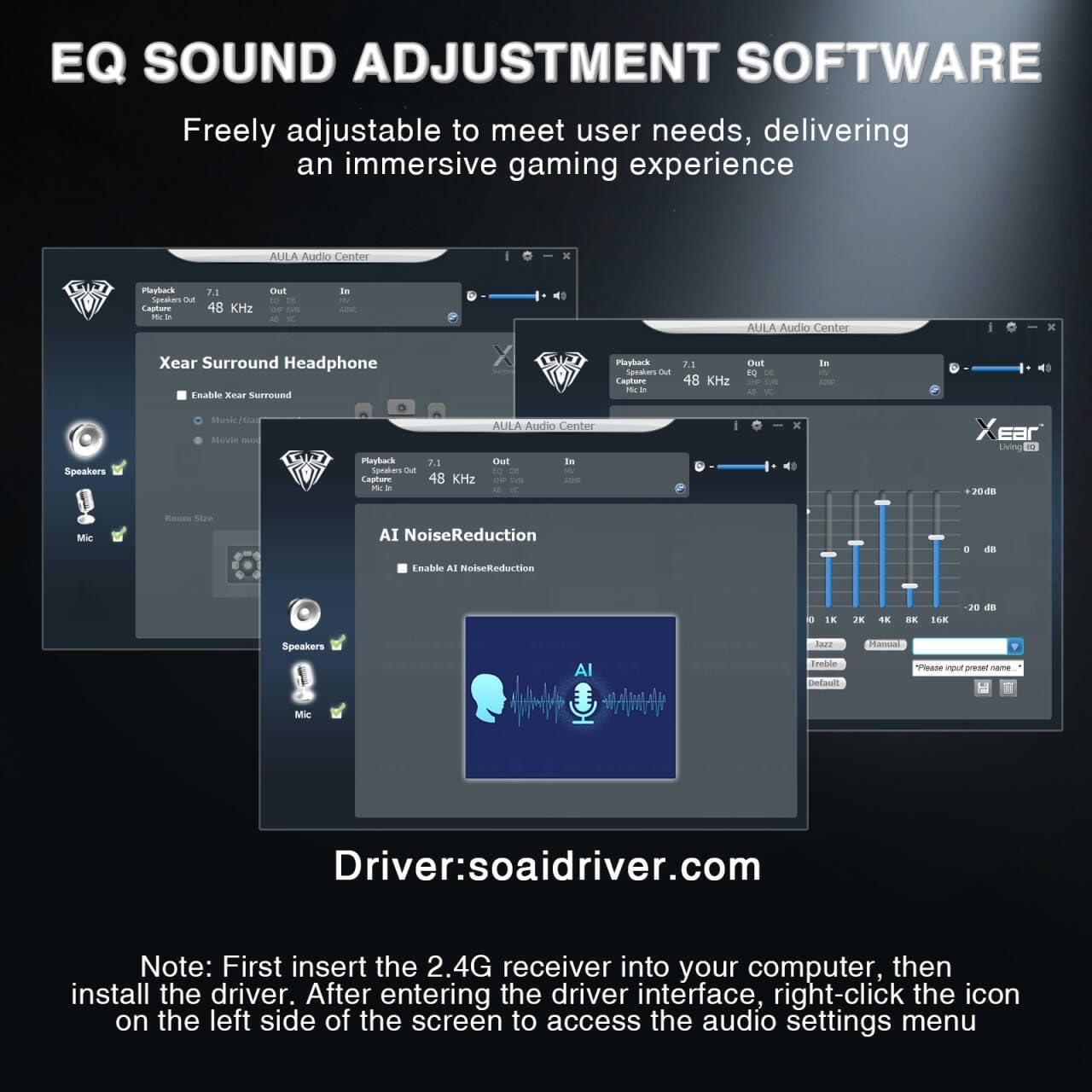
Image: Screenshots of the AULA Audio Center software interface, showing options for Xear Surround Headphone, AI Noise Reduction, and Equalizer settings for sound customization.
4.3 Illuminazione RGB
The headset features 16 million-color RGB lighting.
- Attiva/disattiva RGB: Press the RGB Lighting On/Off button twice to activate or deactivate the lighting.
- Sincronizzazione: RGB lighting can synchronize with gaming peripherals for an immersive atmosphere.
5. Ricarica e durata della batteria
The AULA G7 Pro is equipped with a 1000mAh rechargeable battery.
- Ricarica: Connect the USB-C charging cable to the headset's charging port and the other end to a USB power source (e.g., computer, wall adapter). The indicator light will show charging status.
- Durata della batteria: Up to 65 hours of playback with RGB lighting off, and approximately 20 hours with RGB lighting activated.
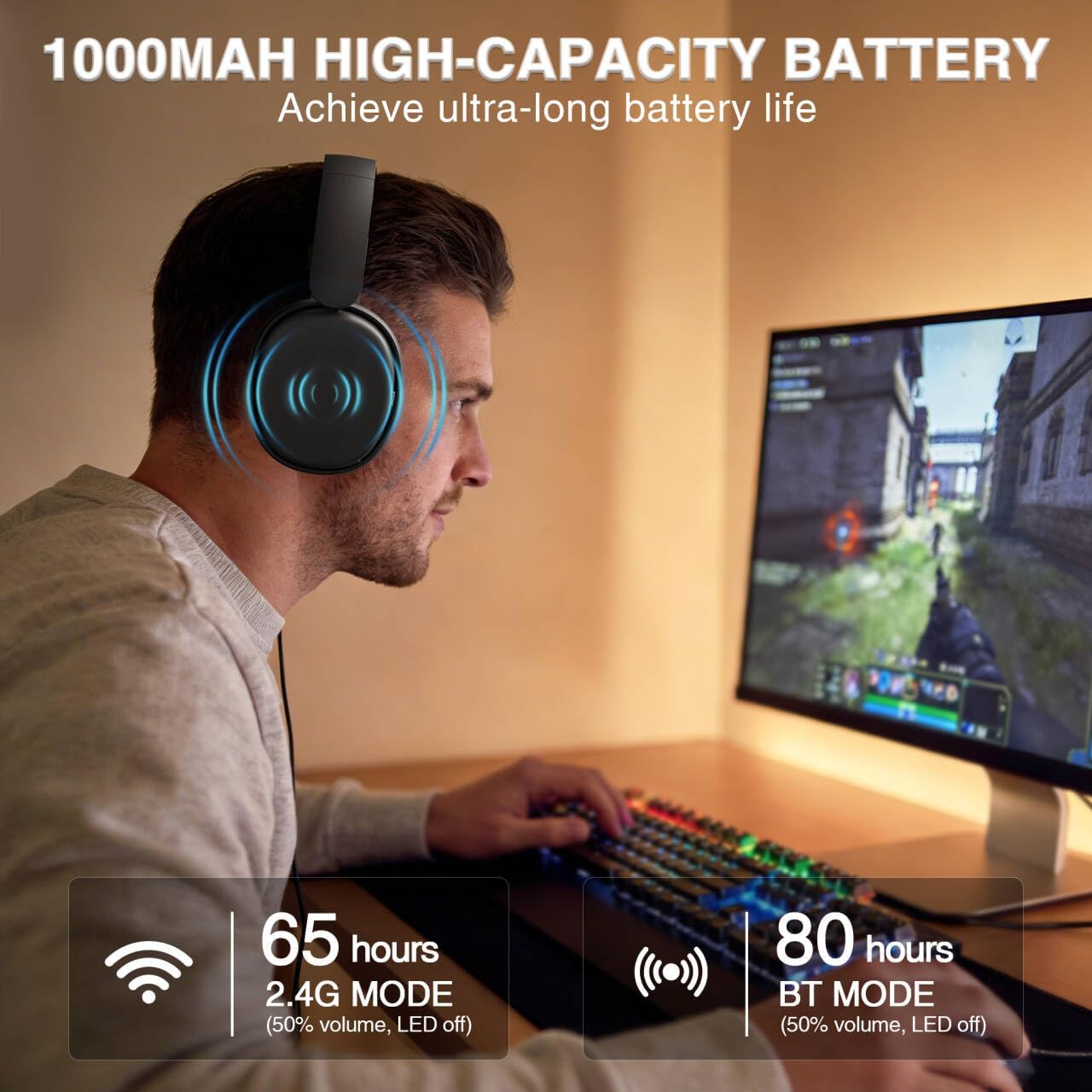
Image: A user wearing the AULA G7 Pro headset while gaming, illustrating the 65 hours of battery life in 2.4G mode (50% volume, LED off) and 80 hours in BT mode (50% volume, LED off).
6. Comfort e design
The headset is designed for extended wear comfort.
- Leggero: Weighing 280g, the headset is designed to minimize pressure during long gaming sessions.
- Vestibilità ergonomica: Features an ergonomic headband with protein leather padding and breathable mesh ear cushions.
- Regolabile: An 8-position adjustable steel frame and 360° acoustic chamber conform to facial contours, with micro-adjustable horizontal angles for a personalized fit.
7. Specifiche
| Caratteristica | Dettaglio |
|---|---|
| Marca | Aula |
| Nome del modello | G7 Pro |
| Tecnologia di connettività | 2.4G Wireless, BT5.3, Wired (3.5mm Jack) |
| Versione Bluetooth | 5.3 |
| Dimensioni del driver audio | 40 millimetri |
| Impedenza | 32 Ohm |
| Controllo del rumore | Cancellazione attiva del rumore (microfono) |
| Capacità della batteria | 1000mAh |
| Durata della batteria (RGB disattivato) | Up to 65 Hours (2.4G Mode), Up to 80 Hours (BT Mode) |
| Peso | 280g |
| Dispositivi compatibili | PC, PS5, PS4, Switch, Smartphones, Xbox (wired mode only) |
8. Risoluzione Dei Problemi
If you encounter issues with your AULA G7 Pro headset, refer to the following common solutions:
- Nessun suono:
- Assicurarsi che l'auricolare sia acceso e carico.
- Check that the correct audio output device is selected in your system settings.
- Verify the volume control wheel on the headset is not at minimum.
- For 2.4G/BT modes, ensure the headset is properly paired/connected. Try re-pairing if necessary.
- For wired mode, ensure the 3.5mm cable is fully inserted into both the headset and the device.
- Microfono non funzionante:
- Assicurarsi che il microfono staccabile sia fissato saldamente.
- Check the microphone on/off toggle switch on the headset is in the 'on' position.
- Verify the correct microphone input device is selected in your system settings.
- Ensure the microphone is not muted in your operating system or communication software.
- Connectivity Issues (2.4G/Bluetooth):
- Ensure the headset is within range of the receiver/device.
- Evitare forti interferenze elettromagnetiche provenienti da altri dispositivi wireless.
- Prova a riavviare sia l'auricolare che il dispositivo connesso.
- Per 2.4G, prova a collegare il ricevitore a una porta USB diversa.
- 7.1 Surround Sound Not Working:
- Ensure you are in 2.4G wireless mode on a Windows PC.
- Verify that the AULA driver software is installed and configured correctly.
9. Manutenzione
Per garantire la longevità e le prestazioni ottimali delle cuffie, seguire queste linee guida per la manutenzione:
- Pulizia: Per pulire le cuffie, utilizzare un panno morbido e asciutto. Non utilizzare detergenti abrasivi o solventi.
- Magazzinaggio: Conservare le cuffie in un luogo fresco e asciutto, lontano dalla luce solare diretta e da temperature estreme.
- Cura del cavo: Evitare di piegare bruscamente o tirare eccessivamente i cavi per evitare danni.
- Cura della batteria: Per una durata ottimale della batteria, evitare di scaricarla completamente frequentemente. Caricare regolarmente le cuffie, anche se non vengono utilizzate per periodi prolungati.
10. Garanzia e supporto
10.1 Informazioni sulla garanzia
The AULA G7 Pro Wireless Gaming Headset comes with a Garanzia di 1 anno dalla data di acquisto. La presente garanzia copre difetti di fabbricazione e di lavorazione in condizioni di normale utilizzo. Non copre danni causati da uso improprio, incidenti, modifiche non autorizzate o normale usura.
10.2 Assistenza clienti
For technical assistance, warranty claims, or any questions regarding your AULA G7 Pro headset, please contact AULA customer support through the retailer where you purchased the product or visit the official AULA websito per le informazioni di contatto.
Please have your purchase receipt and product model number (G7 Pro) ready when contacting support.