
1. Introduzione
This manual provides essential information for setting up, operating, maintaining, and troubleshooting your FUNYET NY-14 Laptop. Please read this manual thoroughly before using your device to ensure proper function and longevity.
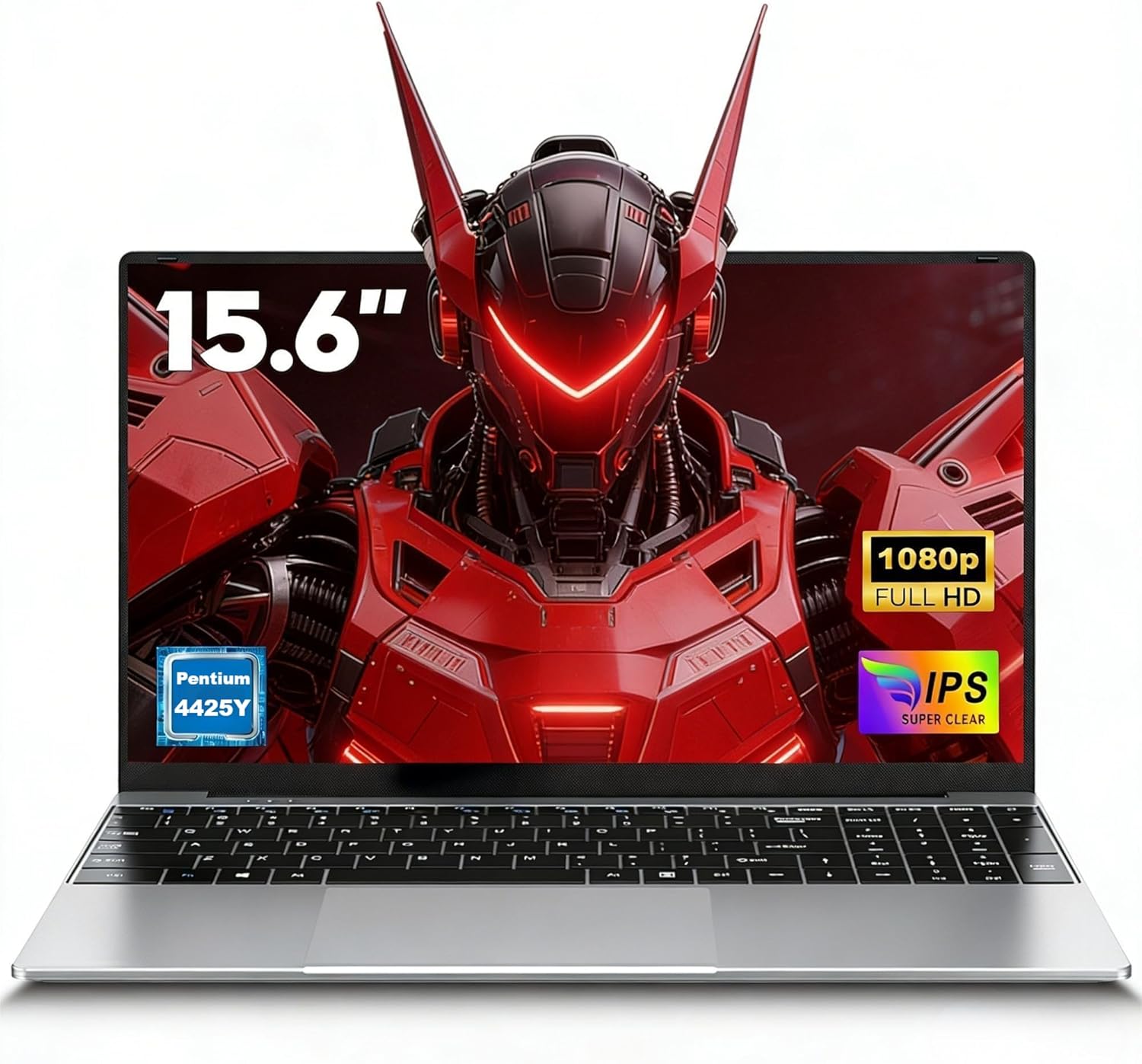
Image 1.1: The FUNYET NY-14 Laptop in a closed position, showcasinil suo design elegante.
2. Contenuto della confezione
Verificare che tutti gli articoli siano presenti nel pacco:
- 1 × FUNYET NY-14 Laptop (Intel 4425Y)
- 1 × 12V2A DC Adapter
- 1 × Manuale di istruzioni (questo documento)
- 1 × Scheda di garanzia
3. Impostazione
3.1 Ricarica iniziale e accensione
- Connect the provided 12V2A DC adapter to the laptop's DC power port and a power outlet.
- Lasciare caricare il laptop per almeno 30 minuti prima di utilizzarlo per la prima volta.
- Press and hold the power button for a few seconds until the screen illuminates to power on the device.
3.2 Configurazione del sistema operativo (Windows 11 Pro)
Upon first boot, you will be guided through the Windows 11 Pro setup process. Follow the on-screen instructions to configure:
- Lingua e regione
- Connessione di rete (Wi-Fi)
- Microsoft account login or local account creation
- Impostazioni sulla privacy
3.3 Keyboard Configuration
The laptop may come with a non-Italian keyboard layout. To adjust this:
- Go to Windows Settings > Time & Language > Language & Region.
- Add your preferred keyboard layout (e.g., Italian).
- Physical keyboard stickers may be provided to visually match the desired layout. Apply these carefully if needed.
4. Istruzioni per l'uso
4.1 Gestione dell'alimentazione
- Accensione: Premere e tenere premuto il pulsante di accensione.
- Modalità risparmio: Briefly press the power button or close the lid.
- Fermare: Fare clic su Start > Arresta > Arresta il sistema in Windows.
- Ricomincia: Fare clic su Start > Arresta > Riavvia in Windows.
4.2 Visualizzazione e immagini
The FUNYET NY-14 features a 15.6-inch Full HD (1920x1080) IPS display, offering clear visuals and wide viewing angles. The 180° hinge allows for flexible screen positioning, useful for sharing content.

Image 4.1: Visual representation of the 15.6-inch Full HD IPS display with features like 1920P resolution, True HD View, IPS technology, and Eyes Protection.
4.3 Connettività
- Wifi: Supports Wi-Fi 5 (802.11ac) for stable and fast internet connection. Connect via Windows network settings.
- Bluetooth: Features Bluetooth 4.2 for connecting wireless peripherals like mice, keyboards, headphones, or speakers. Enable Bluetooth in Windows settings to pair devices.
4.4 Porte e dispositivi esterni
Il laptop offre diverse porte per collegare dispositivi esterni:
- Porte USB 3.0 (x2): For high-speed data transfer with USB drives, external hard drives, and other USB peripherals.
- Porta Mini HDMI (x1): Connect to external monitors or projectors for extended display. An adapter may be required.
- Slot per scheda TF (MicroSD): Insert a TF (MicroSD) card for additional storage or data transfer.
- Jack per cuffie da 3.5 mm: Per collegare cuffie o altoparlanti esterni.
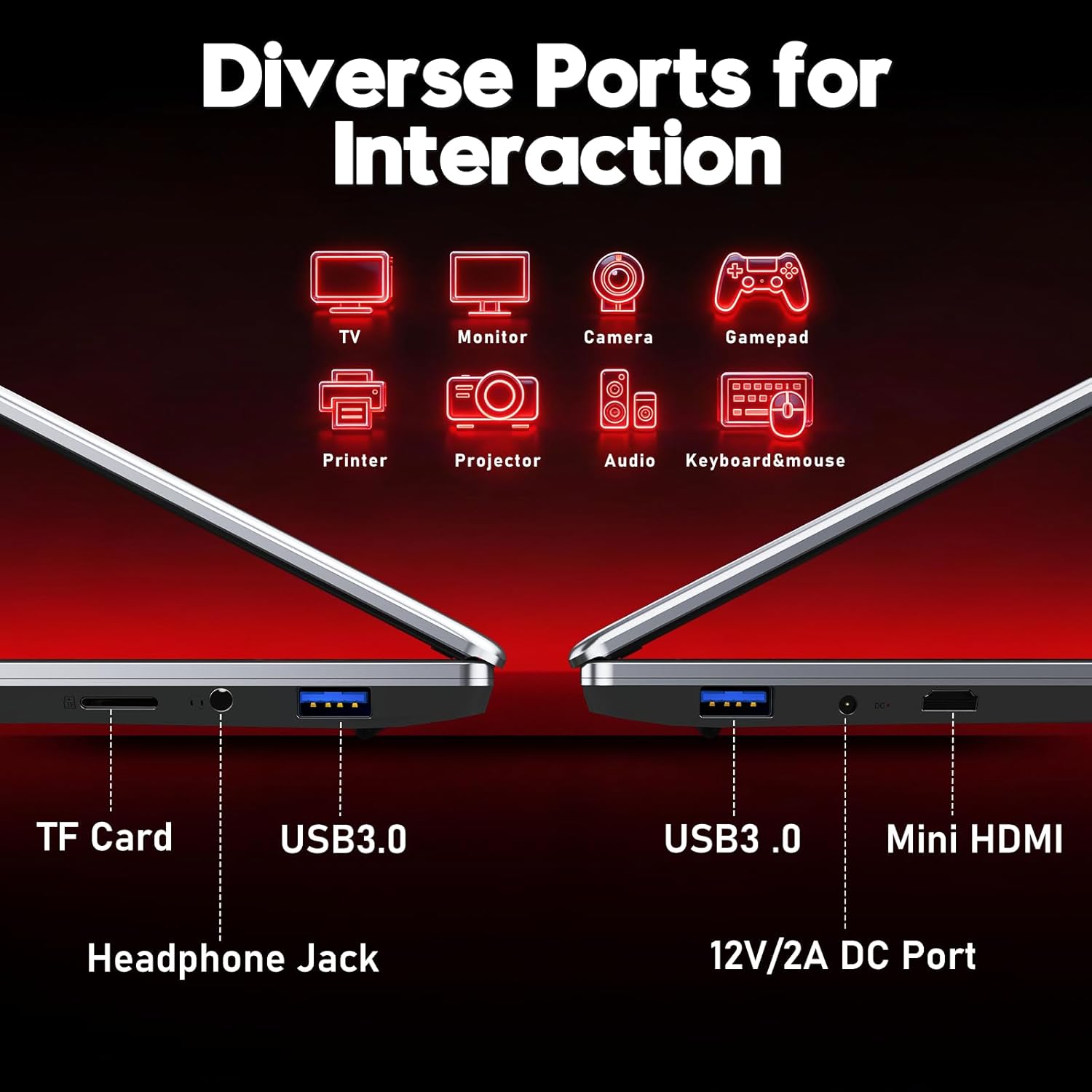
Immagine 4.2: Passoview of the laptop's diverse ports, including TF Card slot, Headphone Jack, USB 3.0, Mini HDMI, and DC Power port.
4.5 Webtelecamera e microfono
The integrated 1MP front camera and microphone are suitable for video calls and online meetings.
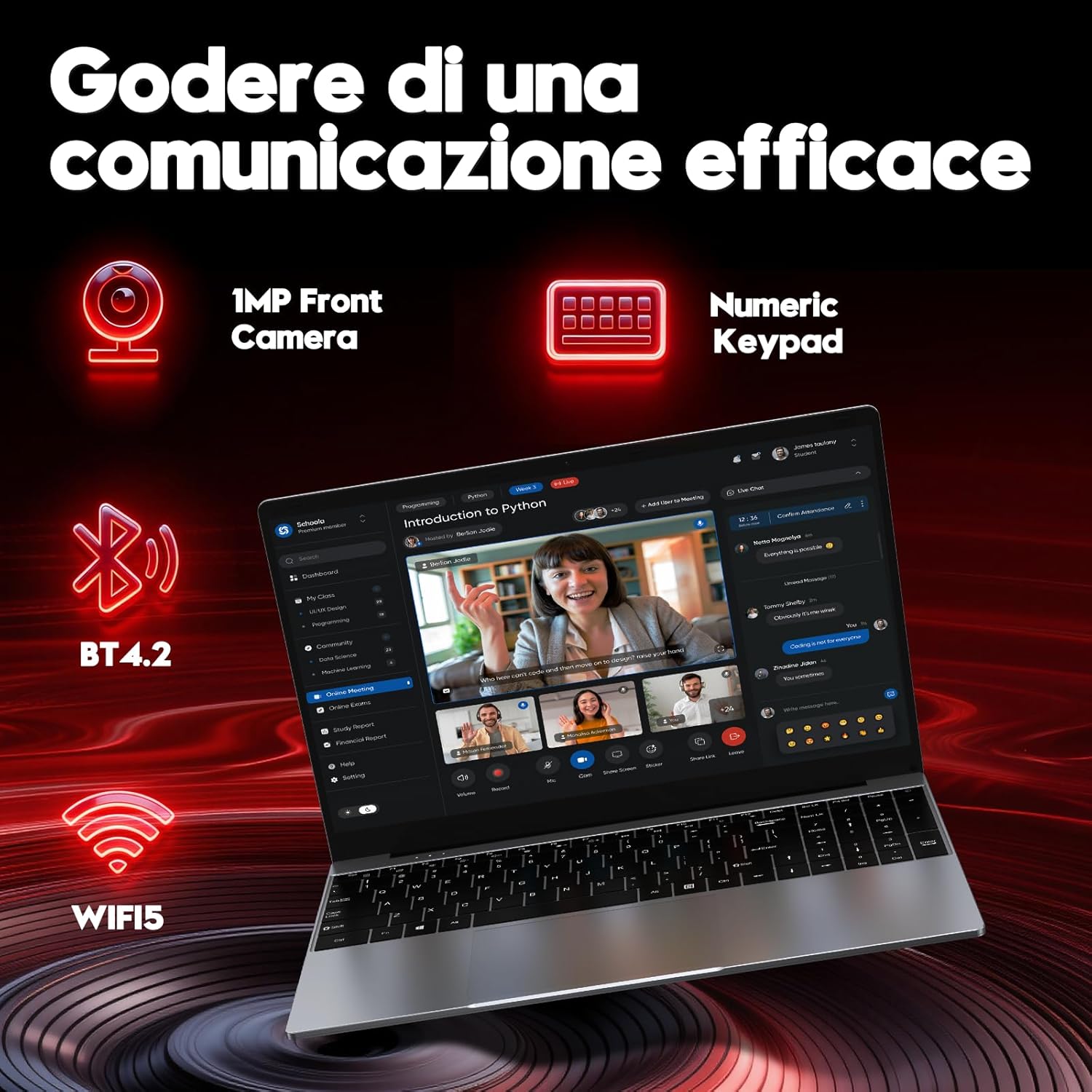
Image 4.3: Features for effective communication, highlighting the 1MP front camera, numeric keypad, Bluetooth 4.2, and Wi-Fi 5 connectivity.
4.6 Utilizzo della batteria
The laptop is equipped with a 5000mAh battery. For optimal battery life:
- Evitare di scaricare completamente la batteria frequentemente.
- Quando non lo si utilizza, conservare il portatile in un luogo fresco e asciutto.
- Adjust power settings in Windows to optimize battery consumption.

Image 4.4: Illustration emphasizing the 5000mAh battery capacity designed for extended use.
4.7 Tastiera e touchpad
The laptop features a full-size keyboard with a numeric keypad for efficient data entry. The touchpad supports multi-touch gestures for navigation.
5. Manutenzione
5.1 Pulizia
- Per pulire lo schermo e le superfici esterne, utilizzare un panno morbido e privo di lanugine.
- Per segni ostinati, dampInumidire leggermente il panno con acqua o un detergente per schermi.
- Evitare prodotti chimici aggressivi, materiali abrasivi o umidità eccessiva.
5.2 Aggiornamenti software
Regularly check for and install Windows updates to ensure system stability, security, and performance. Go to Settings > Windows Update.
5.3 Gestione dell'archiviazione
The 256GB SSD provides fast performance. To maintain optimal speed:
- Avoid filling the SSD to full capacity. Leave some free space for system operations.
- Eliminare regolarmente ciò che non è necessario files and uninstall unused applications.
6. Risoluzione Dei Problemi
Questa sezione affronta i problemi più comuni che potresti incontrare.
6.1 Problemi di alimentazione
- Il portatile non si accende: Assicurati che l'alimentatore sia collegato correttamente e che la batteria sia sufficientemente carica. Prova a tenere premuto il pulsante di accensione per 10-15 secondi per un hard reset.
- La batteria si scarica rapidamente: Check power settings in Windows. Reduce screen brightness, close unnecessary applications, and disconnect unused peripherals.
6.2 Problemi di visualizzazione
- Nessuna visualizzazione: Connect an external monitor via Mini HDMI to check if the issue is with the laptop's screen or the system.
- Schermo tremolante: Update graphics drivers or adjust display refresh rate in Windows settings.
6.3 Problemi di connettività
- Wi-Fi non connesso: Assicurati che il Wi-Fi sia abilitato nelle impostazioni di Windows. Riavvia il router e il laptop.
- Dispositivo Bluetooth non associato: Ensure Bluetooth is enabled on both devices and they are in pairing mode. Remove and re-add the device in Windows settings.
6.4 System Errors
- Frequent crashes or blue screens: This can indicate software conflicts or hardware issues. Try reinstalling Windows if the problem persists after driver updates. If the issue continues, contact support.
7. Specifiche
Detailed technical specifications for the FUNYET NY-14 Laptop (Intel 4425Y).

Immagine 7.1: Passoview of key specifications including processor, ports, display, battery, and graphics.
| Caratteristica | Specificazione |
|---|---|
| Marca | FUNYET |
| Nome del modello | NY-14 |
| Processore | Intel Core 4425Y (1.7 GHz) |
| Core/thread del processore | 2 core / 4 thread |
| Memoria RAM | 8 GB di memoria DDR3 SDRAM |
| Magazzinaggio | 256 GB SSD (eSATA Interface) |
| Dimensioni dello schermo | 15.6 pollici |
| Risoluzione dello schermo | 1920 x 1080 pixel (Full HD IPS) |
| Grafica | Grafica Intel UHD 615 integrata |
| Sistema operativo | Windows 11 Pro |
| Connettività wireless | Wi-Fi 5 (802.11ac), Bluetooth 4.2 |
| Porti | 2x USB 3.0, 1x Mini HDMI, 1x DC Power, 1x 3.5mm Headphone Jack, 1x TF Card Slot |
| Capacità della batteria | 5000 mAh |
| Peso | 1.6 chilogrammi |
| Colore | Argento |
| Caratteristiche speciali | HD Audio, Lightweight, Memory card slot, Numeric keypad, 180° hinge |
8. Garanzia e supporto
8.1 Informazioni sulla garanzia
Your FUNYET NY-14 Laptop comes with a warranty. Please refer to the included Warranty Card for details on coverage, terms, and conditions. Keep your proof of purchase for warranty claims.
8.2 Supporto tecnico
For technical assistance or if you encounter issues not covered in this manual, please contact the seller, Caiyue Electronics, through the Amazon platform. They can provide support and guidance for your device.