
Omezizy D450BT
Omezizy D450BT Bluetooth Thermal Label Printer Instruction Manual
Manuale di istruzioni completo per la stampante termica per etichette Bluetooth Omezizy D450BT, che copre configurazione, funzionamento, manutenzione, risoluzione dei problemi e specifiche.
1. Introduzione
This manual provides detailed instructions for the setup, operation, and maintenance of your Omezizy D450BT Bluetooth Thermal Label Printer. Please read this manual carefully before using the printer to ensure optimal performance and longevity.
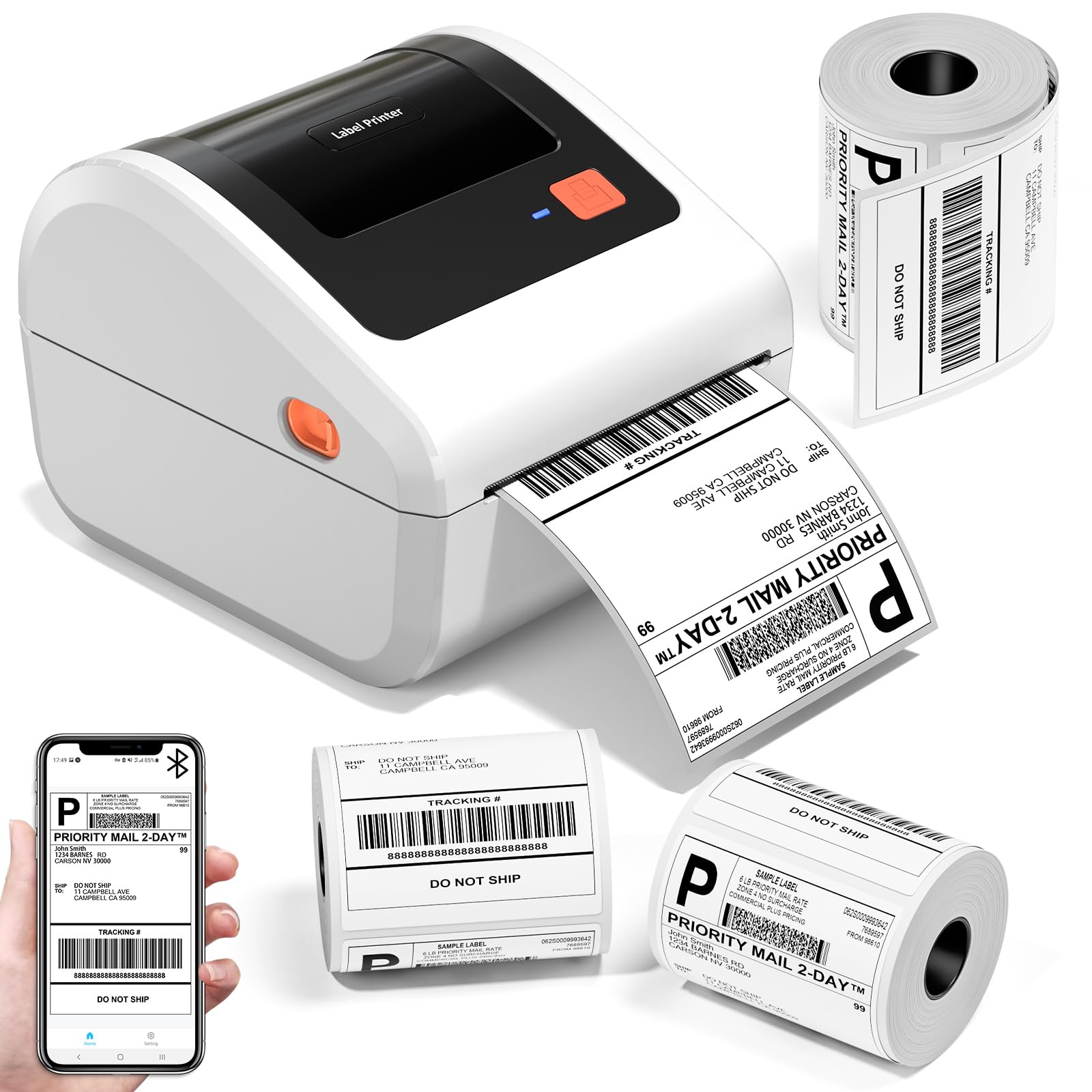
The Omezizy D450BT Bluetooth Thermal Label Printer, a compact and efficient device for various labeling needs.
The Omezizy D450BT is a compact and efficient thermal label printer designed for small businesses and home use. It supports both Bluetooth and USB connections, offering flexibility for printing from various devices including smartphones, tablets, and computers. Utilizing advanced thermal printing technology, it eliminates the need for ink or toner, providing a cost-effective and convenient labeling solution.
Video: An introduction to the Omezizy D450BT Bluetooth Thermal Label Printer, highlighting its key features and benefits.
2. Cosa c'è nella scatola
Si prega di controllare il contenuto del pacco all'arrivo per assicurarsi che tutti gli articoli siano presenti:
- D450BT Label Printer (White)
- USB Cord & Type C Convertor
- Adattatore di alimentazione e cavo
- 30Pcs 4"x6" Test Labels
- Porta etichette incorporato
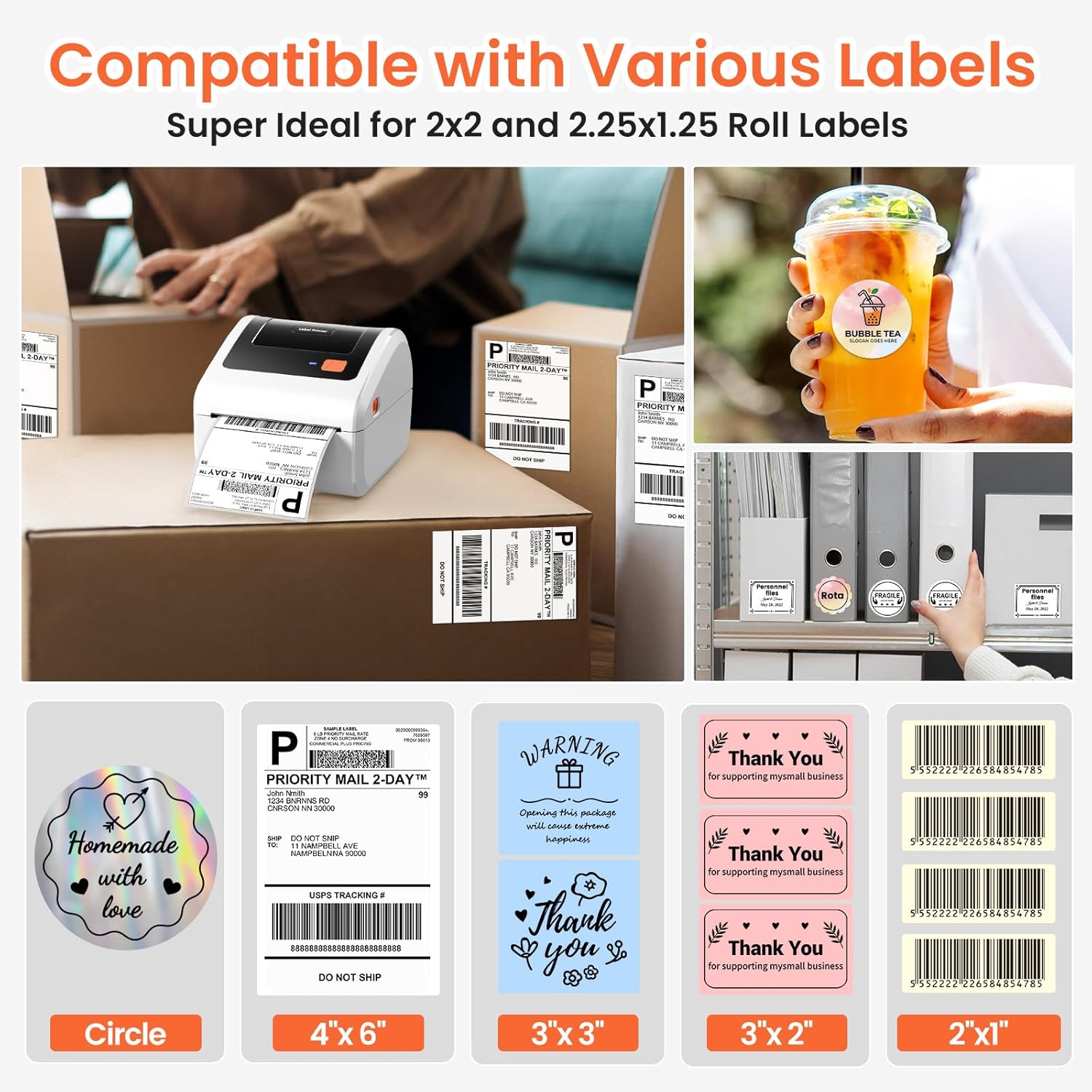
Image: All items included in the Omezizy D450BT printer package.
3. Prodotto finitoview
Familiarize yourself with the main components of the D450BT printer:
Video: A detailed introduction to the various components of the D450BT printer.
3.1 Anteriore e superiore View
- Spia luminosa: Shows printer status (e.g., blue for ready, red for error).
- Pulsante di alimentazione: Used for feeding labels, automatic label recognition, and pausing/resuming printing.
- Chiusure di rilascio: Used to open the printer cover for loading labels.
3.2 All'interno View
- Guida cartacea: Keeps labels aligned during printing.
- Rullo di laminazione: Alimenta le etichette nella stampante.
- Thermal Printhead: Generates heat to print on thermal labels.
3.3 Posteriore View
- Porta USB (tipo C): For connecting the printer to a computer via USB.
- AC Adapter Connector: Per collegare l'adattatore di alimentazione.
- Interruttore di alimentazione: To turn the printer On/Off.
4. Impostazione
4.1 Collegamento di alimentazione
Connect the printer to a power source:
- Collegare il cavo di alimentazione all'adattatore.
- Connect the adapter cable to the AC Adapter Connector on the back of the printer.
- Collegare il cavo di alimentazione a una presa a muro.
- Turn on the printer using the Power Switch (I: On; O: Off). The indicator light will turn blue.
Video: Instructions on how to connect the D450BT printer to power.
4.2 Caricamento carta
The D450BT supports both roll labels (internal bin) and fan-fold labels (rear loading). Ensure the print side of the labels faces upward.
4.2.1 Roll Labels Loading
- Press the Release Latches to open the printer cover.
- Install the paper roll onto the label holder, ensuring the print side is upward.
- Insert the label roll into the internal paper bin, ensuring it is straight and smooth.
- Adjust the paper guide to fit the label width.
- Chiudere il coperchio della stampante.
4.2.2 Fan-Fold Labels Loading
- Press the Release Latches to open the printer cover.
- Insert the fan-fold labels from the rear slot, ensuring the print side is upward and the labels are straight and smooth.
- Adjust the paper guide to fit the label width.
- Chiudere il coperchio della stampante.

Image: The D450BT printer's built-in paper label compartment, illustrating how to load labels.
Video: A demonstration of how to load labels into the D450BT printer.
4.3 Bluetooth Connection (Mobile Device)
Connect your D450BT printer to your Android or iOS device via Bluetooth:
- Download the "Labelife" app from Google Play Store or Apple App Store.
- Open the app and navigate to the Bluetooth connection settings.
- Select your printer's MAC address from the available devices and click "Connect".
- Una volta effettuata la connessione, l'app confermerà l'avvenuta connessione.
Video: Step-by-step guide to connecting the D450BT printer to a mobile phone via Bluetooth.
4.4 Bluetooth Connection (Computer)
Connect your D450BT printer to your Windows, macOS, or Linux computer via Bluetooth:
- Assicurati che il Bluetooth sia abilitato sul tuo computer.
- Vai alle impostazioni Bluetooth del tuo computer e cerca i dispositivi disponibili.
- Select the D450BT printer from the list and pair it.
- Install the printer driver if prompted (usually available on the manufacturer's webposto).
Video: Instructions for connecting the D450BT printer to a computer via Bluetooth.
4.5 Connessione USB
For a wired connection, use the provided USB cable:
- Connect one end of the USB cable to the Type-C USB Port on the printer.
- Collegare l'altra estremità del cavo USB a una porta USB disponibile sul computer.
- Install the printer driver if prompted.
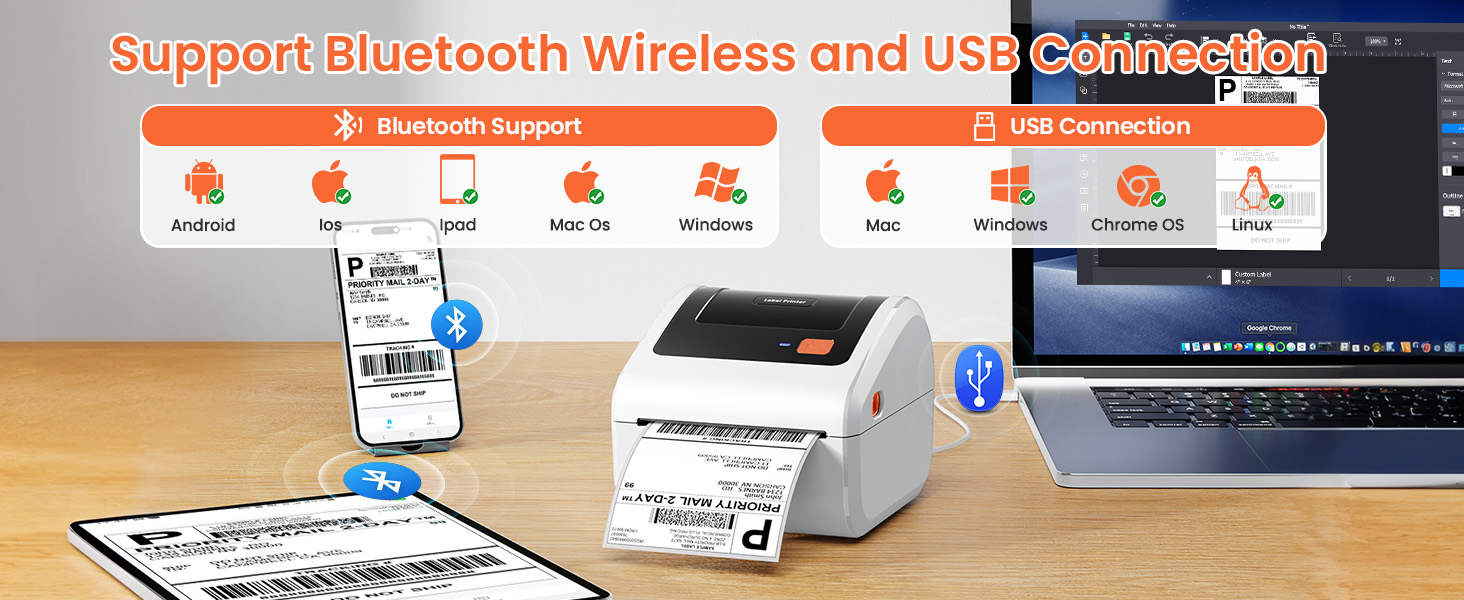
Image: The D450BT printer demonstrating both Bluetooth wireless and USB wired connection capabilities.
5. Istruzioni per l'uso
5.1 Stampa da dispositivo mobile
After connecting your printer via Bluetooth using the "Labelife" app:
- Apri l'app "Labelife".
- Select "Open PDF" to import your label file. You can import from local files or share from other applications.
- Use the "Crop PDF" function to select the desired area of the label.
- Input the correct width and height for your label.
- Adjust label orientation and preview la stampa.
- Click "Print" to send the label to the printer.
Video: Demonstrates the process of printing labels from a mobile device using the Labelife app.
5.2 Stampa dal computer
Once your printer is connected via Bluetooth or USB and drivers are installed:
- Apri il documento o l'etichetta file che desideri stampare sul tuo computer.
- Vai a "File" -> "Print" or use the print shortcut (Ctrl+P for Windows, Cmd+P for Mac).
- Select the Omezizy D450BT printer from the list of available printers.
- Regolare le impostazioni di stampa come il formato della carta (ad esempio, 4x6 pollici), l'orientamento e la qualità di stampa in base alle esigenze.
- Fare clic su "Stampa".
Video: Shows how to connect the D450BT printer to a computer via Bluetooth and initiate printing.
5.3 Automatic Label Recognition
The printer can automatically detect the size of your labels:
- Ensure a label is inserted straight and smooth into the printer.
- When the printer's indicator light is blue (standby mode), press and hold the Feed Button for approximately 3 seconds.
- Release the Feed Button. The printer will feed a few labels to recognize the size.
Nota: Every time the continuous paper is changed to another type of paper roll, the automatic label recognition function needs to be manually operated to learn the labels.
5.4 Stampa della pagina di prova
To print a test page and verify printer functionality:
- Ensure a label is inserted straight and smooth into the printer.
- When the printer's indicator light is blue (standby mode), double-click the Feed Button.
- A test page will print, confirming the printer is working correctly.
5.5 Pause and Resume Printing
You can pause and resume printing jobs:
- When the printer is actively printing, press the Feed Button once to pause the printing process.
- To resume printing, press the Feed Button once again.
6. Manutenzione
Regular maintenance ensures the longevity and optimal performance of your D450BT printer:
- Cleaning the Printhead: Use an alcohol swab or a specialized printhead cleaning pen to gently wipe the thermal printhead. Ensure the printer is off and cooled down before cleaning.
- Pulizia del rullo di stampa: Utilizzare un morbido, damp cloth to wipe any dust or adhesive residue from the platen roller.
- Rimozione della polvere: Regularly clean the exterior of the printer with a soft, dry cloth to prevent dust accumulation.
- Magazzinaggio: Conservare la stampante in un luogo fresco e asciutto, lontano dalla luce solare diretta e da temperature estreme.
7. Risoluzione Dei Problemi
If you encounter issues with your D450BT printer, refer to the following common solutions:
- La stampante non si accende:
- Assicurarsi che il cavo di alimentazione sia collegato saldamente sia alla stampante sia alla presa di corrente.
- Verificare che l'interruttore di alimentazione sia in posizione "On".
- No labels feeding or misfeeds:
- Check if labels are loaded correctly with the print side facing up.
- Ensure the paper guide is adjusted to the correct label width.
- Perform automatic label recognition (Section 5.3).
- Scarsa qualità di stampa:
- Clean the thermal printhead (Section 6).
- Assicuratevi di utilizzare etichette termiche di alta qualità.
- Adjust print density settings in your printing software/app.
- Problemi di connessione Bluetooth:
- Assicurati che il Bluetooth sia abilitato sia sulla stampante che sul dispositivo.
- Riavviare sia la stampante che il dispositivo.
- Elimina il dispositivo dalle impostazioni Bluetooth e riassocialo.
- Ensure you are within the effective range of Bluetooth.
- La stampante non risponde:
- Riavvia la stampante.
- Check USB or Bluetooth connection.
- Se necessario, reinstallare i driver della stampante.
7.1 Ripristino delle impostazioni di fabbrica
If troubleshooting steps do not resolve the issue, you may need to restore the printer to factory settings:
- Turn off the printer using the Power Switch.
- Press and hold the Feed Button.
- While holding the Feed Button, turn on the printer.
- Continue holding the Feed Button until the red indicator light flashes 5 times.
- Release the Feed Button. The printer will reset to factory defaults.
8. Specifiche
| Caratteristica | Dettaglio |
|---|---|
| Marca | Omezizy |
| Nome del modello | D450-BT |
| Tecnologia di connettività | Bluetooth, USB |
| Tecnologia di stampa | Termico |
| Caratteristiche speciali | Bluetooth and USB Connection, Compatible with Mobile Phone & PC, Thermal Printing, No ink No toner, Auto Detection, Built-in Paper Bin |
| Colore | Bianco |
| Uscita della stampante | Monocromo |
| Velocità di stampa massima in bianco e nero | 72 ppm |
| Peso dell'articolo | 0.97 chilogrammi |
| Dimensioni del prodotto | 7.3"P x 6.3"L x 5.35"A |
| Dimensione massima del supporto | Larghezza della carta: 1"-4.6" (25.4-117 mm) |
| Dispositivi compatibili | IOS & Android Phone, Pad, Mac OS, Windows system, Chrome OS, Linux system |
9. Garanzia e supporto
Your Omezizy D450BT printer comes with a Garanzia di 2 anno.
For technical support, troubleshooting assistance, or warranty claims, please contact Omezizy customer service through the retailer where you purchased the product or visit the official Omezizy websito.
Puoi anche visitare il Omezizy Store on Amazon per maggiori informazioni e prodotti correlati.
10. Applicazioni
The Omezizy D450BT printer is versatile and suitable for a wide range of applications:
- Shipping Labels: Ideal for e-commerce businesses using platforms like USPS, UPS, FedEx, Amazon, eBay, Shopify, Etsy, PayPal, Poshmark.
- Etichette del prodotto: Create custom labels for products, including nutrition labels, barcode labels, and branding.
- Organizzazione: Perfect for organizing items in warehouses, offices, or at home.
- Etichette regalo: Personalize gifts with custom "Thank You" or decorative labels.

Image: The D450BT printer is compatible with major shipping and sales platforms.

Image: The D450BT printer is suitable for multiple occasions such as office, warehouse, home, and retail.

Immagine: Examples of nutrition labels, address labels, barcode labels, thank you labels, logo labels, and DIY labels.
Ask a question about this manual
Ask about setup, troubleshooting, compatibility, parts, safety, or missing instructions. Manuals+ will review the question and use this page’s manual context to help answer it.