
1. Introduzione
This manual provides detailed instructions for the installation, operation, and maintenance of your Lemorele 4K HDMI Video Capture Card with USB3.0. This device is designed for high-quality video capture and passthrough, supporting resolutions up to 4K@60Hz for passthrough and 1080p for capture. It is compatible with various gaming consoles, cameras, and computers, making it suitable for streaming, recording, and live presentations.
2. Contenuto della confezione
Si prega di verificare che tutti gli articoli siano presenti nel pacco:
- Lemorele 4K HDMI Video Capture Card (Model: 4K60HZ)
- Cavo da USB-C a USB-A
- Manuale d'uso

Image: The Lemorele 4K HDMI Video Capture Card, USB-C cable, and user manual are shown together, indicating the typical package contents.
3. Prodotto finitoview
The Lemorele 4K HDMI Video Capture Card features a durable aluminum alloy body and multiple ports for versatile connectivity.
3.1. Disposizione del dispositivo
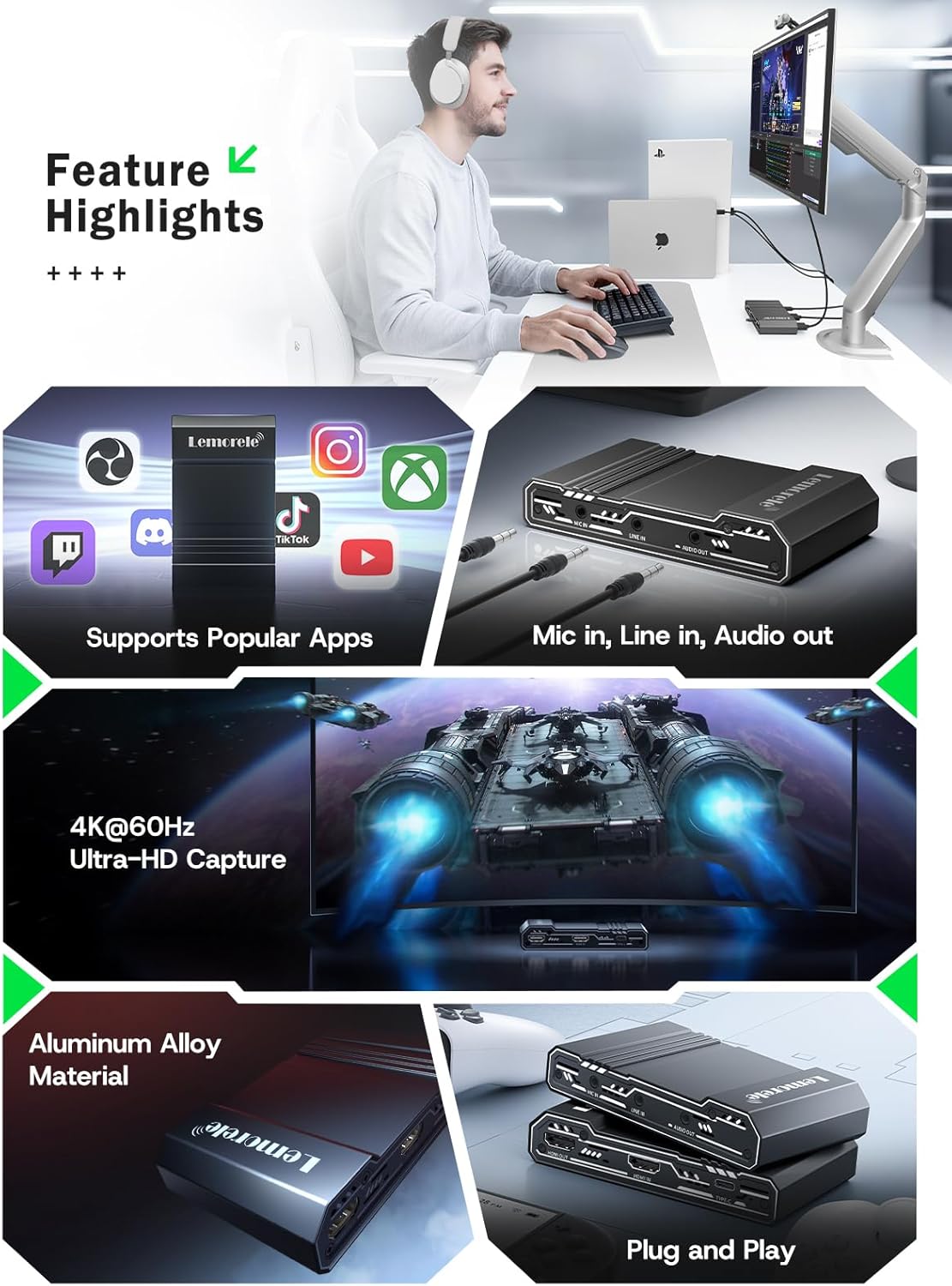
Immagine: in alto view of the capture card highlighting the HDMI OUT, HDMI IN, and Type-C ports. The HDMI OUT port is for looping out the display, HDMI IN is for the device being captured, and Type-C is for connecting to the acquisition device (computer).

Immagine: Lato view of the capture card highlighting the MIC IN, LINE IN, and AUDIO OUT ports. These ports are used for connecting external microphones, mixers, and audio output devices respectively.
3.2. Descrizioni delle porte
- USCITA HDMI: Connects to a display (monitor, TV, projector) for zero-latency passthrough.
- INGRESSO HDMI: Connects to the source device (gaming console, camera, laptop) for video input.
- TIPO-C: Connects to your computer (laptop, PC, Mac, iPad Pro) for data transfer and power.
- INGRESSO MICROFONO: Connects to an external microphone for audio input.
- LINEA IN: Connects to an audio mixer or instrument for additional audio input.
- USCITA AUDIO: Si collega alle cuffie o agli altoparlanti per il monitoraggio audio.
4. Impostazione
Follow these steps to set up your Lemorele 4K HDMI Video Capture Card:
- Connetti il dispositivo di origine: Connect your HDMI source device (e.g., Nintendo Switch dock, PS5, Xbox, camera) to the HDMI IN porta sulla scheda di acquisizione tramite un cavo HDMI.
- Collega il display (facoltativo): If you wish to monitor your gameplay or video feed without latency, connect your display (monitor, TV) to the Uscita HDMI porta sulla scheda di acquisizione tramite un cavo HDMI.
- Connessione al computer: Connect the capture card to your computer (laptop, PC, Mac, iPad Pro) using the provided USB-C to USB-A cable. Plug the USB-C end into the TIPO-C port on the capture card and the USB-A end into an available USB 3.0 port on your computer.
- Connetti l'audio (opzionale): For external audio input, connect your microphone to the INGRESSO MICROFONO port or an audio mixer to the LINEA IN port. For audio monitoring, connect headphones or speakers to the USCITA AUDIO porta.
- Configurazione del software: Install and open your preferred video capture software (e.g., OBS Studio, Zoom, Twitch, YouTube). The capture card should be recognized as a video input device.
Video: This video demonstrates the connection process for the Lemorele AC09 video capture card, showing how to connect the HDMI IN, HDMI OUT, and Type-C ports to a Nintendo Switch dock, a monitor, and a laptop for capturing game footage using OBS Studio.

Image: A visual diagram illustrating the connection of the capture card to a gaming console (PS5), a monitor, and a laptop for streaming and recording.
5. Istruzioni per l'uso
Once the capture card is set up, you can begin capturing or streaming your content.
5.1. Using with OBS Studio (Example)
- Apri OBS Studio sul tuo computer.
- Nel pannello "Fonti", fare clic su "+' icon and select 'Dispositivo di acquisizione video'.
- Create a new source or select an existing one. In the device dropdown, choose your Lemorele capture card (it may appear as 'USB Video' or similar).
- Configure resolution, FPS, and audio input settings as needed. Ensure 'Use custom audio device' is checked and select the capture card's audio input.
- Click 'OK' to add the source. You should now see your video feed in OBS.
- Adjust the video source size and position within the preview finestra.
- To start recording or streaming, click the 'Start Recording' or 'Start Streaming' button in OBS Studio.
5.2. Controllo audio
The capture card features dedicated MIC IN and LINE IN ports for advanced audio integration. Ensure your capture software is configured to use these audio inputs for optimal sound quality.
Video: Questo video fornisce una panoramicaview of the Lemorele 4K HDMI Video Capture Card, showcasing its features and various applications in gaming, streaming, and professional settings.

Image: A user is shown actively streaming a game, with the capture card connected to a console and a laptop running streaming software, demonstrating a typical usage scenario.
6 Caratteristiche
- 4K@60Hz Ultra HD Passthrough: Supports 4K@60Hz zero-lag passthrough to a display while capturing video at 1080p, ensuring a smooth viewing experience for the user and high-quality capture for the audience.
- Controllo audio avanzato: Dedicated MIC IN and LINE IN ports allow direct connection to external microphones, mixers, or instruments, facilitating professional audio integration for various content creation needs.
- Comprehensive I/O Connectivity: Equipped with HDMI IN & OUT, USB-C, and AUDIO OUT ports, providing flexible setup options for connecting gaming consoles, cameras, laptops, and monitors.
- Stable & Reliable Performance: The durable aluminum alloy body ensures efficient heat dissipation and anti-interference protection, supporting continuous operation during extended streaming or recording sessions.
- Plug-and-Play Wide Compatibility: Works seamlessly with Windows, macOS, and iPad Pro, and supports popular software such as OBS Studio, Zoom, Twitch, and YouTube. Compatible with PS5, Xbox Series X/S, Nintendo Switch, and DSLR cameras.

Image: This graphic highlights key features of the capture card, including support for popular streaming applications, dedicated audio input/output ports, 4K@60Hz Ultra-HD capture, durable aluminum alloy construction, and plug-and-play functionality.
7. Risoluzione Dei Problemi
In caso di problemi, fare riferimento ai seguenti problemi comuni e alle relative soluzioni:
- Nessun segnale video:
- Assicurarsi che tutti i cavi HDMI siano collegati saldamente alle porte corrette (HDMI IN dalla sorgente, HDMI OUT al display).
- Verify the source device is powered on and outputting video.
- Check your capture software settings to ensure the correct video capture device is selected and configured.
- Disable HDCP on your source device (e.g., PS5 settings) if you are experiencing a blank screen.
- Nessun audio:
- Confirm audio cables are correctly connected to MIC IN, LINE IN, or AUDIO OUT ports.
- In your capture software, ensure the audio input device is correctly selected and not muted.
- Controlla le impostazioni audio sul tuo dispositivo sorgente.
- Video in ritardo o a scatti:
- Assicurati che il tuo computer soddisfi i requisiti minimi di sistema per l'acquisizione e lo streaming video.
- Use a USB 3.0 port for connecting the capture card to your computer.
- Chiudere le applicazioni non necessarie in esecuzione in background per liberare risorse di sistema.
- Ridurre la risoluzione di acquisizione o la frequenza dei fotogrammi nelle impostazioni del software.
- Dispositivo non riconosciuto:
- Try connecting the capture card to a different USB port on your computer.
- Riavvia il computer.
- Assicurati che il tuo sistema operativo sia aggiornato.
8. Specifiche
| Caratteristica | Dettaglio |
|---|---|
| Marca | Lemorele |
| Modello | 4K60HZ |
| Interfaccia Hardware | Audio da 3.5 mm, HDMI, USB 3.0 tipo C |
| Max HDMI Input Resolution | 4K a 60 Hz |
| Risoluzione massima passthrough HDMI | 4K a 60 Hz |
| Risoluzione di acquisizione massima | Formato: 1080p |
| Peso dell'articolo | 9.8 once |
| Dimensioni del pacco | 6.1 x 4.02 x 1.42 pollici |
| Materiale | Lega di alluminio |
| Compatibilità | Windows, macOS, iPad Pro, OBS Studio, Zoom, Twitch, YouTube, PS5, Xbox Series X/S, Nintendo Switch, DSLR cameras |
9. Manutenzione
To ensure the longevity and optimal performance of your capture card, follow these maintenance guidelines:
- Pulizia: Utilizzare un panno morbido e asciutto per pulire l'esterno del dispositivo. Evitare l'uso di detergenti liquidi o materiali abrasivi.
- Magazzinaggio: Conservare il dispositivo in un luogo fresco e asciutto, lontano dalla luce solare diretta e da temperature estreme.
- Gestione: Maneggiare il dispositivo con cura per evitare danni fisici. Evitare di farlo cadere o di sottoporlo a forti urti.
- Ventilazione: Ensure the device has adequate ventilation during operation to prevent overheating, especially during long streaming sessions. The aluminum alloy body is designed for efficient heat dissipation.
10. Garanzia e supporto
Lemorele products are designed for reliability and performance. This product comes with a standard manufacturer's warranty. For specific warranty details, please refer to the warranty card included in your package or visit the official Lemorele websito.
For technical support, troubleshooting assistance, or any inquiries regarding your Lemorele 4K HDMI Video Capture Card, please contact our customer support team:
- E-mail: support@lemorele.com
- Websito: Visit the Lemorele official websito per FAQ e risorse aggiuntive.