
1. Introduzione
This manual provides detailed instructions for the setup, operation, maintenance, and troubleshooting of your NuPhy Node100 Wireless Mechanical Keyboard. Please read this manual thoroughly to ensure proper use and to maximize your keyboard's functionality.
2. Caratteristiche principali
- Gesture Touch: The Node100 mechanical keyboard is equipped with a touch area at the top. Through this area, you can change the volume or brightness by sliding control, which can be configured via NuPhyIO software.
- Connessione tri-modale: This wireless keyboard supports Bluetooth, 2.4GHz, and USB-C wired connections. It can connect to up to five devices simultaneously and switch between them effortlessly using shortcut keys and side buttons.
- Progettazione del supporto della guarnizione: The keyboard features a gasket mount design that ensures a smooth and quiet typing experience. This design effectively reduces vibration and noise while providing consistent comfort and eliminates hollow echoes.
- Backlighting & PBT Keycaps: With NuPhyIO, you can easily customize the backlight of the Node100 keyboard. The double-shot PBT keycaps effectively prevent characters from fading and provide a durable touch.
- Risposta rapida: The 2.4GHz mode and wired mode can achieve a 1000Hz polling rate, allowing for quick response during use, suitable for both gaming and office tasks.
3. Contenuto della confezione
Upon unboxing your NuPhy Node100 keyboard, verify that all the following items are included:
- 1 x Node100 Keyboard
- Ricevitore 1 x 2.4G
- 1 cavo da USB-C a USB-C
- 1 adattatore da USB-C a USB-A
- 1 x estrattore per tasti/interruttori
- Extra Keycaps (6 for Low-Profile, 7 for High-Profile)
- 1 x Quick Start Guide (with FAQ & Instructions)
Video: This video demonstrates the unboxing process of the NuPhy Node100 keyboard, showcasing the contents of the package including the keyboard, cables, and accessories.

Image: A visual representation of the NuPhy Node100 keyboard along with its complete set of accessories, including the USB-C cable, 2.4G receiver, keycap/switch puller, and extra keycaps.
4. Configurazione e connessione
4.1. Modalità di connessione
The Node100 keyboard supports three connection types:
- USB-C cablato: For a direct, plug-and-play connection.
- Bluetooth: For wireless connection to up to three devices.
- Wireless a 2.4 GHz: For a low-latency wireless connection using the included receiver.

Image: A diagram illustrating the three available connection modes for the Node100 keyboard: USB-C for wired, Bluetooth for wireless, and 2.4GHz for wireless with a dedicated dongle.
4.2. Cambiare la modalità di connessione
Use the side switch on the keyboard to select your desired connection mode:
- Scorri verso USB-C for wired mode.
- Scorri verso Bluetooth for wireless Bluetooth mode. Press Fn + 1/2/3 per passare da un dispositivo Bluetooth associato all'altro.
- Scorri verso 2.4GHz for wireless 2.4GHz mode. Press Fn + 4 per attivare.

Immagine: un primo piano view of the side of the Node100 keyboard, highlighting the USB-C port and the physical switches used to select between wired, Bluetooth, and 2.4GHz wireless connection modes.
5. Istruzioni per l'uso
5.1. Gesture Touch Functionality
The Node100 features a touch area at the top for intuitive control:
- Slide your finger across the touch area to adjust volume or screen brightness.
- This functionality can be customized using the NuPhyIO software.
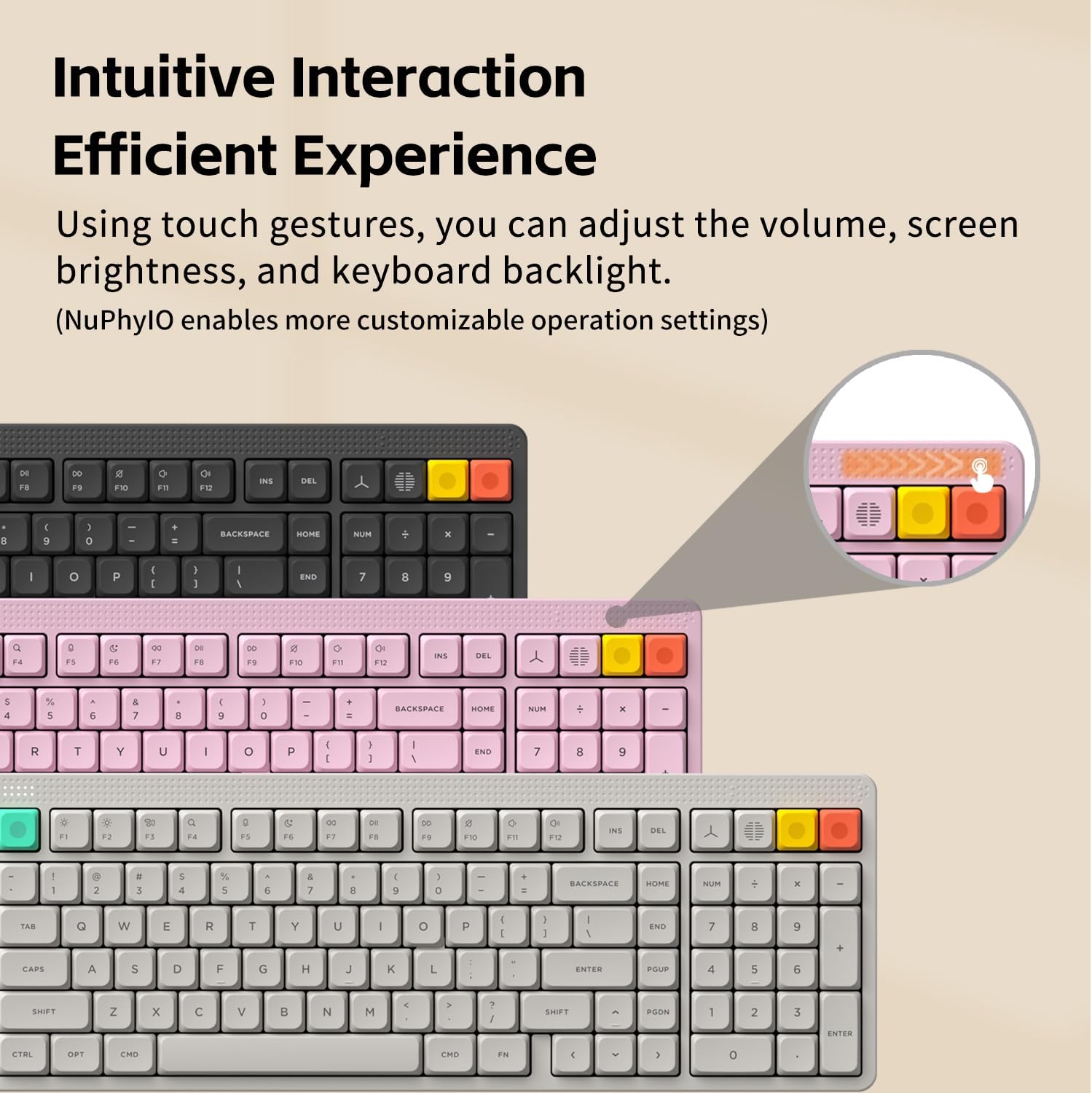
Image: A visual representation of the Node100 keyboard, specifically highlighting the gesture touch area located at the top, used for adjusting volume and screen brightness.
5.2. NuPhyIO Software Customization
The NuPhyIO software allows for extensive customization of your keyboard:
- Associazioni di tasti: Remap keys to suit your workflow.
- Funzioni avanzate: Assign special functions to keys.
- Effetti di luce: Customize RGB backlighting patterns and colors.
- Registrazione macro: Crea e assegna macro per comandi complessi.
Connect your keyboard via USB-C to your computer and access the NuPhyIO software to begin customization. The software supports Windows, macOS, and Linux systems.
Video: A tutorial demonstrating how to use the NuPhyIO software to customize key bindings and record macros, including setting a Mac lock screen function for enhanced productivity.
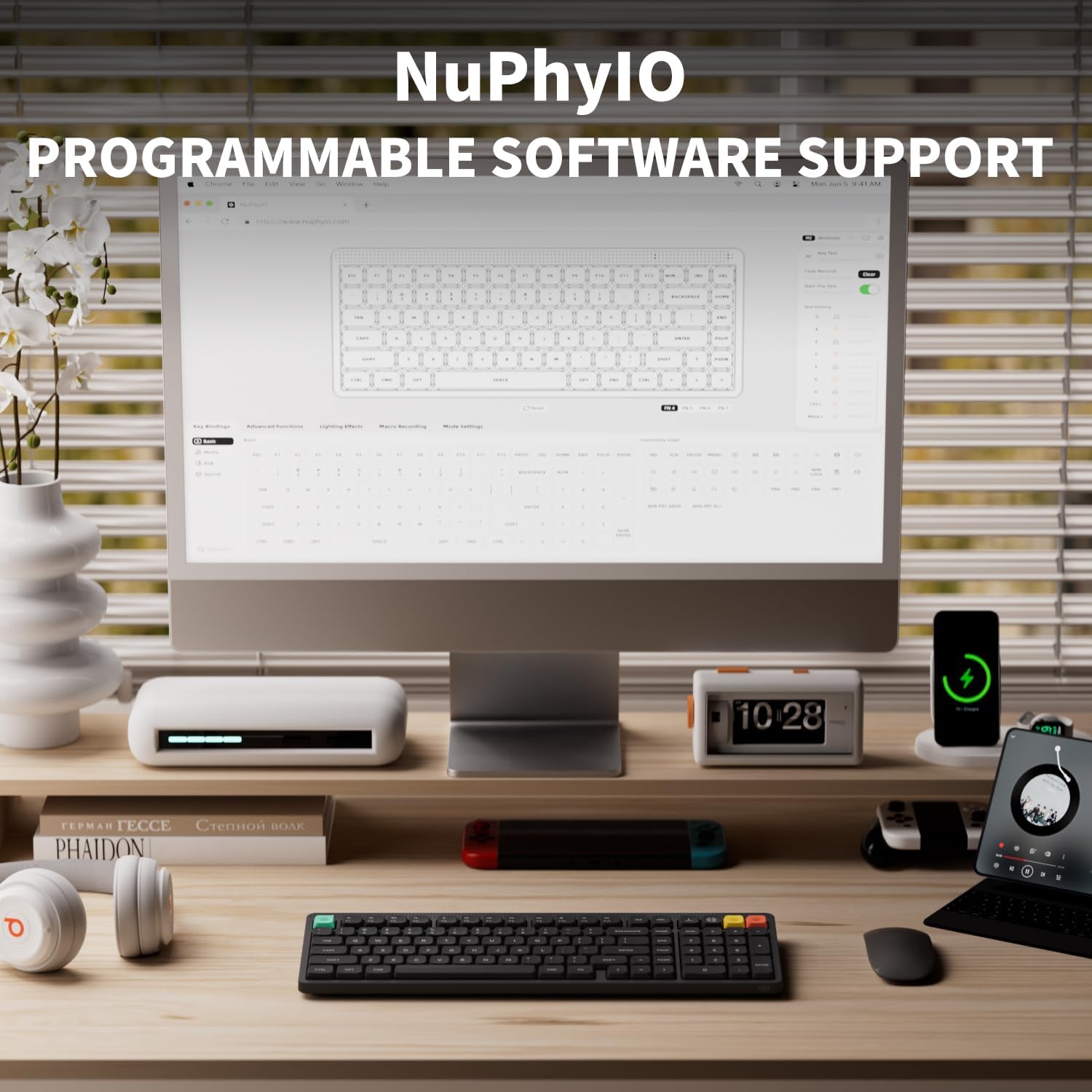
Image: A computer screen displaying the NuPhyIO software interface, which provides various options for programming key functions, customizing RGB lighting, and managing macros for the Node100 keyboard.
5.3. Adjustable Kickstand
La tastiera è dotata di due tastitage kickstand, allowing you to adjust the typing angle to 4°, 8°, or 10° for ergonomic comfort.

Immagine: Lato A view of the Node100 keyboard illustrating its two-stage adjustable kickstand, which can be set to angles of 4, 8, or 10 degrees for personalized ergonomic comfort.
6. Durata della batteria
The Node100 keyboard is equipped with a 3000mAh battery, providing:
- Approximately 60-100 hours of battery life with backlighting ON.
- Approximately 1000 hours of battery life with backlighting OFF.

Image: A visual highlighting the 3000mAh battery capacity of the NuPhy Node100 keyboard, emphasizing its extended battery life for prolonged use.
7. Manutenzione
7.1. Pulizia
- Per pulire la superficie della tastiera, utilizzare un panno morbido e asciutto.
- Per una pulizia più approfondita, utilizzare l'estrattore per tasti incluso per rimuovere i tasti e pulire la parte sottostante con aria compressa o una piccola spazzola.
- Evitare l'uso di prodotti chimici aggressivi o materiali abrasivi.
7.2. Sostituzione dei tasti e degli interruttori
The Node100 is hot-swappable, allowing for easy replacement of switches without soldering. Use the provided keycap/switch puller for safe removal and installation.

Image: An exploded diagram illustrating the internal components of the Node100 keyboard, showcasing its gasket mount structure which contributes to a softer and more consistent typing experience.
8. Risoluzione Dei Problemi
8.1. Problemi di connessione
- Wireless Disconnection: Ensure the keyboard is charged. Check that the 2.4GHz receiver is securely plugged in or that Bluetooth is enabled on your device and the keyboard is paired. Try re-pairing Bluetooth or re-inserting the 2.4GHz receiver.
- Lag or Delayed Input: In 2.4GHz or Bluetooth mode, ensure there are no strong interference sources nearby. For optimal performance, use wired mode or ensure the keyboard is close to the receiver/device.
- Keyboard Not Recognized (Wired): Ensure the USB-C cable is properly connected to both the keyboard and your computer. Try a different USB port or cable.
8.2. Funzionalità chiave
- I tasti non rispondono: Check if the keyboard is in the correct operating mode (Windows/Mac switch). If individual keys are not working, they might need to be reseated or replaced if they are hot-swappable.
- Problemi di retroilluminazione: Ensure backlighting is enabled via NuPhyIO or keyboard shortcuts. Check brightness settings.
8.3. Software Issues (NuPhyIO)
- Il software non rileva la tastiera: Ensure the keyboard is connected via USB-C and the correct mode is selected. Restart the NuPhyIO software and/or your computer.
- Customizations Not Applying: Ensure you have saved and applied changes within the NuPhyIO software.
9. Specifiche
| Caratteristica | Dettaglio |
|---|---|
| Marca | nuphy |
| Numero di modello | NuPhy Node100 keyboard |
| Tecnologia di connettività | USB-C/2.4 GHz/Bluetooth |
| Numero di chiavi | 103 |
| Tipo di interruttore | Mechanical (Blush Nano Switch for this variant) |
| Disposizione della tastiera | Tastiera QWERTY |
| Caratteristiche speciali | Backlit, Programmable Keys, Hot-Swappable, Gesture touch, Ergonomic |
| Dispositivi compatibili | Laptop, MAC, PC, Tablet |
| Usi consigliati | Gioco, Ufficio |
| Materiale | Acrilonitrile Butadiene Stirene, Policarbonato |
| Peso dell'articolo | 787.3 grammi |
| Fonte di alimentazione | Alimentazione USB |
10. Garanzia e supporto
For warranty information and technical support, please refer to the official NuPhy website or contact their customer service directly. Details are typically provided in the Quick Start Guide included with your product.
Puoi anche visitare il NuPhy Store on Amazon per ulteriori risorse e informazioni di contatto.


