
Antec Vortex View 360
Antec Vortex View 360 AIO Liquid CPU Cooler Instruction Manual
Modello: Vortex View 360
Introduzione
Thank you for choosing the Antec Vortex View 360 AIO Liquid CPU Cooler. This manual provides essential information for the proper installation, operation, and maintenance of your new cooling system. Please read this manual thoroughly before installation to ensure optimal performance and longevity of your product.

Un oltreview of the Antec Vortex View 360 AIO Liquid CPU Cooler, showcasing the 360mm radiator with three 120mm fans and the pump block with its integrated 5-inch IPS display.
Informazioni sulla sicurezza
Per evitare danni al prodotto o lesioni personali, osservare le seguenti precauzioni di sicurezza:
- Ensure all power is disconnected from your computer before installation or maintenance.
- Maneggiare i componenti con cura per evitare danni.
- Do not open the pump or radiator, as this may void the warranty and cause liquid leakage.
- Keep the product away from extreme temperatures, humidity, and direct sunlight.
- Utilizzare solo gli accessori e l'hardware di montaggio forniti.
Contenuto della confezione
Verifica che tutti i componenti siano presenti nel tuo pacchetto:
- Antec Vortex View 360 AIO Cooler (Radiator, Pump, Fans)
- Mounting Hardware for Intel (LGA 115X/1200/1700/1851)
- Hardware di montaggio per AMD (AM4/AM5)
- USB 3.0 Hub with Passthrough Cable
- Cavi per ventole e RGB
- Manuale d'uso

A visual representation of the components included in the Antec Vortex View 360 AIO cooler package, alongside a list of supported CPU sockets: Intel LGA115X/1200/1700/1851 and AMD AM4/AM5.
Guida all'installazione
1. Preparazione
- Identifica il tipo di socket della tua CPU (Intel LGA o AMD AM).
- Ensure your PC case has adequate space for a 360mm radiator.
- Gather necessary tools (screwdriver, etc.).
2. Mounting the Radiator and Fans
- Attach the three 120mm fans to the radiator using the provided screws. Ensure the fan airflow direction is appropriate for your case's cooling strategy.
- Mount the radiator assembly to the designated location in your PC case (e.g., top, front).
3. Installing the Pump Block
The pump block comes with pre-applied thermal paste. If you prefer to use your own, carefully clean off the pre-applied paste before applying a new layer.
- Install the appropriate mounting brackets for your CPU socket onto the pump block.
- Carefully place the pump block onto your CPU, aligning it with the mounting holes.
- Secure the pump block using the provided thumb screws or nuts, tightening them in a cross pattern until snug.
- For optimal thermal contact, orient the cold plate as follows: Intel CPUs at 6 o'clock, AMD CPUs at 3 o'clock.

Illustrations detailing the recommended cold plate orientation for Intel (6 o'clock) and AMD (3 o'clock) processors to ensure optimal thermal contact and efficient heat transfer.
The integrated 5-inch IPS display on the pump block features a 360° Rotatable Ball Joint. This allows you to freely adjust and lock the display angle after installation using the built-in twist dial, ensuring optimal viewing from any angle without needing tools.
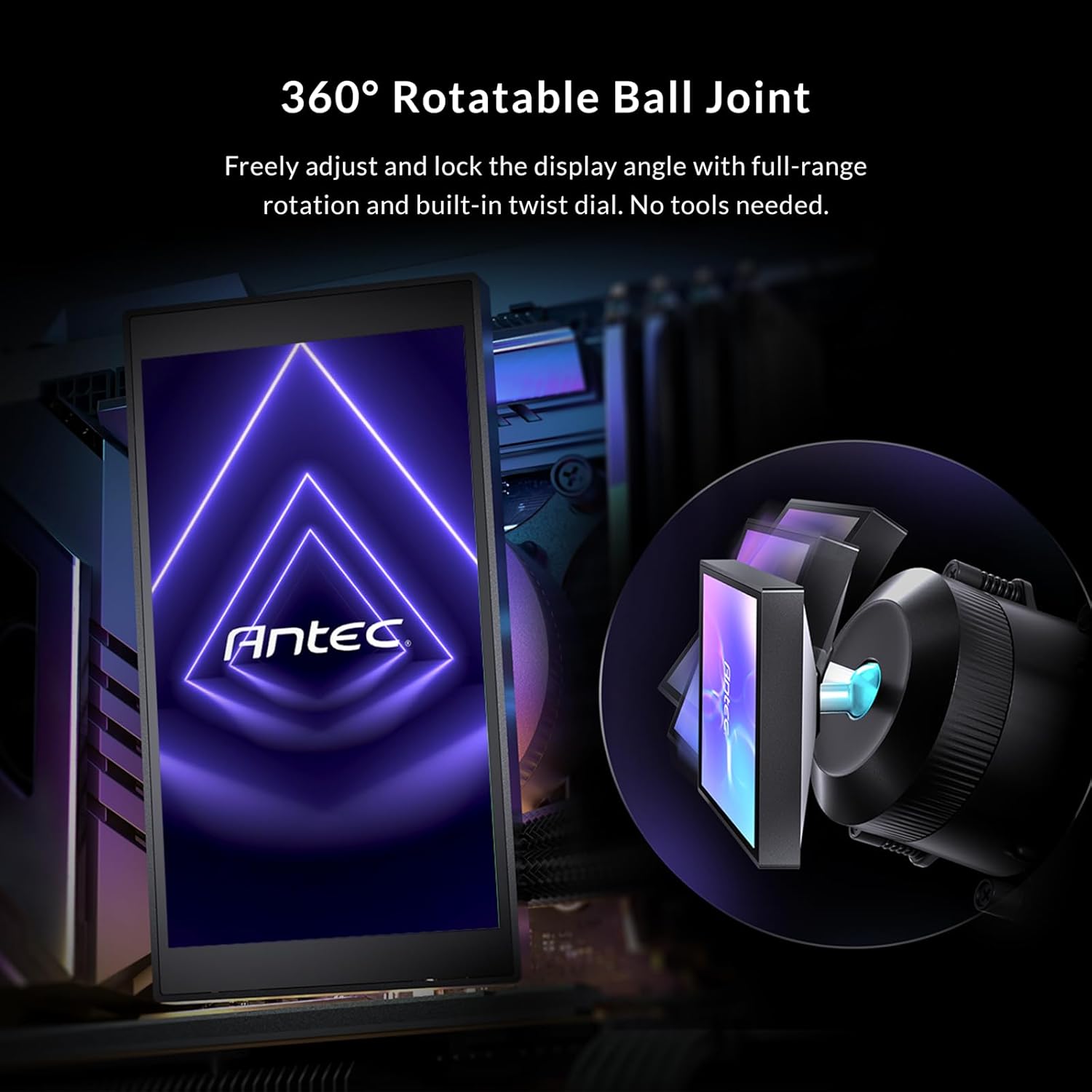
This image illustrates the 360° rotatable ball joint on the pump block, allowing users to freely adjust and lock the display angle for optimal viewing without tools.
4. Cavi di collegamento
- Connect the fan PWM cables to the CPU_FAN or AIO_PUMP headers on your motherboard, or to a fan hub if applicable.
- Connect the pump power cable to the dedicated AIO_PUMP header or a suitable fan header on your motherboard.
- Connect the USB cable from the pump to the provided USB 3.0 Hub with Passthrough. Then, connect the USB hub to an available USB 2.0 or 3.0 header on your motherboard. This allows the pump to communicate with the Antec iUnity software while keeping front-panel USB ports accessible.
- Connect the RGB cables from the fans and pump to your motherboard's ARGB header or a compatible RGB controller.

This diagram explains the USB 3.0 Hub with Passthrough feature, allowing the pump to connect to the motherboard while maintaining accessibility for front-panel USB ports.
Istruzioni per l'uso
IPS Display Customization
The Antec Vortex View 360 features a vivid Display IPS 5-inch with 1280x720 resolution and 300 nits brightness. This display is fully customizable via the Antec iUnity software to show real-time CPU/GPU temperatures, system statistics, animated GIFs, or personalized images.
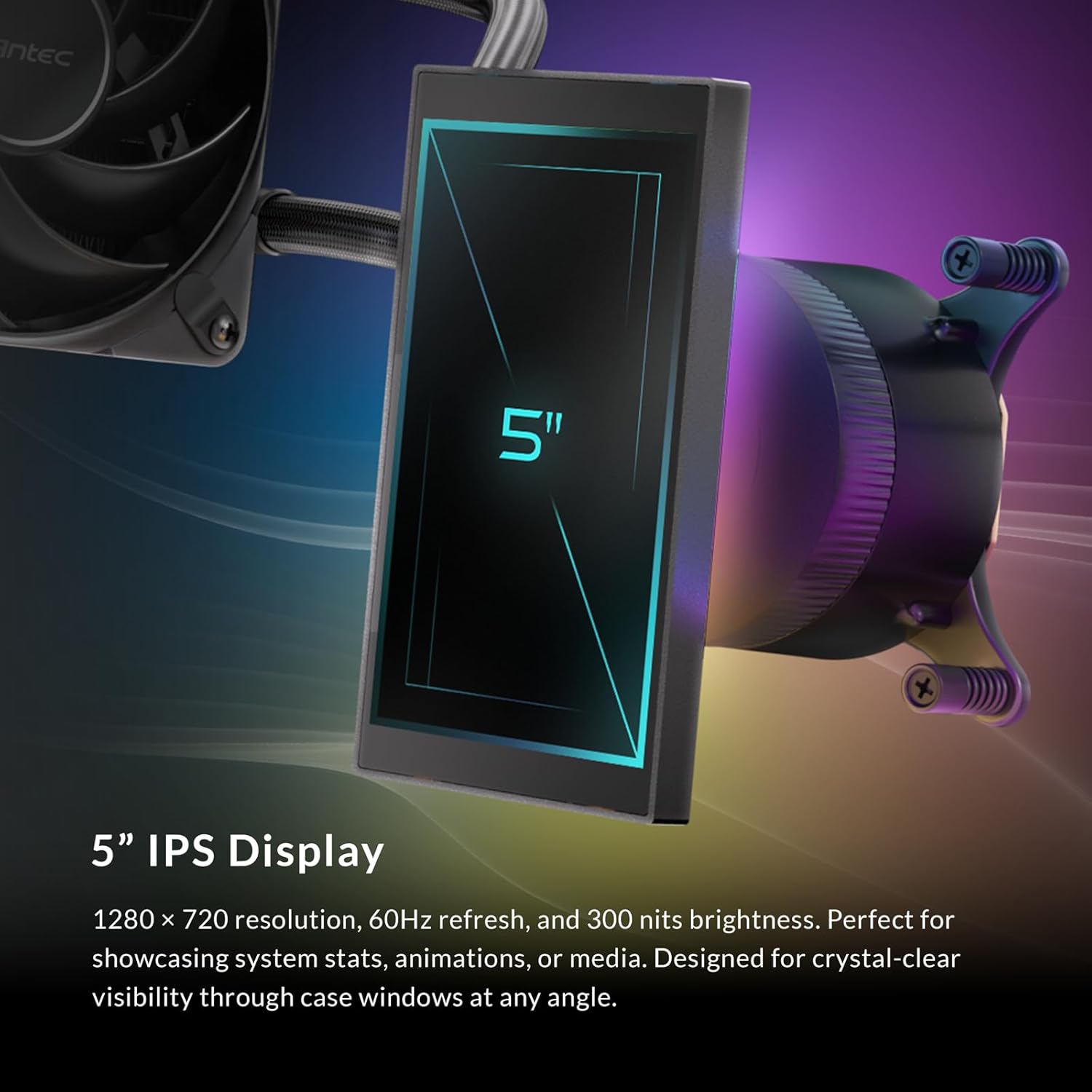
Un dettagliato view of the 5-inch IPS display, highlighting its 1280x720 resolution, 60Hz refresh rate, and 300 nits brightness, designed for clear visibility of system stats, animations, or custom media.
Antec iUnity 2.0 Software
Download and install the Antec iUnity 2.0 software from the official Antec website. This software provides comprehensive control over your cooling system:
- Fan and Pump Curves: Adjust fan speeds and pump performance based on temperature thresholds.
- Illuminazione RGB: Customize the addressable RGB backglow system with various effects and colors.
- Display Personalization: Upload custom images, GIFs, or select from pre-set monitoring displays for the IPS screen.

A screenshot of the iUnity 2.0 software dashboard, demonstrating its capabilities for adjusting fan and pump curves, customizing per-zone RGB lighting on the Vortex View, and personalizing the display content.
RGB Backglow System
The pump block features an addressable RGB panel behind the display, delivering customizable ambient lighting. This system can be synchronized with other RGB components in your PC via the Antec iUnity software, allowing you to set custom lighting zones and effects.

This image demonstrates the addressable RGB panel located behind the display, providing customizable ambient lighting across the pump block and adjacent components, controllable via Antec iUnity software.
Manutenzione
Regular maintenance helps ensure the longevity and optimal performance of your AIO cooler:
- Pulizia della polvere: Pulire periodicamente le alette del radiatore e le pale della ventola con aria compressa per evitare l'accumulo di polvere, che può ostacolare il flusso d'aria e le prestazioni di raffreddamento.
- Gestione dei cavi: Assicurarsi che tutti i cavi siano collegati saldamente e non ostruiscano il flusso d'aria.
- Aggiornamenti software: Keep the Antec iUnity software updated to the latest version for new features and performance improvements.
- Ispezione delle perdite: While rare, periodically check for any signs of liquid leakage around the pump block and tubing. If a leak is detected, immediately power off your system and contact Antec support.

Un interno view of the Vortex View pump, illustrating its engineering for low-resonance operation and sub-14 dBA acoustics at 2800 RPM, ensuring quiet performance.
Risoluzione dei problemi
In caso di problemi, fare riferimento ai seguenti passaggi comuni per la risoluzione dei problemi:
- Nessuna alimentazione/Le ventole non girano:
- Check all power connections to the pump and fans.
- Ensure the pump is connected to the correct motherboard header (AIO_PUMP or CPU_FAN).
- Verify fan cables are properly connected to the motherboard or fan hub.
- Temperature elevate della CPU:
- Confirm the pump block is securely mounted to the CPU and making good contact.
- Check if thermal paste is properly applied.
- Assicurarsi che le ventole girino e siano orientate correttamente per un flusso d'aria ottimale.
- Pulire eventuali accumuli di polvere sulle alette del radiatore.
- Verify pump and fan speeds in Antec iUnity software.
- Display Not Working/Showing Incorrect Info:
- Ensure the USB cable from the pump to the USB hub, and from the hub to the motherboard, is securely connected.
- Restart the Antec iUnity software.
- Check for software updates for Antec iUnity.
- RGB Not Functioning:
- Verify all RGB cables are correctly connected to the motherboard's ARGB header or controller.
- Check RGB settings in Antec iUnity software or your motherboard's RGB software.
Specifiche
| Caratteristica | Dettaglio |
|---|---|
| Dimensioni del prodotto | 15.51 cm L x 4.72 cm P x 1.06 cm A |
| Marca | Antec |
| Tipo di connettore di alimentazione | 4 pin |
| Voltage | 12 Volt |
| Cosatage | 400 watts (TDP support) |
| Metodo di raffreddamento | Acqua |
| Dispositivi compatibili | Scrivania |
| Livello di rumore | 28.6 Decibels (Fans), Sub-14 dBA (Pump at 2800 RPM) |
| Massima velocità di rotazione | 2000 giri/min (ventole) |
| Capacità del flusso d'aria | 59.23 piedi cubi al minuto |
| Peso dell'articolo | 4 libbre |
| Modello | Vortice View 360 |
| Compatibilità socket CPU | Intel LGA 115X/1200/1700/1851 & AMD AM4/AM5 |
| Schermo IPS | 5" IPS, 1280x720 resolution, 300 nits brightness |
Garanzia
The Antec Vortex View 360 AIO Liquid CPU Cooler comes with a Garanzia di 6 anno from the date of purchase. This warranty covers defects in materials and workmanship under normal use. Please retain your proof of purchase for warranty claims. For detailed warranty terms and conditions, please refer to the official Antec websito.
Supporto
For technical assistance, troubleshooting beyond this manual, or warranty inquiries, please visit the official Antec support website or contact their customer service. You can typically find contact information on the Antec websito o sulla confezione del prodotto.
Antec Ufficiale Websito: www.antec.com
Ask a question about this manual
Ask about setup, troubleshooting, compatibility, parts, safety, or missing instructions. Manuals+ will review the question and use this page’s manual context to help answer it.